Test and troubleshoot SAML
Validate assertions and diagnose federation failures.
Test and troubleshoot SAML
Test the complete browser sign-in from your service provider (SP) through Unidy and back to the application. A successful metadata download or a 200 response from Unidy is only one step; the SP must validate the assertion and create the correct application session.
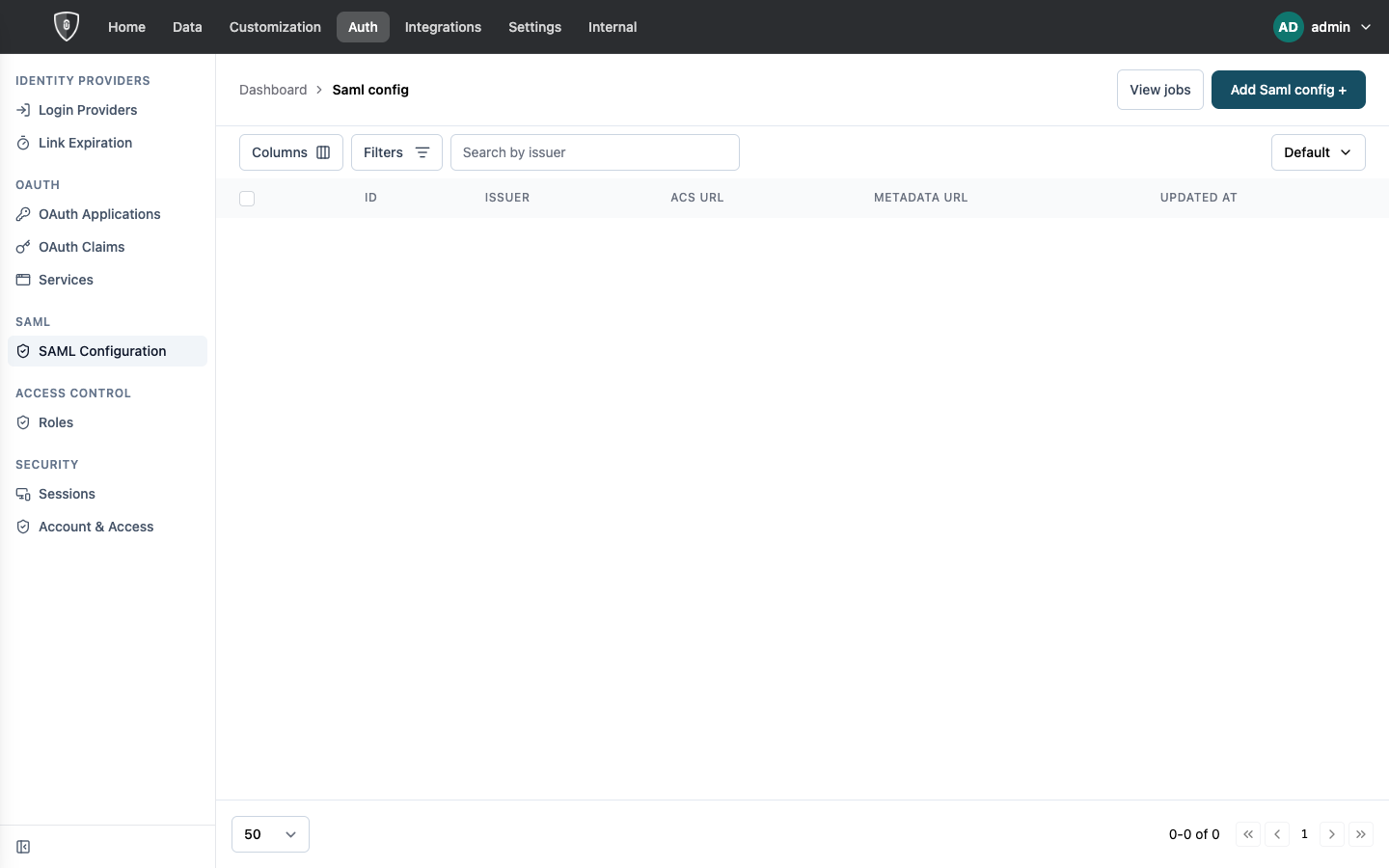
AUTH → SAML CONFIGURATION — the complete set of controls on the screen: View jobs, Add Saml config +, Columns, Filters, a search box that searches the issuer, and a saved-view picker. Nothing tests anything. The seeded account has no connections, which is why the list is empty.
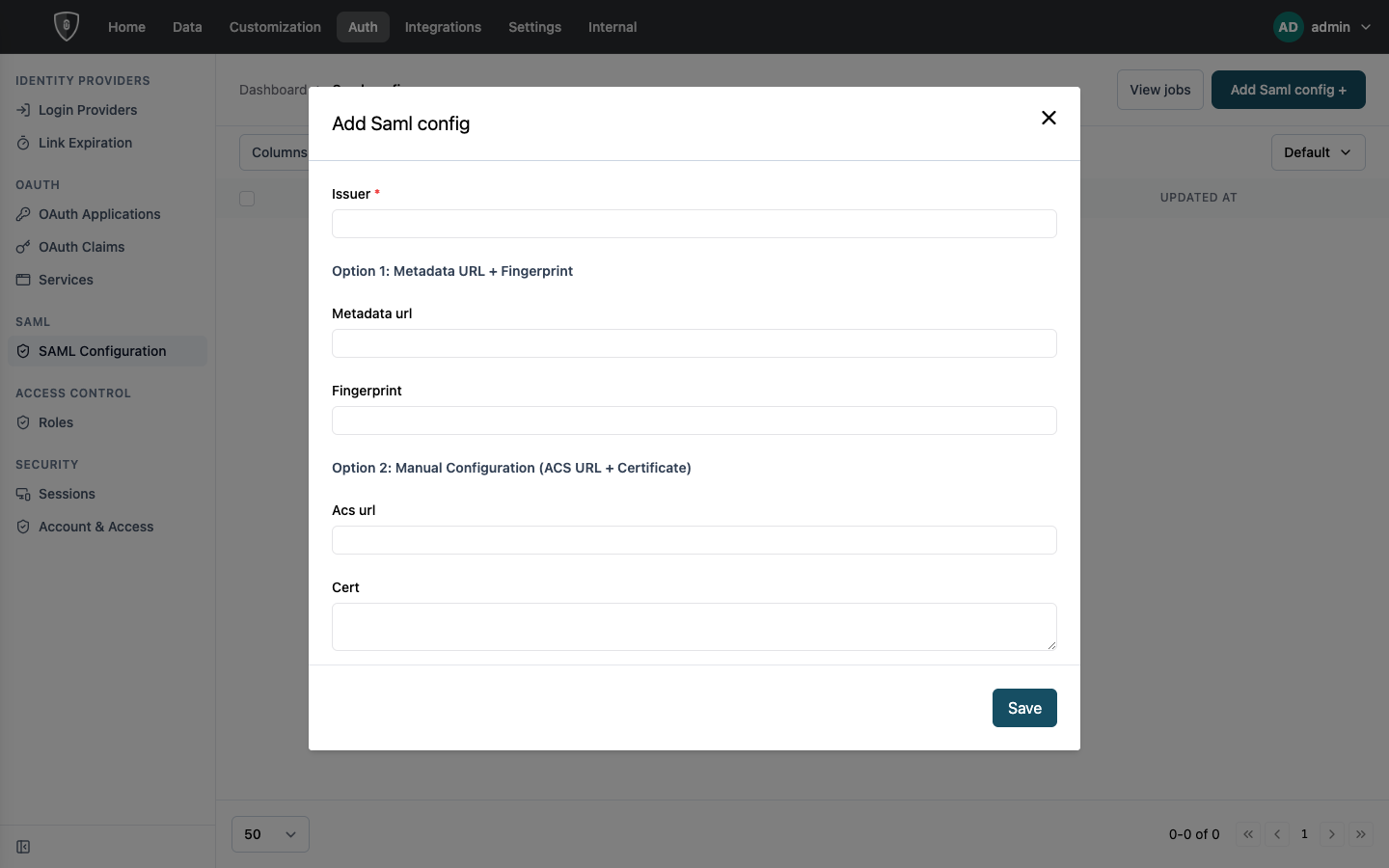
The Add Saml config modal, opened and not saved. The footer holds one button. Nothing here contacts the service provider, fetches the metadata URL you type, or checks that the certificate parses.
Preflight checklist
Before the first attempt:
- Download metadata from the agreed brand host and compare its entity ID, SSO URL, and signing certificate with the SP configuration. A site-locked brand may require HTTP basic authentication for the download.
- Compare the SP's actual
AuthnRequestissuer with the Unidy connection's Issuer field, character for character. - Confirm the ACS URL and its bare hostname. Add exact Response hosts, without schemes, paths, or wildcard patterns. A saved ACS URL takes precedence over the request's ACS URL.
- Confirm at least one complete registration pair: ACS URL + SP certificate, or SP metadata URL + fingerprint. Both pairs may coexist.
- Synchronize the SP's clock and create a fresh request for each attempt. The request must be no more than ten minutes old and no more than one minute in the future.
- Use a test account that can sign in and complete the brand's required profile fields. Accounts awaiting a real email address must complete that step too.
- Configure the SP for signed assertions, the actual IdP issuer, the correct audience and recipient, and the current assertion attributes.
Verify a successful sign-in
- Start from the SP's normal login action in a browser with no Unidy session. Complete Unidy login and any required profile or real-email step.
- Confirm the browser returns to the intended ACS URL. Unidy uses an automatically submitted HTML form; with JavaScript disabled, use the displayed submit button.
- Check the SP's validation result. It must verify the assertion signature against the trusted IdP certificate, the issuer, audience, destination, recipient,
InResponseTo, and all applicable time conditions. - Confirm that the SP creates a local session for the intended test account. Verify email, display name, and account linking;
group=unidymust not accidentally grant a role or entitlement. - Repeat while already signed in to Unidy. Check that returning to the SP still produces the intended identity and application session.
- Test your application's sign-out behavior separately. Ending the Unidy session does not propagate logout to other SPs; the current endpoint does not implement a SAML Single Logout response.
If your application requires a display name, include an account with blank first and last names in your test plan: fullName can have no value. If it uses email for account matching, include the agreed email-change behavior in acceptance testing.
Use your SP's supported test harness or integration tests where available. Protect captured assertions like other authentication credentials; avoid placing complete responses or session cookies in ordinary support messages.
Diagnose by symptom
Errors can stay in the browser at a Unidy URL instead of returning a SAML error response to the SP. Inspect the browser's network status and the SP's own validation result before changing settings.
| Symptom or status | What to check | Next action |
|---|---|---|
Metadata download returns 401 or prompts for a username and password | Brand site lock protects metadata independently of Unidy login. | Arrange authorized basic-auth access or obtain a metadata file through your Unidy contact. |
| Hosted login appears before returning to the SP | No usable Unidy browser session exists. | Complete login; this is expected in the signed-out test. If the request expires while signing in, start a new request at the SP. |
| A required-field or real-email form appears | The account must complete the brand's profile or real-email requirements before SAML validation. | Complete the form, resume the flow, and restart from the SP if the request has expired. |
Blank page with 403 at /saml/auth | The request was rejected. An unknown issuer or an unaccepted ACS host can produce this result. | Check the issuer first, then the resolved ACS URL and exact response-host list. Capture the attempt time and request ID for support if both match. |
400 at /saml/auth | A missing or invalid ISO 8601 IssueInstant can cause this response. | Use the SP's supported request generator; inspect the generated timestamp and retry with a fresh request. Escalate other malformed-request cases with details. |
Sign-in request expired with 410 | The request is older than ten minutes or more than one minute in the future. Login and profile-completion time count toward this window. | Check the SP's clock, then restart at the SP. Replaying the same request will not reset its age. |
406 from a direct request to /saml/auth or /saml/logout | These are browser flow endpoints; a non-browser request format can be rejected. | Test through the SP's browser flow. Use /saml/metadata for XML retrieval. |
500 from metadata or authentication | This can be a server configuration or request-processing error; status alone does not identify the cause. | Send the host, endpoint, timestamp/time zone, status, and request ID to Unidy. Do not disable SP validation to bypass it. |
| The browser stays on the handoff page | The assertion form has not reached the ACS. JavaScript, browser policy, networking, or the ACS may be involved. | Inspect the browser network and console. With JavaScript disabled, use the fallback submit button; confirm the POST reaches the expected ACS. |
Unidy returns 200, but the SP rejects login | The handoff succeeded, but the SP rejected the response or could not match the account. | Read the SP error. Check trusted certificate, issuer, signed-assertion requirement, request correlation, recipient/audience, clock, NameID compatibility, and required attributes. |
| An attribute mapping is blank or incorrect | Metadata declarations differ from the assertion's actual attribute names. | Map name to email, fullName to display name, and treat group as a constant. Verify the actual assertion in a controlled test. |
| SAML logout waits for a response or leaves another app signed in | Full SAML Single Logout is not implemented. | End the current application's local session explicitly and use only the agreed Unidy-session logout behavior. |
Certificate and signature checks
Use the certificate extraction and inspection recipe to compare the metadata certificate with the certificate trusted by your SP. Check its fingerprint and validity dates. Certificate changes should follow the agreed rollover procedure rather than an unverified replacement copied from an error page.
The assertion is signed; the outer response is not separately signed. An SP that requires both signatures will need a compatibility decision. Keep signed-assertion validation enabled.
Signing an AuthnRequest does not prove that Unidy enforced the request's signature: the current registration does not enable this enforcement. An apparently successful request is therefore not a test of that control. If enforced request signatures are required, resolve the requirement with Unidy before launch.
Configuration changes and disabling access
After a configuration change, start a new request and test both the accepted destination and the expected SP identity. Avoid replaying a captured assertion or an old request as evidence of current behavior.
Do not treat deleting a SAML configuration as proof that the integration stopped immediately: running servers cache registrations. Coordinate the required invalidation with Unidy and confirm that new sign-in attempts are rejected. If access must end urgently, also use the SP's own access controls while the Unidy-side shutdown is verified.
What to send support
Provide enough information to locate the request without disclosing secrets:
| Information | Where to find it |
|---|---|
| Brand host and affected environment | The browser URL and your integration configuration. |
| Attempt timestamp with time zone | Record a fresh test attempt, preferably with the request ID if available. |
| SP entity ID and Unidy connection issuer | The SP's request/configuration and the dashboard connection. Include both when they differ. |
| Expected and actual ACS URL | The SP configuration, Unidy connection, and browser POST destination. |
| Browser HTTP status and SP validation error | Browser network panel and SP logs. |
| Whether the user was already signed in, completed profile/real-email steps, and reached the ACS | The test sequence. Use a test-account identifier when possible. |
| Relevant changes | Certificate rollover, host/ACS change, account mapping, or recent configuration update. |
The dashboard registration shows configuration, not a request-level SAML delivery history. Unidy support may need server logs; the SP's own error is often the most useful evidence after an assertion reaches its ACS. Share any requested raw protocol capture through an approved secure channel and redact unrelated personal data, cookies, and credentials.
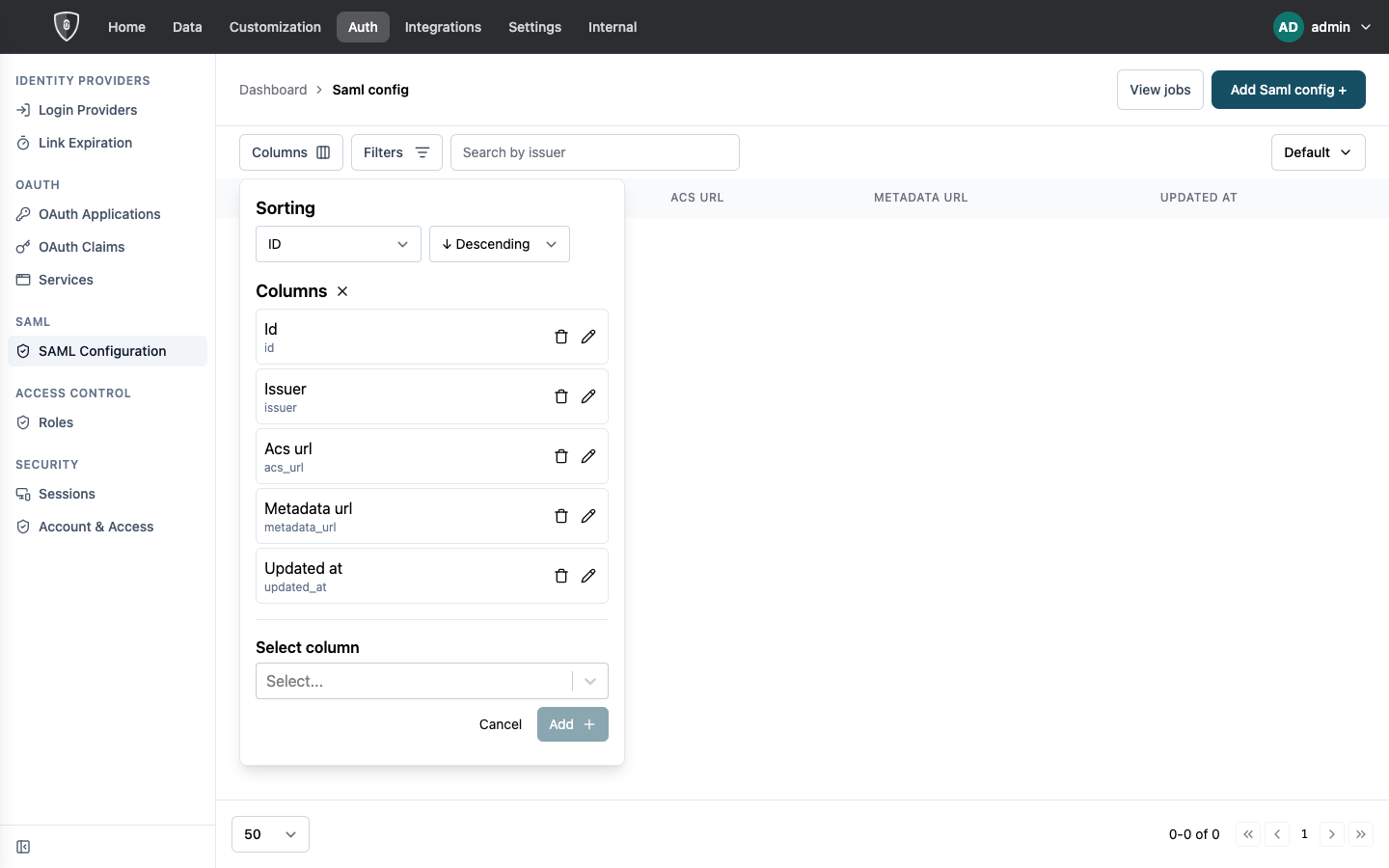
The column picker, open. The Select column list offers id, created_at, updated_at, issuer, acs_url, cert, fingerprint, metadata_url and response_hosts — read out of the DOM, since the expanded list does not render into a screenshot. That is the whole table. There is no column to add that would tell you whether this connection has ever been used.
Related
- SAML overview: assertion contract, timing, and limits.
- Metadata and certificates: trust setup and rollover.
- SAML configurations: registration fields and administration.