Lists, filters, and bulk actions
Use shared record-management controls.
Record lists share controls for search, columns, filters, saved views and bulk actions. Available fields and actions depend on the resource, enabled features and your permissions. A saved view never grants access to records you could not otherwise read.
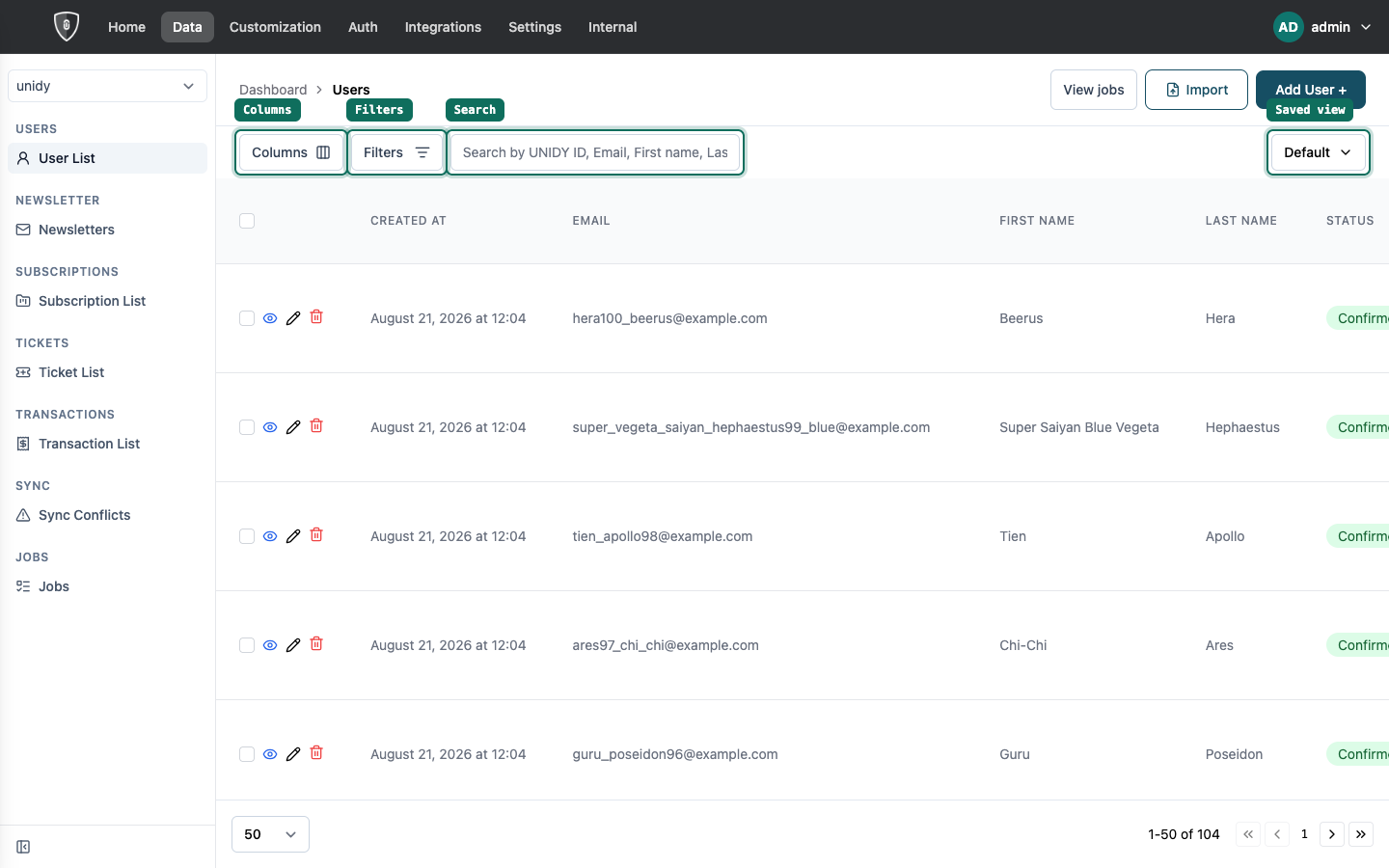
Users list — the shared control strip · highlights on Columns, Filters, the search field, and the saved-view dropdown.
Example: save and export a customer segment
- Open Data → User List and clear any earlier search you do not want in the segment.
- Open Filters → + → New filter. Choose Part of brand and the intended brand. Add other conditions, such as a newsletter subscription or a date boundary, as needed.
- Review the matching rows. Under Columns, choose the fields and sorting you need.
- Choose Save → Save as private view, enter a descriptive name, and save.
- Tick the relevant rows. To include matches beyond the current page, use Select all … and check the record count and action limit below.
- Choose Download, then open the export under View jobs. Download the file after it completes.
The export fixes the selected record IDs and columns when you queue it. Field values are read while the job processes those records, so the CSV is not a point-in-time snapshot. Do not rely on the list's sort order being preserved in the file.
Search and filters
Search checks the fields named in the list's search placeholder. Enter a term, then press Enter or click Search; typing alone does not submit it. Use Clear to remove the search.
Filters adds explicit conditions on a field. Pick a field, an operator and a value, then confirm the condition. The available operators depend on the field:
| Field type | Useful operators |
|---|---|
| Text | Equality, contains, starts/ends with, case-insensitive alternatives, presence and blank checks. |
| Number | Equality and less-than/greater-than comparisons, including inclusive boundaries. |
| Date or date and time | Equality and range comparisons: before, on-or-before, after and on-or-after the supplied boundary. |
| Status or other enumerated value | Choose a value from the provided options. |
| Relationship | Use the dedicated condition and available values, such as brand membership, newsletter subscription, newsletter preference or assigned role on the Users list. |
For example, Birthday less than 2000-01-01 finds dates before that day; use less-than-or-equal if the boundary itself should be included. For timestamp fields, include the intended time and check the displayed timezone when choosing a boundary.
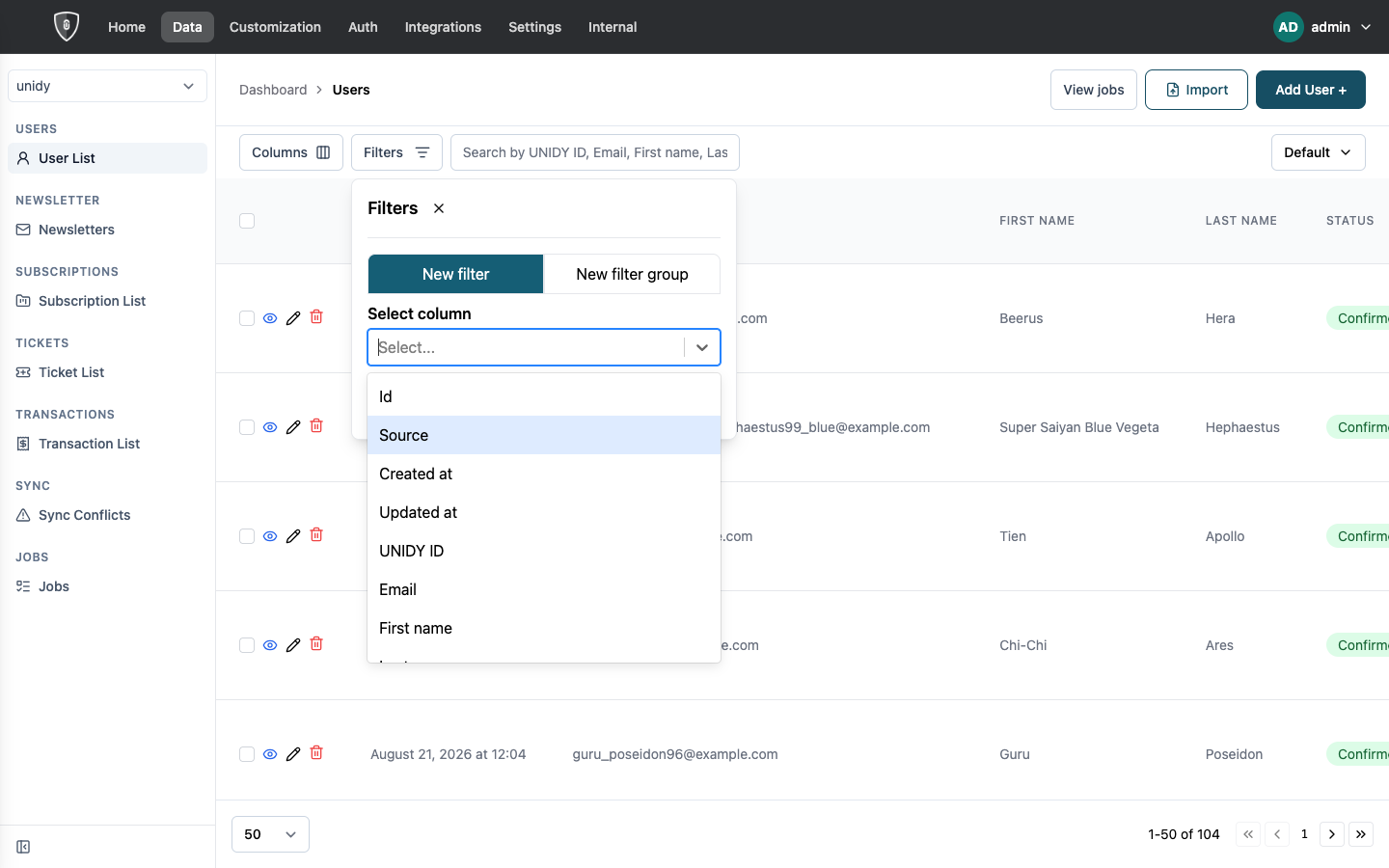
Users list — Filters, New filter, Select column. The Users list offers 36 filterable columns; the four association columns (Newsletter subscriptions, Subscriptions, Tickets, Activated Brands) appear in the Columns picker but not here.
Use Match all when every condition must hold, or Match any when one match is enough. New filter group lets you combine a set of conditions inside another group. Remove all filters clears the conditions.
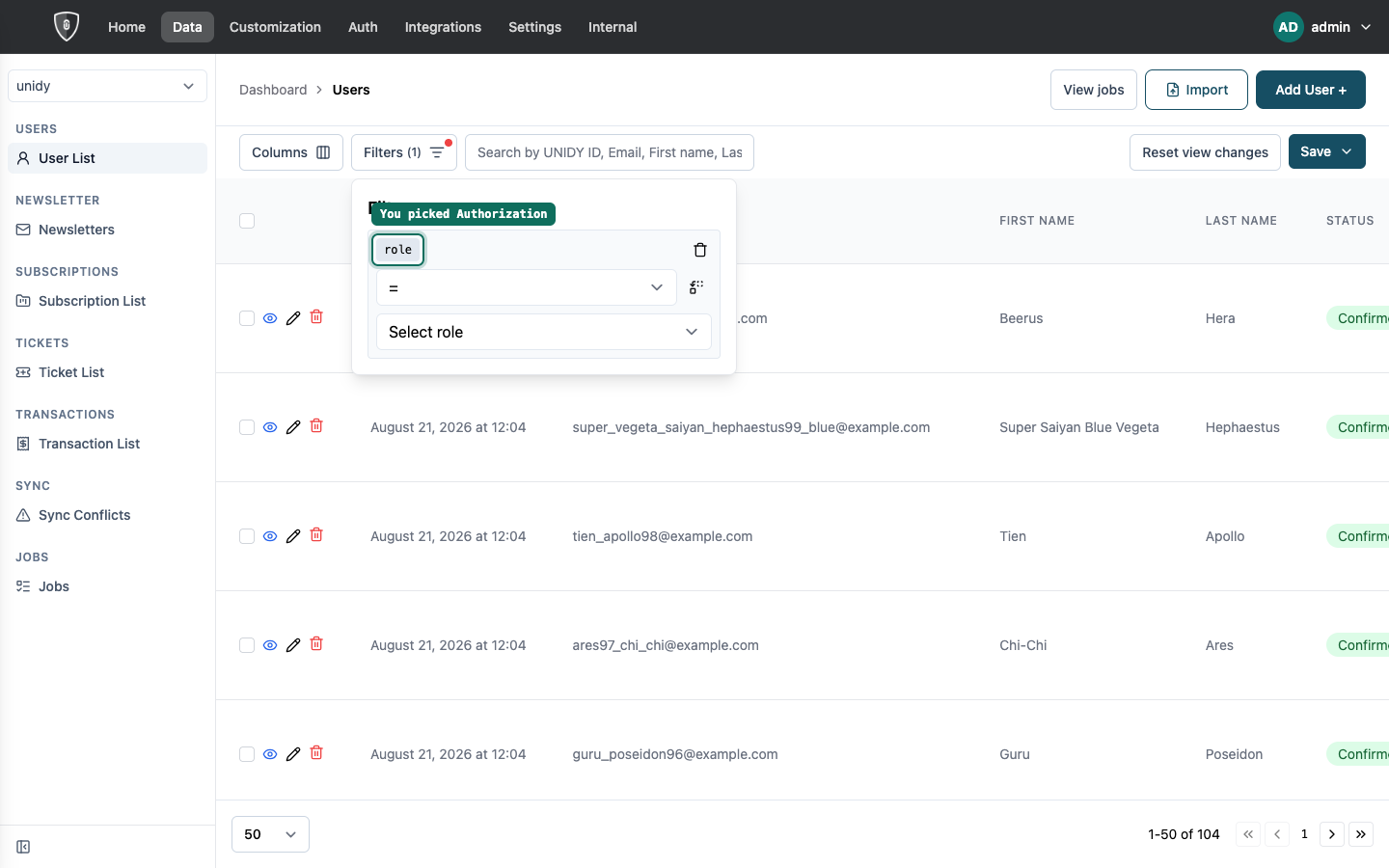
Users list — the same column, two names · highlight on the filter chip. The dropdown said Authorization; the chip says role. The value list is the column's allowed values.
Search is part of the current filter state. Saving a view while a search is active also saves that search. Inspect the full filter set before saving or running a bulk action.
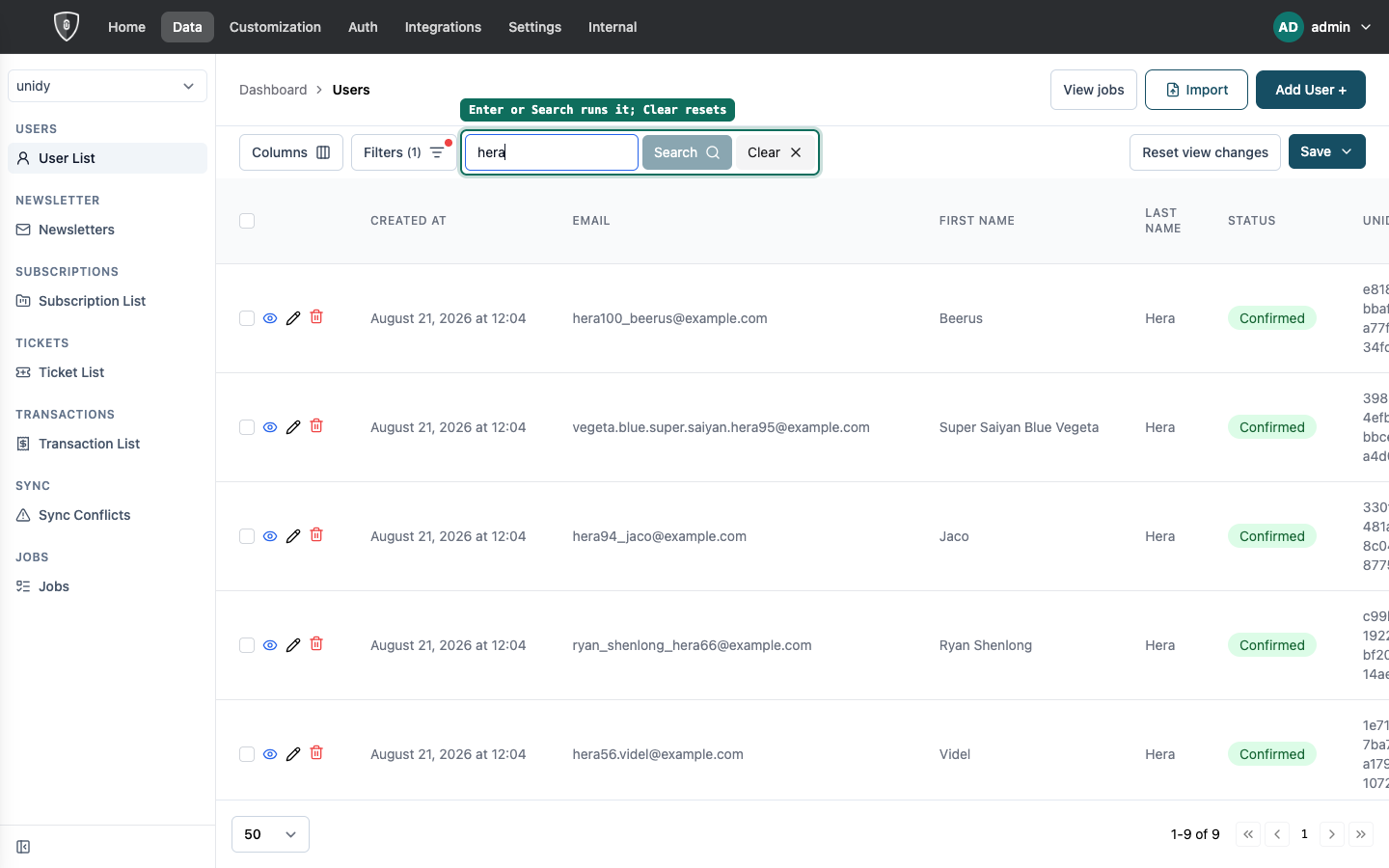
Users list — a search for "hera" · highlight on the search controls. Note what else changed: the Filters count went to 1 and the view is now showing Reset view changes and Save.
Brand membership and access are different
On Users, Part of brand selects accounts associated with that brand. Your role separately limits which records you can access. Changing the dashboard's brand switcher is not a substitute for this membership filter. See Tenants, brands, and environments.
Columns and sorting
Open Columns to choose the sort field and direction, add fields, remove visible columns or rename a column's heading. The current column selection also determines an export's fields, including unsaved column changes.
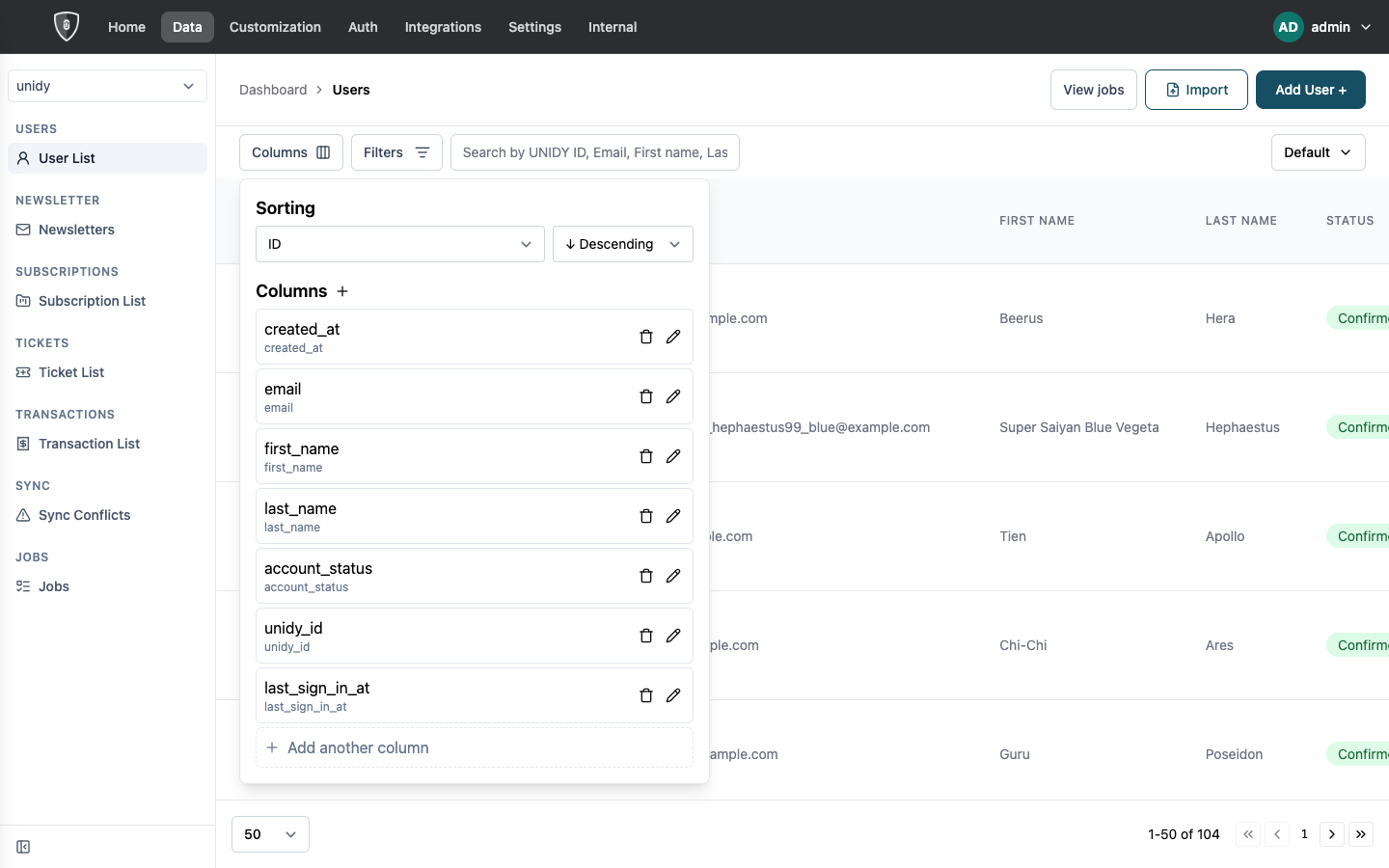
Users list — the Columns panel: Sorting on top, one row per visible column, Add another column at the bottom. Each row shows the column name with its database attribute underneath.
The Users default view sorts by ID descending. Choose Created At explicitly if that is the ordering you need. Available custom-attribute and relationship columns depend on the list.
Saved views
The view dropdown restores a named combination of columns, sorting, filters and search. A changed view offers Reset view changes and a Save menu.
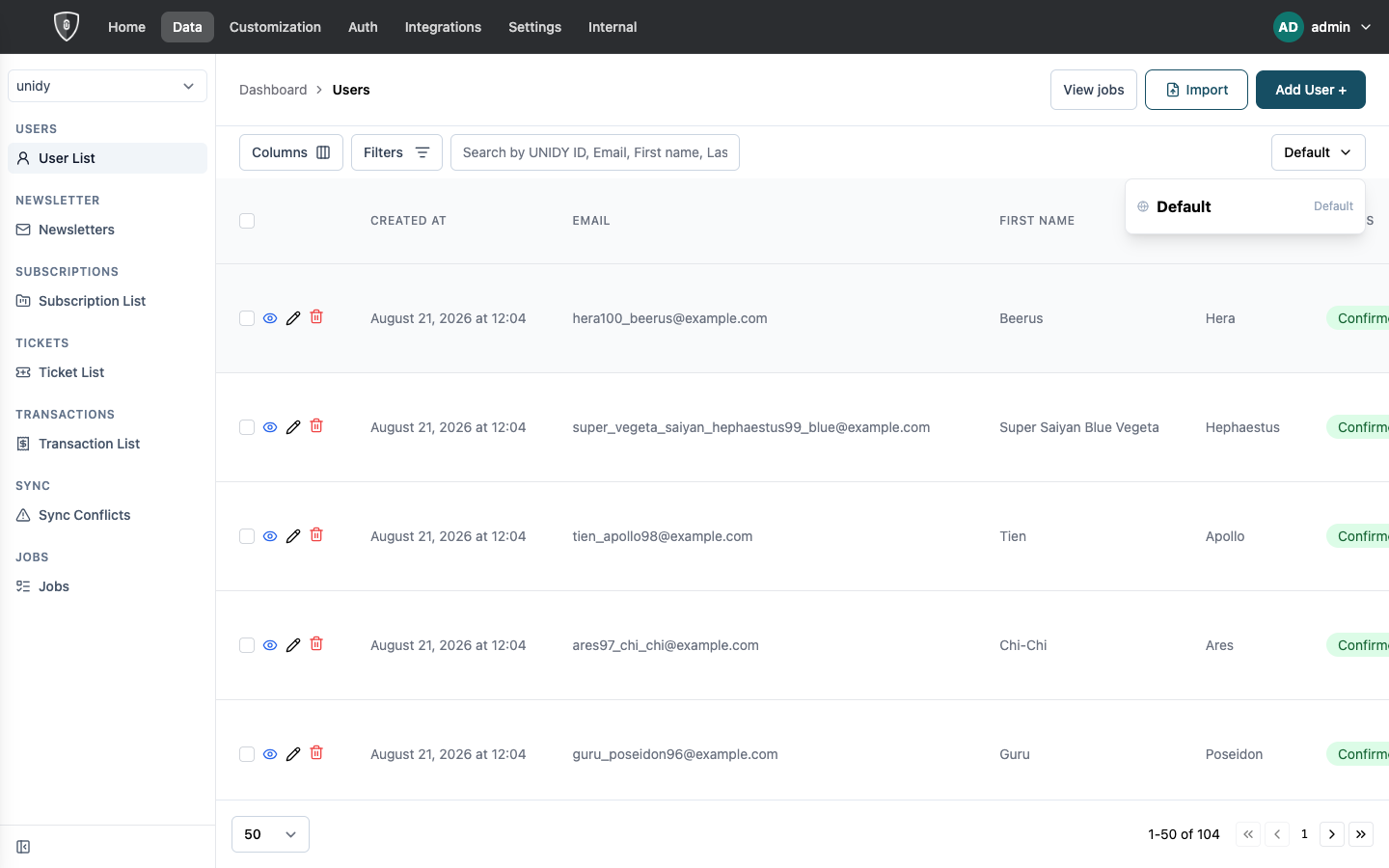
Users list — the saved-view dropdown with the single seeded Default view. The globe marks it public; the pencil appears on hover.
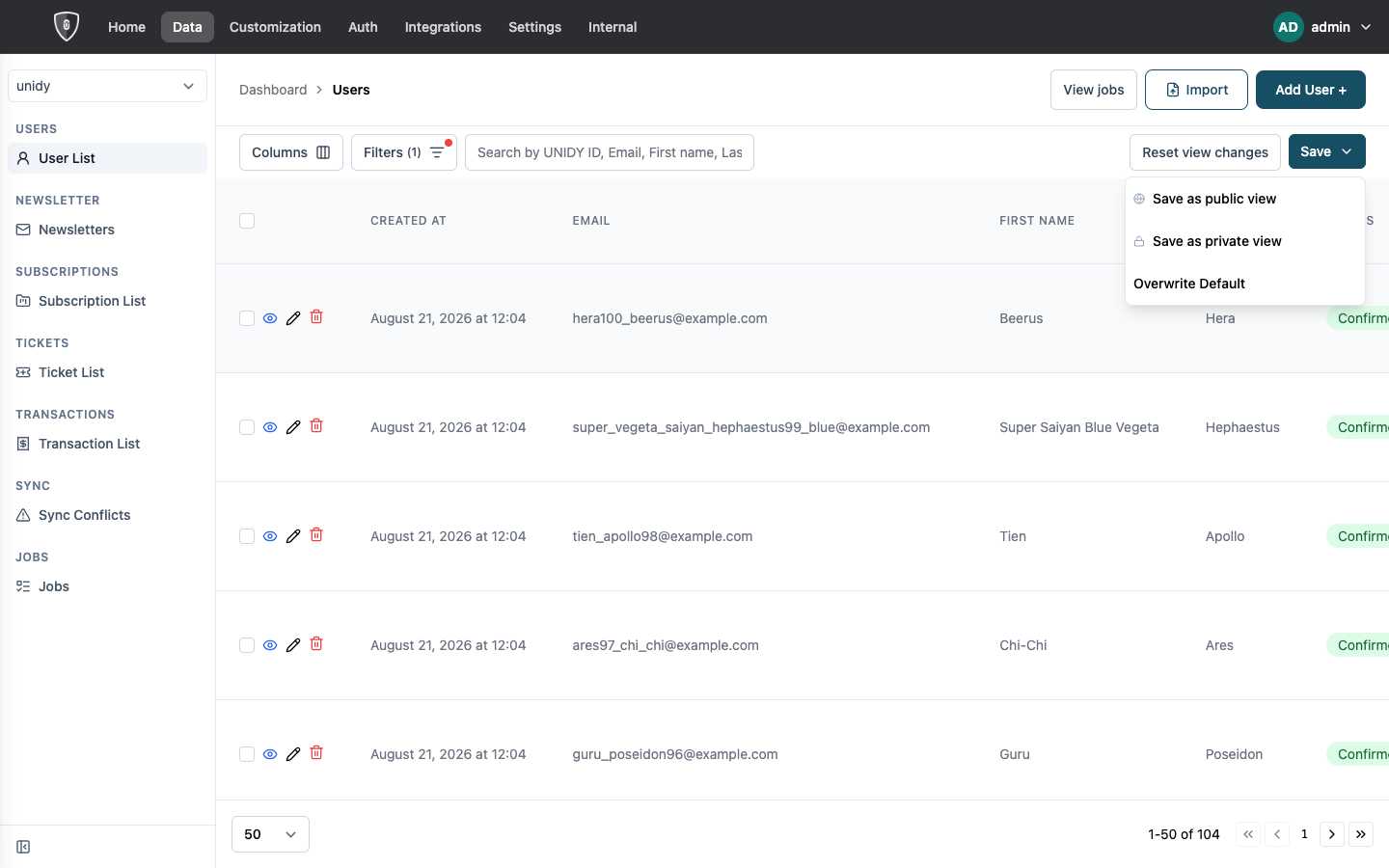
Users list — the Save menu that replaces the view dropdown once anything is unsaved: Save as public view, Save as private view, Overwrite Default.
| Task | What to do |
|---|---|
| Keep a personal segment | Save as a private view. |
| Share a standard layout | Save as a public view, if you have permission. Other administrators with access to this list can use the definition; their rows remain restricted by their own access. |
| Update an existing view | Choose the overwrite option after reviewing its current filters and columns. Editing a public view affects other users of that view. |
| Rename or change visibility | Open the view dropdown and choose its edit control. |
| Set a default | Use the default control in the view editor. A default must be public; choosing another default changes the starting view for the list. |
| Remove a view | Use its delete action if permitted. The current default cannot be deleted. |
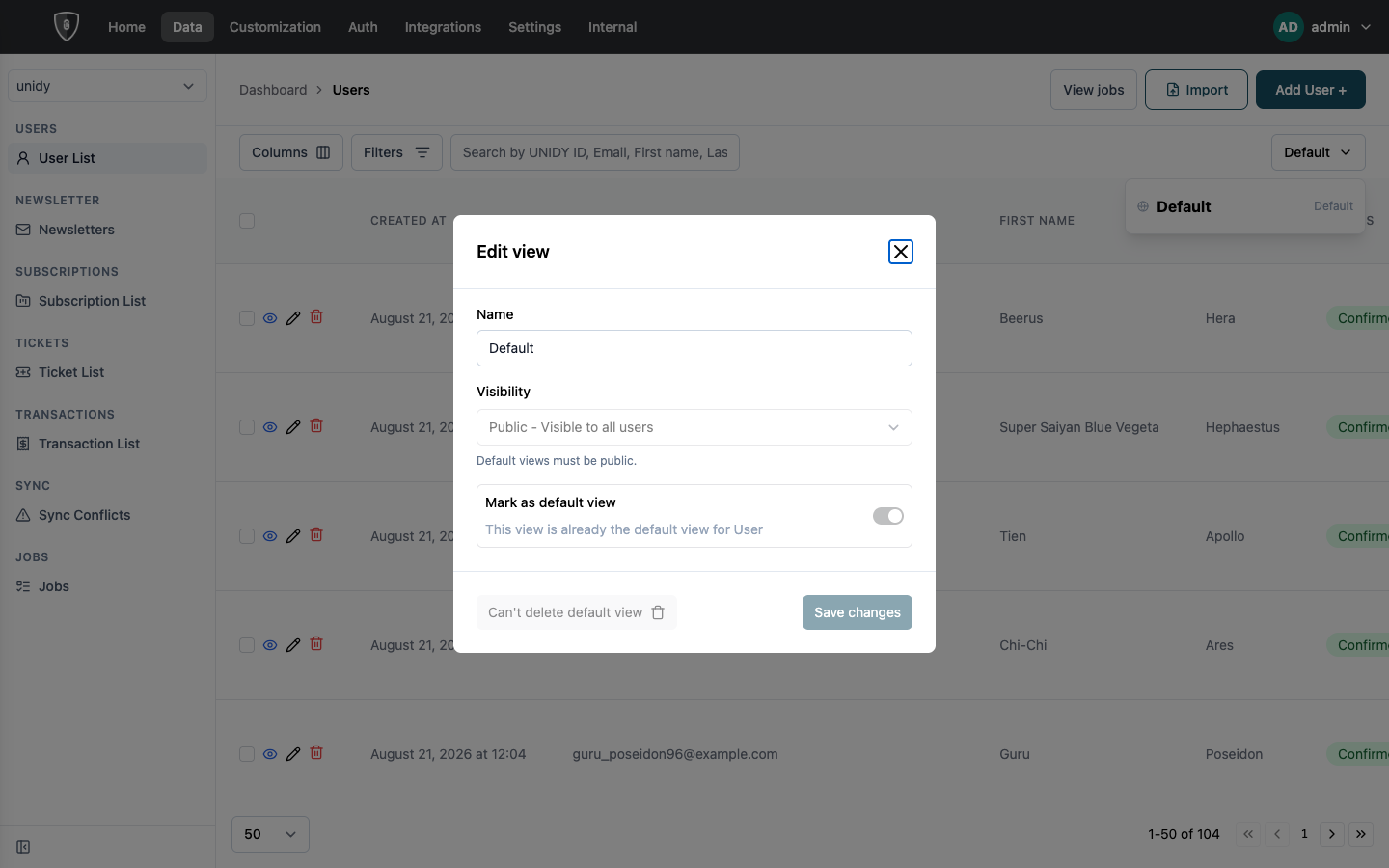
Edit view — name, visibility, and the default toggle. On the default view the toggle is off-limits, the hint reads "Default views must be public.", and delete is disabled with "Can't delete default view".
Creating, editing, deleting and managing defaults have separate permission checks. A missing control does not necessarily mean you cannot read the list. See Roles and feature availability.
Reset view changes discards unsaved changes to the list layout and filters; it does not change customer records. Page size is not saved with a view.
Select records
Tick individual rows or the header checkbox for the current page. Shift-click can select a range. Select all … expands the selection to records matching the current search and filters, subject to the action's limit. Recheck the selection after navigating between pages or changing filters.
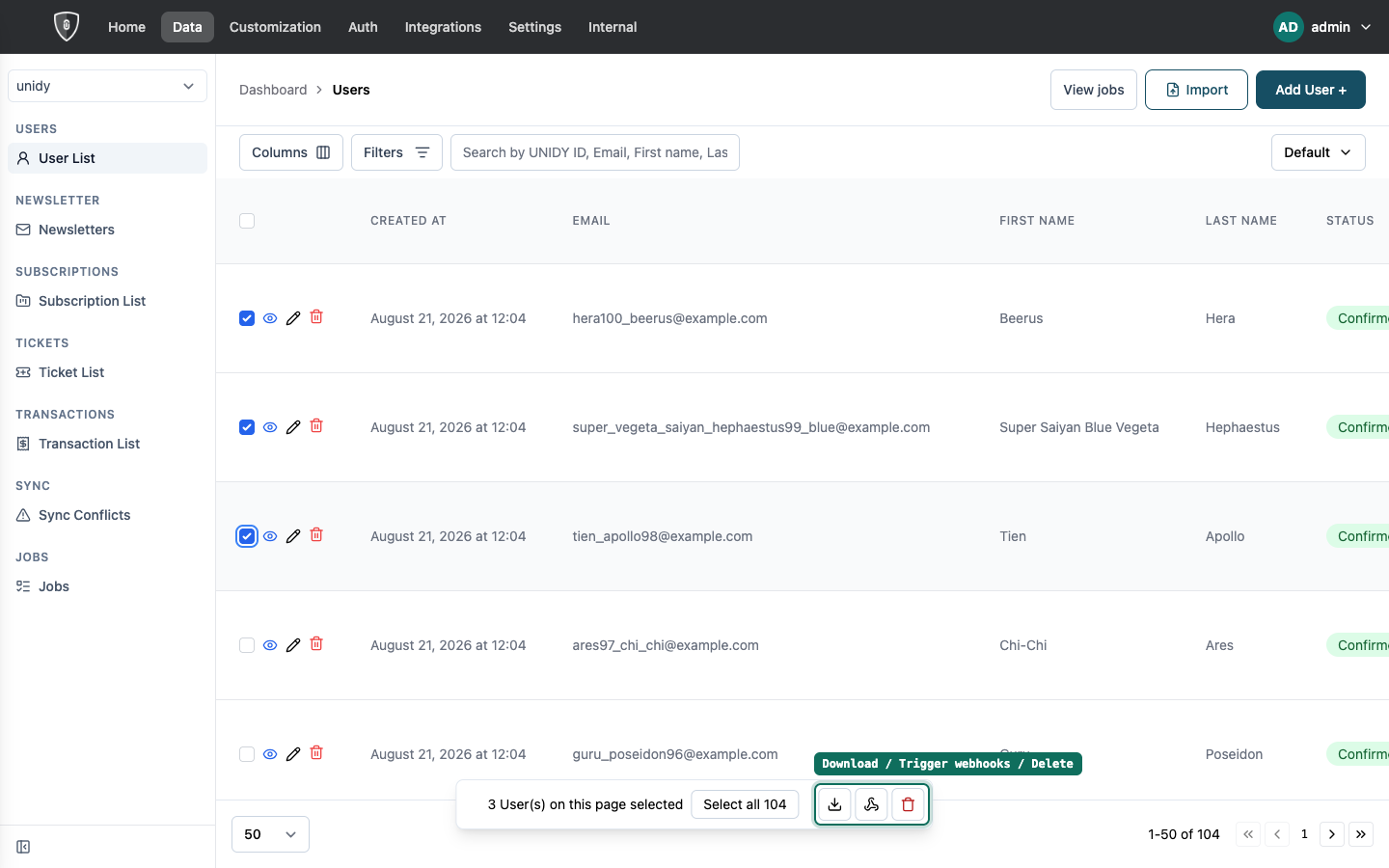
Users list, three rows ticked — the multi-select toolbar · highlight on the action buttons. Select all 104 widens the selection from this page to every record matching the current filter.
| Action | Maximum records per job | Result |
|---|---|---|
| Download | 2,000,000 | A CSV export using the selected columns. |
| Delete | 100,000 | Deletes selected records, with the confirmation and event option below. |
| Trigger webhooks | 200,000 | Dispatches the selected created or updated event to matching webhook subscriptions and connected integrations. |
If the matching segment exceeds the relevant limit, split it into smaller, non-overlapping selections and track each job. The Select all label does not override these limits.
Bulk work is queued. Check View jobs or Data → Jobs instead of clicking the action again while waiting. See Background jobs for progress and results.
Delete or trigger events carefully
Bulk deletion requires delete permission. Review the record count, acknowledge that it cannot be undone and, when prompted, type DELETE. Fire delete events starts checked; it controls notification to matching integrations for supported events. A single selected row can use the row's simpler delete confirmation instead of the bulk dialog.
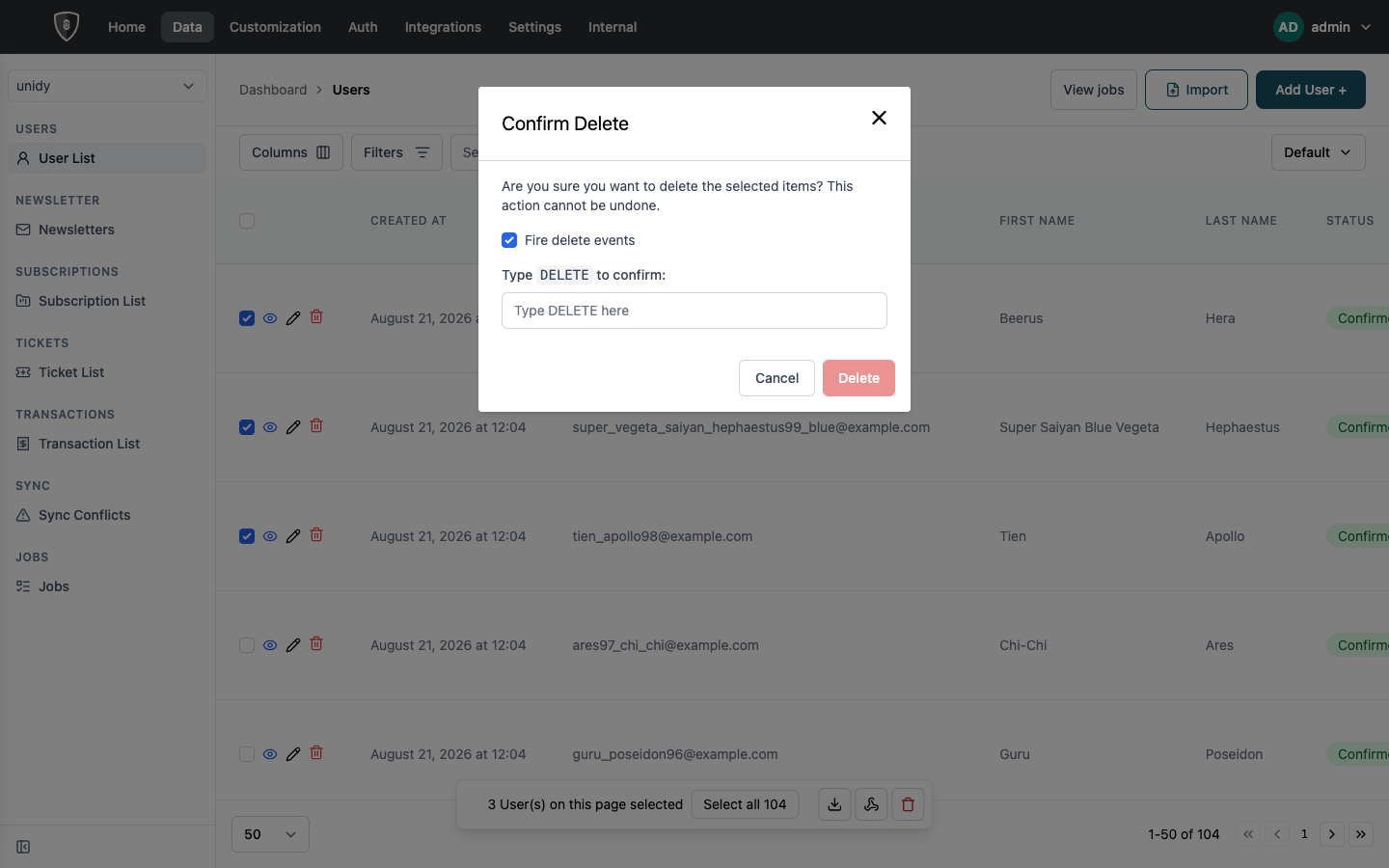
Confirm Delete — the red Delete button stays disabled until the box contains exactly DELETE. Fire delete events is on by default.
Cancellation is not restoration
Cancel job stops remaining work, including after a bulk job has started. It cannot restore records already deleted. History is not a backup or an undo control. Verify the resource-specific deletion consequences before confirming.
Trigger webhooks requires the appropriate write permission. Choose created or updated deliberately: this sends events about the selected records again and can run downstream actions. Review the confirmation modal's record count, action limit, estimated duration and matching webhook registrations before starting. The estimate is not a delivery deadline, and a listed registration can still be narrowed by its subscriptions or owner's permissions.
A completed trigger job confirms event dispatch work, not successful delivery to every receiver. Check delivery results separately.
Differences between lists
Some lists offer only export; others support creation, imports, deletion or event triggering. Webhook delivery lists also provide status shortcuts. Access to exports and other controls follows the resource's permissions, not a universal “all admins” rule.
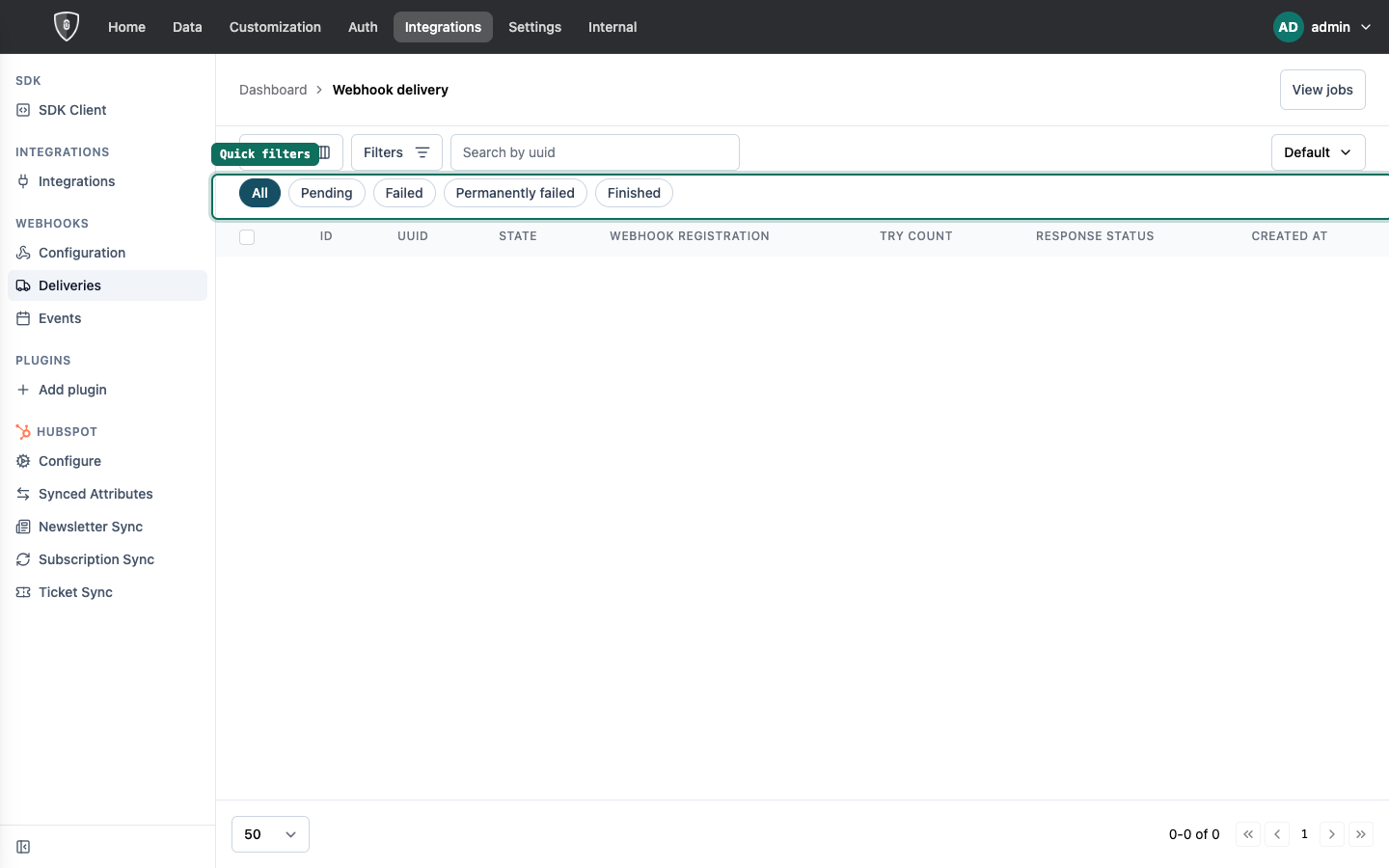
Webhook Deliveries — the only list with quick filters · highlight on the chip row. The chips map to delivery state: Pending, Failed, Permanently failed, Finished. The list is empty in seeded data.
Sync Conflicts has Accept, Dismiss and Ignore actions with separate semantics and limits. Successful resolutions retain the conflict's outcome while removing it from the pending list. Follow Sync conflicts before using them in bulk.
Reorderable configuration lists use drag handles instead of the record-selection toolbar. Follow that page's save controls after changing their order.