Save, reset, preview, and history
Make and verify configuration changes safely.
Use this reference to save a dashboard change, discard an unsaved edit, preview supported content, or investigate a previous update.
Settings card controls
A settings screen can contain several cards. Each card saves independently. Editing fields in two cards and saving one does not save the other.
| Control | What it does |
|---|---|
| Blue card tint | Indicates unsaved changes in that card. |
| Reset | Discards the card's unsaved edits and restores its last loaded or successfully saved values. It does not undo a previous save. |
| Save changes | Saves the fields in that card. Check the success message and any validation errors. |
| Change history / clock icon | Opens the recorded changes for that card where a history shortcut is available. |
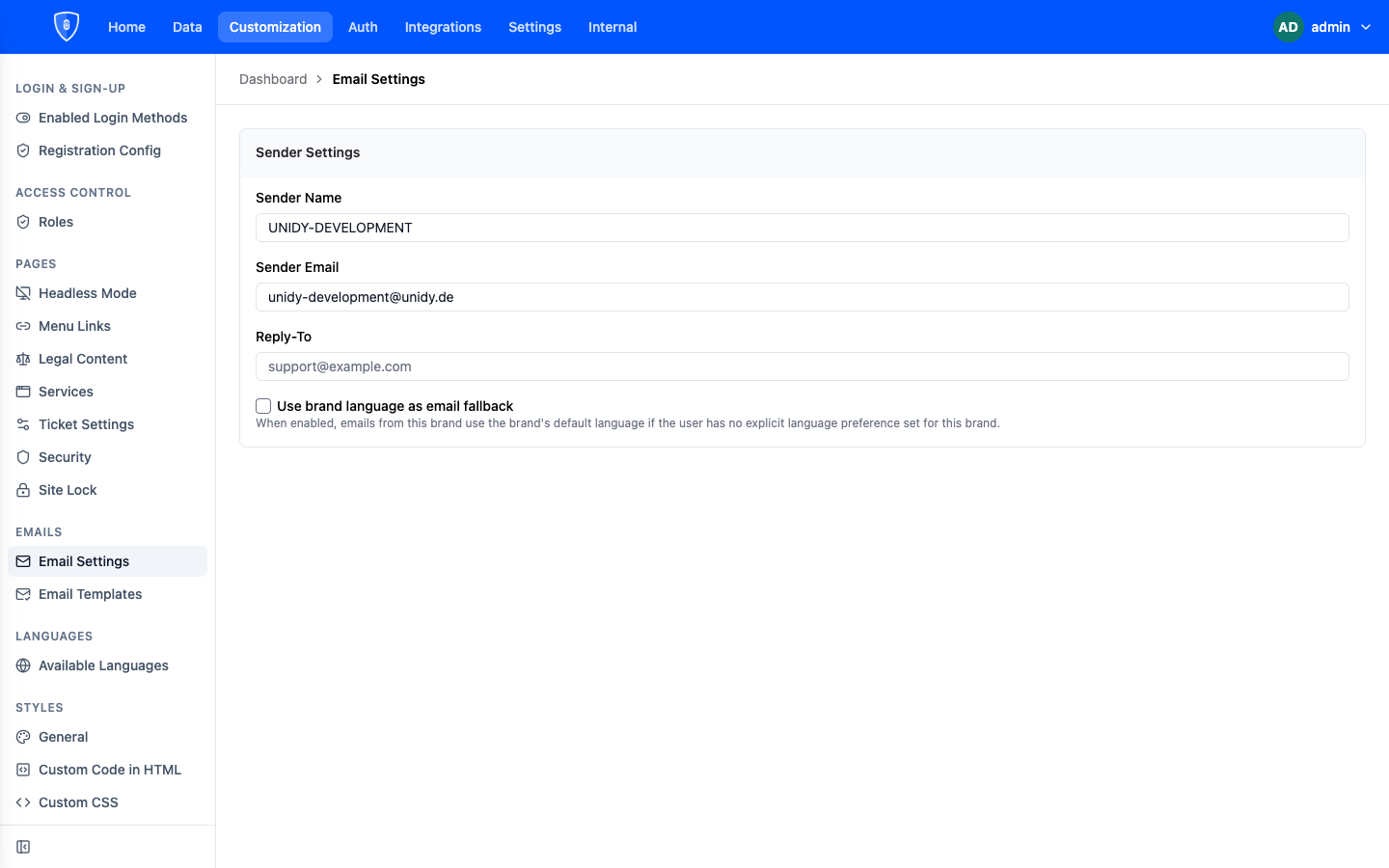
Email Settings — a card at rest. The header carries the title only; Reset and Save changes are present in the page but invisible, and Reply-To is showing its placeholder rather than a value.
You need write permission for the setting to save changes and access to audit logs to read history. See Roles and permissions for role setup.
Save a change
- Check the selected brand and environment.
- Edit the field in the appropriate card.
- Click Save changes in that card's header.
- Check the success message. If validation fails, correct the reported fields and save again.
- Verify the result in the affected screen or customer flow.
For example, changing Reply-To and saving its settings card saves that card's values. Any other card still tinted blue has unsaved work.
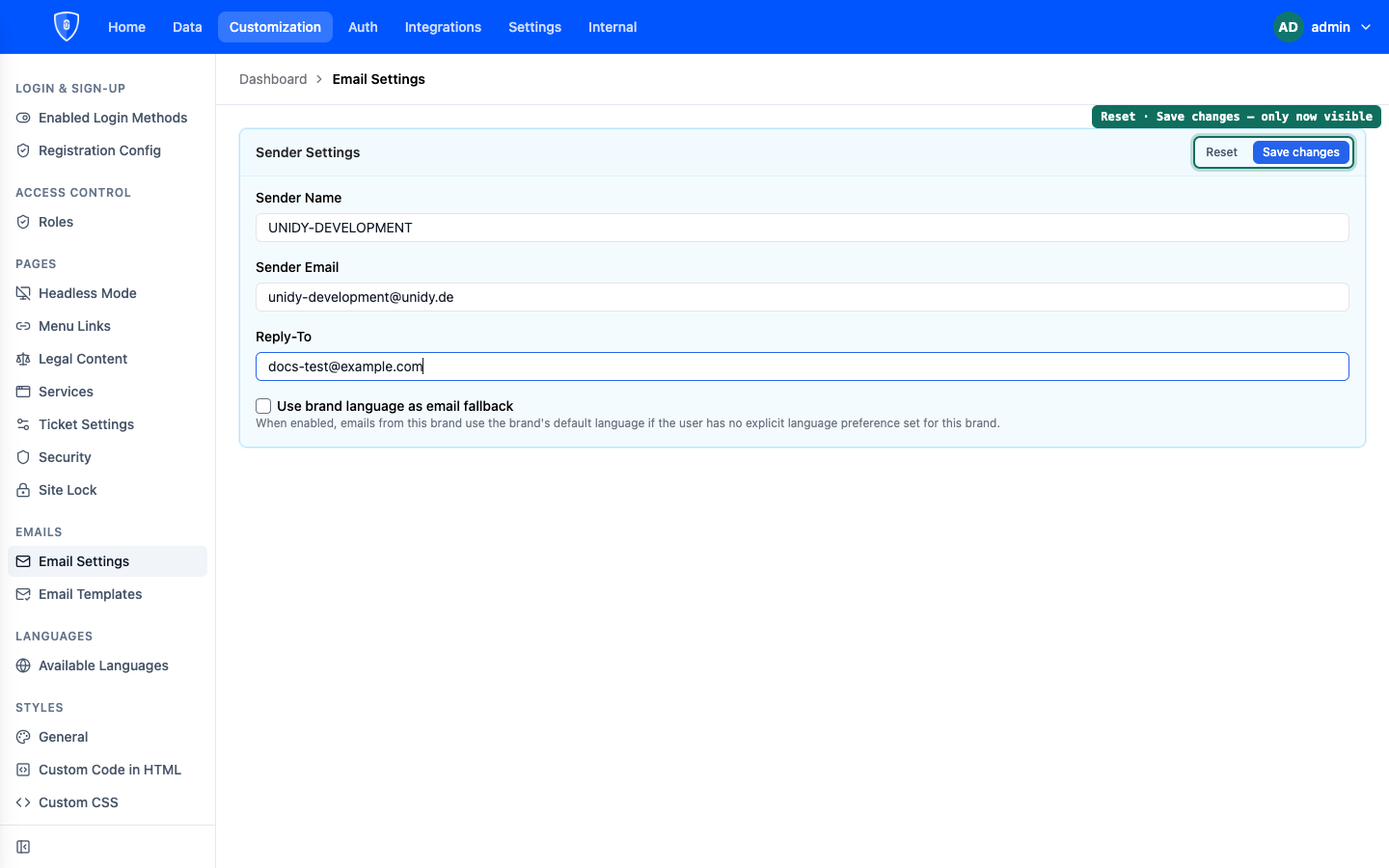
The same card after typing into Reply-To · highlight on the two buttons. The blue tint covers the entire card, which is how you tell at a glance which card on a busy screen is the one holding an unsaved edit.
Save before navigating away
Settings cards do not warn before you leave with unsaved changes. Use Save changes or Reset before following another link or leaving the page. The account-menu unsaved-changes warning applies to supported record dialogs; it does not add a navigation warning to settings cards.
Choose the right recovery action
| Situation | What to do | What is retained |
|---|---|---|
| You edited a settings card but have not saved | Click Reset | Previously saved settings remain. |
| You saved the wrong value | Read the old value from History, enter it again and save | A further change is recorded; the earlier save is not erased. |
| You want to stop using an email override temporarily | Disable the template | The template and its history remain; the fallback template is used. |
| You want to remove an email override | Delete the template | The override and its own history are removed; the fallback is used. |
| You want to remove a saved custom style | Use its delete action | The brand's style override is removed and default styling applies. |
| You want to abandon an unpublished CSS change | Discard draft | Published CSS remains in use. |
History is a record of changes, not a restore control. Before removing an override, retain any content you may need later. Disable and Delete have different effects; disabling a template does not delete its versions.
Editors and previews
Some screens use different controls from settings cards:
| Screen | Saving and preview behavior |
|---|---|
| Record create/edit dialogs | Use Save. The account-menu unsaved-changes warning can prompt before closing supported dialogs. The preference belongs to this browser. |
| Email template editor | Uses its own Save, editor modes and rendered preview. There is no settings-card Reset. Preview renders content without sending mail; test delivery uses saved content. Follow Email templates and delivery. |
| Custom CSS | Preview for myself applies a draft to the customer site for your browser. Stop preview ends it. This does not publish the draft for everyone. Follow Branding, HTML, and CSS. |
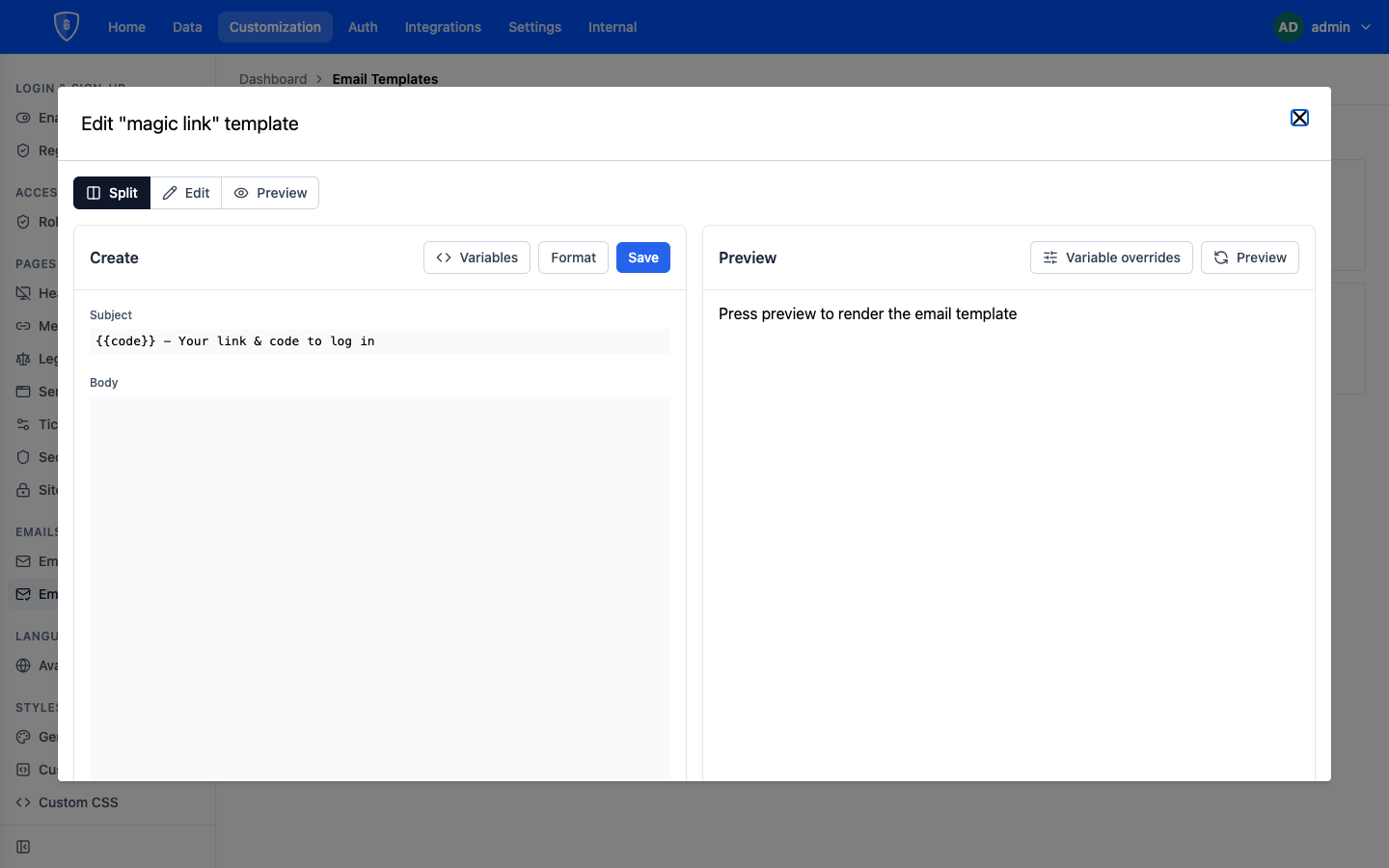
The template editor, the only screen where Preview is a mode. Three tabs here — Split, Edit, Preview — because this template has never been saved; a saved one gets a fourth, History. Note also what is missing: no Reset, and the button reads Save, not Save changes.
A preview does not establish that a setting was saved or that a customer flow works. Check the saved result after applying a change.
Read change history
Open the card's Change history icon, or a record's History tab when available. Changes show their timestamp, source and actor when recorded, along with previous and new values.
| View | Scope |
|---|---|
| Card history modal | The card's audited fields, limited to its most recent 100 field-change rows. It is not a complete export. |
| Record History tab | Paginated change events, including associated child changes where supported. One event can contain several changed fields. |
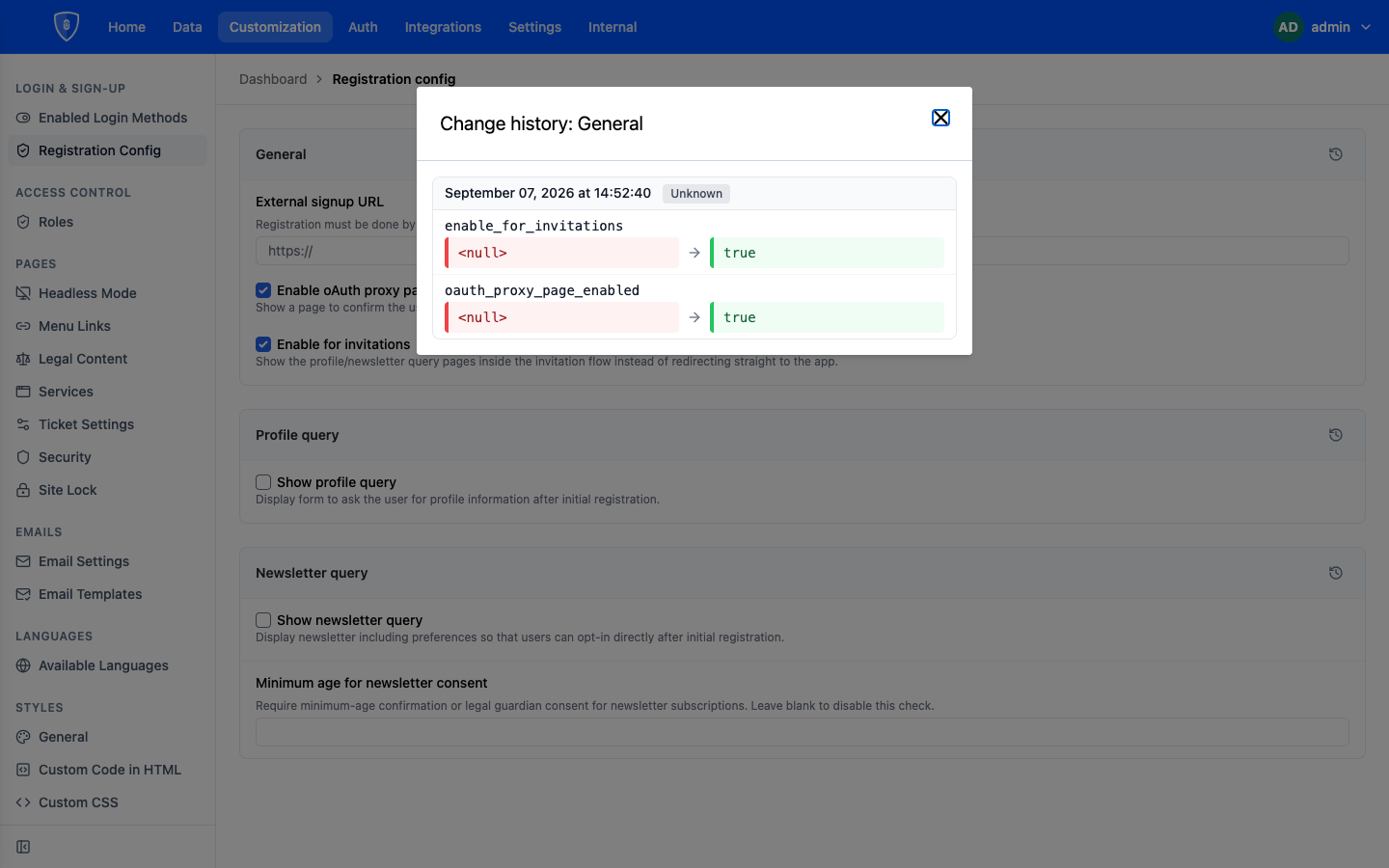
Registration Config — the modal opened from the General card. One block per change event, headed by the timestamp and a grey source pill; inside it, one row per attribute with the old value in red and the new one in green. Note the field names are database attributes — enable_for_invitations, not Enable for invitations.
On a record's History tab, use Filter by field… to find an attribute, record type or associated context. A source such as Admin, API, Import or Service describes how the change arrived. It is distinct from the actor who made it.
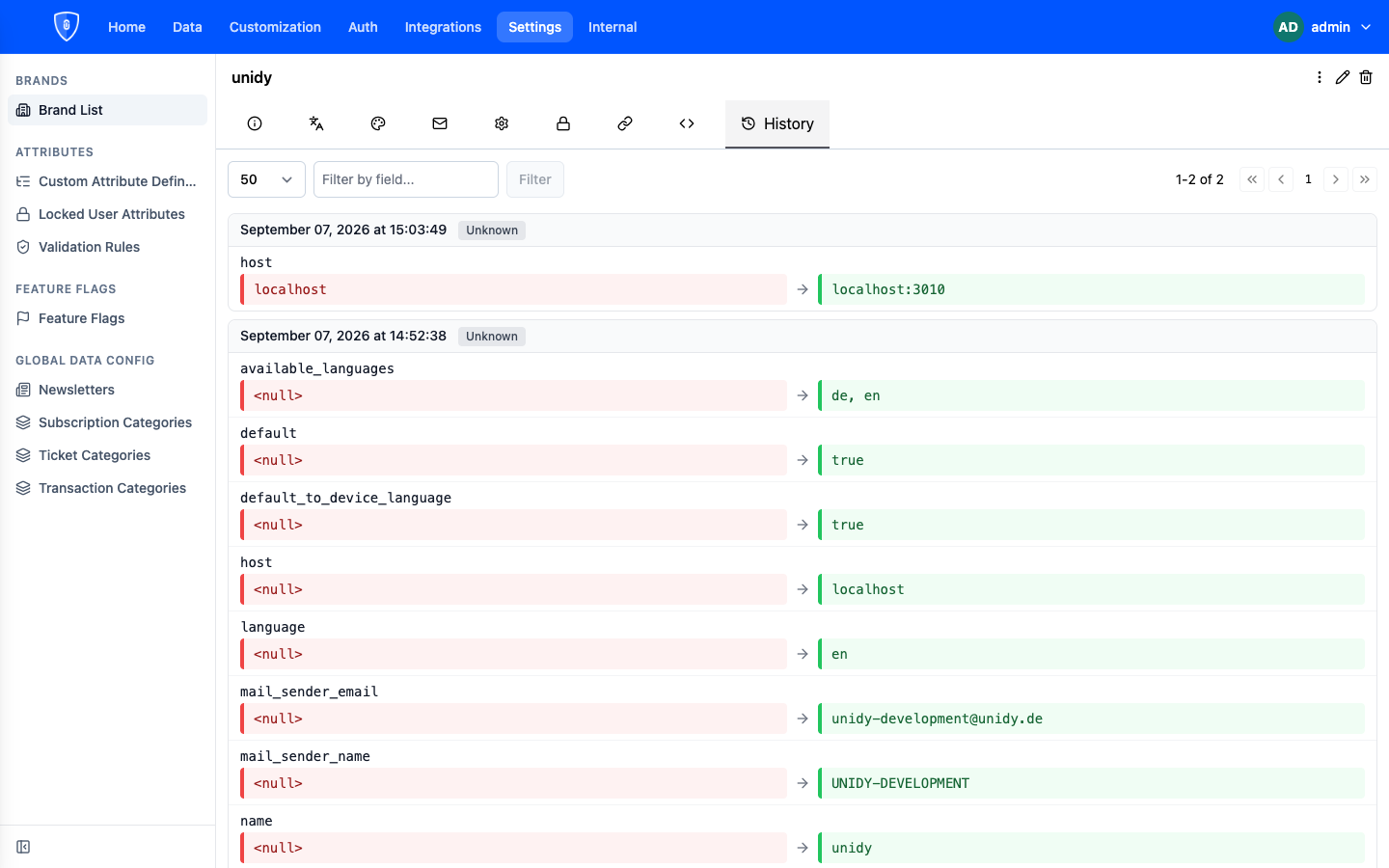
Settings → Brand List → unidy → History. mail_sender_email and mail_sender_name are both here, recorded when the brand was created — even though the Email Settings screen that edits them has no Change history icon of its own. Above the list: the 50-per-page selector, the Filter by field… box, and the 1-2 of 2 count that the modal does not have.
Special values distinguish an unset value (<null>), an empty text value (<empty string>) and an empty list (<empty array>).
When history seems missing
- A card may have no history shortcut. Check the owning record's History tab; for example, sender settings can appear on the brand record.
- Some configuration records, including Captcha and custom styles, gain a history link only after their first save.
- No changes recorded yet means no recorded changes are available in that view. It does not prove the value was never changed. Filters, permissions, imported or older data, exclusions and storage failures can affect what is available.
- Audit recording normally runs as part of completing a committed change. Background retries are a fallback for selected failures, not the routine explanation for every missing entry. If an expected change remains absent, check the record and scope before escalating with the time and action.
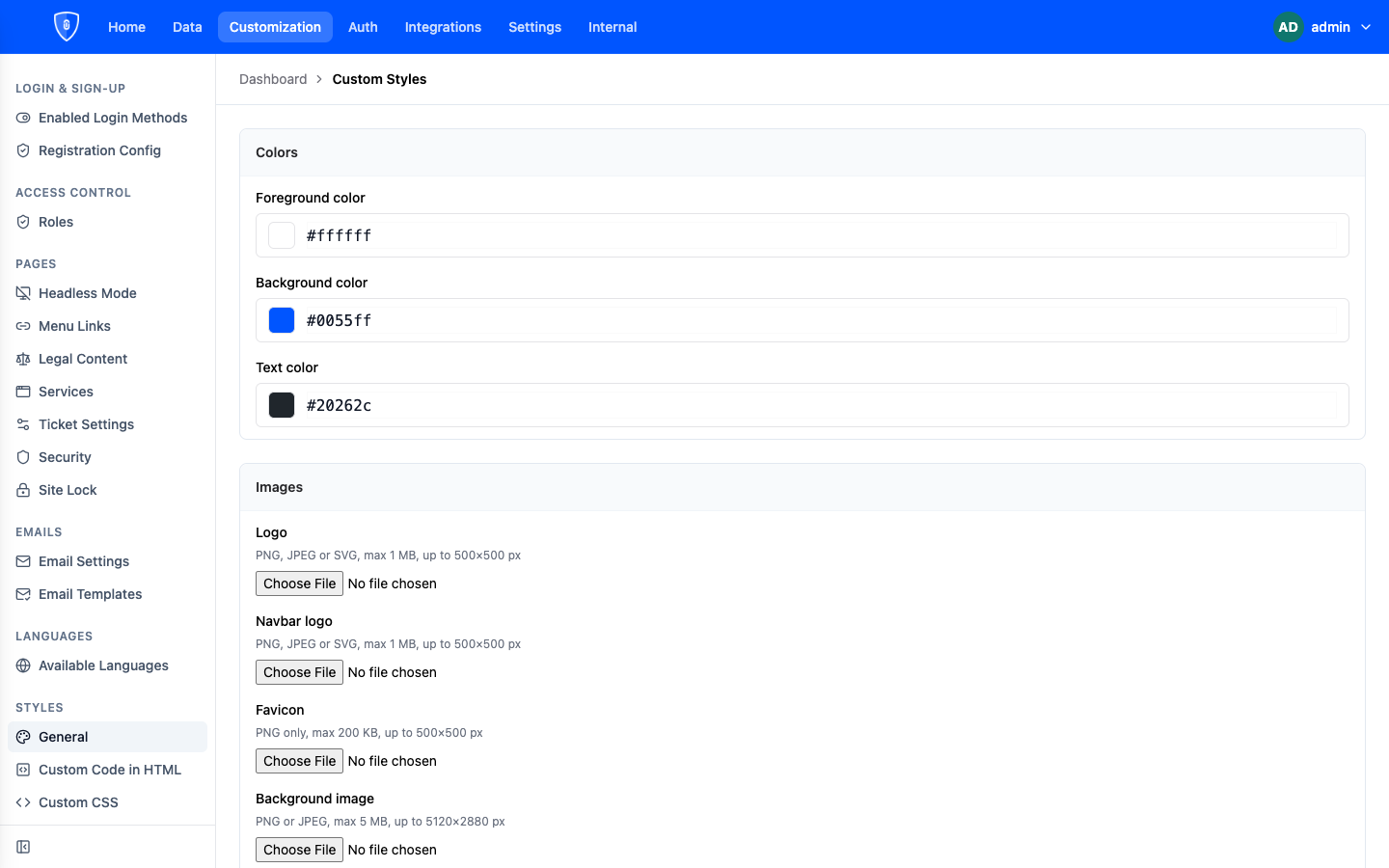
Custom Styles on a brand that has never saved one — Colors and Images both render with an empty header. This is the "not yet" case: the icon arrives with the first save. Note the per-field limits, which are part of the card and not of this page: logos are PNG, JPEG or SVG up to 1 MB, the favicon PNG only up to 200 KB.
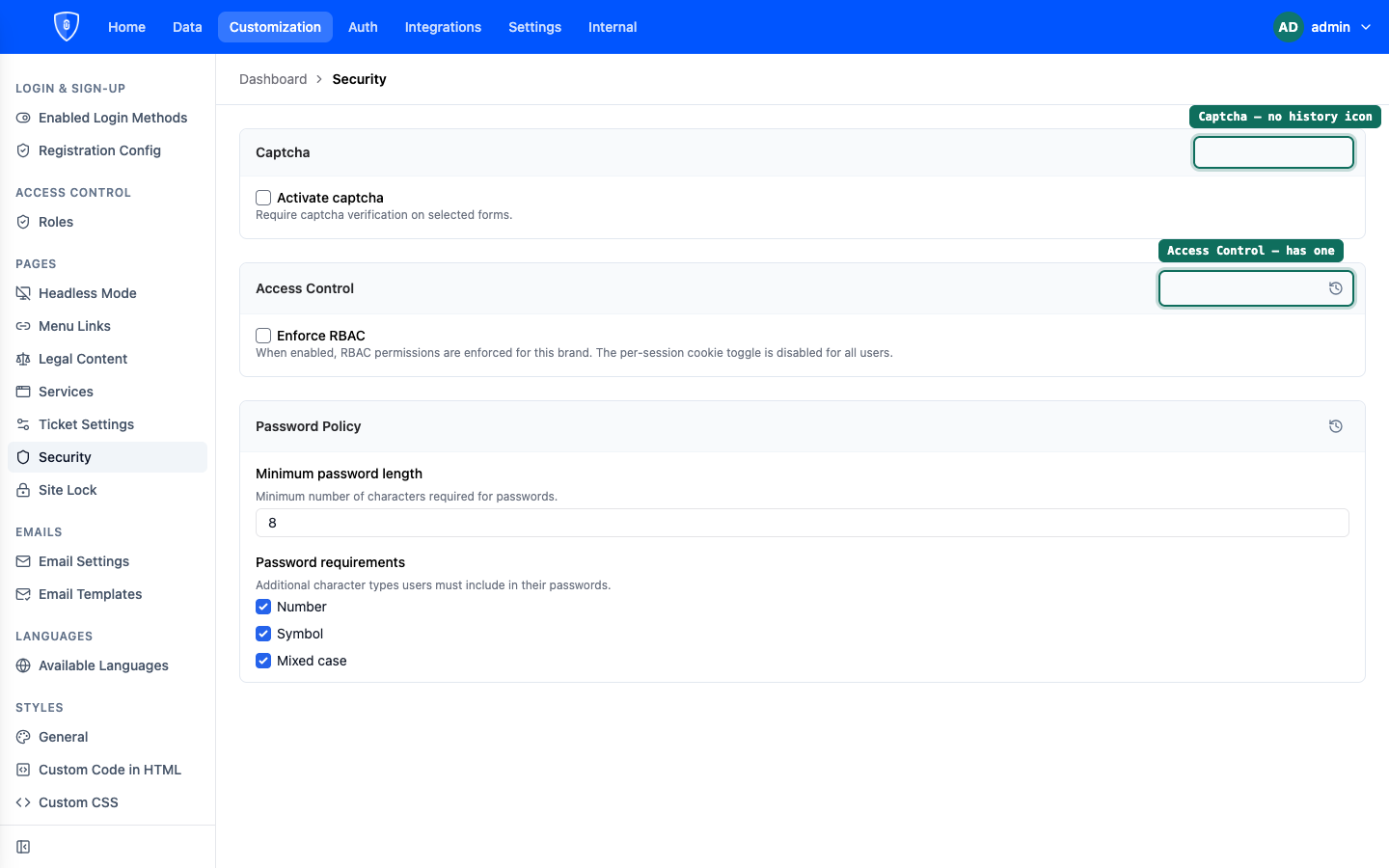
Security — one screen, three cards, two behaviours · highlights on the Captcha and Access Control headers. Captcha's header is empty; Access Control and Password Policy carry the clock. Nothing on the screen explains the difference.
History and deletion
Deleting an audited parent record can remove its audit trail. Deleting an audited child can leave its changes and deletion details in the parent's history. Do not use the absence of a deleted child record as proof that its history was erased.
Sensitive values
History can contain sensitive values. Revealing masked values depends on the specific record's supported authorization and your write access; write access does not reveal every secret on every record. Some values, such as protected plugin options, are redacted before storage and cannot be recovered from history. Treat screenshots and exports of history accordingly, and use the relevant credential's rotation procedure when replacing a secret.
Related
- Lists, filters, and bulk actions — list settings and Reset view changes
- Email templates and delivery
- Branding, HTML, and CSS
- Account state and access