Email templates and delivery
Configure transactional messages and test delivery.
Email templates and delivery
Set the sender identity and transactional messages for the selected brand. Use Customization → Email Settings for sender details and Customization → Email Templates for content. Repeat the configuration for each brand and each supported language.
These messages support account access, invitations, newsletter subscriptions and ticket transfers. Newsletter campaigns themselves are sent by your marketing platform; the newsletter templates here cover confirmation and access to preferences.
You need the relevant brand permissions: read to view templates, write to edit and test, manage to enable or disable an override, and delete to remove one. See Roles and permissions.
Customize your first message
- Select the brand and open Email Templates.
- Choose the message and its language. Start with the supplied subject, body and layout.
- Edit the subject as plain text with Liquid placeholders, and the body as HTML with Liquid. Check Variables for the inputs available to this particular message.
- Preview the result, including optional or empty values, then Save. A newly saved customization is Not enabled.
- Choose Send test email and inspect the message in your own inbox. The test uses the saved template and sample data, not unsaved edits or the preview's variable overrides.
- After approval, select Enable template. Confirm that a representative real workflow in your test environment sends the intended message and that its links work.
Saving can change live email
An already enabled template stays enabled when you save an edit: subsequent messages use the new content immediately. Shared layouts and components also take effect on save. Use a test brand for rehearsals, and arrange approval before editing a live template or shared component.
Set the sender and reply address
Open Email Settings, update Sender Settings, and save.
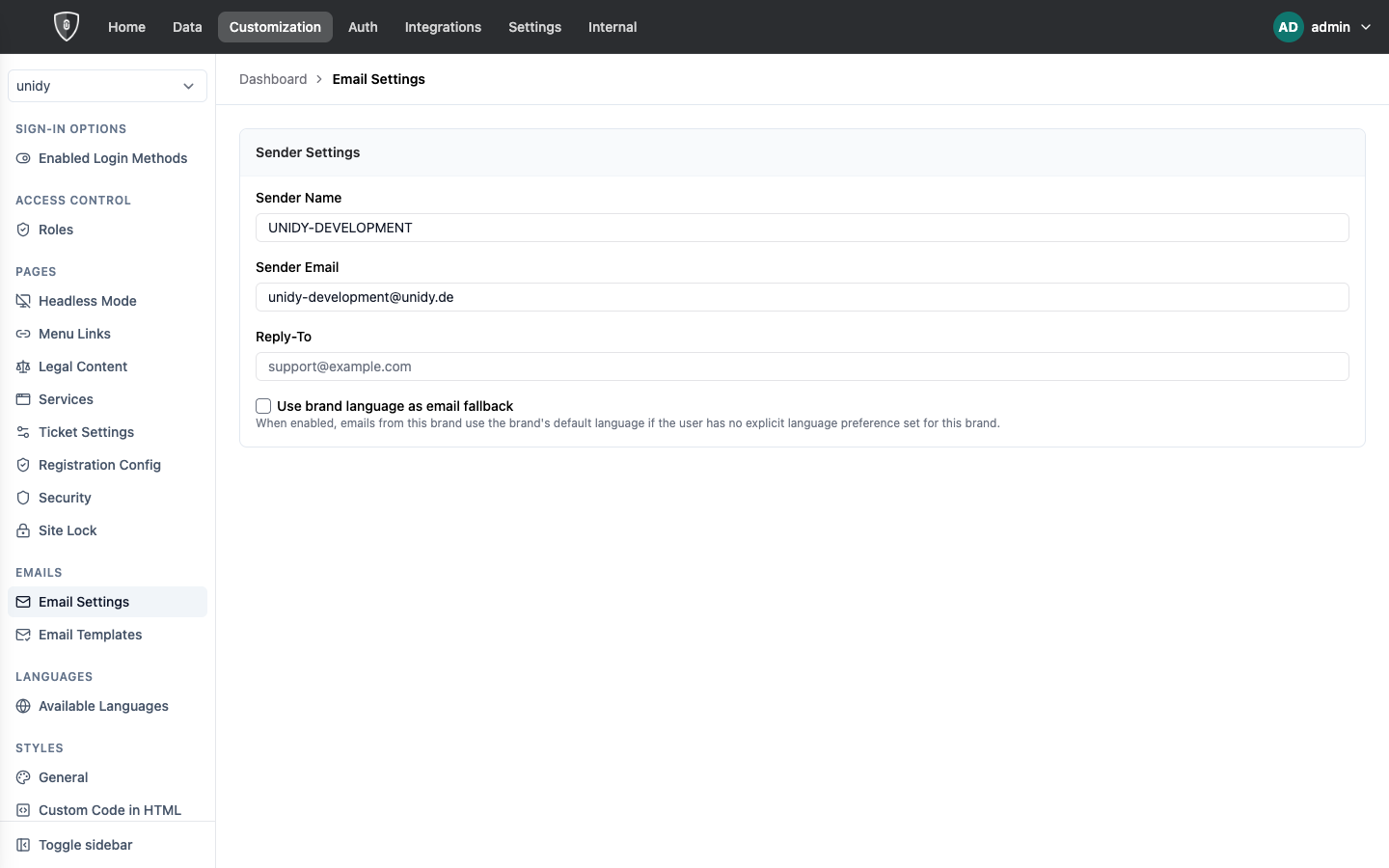
Email Settings — the Sender Settings card with Sender Name, Sender Email, Reply-To, and the language fallback checkbox.
| Field | What to enter |
|---|---|
| Sender Name | The brand name recipients should recognize. |
| Sender Email | A valid address on the agreed sending domain. |
| Reply-To | A monitored address for customer replies; leave it empty only if replies should use the sender address. |
| Use brand language as email fallback | Use the brand's default language when the customer has no explicit language preference for that brand. |
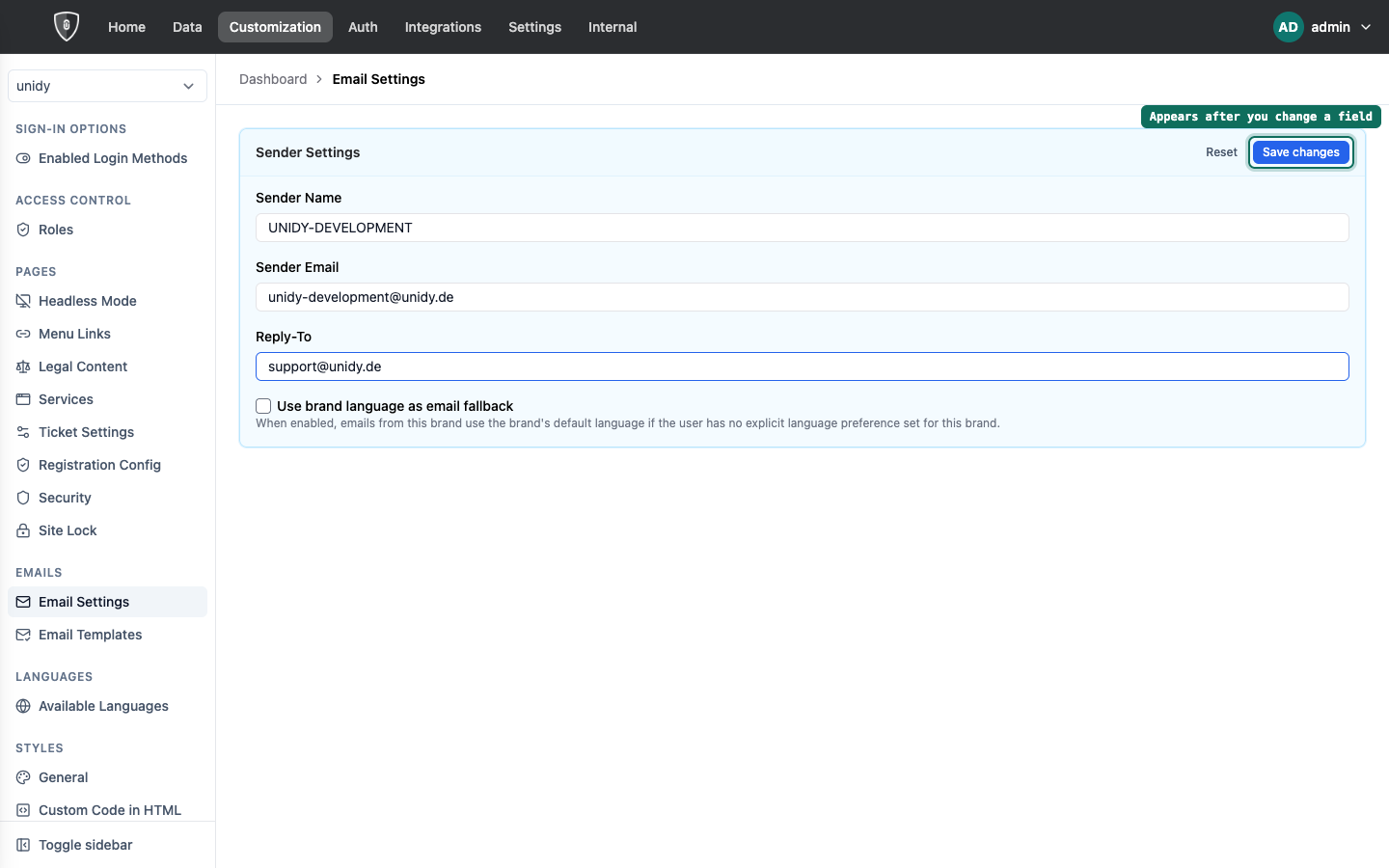
Email Settings with an edited Reply-To — Save changes and Reset only appear once the form has changes · highlight on Save changes.
Coordinate a new sending domain with your Unidy contact before using it. This screen sets message headers; it does not configure the platform's sending infrastructure. Verify receipt, sender identity and reply routing as part of the support handoff.
Understand template states
| State or action | What recipients receive |
|---|---|
| No template configured | The applicable default. |
| Not enabled | The applicable default; your saved customization is available for editing and test sends. |
| Enabled | Your customization for this brand, message and language. |
| Save an enabled template | The newly saved customization, immediately. |
| Disable | The applicable fallback; the customization remains saved. |
| Delete | The applicable fallback; the customization is removed. |
Disabling a template does not stop the email. Sending is controlled by the workflow that triggers it. For example, invitation delivery is chosen when inviting a user; newsletter double opt-in is configured on the newsletter. Review the triggering workflow before a migration or cutover that must avoid sending messages.
For Confirm new email address, an enabled Confirmation instructions customization can be used when there is no enabled dedicated customization. Otherwise Unidy loads the current default. The default layout can itself be customized for the brand, so a default message need not have the original appearance.
Message catalogue
The catalogue contains 18 template types. The grid shows the types relevant to the brand's enabled features and configuration; its card count is not a count of messages sent. For an inventory review, adding ?show_all=true to the Email Templates URL displays the full catalogue, including types that are normally hidden.
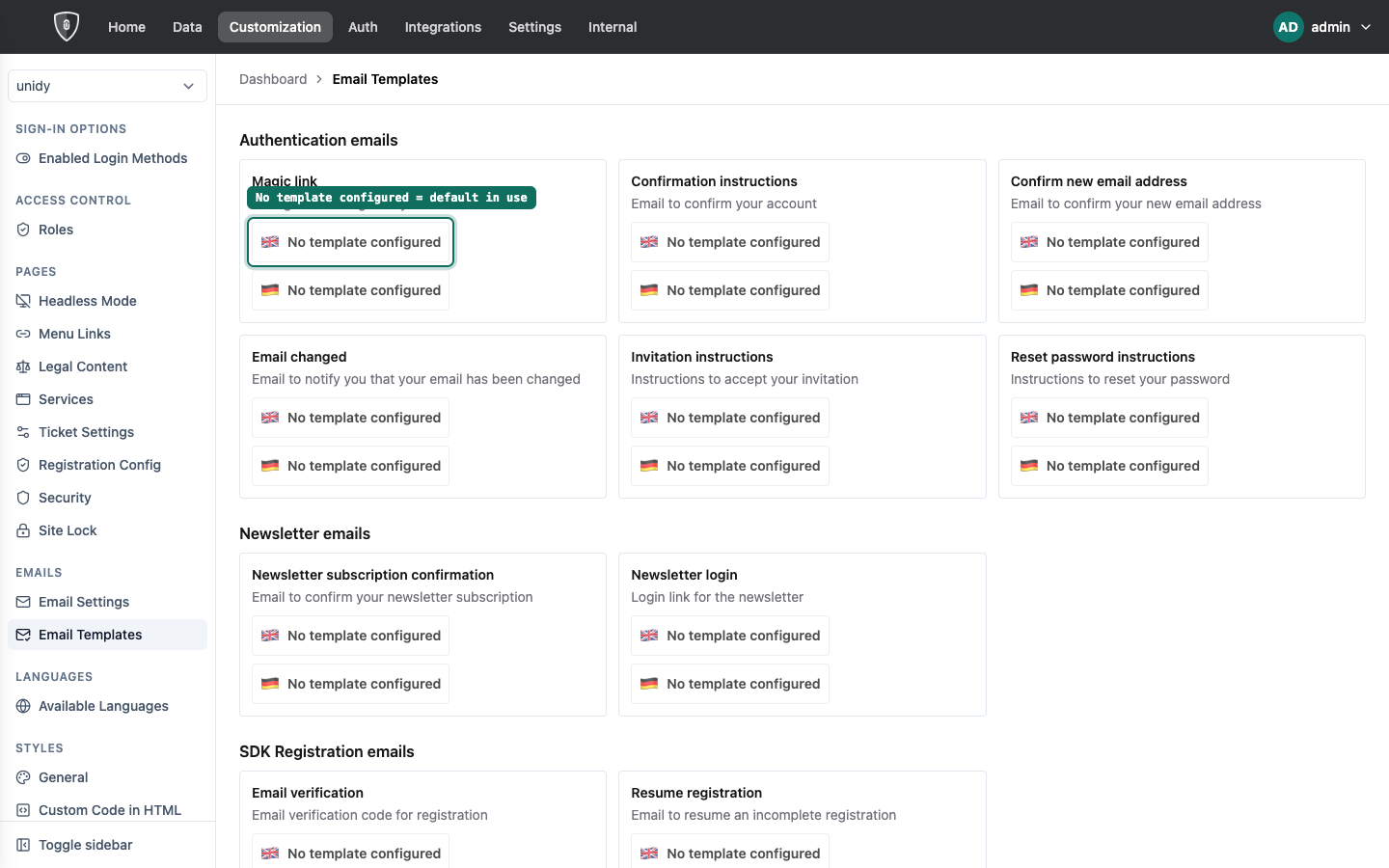
Email Templates — the eleven cards this brand's feature flags leave visible, in four groups; the full inventory is fourteen in five groups, one button per language · highlight on a language button in its default state.
| Group | Template | Purpose or recipient |
|---|---|---|
| Authentication | Magic link | A sign-in link or code requested by the customer. |
| Authentication | Confirmation instructions | Account email verification. |
| Authentication | Confirm new email address | Verification of a replacement address. |
| Authentication | Email changed | A notice associated with an email-address change. |
| Authentication | Invitation instructions | An invitation requested by an administrator or integration. |
| Authentication | Reset password instructions | A customer's password-reset request. |
| Authentication | Password change | A catalogue entry hidden from the ordinary grid; do not assume a password-change notice is enabled for your workflow. |
| Newsletter | Newsletter subscription confirmation | Double opt-in confirmation for a newsletter configured to send it through Unidy. |
| Newsletter | Newsletter login | Access to newsletter preferences. |
| SDK registration | Email verification | A verification code for an SDK registration flow. |
| SDK registration | Resume registration | A requested link to resume registration. |
| Service | (admin) Unsubscribe | A service-disconnection notice to the application's configured deletion-notice address. |
| Ticket transfer | Ticket transfer offer | An offer sent to the proposed recipient. |
| Ticket transfer | Ticket transfer accepted | An acceptance notice to the sender. |
| Ticket transfer | Ticket transfer declined | A decline notice to the sender. |
| Ticket transfer | Ticket transfer canceled | A cancellation notice to the proposed recipient. |
| Ticket transfer | Ticket transfer returned | A return notice to the ticket owner. |
| Ticket transfer | Ticket transfer revoked | A revocation notice to the former holder. |
Newsletter cards depend on newsletter configuration, the service notice on a configured deletion-notice address, and ticket-transfer cards on ticket and transfer settings. A hidden card is a reason to check that configuration, not evidence that a message can never be sent.
Edit, preview and test
The editor offers Split, Edit and Preview views. Saved templates also have History. Variables lists available inputs with examples; the inputs differ between templates. For example, a magic-link message exposes a sign-in link and code, while a newsletter confirmation uses newsletter-specific inputs.
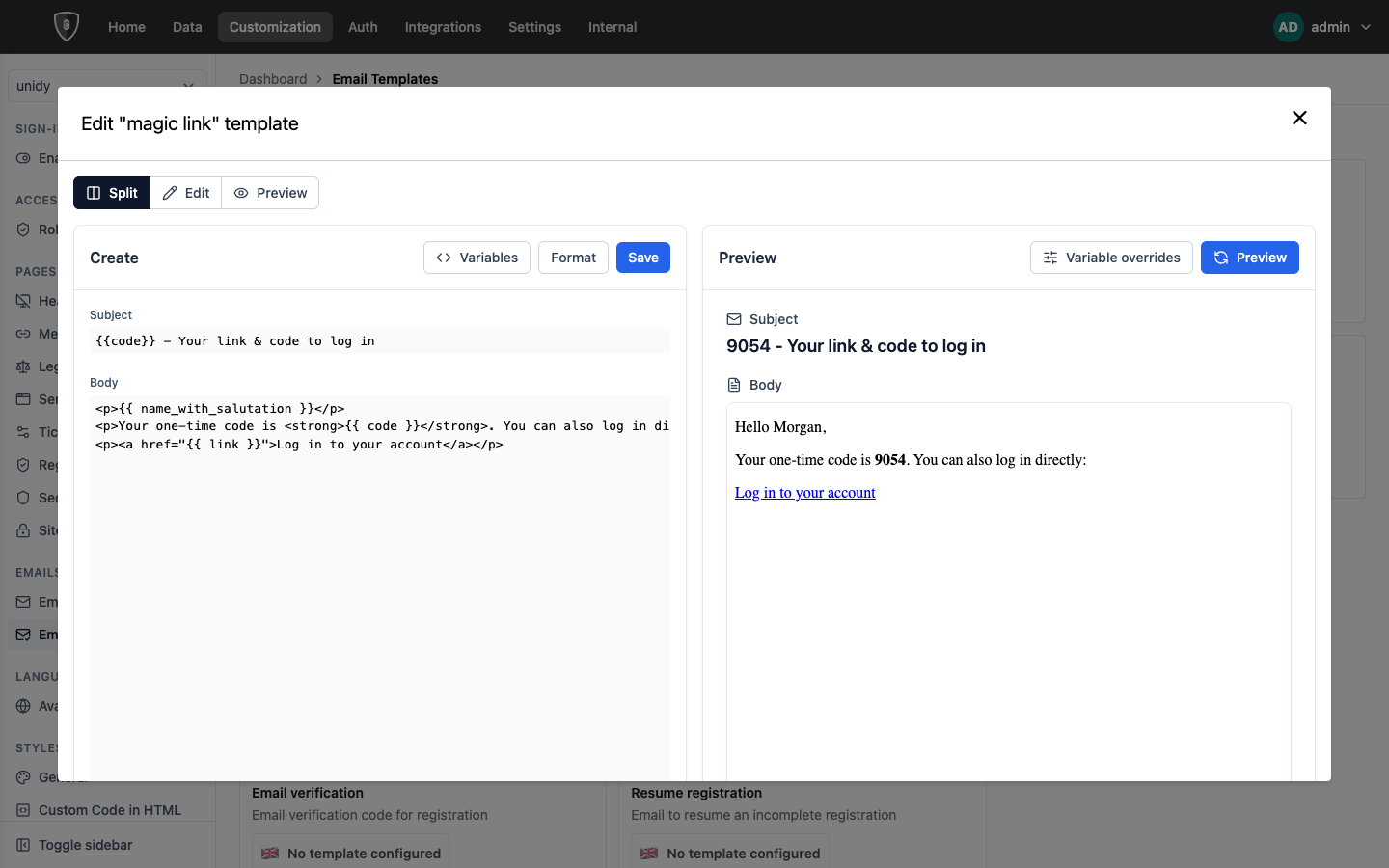
Template editor (Split view) — HTML with Liquid placeholders on the left, the rendered result with example values on the right.
A minimal magic-link body is:
<p>{{ name_with_salutation }}</p>
<p><a href="{{ link }}">Sign in</a></p>
<p>Or enter this code: <strong>{{ code }}</strong></p>
Use the variable list for the selected template before reusing this example elsewhere. Keep links and codes appropriate to the action; sample values in previews and test emails are not evidence that a real registration or reset has completed.
Common message variables
These are examples to check against Variables, not a shared set available to every message:
| Template | Variables to check |
|---|---|
| Magic link | {{ first_name }}, {{ link }}, {{ code }} |
| Confirmation instructions | {{ first_name }}, {{ confirmation_url }} |
| Confirm new email address / Email changed | {{ email }}, {{ unconfirmed_email }}; use the selected template's confirmation-link variable where offered. |
| Invitation instructions | {{ first_name }}, {{ accept_invitation_url }} |
| Reset password instructions | {{ first_name }}, {{ email }}, {{ reset_password_url }} |
| Newsletter subscription confirmation | {{ confirm_path }} |
| Newsletter login | {{ newsletter_path }} |
| SDK email verification | {{ email }}, {{ code }} |
| SDK resume registration | {{ email }}, {{ resume_link }} |
| Service unsubscribe notice | {{ user_email }} |
For example, a magic-link subject can be {{ code }} – Your link and code to sign in. Check spelling and render the saved message: depending on template validation and rendering, an unknown or misspelled variable can cause an error or missing/literal content. Do not infer correctness from a successful save alone. Format tidies the HTML but does not prove that email clients render it correctly.
- Preview renders the current editor values and any preview overrides. Resolve errors before saving.
- Save stores the subject, body and selected layout. Save before switching templates or closing the editor; unsaved edits can be lost.
- Send test email is available for a saved template and sends to the signed-in administrator, including when the customization is disabled. Save again after making further edits.
- History lets you inspect earlier changes and before/after previews. Review the actual content and enabled state when correcting an edit; it is not a switch that pauses message delivery.
Ordinary delivery uses the brand's language when multilingual mode is off. With multilingual mode on, the message's selected customer language or the brand fallback determines the language. Test sends explicitly request the template language, so a successful test of a second language does not prove ordinary customers receive that language. See Languages and translations.
Reuse layouts and components
Open Components from the Email Templates list. Components belong to the selected brand and can be shared by several messages and languages.
- Decide whether you need a fragment for reusable content or a layout that wraps the message body.
- Add a component with a stable slug, then edit its HTML and Liquid. Check the Used by list before changing an existing component.
- Preview it with representative inputs in each intended language. Complete any component translations that the editor identifies.
- Save. The saved component immediately affects messages that reference it; components have no separate Enable step.
- For a layout, return to the template editor, choose it in Layout, then preview and save that template.
The built-in default_layout wraps all built-in default messages. Customizing it affects those messages as well as templates that select it. Deleting a customization of a built-in component restores its built-in definition. A custom component that is still referenced cannot be deleted; remove its usages first.
Liquid and component inputs
A layout contains exactly one {% yield %} position for the message body. For example:
<!doctype html>
<html>
  <body>
    <h1>{{ email_brand_name }}</h1>
    {% yield %}
    <p><a href="{{ privacy_url }}">Privacy</a></p>
  </body>
</html>
A layout receives email_subject, language, preview_text, root_url, privacy_url, email_brand_name and contact_email. Message-specific values belong in the body, not in a shared layout unless explicitly passed to a component.
To reuse a fragment, create greeting with <p>Hello {{ customer_name }}</p> and pass its input from a template that exposes first_name:
{% render 'greeting', customer_name: first_name %}A component that wraps child content uses {% component 'slug' %}…{% endcomponent %} and one {% yield %} inside its definition. Use render or component, not include. Component slugs are immutable; choose names before referencing them.
Layout-backed templates validate variables, component references and rendering. If saving fails, check the template's Variables list, the component slug, required inputs, layout type and missing translations. Referenced components must exist in this brand. Components must not reference themselves indirectly or directly; nesting is limited to ten levels.
Add or retire an image
When Images is available in the editor:
- Upload a GIF, JPEG or PNG of at most 5 MB and at most 5120 pixels in either dimension.
- Provide meaningful alt text, then insert the image into the body.
- Preview, save and send a test. Check image sizing and the message with images blocked.
Archive removes an image from the active picker while retaining the asset for existing messages; Restore makes it available again. Permanent deletion requires an archived image and filename confirmation. Check its usage before deleting: removing an asset can break images in saved templates and emails already delivered.
Troubleshoot a message
Before troubleshooting delivery, check the HTML and launch requirements below. Sender settings are separate from the template subject/body, and each offered language needs its own enabled customization. Adding an available language does not automatically translate or enable its messages.
Write email HTML that survives different clients
Use an email framework such as MJML if it fits your workflow, or hand-code with conservative email markup. Compile framework markup to HTML before pasting it into Unidy. The browser preview cannot reproduce every inbox's rendering.
| Area | Authoring guidance |
|---|---|
| Layout | Use presentation tables for layout and nested tables for columns. Provide width, align, cellpadding, cellspacing, and border attributes where needed. Add role="presentation" to layout tables. Avoid relying on flexbox, grid, floats, or positioning for essential content. |
| Width | Use a responsive width="100%" wrapper with a max-width:600px content area and a fixed-width desktop fallback for classic Outlook. |
| Styles | Put essential styles inline. Use explicit longhand spacing where compatibility matters, inline line-height, and <td> padding rather than relying on margins. A spacer row such as <tr><td height="20"> </td></tr> can supply vertical space. |
| Fonts | Use system fonts with fallbacks, for example Arial, Helvetica, sans-serif. Avoid externally loaded fonts: they load inconsistently and add third-party requests. |
| Images | Use absolute HTTPS asset URLs with explicit width, height, and meaningful alt. Images may be blocked. A background image needs a tested fallback, including VML when targeting classic Outlook. |
| Buttons | Use a table-based CTA with a VML fallback for classic Outlook; do not rely on anchor padding/background alone. The fallback and ordinary link must use the same dynamic destination. |
| Responsive/dark mode | Place media-query and dark-mode rules in a <style> block in the document head, normally in your shared layout. Provide a usable fallback when a client ignores them or automatically changes colours. |
| Document metadata | Set the HTML lang, include useful hidden preheader text, and keep the generated message small. Large messages can be clipped by inboxes; aim below Gmail's approximately 102 KB HTML clipping boundary and test the delivered message. |
For an externally hosted asset:
<img src="https://cdn.example.com/logo.png"
     width="200" height="100" alt="Example brand" />
The editor can also host uploaded images when that capability is enabled. This replaces the old blanket statement that Unidy never hosts email assets.
A magic-link CTA with an Outlook fallback can be written as:
<table role="presentation" border="0" cellpadding="0" cellspacing="0" align="center">
  <tr>
    <td align="center">
      <!--[if mso]>
      <v:roundrect xmlns:v="urn:schemas-microsoft-com:vml"
        href="{{ link }}"
        style="height:48px;v-text-anchor:middle;width:260px;"
        arcsize="12%" stroke="f" fillcolor="#0054ff">
        <w:anchorlock xmlns:w="urn:schemas-microsoft-com:office:word"/>
        <center style="color:#ffffff;font-family:Arial,sans-serif;font-size:16px;font-weight:bold;">
          Sign in
        </center>
      </v:roundrect>
      <![endif]-->
      <!--[if !mso]><!-->
      <a href="{{ link }}"
         style="display:inline-block;background-color:#0054ff;color:#ffffff;
                font-family:Arial,Helvetica,sans-serif;font-size:16px;font-weight:bold;
                text-decoration:none;padding-top:14px;padding-bottom:14px;
                padding-left:28px;padding-right:28px;border-radius:8px;">Sign in</a>
      <!--<![endif]-->
    </td>
  </tr>
</table>
Put dark-mode metadata in the layout's head when supporting both colour schemes:
<meta name="color-scheme" content="light dark">
<meta name="supported-color-schemes" content="light dark">
<style>
  @media (prefers-color-scheme: dark) {
    .email-content { background-color: #101828; color: #ffffff; }
  }
</style>
Review the footer and release
Default messages and layouts are a starting point. Replace any footer placeholders with approved organization details before launch. Have the owner of your legal content review which fields and links apply to your organization and message type.
| Placeholder/content | Review with the organization owner |
|---|---|
| Company name | Legal entity responsible for the message. |
| Street, ZIP, City | Complete postal address. |
| Managing director / representatives | Applicable authorized representatives. |
| Registration court and register number | Applicable register details. |
| VAT ID | Applicable tax identification. |
| Privacy policy and imprint | Working absolute URLs to the approved information. |
| Contact channel | A working way to obtain help; a no-reply sender should clearly provide an alternative. |
Keep account-access messages focused on their system purpose. Newsletter consent, double opt-in, and unsubscribe requirements belong to the newsletter workflow and its legal review; an authentication email template does not supply that policy.
Validate on staging before production. For every template change:
- Check placeholder spelling, absolute links and destinations, image alt text, document language/preheader, message size, and the approved footer. Remove example URLs and bracketed company placeholders.
- Save, preview, and send tests to Outlook on Windows and Mac, Gmail web/mobile, and Apple Mail. Litmus or Email on Acid can help cover more renderers.
- Check the CTA in classic Outlook, desktop/mobile layout, light/dark mode, and the message with images blocked. Test the real action link separately from preview sample data.
- Enable the template after review. Promote the approved subject, body, layout, components, and language variants to production, then verify an actual workflow there.
Diagnose delivery
| Symptom | Check |
|---|---|
| Customers receive the old content | Correct brand, message and language; saved changes; Enabled state; any confirmation-message fallback. |
| Test email ignores recent edits | Save first. Test sends use saved content and sample inputs, not the current preview overrides. |
| Save or preview reports an error | Available variables, component inputs and slugs, layout selection, Liquid syntax and required translations. |
| A shared edit changes several messages | Inspect the component's Used by list and whether you edited default_layout. |
| No expected email arrives | Triggering workflow, recipient, inbox/spam, sending-domain setup and delivery evidence; disabling an override does not suppress the workflow. |
| A language is missing | Brand multilingual settings and available languages; test ordinary delivery separately from forced test sends. |
Complete the customer-experience checklist before launch and record ongoing delivery ownership in the support handoff.