Roles and permissions
Grant, verify, and troubleshoot dashboard access.
Roles and permissions
Use roles to give dashboard users the access their work requires. A role contains permissions and belongs either to one brand or to Global (all brands). People can receive roles directly and through user groups; their effective access combines those grants.
Manage account-level roles in Auth → Roles and the current brand's roles in Customization → Roles. The roles and scope you may view, edit, or assign depend on your own permissions.
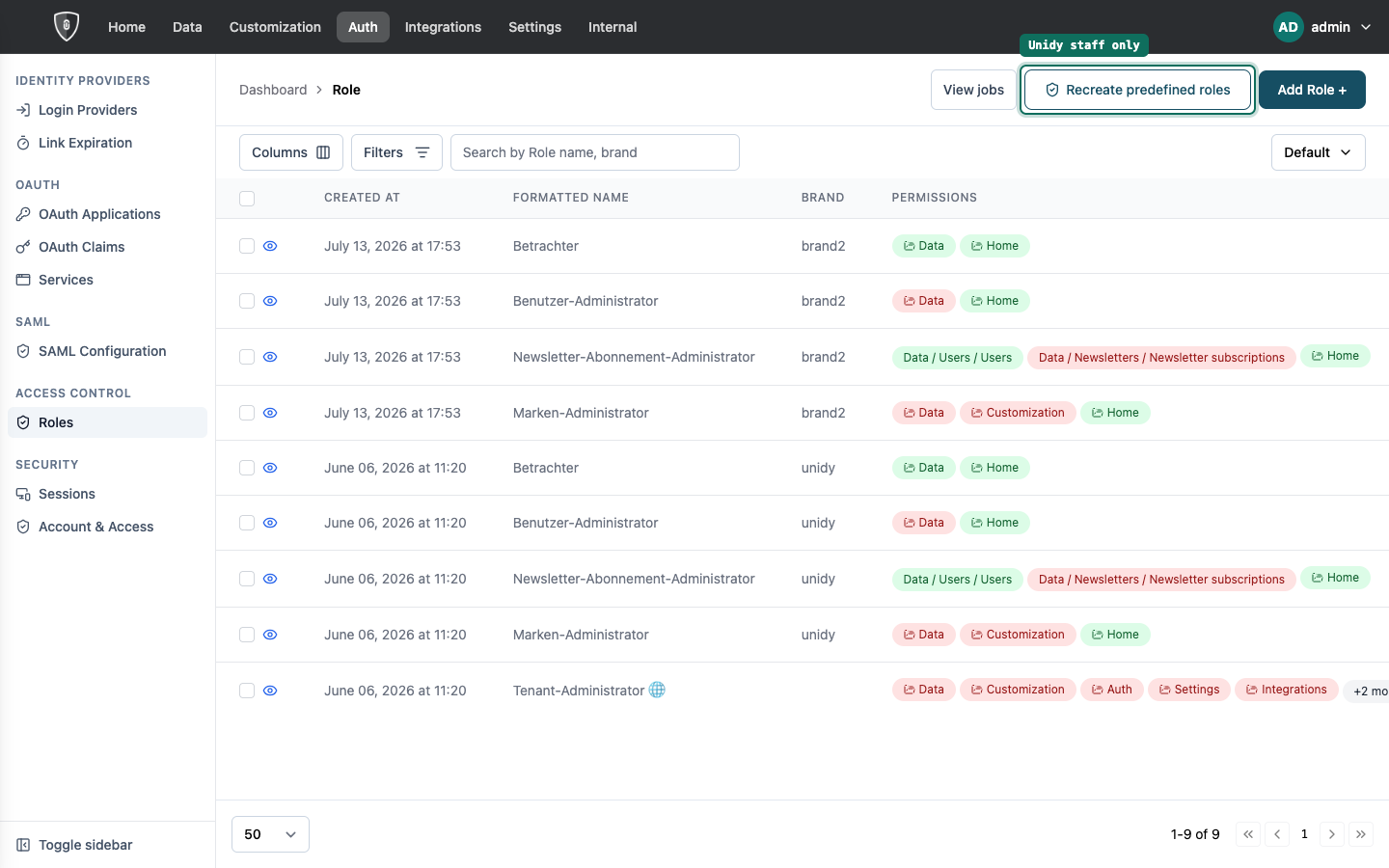
Auth → Roles — the nine roles the account held on 2026-08-05, when it had one brand; the four brand-scoped ones are created per brand, so a second brand adds four more · all nine roles in the seeded account: four per brand plus one global Tenant-Administrator · highlight on Recreate predefined roles, which only Unidy staff can actually run
Understand an access decision
When RBAC is enforced, check all three parts of a permission:
| Part | Example | Meaning |
|---|---|---|
| Scope | Global, or a named brand | Where the grant applies. A global grant can satisfy a brand check; a brand grant cannot satisfy a global check. |
| Resource | OAuth applications, users, or brand roles | Which screen or operation the grant covers. A parent category can grant access to all resources below it. |
| Action | Read, write, delete, or manage | What the person can do with that resource. |
Features must also be available for the account. A role cannot enable a disabled feature, and special operations can have additional restrictions. Predefined roles, for example, cannot be edited or deleted.
Scope examples
| Task | Required scope under RBAC | Permission to consider |
|---|---|---|
| Inspect or manage OAuth applications, SAML configurations, or account security | Global | The corresponding resource under Auth |
| Inspect or manage account integration settings | Global | The corresponding resource under Integrations |
| Create brands | Global | Brands under Settings |
| Manage brand roles | Current brand, or a qualifying global grant | Brand roles under Customization |
| Manage customer records for a brand | That brand, or a qualifying global grant | The relevant Data resources |
| Manage brand-owned profile-field locks | The lock's brand, or a qualifying global grant | Locked user attributes |
| Manage global profile-field locks | Global | Locked user attributes |
Auth, Settings, Integrations, and Internal screens normally require global grants. Record-aware exceptions, such as brand-owned profile-field locks, check the record's scope. Do not assume that a brand-scoped Auth → Manage grant opens the account's Auth screens.
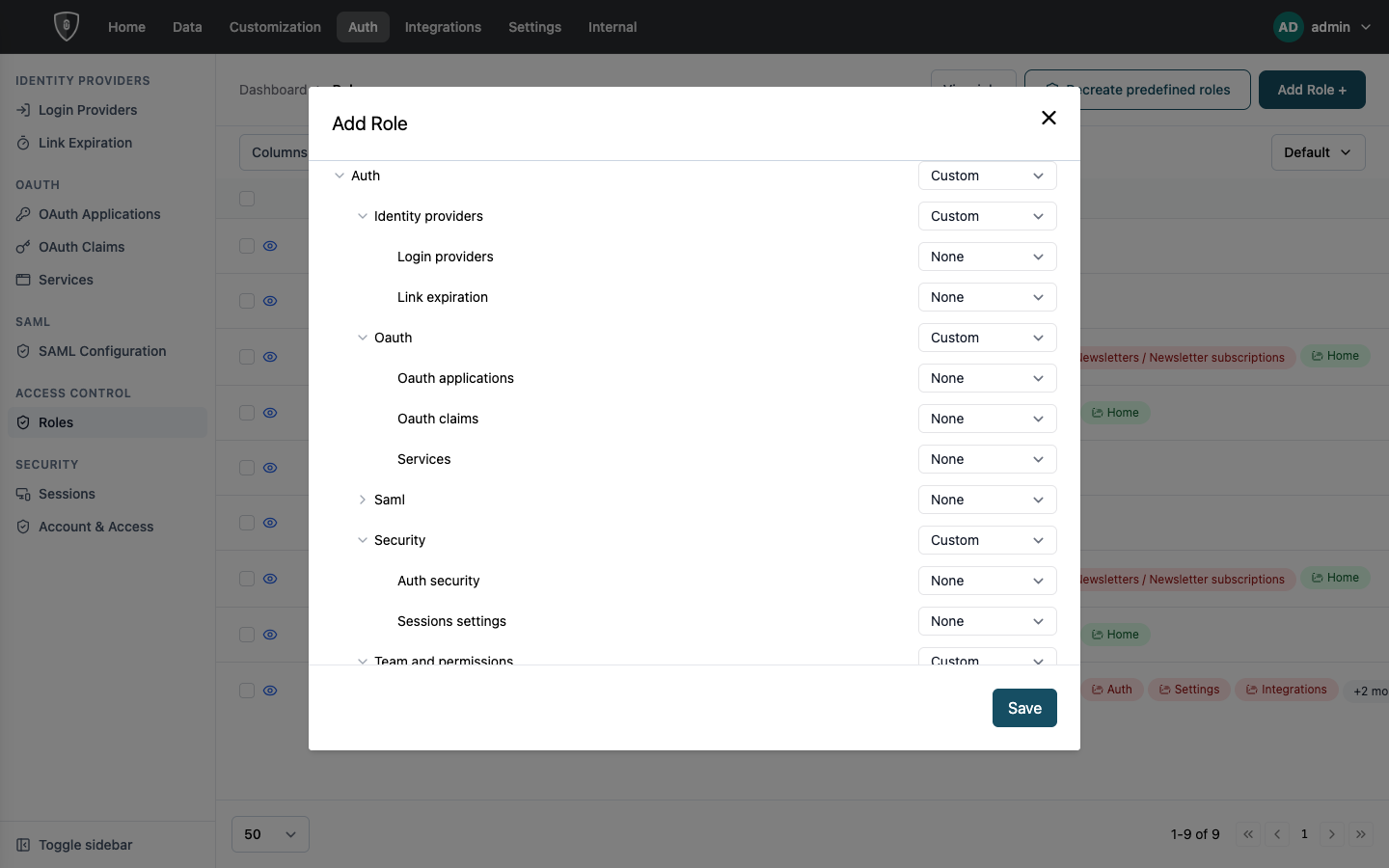
Add Role — the Auth branch expanded to its leaves. The group names match the sidebar headings on the left, with one exception: the sidebar says Access control where the permission tree says Team and permissions.
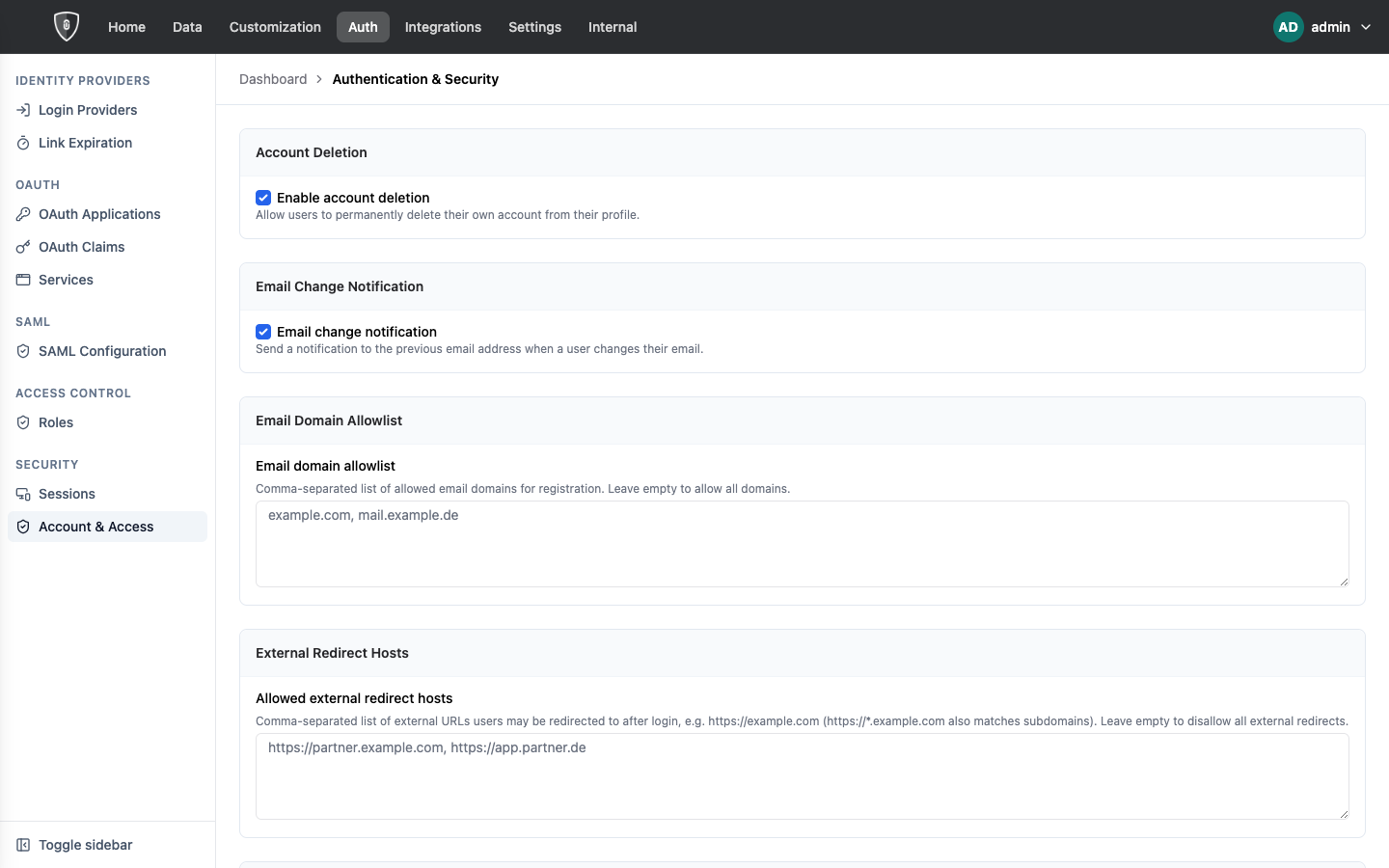
Auth → Account & Access — the five account-wide security settings, each saving on change
Access levels
| Level | Includes | Does not include |
|---|---|---|
| Read | View records and screens | Create, edit, or delete |
| Write | Read, create, and edit | Delete |
| Delete | Read and delete | Create or edit |
| Manage | Read, create, edit, and delete | Operations separately restricted to staff or otherwise protected |
Write and Delete are separate capabilities. In the form, None removes a grant. Custom means different permissions have been selected for the children of a category; it is not another stored access level.
RBAC and the legacy Authorization field
The user form's Authorization field contains the older user, admin, and superadmin values. Authorizations is the role picker. These are different controls.
RBAC can be enforced for the account or the current brand. A session-level RBAC option may also be available during rollout. With RBAC enforced, access comes from effective roles: the legacy superadmin flag does not bypass permission checks. Without RBAC, legacy restrictions still apply, including screens reserved for superadmins or Unidy staff.
When narrowing access, inspect direct roles and group-derived roles, especially global Tenant Admin grants. Changing only the legacy Authorization field is not a reliable way to restrict an account already using RBAC.
Enable RBAC
Before changing enforcement, assign and verify the required roles for administrators, keep a working account with global access, and test ordinary staff accounts on staging.
For a single brand, select that brand, open Customization → Security → RBAC Enforcement, enable it, and save. Brand enforcement applies even if account-wide enforcement is off. Tenant-wide enforcement is an installation rollout setting; ask the account's Unidy administrator to enable it. The old Settings → Security path is not the current brand configuration screen.
Where the user menu exposes Enable RBAC / Disable RBAC, it changes your browser's test preference. It does not change the brand/account configuration, and disabling that preference cannot bypass enforcement already required by the account or brand. Verify the saved policy with an ordinary account after testing.
API scopes describe an application's API access. This page describes dashboard role administration; consult the API authorization guide for the contract of the API version you use. Do not infer API access solely from a dashboard role name.
Principals and constrained assignments
Permissions can belong to users, API keys, OAuth applications and integration plugins. A role definition describes resource/actions; an assignment determines the principal and can narrow the applicable brands, service or supported record categories.
Inspect the assignment as well as the role. A global role name does not prove an unrestricted grant when the assignment has constraints. The principal's allowed brands also form a ceiling: assigning a role cannot expand it beyond those brands.
Multiple direct and group-derived grants can combine. A broad unconstrained grant can still authorize work that another assignment restricts, so inspect the effective set before calling an account limited.
Role creation and assignment are subject to escalation guards: permission to edit roles does not automatically allow granting access beyond your own authorized scope. Use the controls available in your deployed editor and verify the resulting access with the intended principal.
API keys and plugins have their own grants. A human administrator's dashboard access does not automatically become a plugin's or key's access. OAuth application assignments also matter to v1 API scoping.
Choose a predefined role or create your own
Predefined roles are read-only. Create a custom role when the predefined permissions are broader or narrower than the job requires.
| Role | Scope | Intended access |
|---|---|---|
| Tenant Admin | Global | Broad administration across the account |
| Integration Partner | Global | Manage OAuth and integrations; read identity-provider, SAML, and security settings; write access to roles and permissions |
| Brand Admin | One brand | Manage data, customization, and brand-owned profile-field locks; read Home |
| User Admin | One brand | Manage Data; read Home |
| Newsletter Subscriptions Admin | One brand | Read users, manage newsletter subscriptions, and read Home |
| Viewer | One brand | Read Data and Home |
Review the actual permission list before assigning a role. Integration Partner includes access-control changes; choose a custom role if a partner must not manage roles. Display names can be localized, so identify predefined roles by their scope and permissions as well as their name.
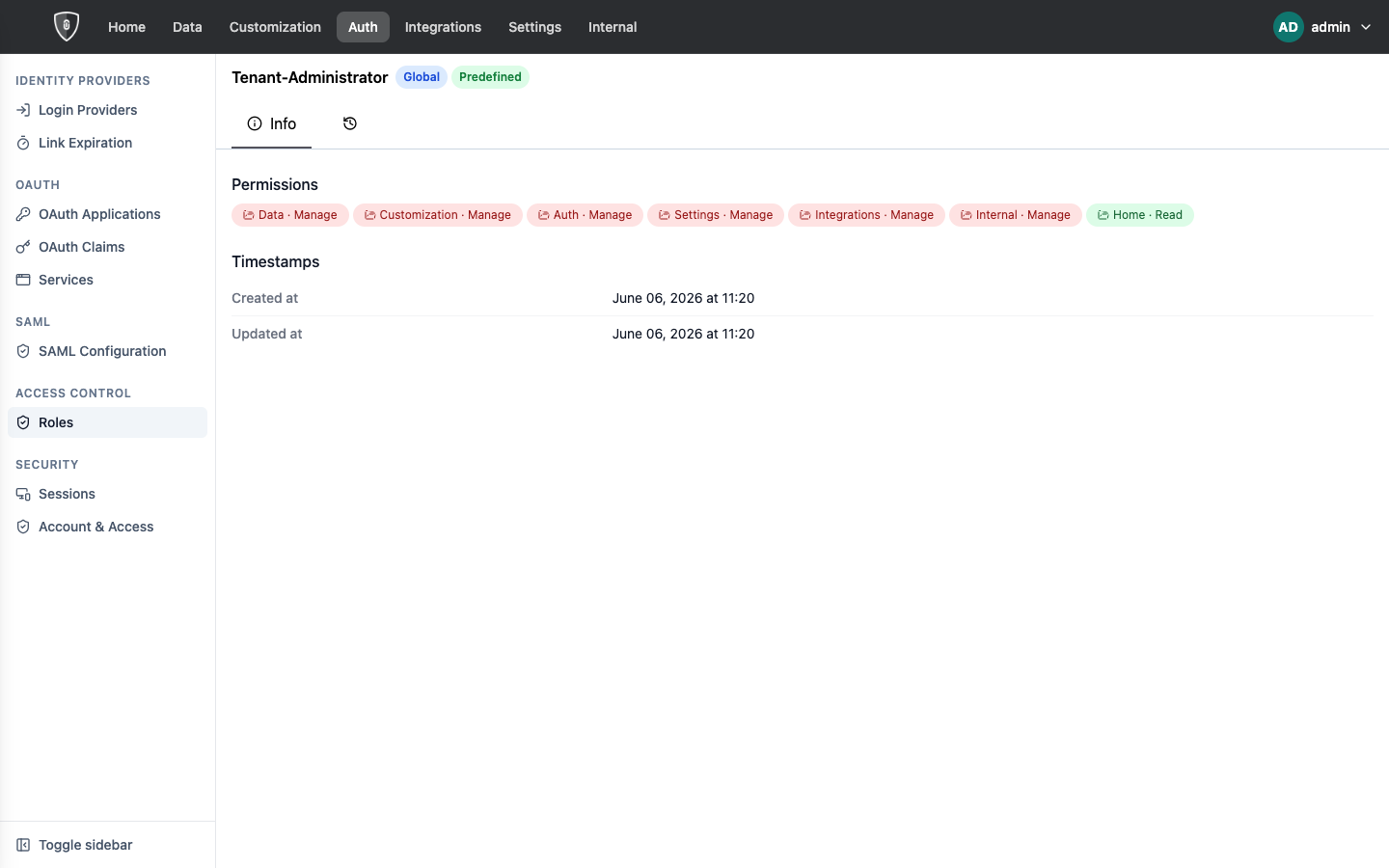
Role detail — the global Tenant-Administrator, showing the Global and Predefined badges and its seven permissions
Use Viewer for monitoring, Brand Admin for a brand manager, and Tenant Admin only for people who need account-wide administration. A custom support role can combine ticket and user-profile permissions. Home controls access to the dashboard metrics overview: leave it at None when the person should not see metrics, and check that no other role or group grants Home.
Create a custom role
- Open Auth → Roles, or Customization → Roles for a role limited to the current brand.
- Select Add Role and give it a name describing the work, such as “Brand support — read only.”
- Choose the brand or Global (all brands) where your access permits that choice. Use global scope only when the task needs it.
- Select the required resources and access levels. A parent category applies to its descendants; choose the parent or individual children, rather than overlapping both.
- Review the complete permission tree and save.
- Reopen the role and verify its scope and stored permission list before assigning it.
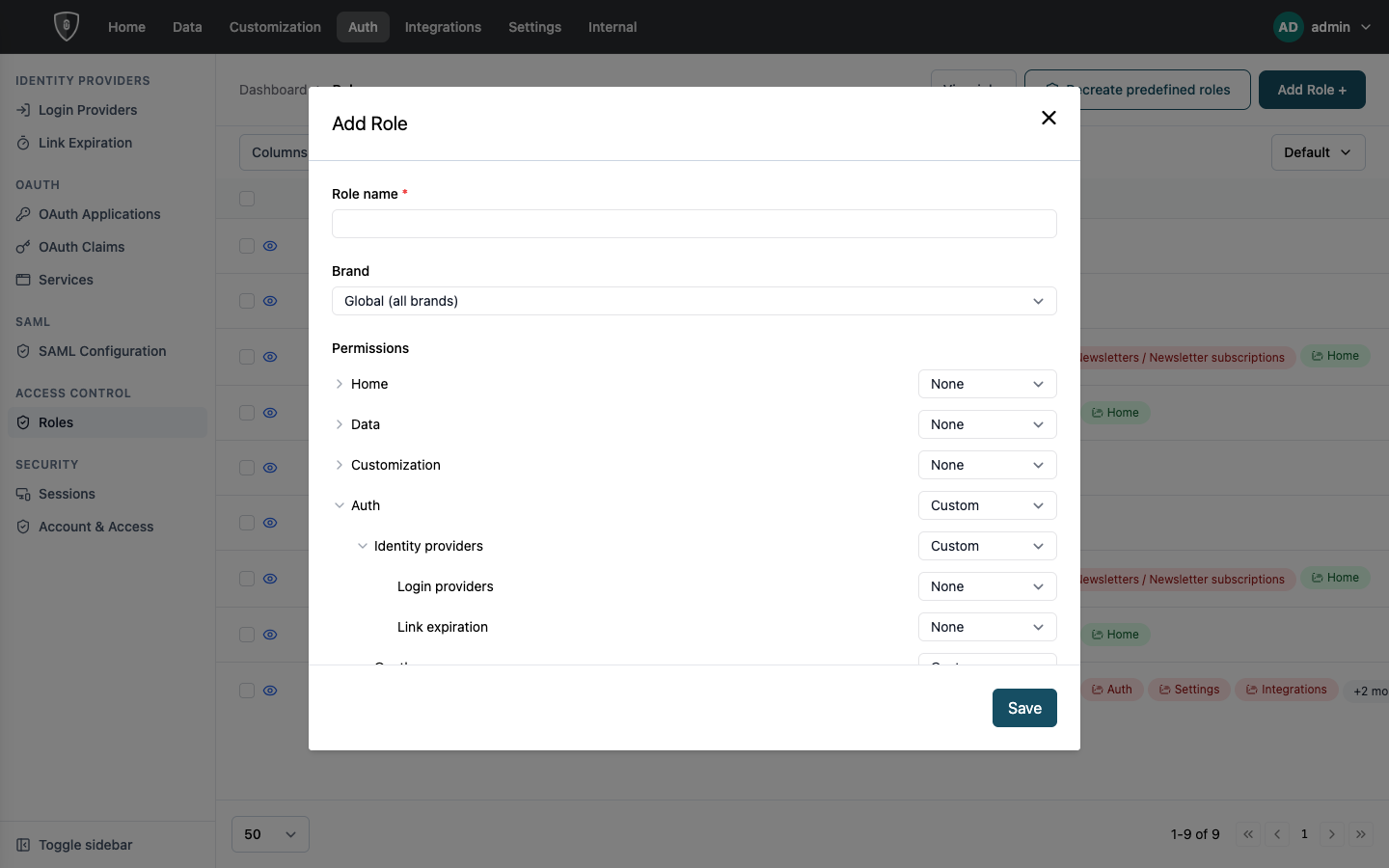
Add Role — name, brand, and the seven top-level permission sections, all starting at None
For example, Data → Manage covers its descendant resources. To allow only inspection of newsletter subscriptions, expand Data → Newsletters with Custom, set subscriptions to Read, and leave the other newsletter resources at None. Review existing grants before using this as a restriction.
Review collapsed permission groups
In the current role editor, collapsing an expanded permission group can clear its nested selections. Recheck the selected levels before saving, especially after opening and closing groups.
Example: a read-only OAuth reviewer
Create a global role with OAuth applications → Read. Assign it to the reviewer and verify that they can inspect applications but cannot edit them or copy secrets requiring write access. Add claims or services separately if those are part of the review. Do not grant the entire Auth category merely to open one screen.
Assign and verify a role
- Find the person's record under Users and choose Edit.
- Select the role in Authorizations, then save. The picker offers roles you are allowed to assign.
- Check the person's group memberships for other role grants.
- Have the person open the intended brand and confirm the expected view or action. Also check that actions outside the intended scope remain unavailable.
A role combines with existing grants; it does not reduce them. Saved assignments apply to subsequent permission checks. Removing a direct assignment will not remove the same permission if it is still granted by another role or group.
Edit or remove access
For a custom role, review who holds it before changing its permissions: an edit affects every assignee. To remove access from one person, remove their assignment rather than weakening a shared role needed by others.
Before deleting a custom role, review direct and group assignments and arrange any replacement access. Predefined roles cannot be deleted. Keep an account administrator with verified global access while changing enforcement or broad administrative roles.
Diagnose missing or excessive access
| Symptom | Check |
|---|---|
| A feature is absent for everyone | Account feature availability, then its brand configuration |
| An Auth screen remains unavailable despite a brand role | The permission requires global scope |
| A record can be viewed but not edited | Write or manage is required; delete does not include write |
| A predefined role cannot be changed | Create a custom role instead |
| A person retains access after a role was removed | Other direct roles, group-derived roles, global grants, and the active authorization mode |
| Access differs between brand hosts | Effective roles and RBAC enforcement for the current brand |
| A role was saved with fewer child permissions | Recheck the editor's group selections and the saved permission list |
See Roles and feature availability for the broader troubleshooting path. Browser-session policy has its own management guide; it is separate from role assignments.
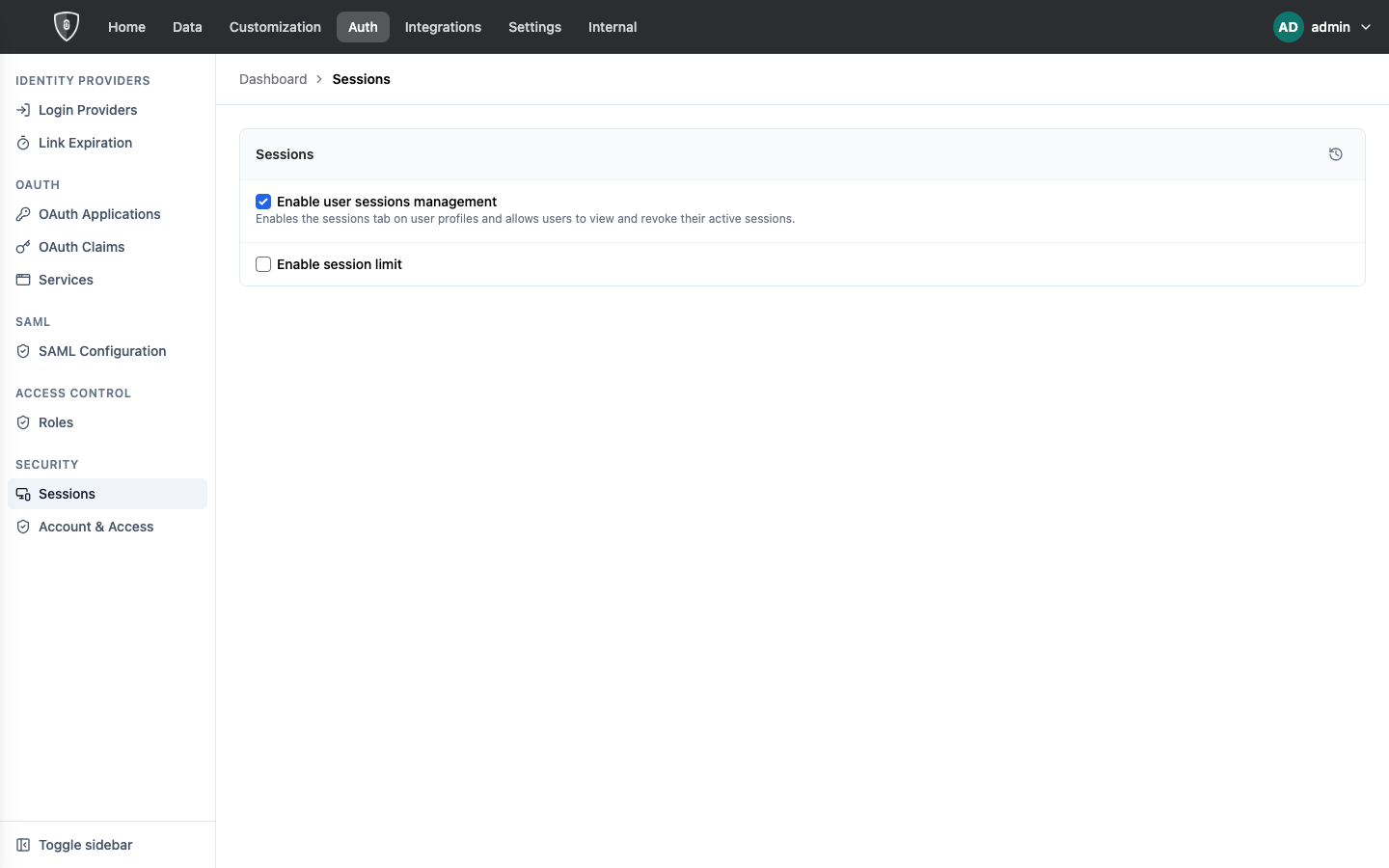
Auth → Sessions — session management and the session limit, with the change history control above them