Manage OAuth applications and claims
Configure client applications, identity claims, and their services.
Register an application that uses Unidy for sign-in, choose the identity data it can request, and maintain its credentials.
An OAuth application receives tokens from Unidy. A claim adds identity data when its scope is granted. A service groups applications belonging to the same product.
OAuth and SAML both let another application trust Unidy. To let Unidy trust Google or another external identity provider, use Login providers.
Before you begin
Open Auth → OAuth Applications. Under enforced role-based access control, you need a global grant for the resource you manage:
| Resource | Permission |
|---|---|
OAuth applications (oauth_applications) | Read to inspect; write to create, edit, and reveal the client secret; delete to remove; manage for secret rotation. |
OAuth claims (oauth_claims) | Read to inspect, write to create or edit, delete to remove. |
Services (services) | Read to inspect, write to create or edit, delete to remove. |
A brand-scoped role does not grant these global permissions. See Roles and permissions.
Agree with the application team on its callback URLs, brands, required identity data, and whether it can securely hold a secret. Browser and native public clients use Authorization Code with PKCE. Applications with a secure backend can use a confidential client.
Create an application
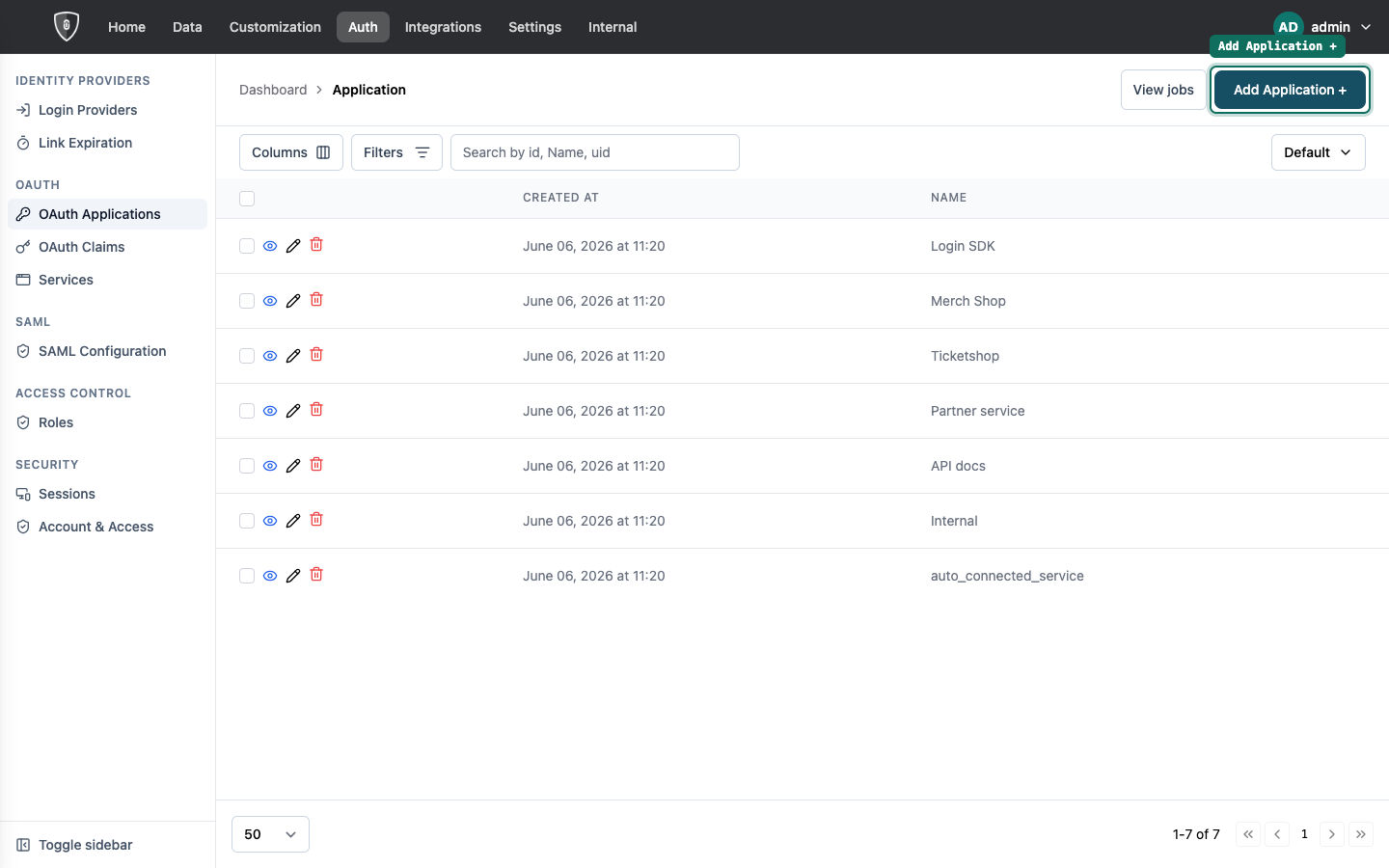
OAuth Applications — list of client applications · highlight on Add Application +
- Open Auth → OAuth Applications and select Add Application.
- Enter a name and description customers will recognize. Choose the application type.
- Select its service and brands. For a Service application, enter the Connect URI that starts its connection flow.
- Enter each callback URL on its own line in Redirect URI. Prefer exact URLs.
- Set Confidential according to whether the application can protect a secret. Leave it off for public clients using PKCE.
- On Scopes, allow only the scopes the application needs. Configure required fields if customers must supply additional information before continuing.
- Save, then open Info to copy the client ID. For a confidential client, securely provide its secret to the backend team.
- Complete a test sign-in from the application. Check the return URL, consent behavior, and actual claims received.
The client ID is public. The client secret is retrievable by users with write permission; it is not a one-time display. Keep confidential-client secrets out of browser code, mobile bundles, URLs, and logs.
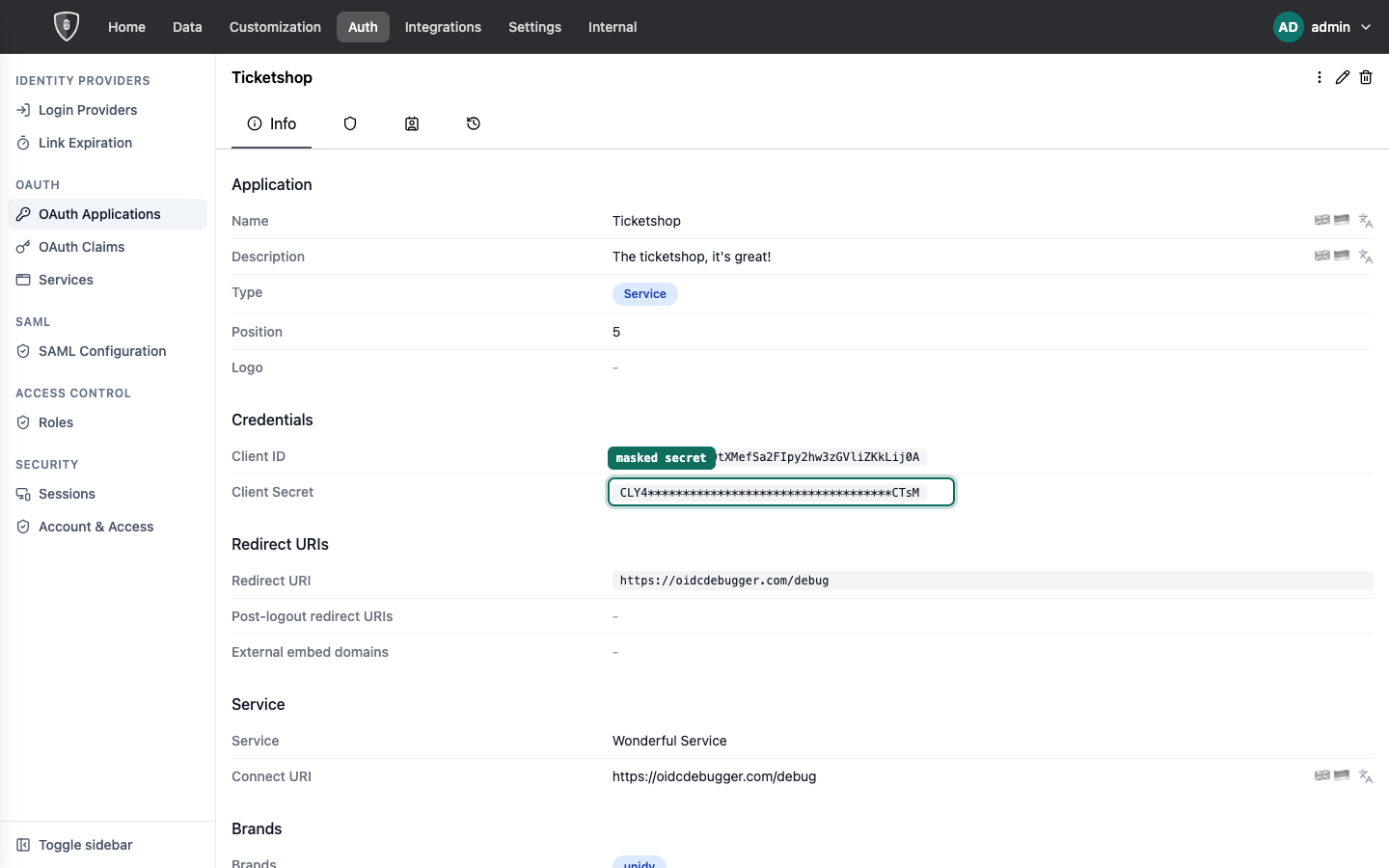
Application detail (Info tab) — credentials and redirect URIs · highlight on the masked Client Secret
Application fields
| Field | Purpose |
|---|---|
| Name and description | Customer-facing application text; translations can be provided. |
| Application type | Service is a connectable customer product; API is for API access; Demo appears as a direct link; SDK supports SDK-related application flows. Choose the type required by your integration. |
| Service | The product grouping for this application. Several applications can share one service. |
| Brands | The brands on which the application is available. Brand display ordering is managed on the brand link, not a Position field on the application. |
| Connect URI | Starts a Service application's connection flow; required for that type. |
| Logo | Customer-facing PNG logo, subject to the form's file-size and dimension constraints. |
| Redirect URI | Authorized callbacks, one per line. Exact URLs minimize where an authorization code can be delivered. |
| Post-logout redirect URIs | Approved HTTPS destinations after logout, one per line. |
| External embed domains | Domains allowed to frame Unidy pages. These entries contribute to an installation-wide allowlist; they are not restricted to this application. |
| Deletion notice email | Address for notices associated with users disconnecting from this service. |
| Required fields | Profile fields the authorization flow requires before the user continues. |
Application options
| Option | Effect |
|---|---|
| Confidential | Requires the application to authenticate as a confidential client. Use only when it can protect its secret. |
| Auto-approve | Skips the authorization consent prompt. Enable only when that is the intended consent policy. |
| Confirmation-less | Permits registration through this application's flow without the usual email confirmation step. |
| Partner service | Marks the application for the partner-services presentation. |
| Shopify integration | Returns an ISO 3166-1 alpha-2 country code in the address claim's country field for Shopify compatibility. It does not install a Shopify connector. |
| Updated at is string | Returns updated_at as an ISO 8601 string for consumers requiring that compatibility format. |
| JWT access tokens | Issues JWT-form user access tokens for this application. Client-credentials tokens remain opaque; existing tokens retain their format. Unavailable for the SDK system application. |
| ID token lifetime (seconds) | Optional positive integer up to 1,209,600 seconds (fourteen days). Blank uses 120 seconds. This does not set access-token, browser-session or application-session lifetime; unavailable for the SDK system application. |
An allowed scope is the maximum the application may request, not a promise that every token contains every scope. The application requests scopes during authorization and the token carries the granted set. Use the current Scopes tab and Scopes and claims reference as the catalogue. Identity scopes include roles, which enables role claims; API scopes cover resource permissions for users, tickets, and subscriptions.
API roles and delegated access
The application's role assignments are separate from its allowed OAuth scopes. Review them when configuring v1 ticket/subscription access during the RBAC rollout. Assign only the required service, brand and resource restrictions; the permissions guide describes the rollout boundary.
For delegated API v2 or MCP access, explicitly allow api_v2 and use Authorization Code with S256 PKCE. An empty application scope list does not implicitly allow this administrative scope, and client credentials cannot request it.
OAuth consent is remembered separately from short-lived token rows. Token cleanup alone does not necessarily cause another consent prompt. Requesting new scopes can require consent again; disconnecting the application revokes that relationship.
Add a claim
Claims are associated with scopes, not individual applications. Every application granted a claim's scope can receive the configured fields. Avoid putting sensitive fields behind a broad shared scope such as profile.
- Open Auth → OAuth Claims and select Add OAuth claim.
- Enter the claim name, select its scope, and choose the fields to release.
- Save the claim.
- Open the intended application and allow that scope on its Scopes tab.
- Ask the application to request the scope, then inspect a newly issued token or userinfo response with a test account.
A single selected field produces a scalar claim value. Multiple fields produce a JSON object. Custom-attribute choices are labelled with custom: in the picker; the underlying attribute name is used for the stored field selection. Review the resulting JSON with the consuming team before changing an existing claim's shape.
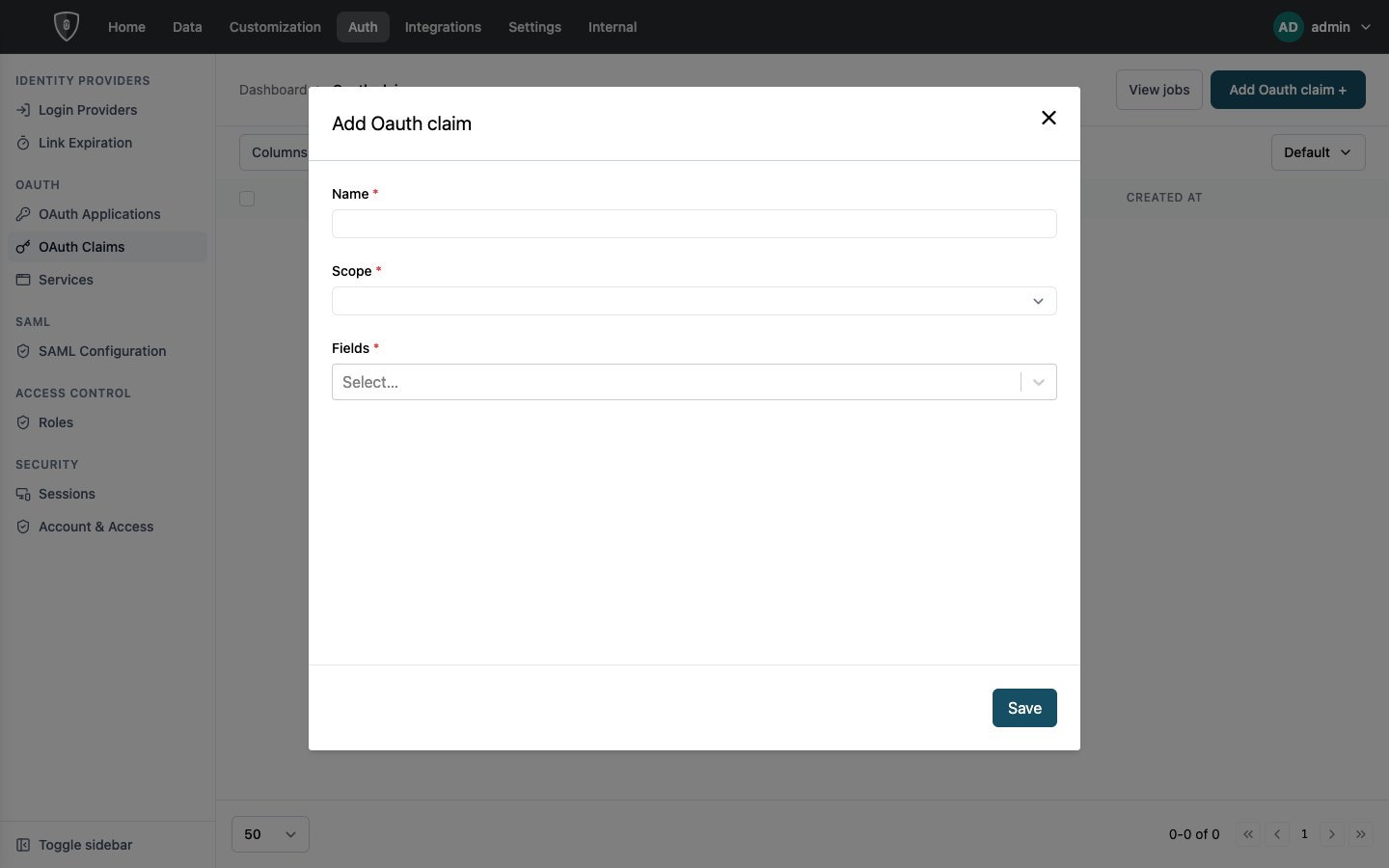
Add Oauth claim — name, scope, and fields (the seeded list behind it is empty)
The claim's translated name also helps identify its scope on the consent screen. Changing a shared claim can affect more than one application, so check all consumers of its scope.
Maintain an application
Add a callback
Edit the application, add the exact URL on its own line in Redirect URI, and save. Confirm that the application sends the same callback in its authorization and token requests. Remove obsolete callbacks when the application no longer uses them.
Rotate a secret
Rotation immediately replaces the credential used for new client authentication; there is no overlap period.
- Coordinate a change window with the application's backend team.
- Open the application, select the ⋮ menu, and choose Rotate secret.
- Confirm, copy the new secret, and update the backend's secret storage.
- Test a new authorization-code exchange and any server-to-server flows that use the credential.
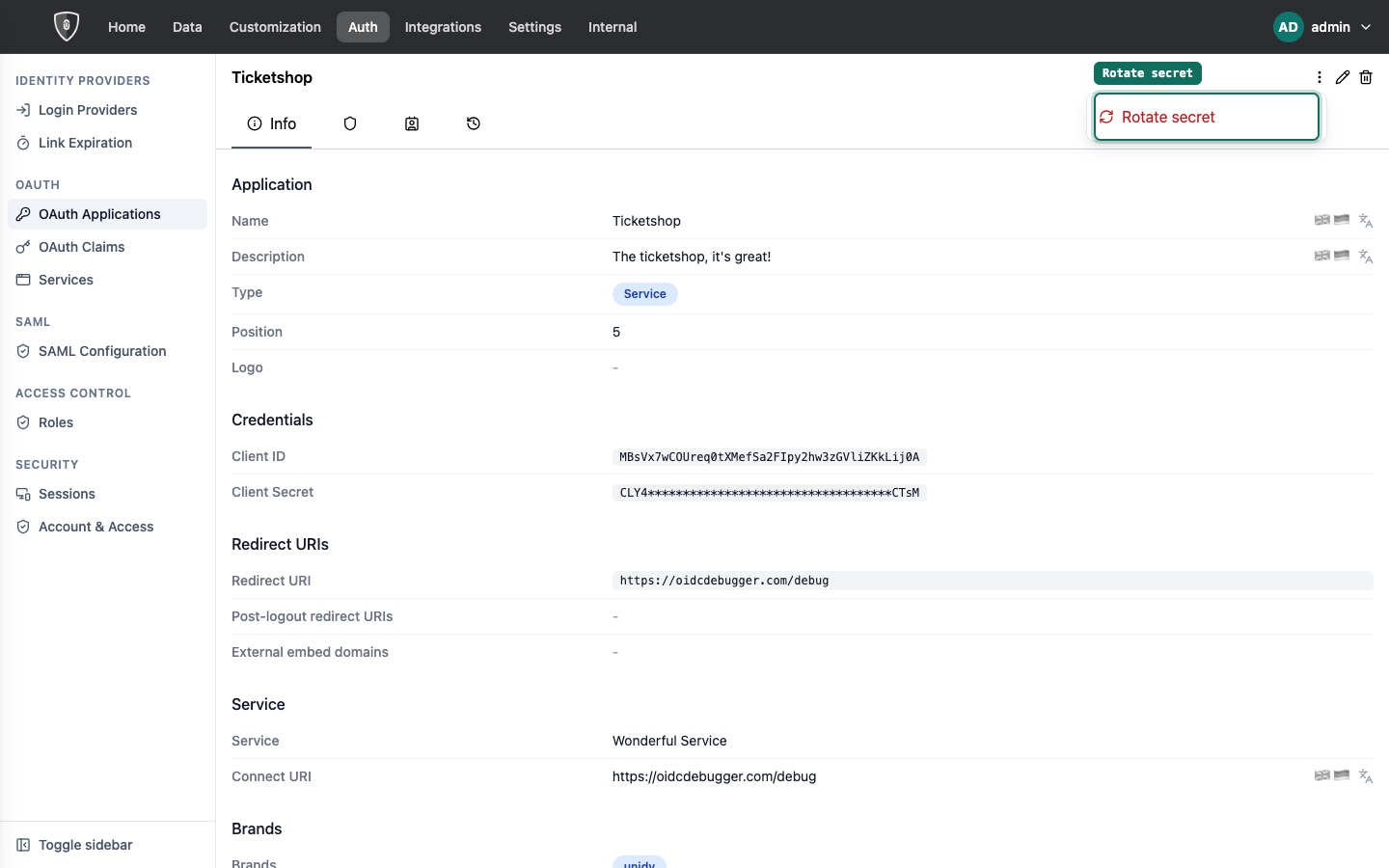
Application detail — the ⋮ menu · highlight on Rotate secret
Rotating a client secret does not revoke previously issued access tokens or end browser sessions. For access withdrawal, follow Token refresh, sessions, and logout and verify the appropriate revocation path separately.
Manage services
Open Auth → Services to create a named service, then assign it in each application's Service field. A service cannot be deleted while applications, subscriptions, or tickets reference it. Reassign or remove those dependencies before deleting a service you no longer need.
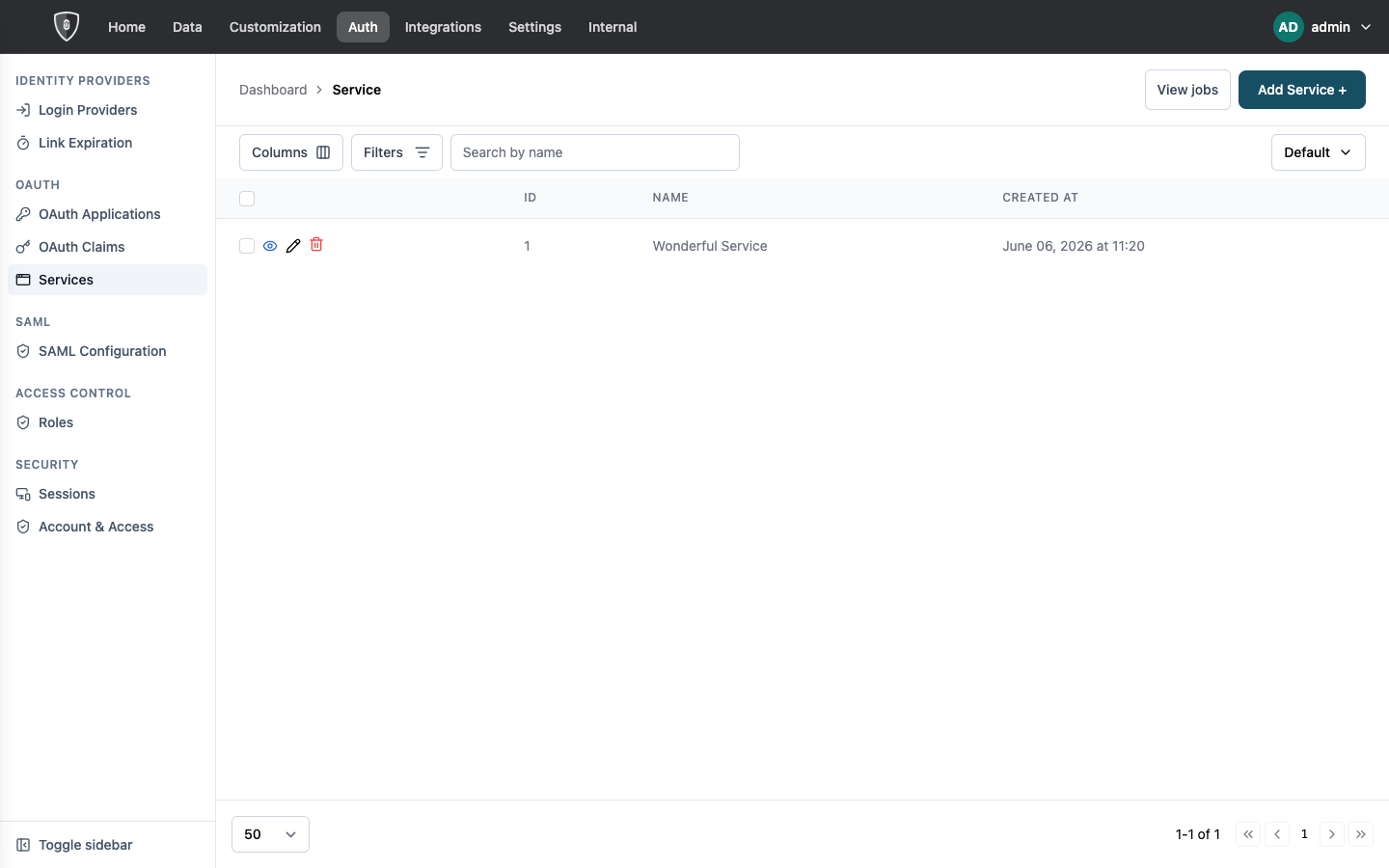
Services — list with the seeded Wonderful Service