Manage SDK app credentials
Create, configure, rotate, and retire SDK client keys.
An SDK client identifies a customer application using the SDK HTTP API. Create separate clients for applications or environments that need independent settings and key replacement.
The API key is intended to be included in customer-facing application code. It identifies the application; personal-data endpoints also require the signed-in customer's token. Some registration, sign-in, and newsletter signup endpoints intentionally work before the customer authenticates.
Choose the right credential
| Integration | Credential and guide |
|---|---|
| Embedded customer application using the JavaScript, React, or standalone SDK | An SDK client API key from this screen. |
| OAuth/OIDC redirect sign-in | An OAuth application. Public clients use a client ID with PKCE; confidential clients also protect a client secret on their backend. |
| Privileged backend REST integration | The backend authentication and scopes specified in REST API overview. Do not substitute a customer-app SDK key. |
A browser or mobile application can use OAuth/OIDC; the device type alone does not determine which credential it needs.
Before you begin
Open Integrations → API → SDK Clients. Under enforced role-based access control, this requires a global grant for sdk_clients:
- Read permits inspecting records.
- Write permits creating or editing records and revealing or copying their API keys.
- Delete permits removal.
- Manage permits key rotation as well as the other actions.
The client list is global; selecting a different brand does not limit it to that brand's clients. See Roles and permissions.
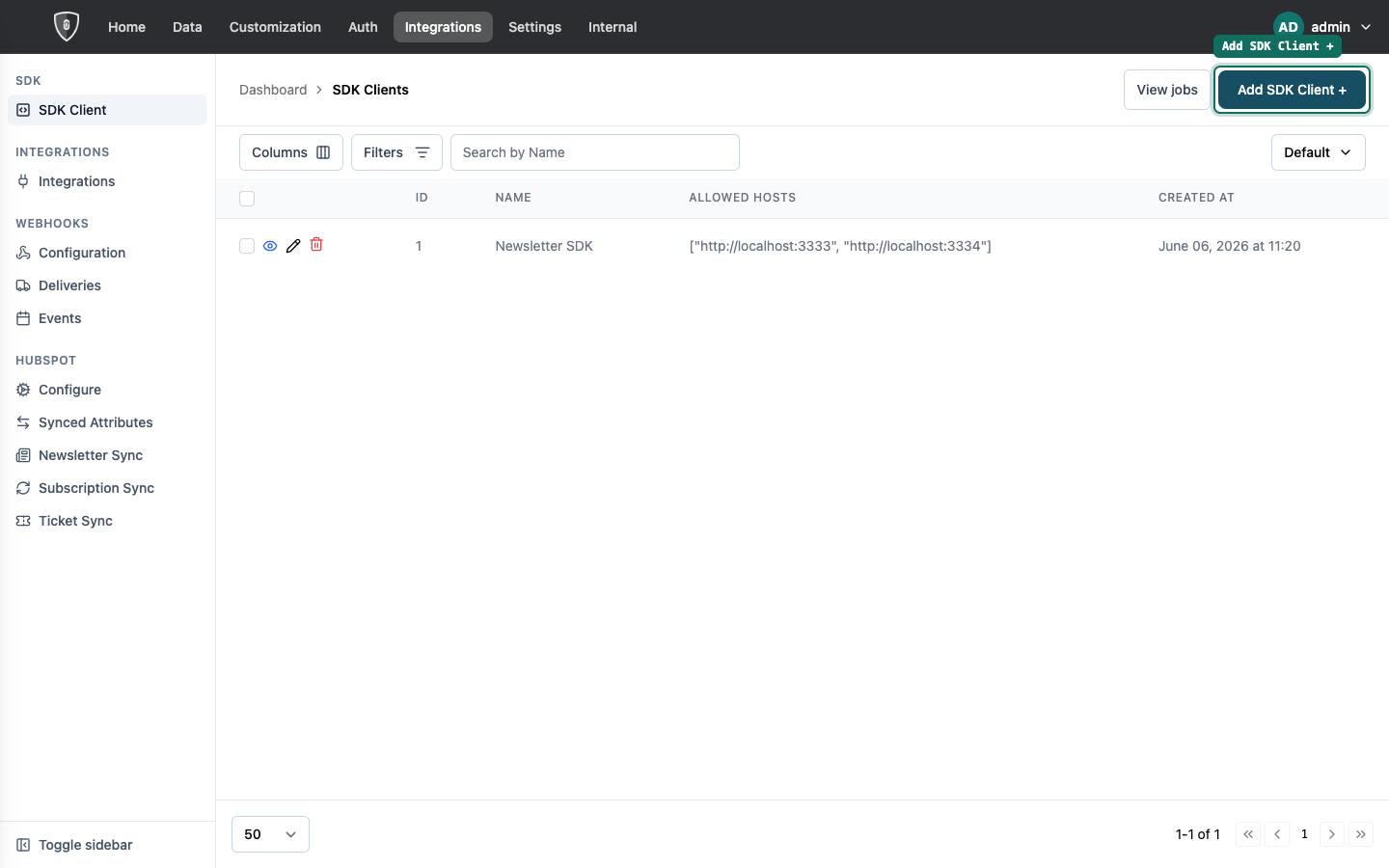
SDK Clients — the seeded installation has one credential, Newsletter SDK · highlight on Add SDK Client +
Obtain the application's origins, redirect destinations, target brands, and any mobile app identifiers from the application team.
Create and hand off a client
- Select Add SDK Client.
- Enter a unique name that identifies the application and environment, such as
Fan Portal Staging. - Enter each supported address on its own line in Allowed Hosts.
- Select the brands where the application will operate.
- For a native app, complete the platform identifiers described below. Leave them empty for a web-only app.
- Save, open Info, and copy the generated API key.
- Give the application team the key, Unidy base URL, and the configured brand and host expectations.
- Have the team test both a public flow and a signed-in profile request from the application's real origin.
Unidy generates the key; there is no field for a custom key value. The saved key remains available to authorized users and is not a one-time display.
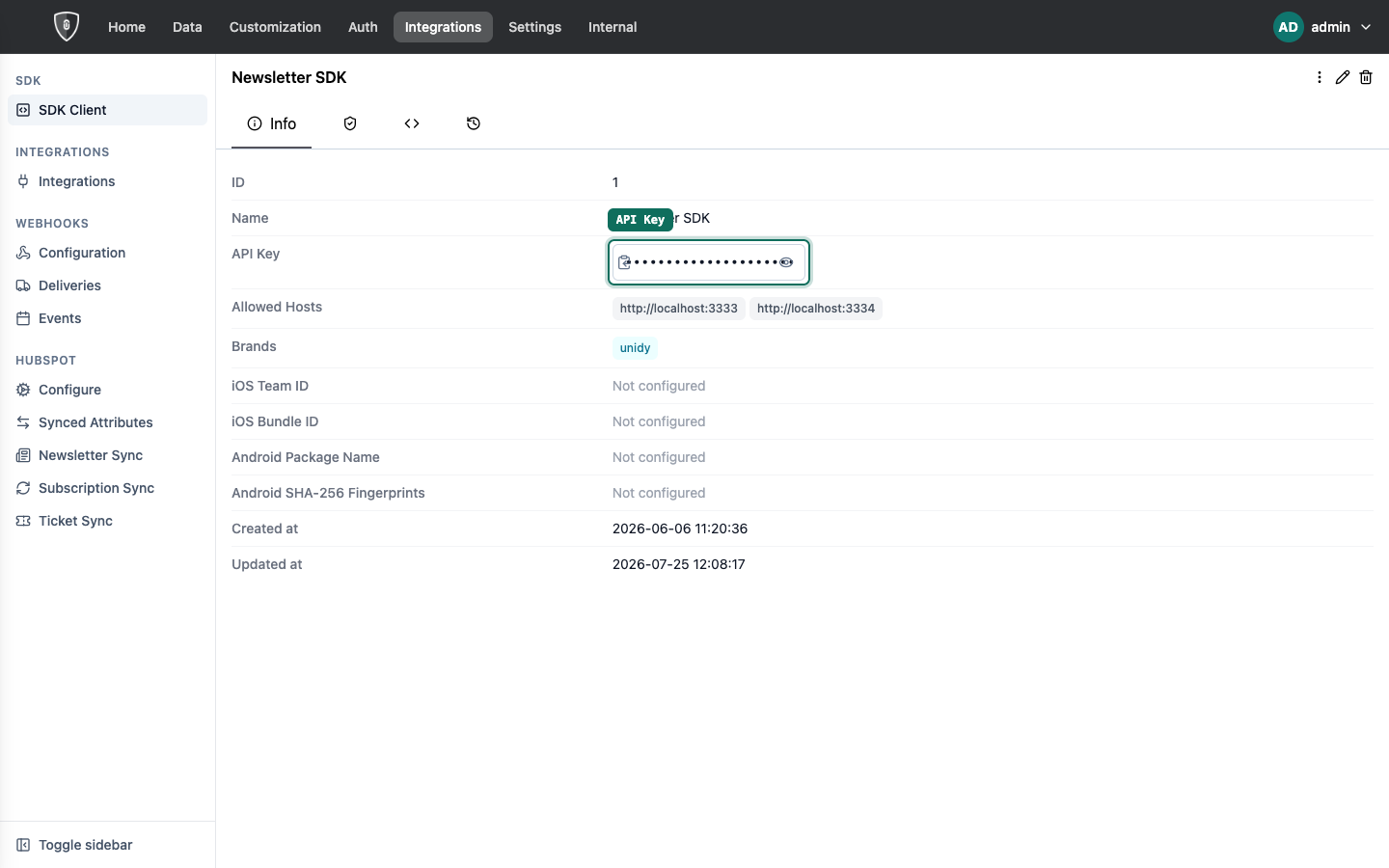
SDK client detail (Info tab) — every field the record carries · highlight on the masked API Key
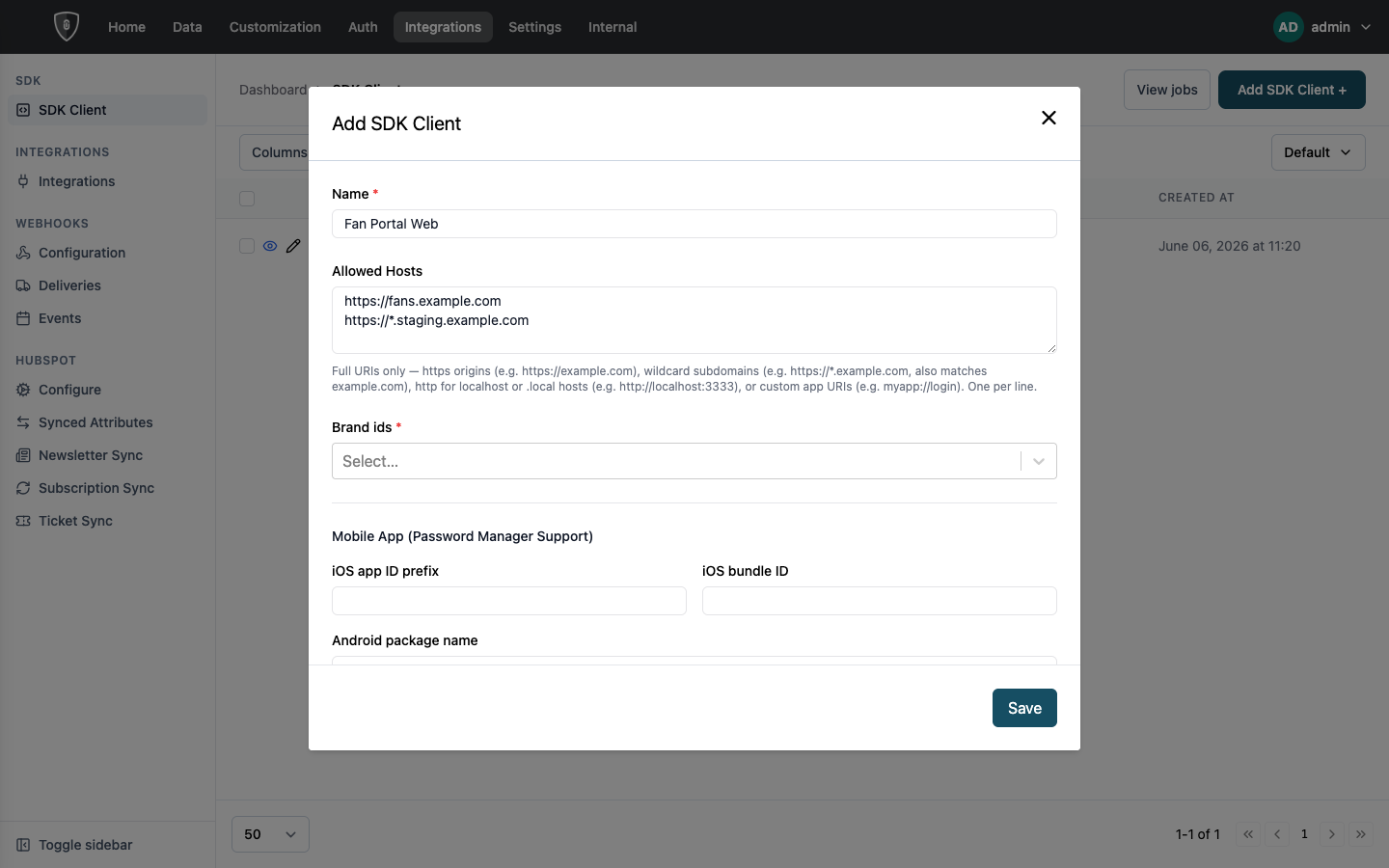
Add SDK Client — the create form, filled but not saved. Name and Brand ids are required; there is no field for the key, because Unidy generates it.
Use the JavaScript SDK, React SDK, or standalone client guide for application initialization.
Allowed hosts and brands
| Example entry | Use |
|---|---|
https://app.example.com | A web application's HTTPS origin. |
https://app.example.com/auth | A redirect path and its child paths. Browser CORS still checks the origin rather than the path. |
https://*.example.com | The apex domain and its subdomains. Prefer narrower entries when possible. |
http://localhost:3333 | Local development; the port must match. |
myapp://login | A native application's custom redirect scheme. |
Entries must include a scheme. Public HTTP addresses, query strings, fragments, user information, and unsafe schemes such as javascript: are rejected by the normal configuration validator. HTTP is permitted for local-development hosts such as localhost, 127.0.0.1, .local, and .localhost. Local/test configurations can skip this format validation, so a local save does not prove an entry is valid in a deployed environment.
Allowed Hosts has two distinct effects:
- Browser CORS accepts the union of allowed origins from all SDK clients on the installation. It is not an isolation boundary between client keys.
- Redirect destinations are checked against the client associated with the flow, including scheme, host, port, and any configured path restriction.
CORS restricts what a browser can read; it does not prevent a non-browser caller from presenting a public key. Authentication, endpoint permissions, and customer tokens remain separate controls.
Brands controls the Unidy brands the key may access. Unidy resolves the brand from the request's destination host and checks the client's brand assignments. When adding another brand, update the client and test against that brand's actual Unidy host.
To change an address or brand, edit the client, save, and retest the affected flow. Keep old redirect destinations only while a supported application version still uses them.
Mobile and compatibility settings
| Field | Purpose |
|---|---|
| iOS app ID prefix / Team ID | Apple's ten-character uppercase team identifier. |
| iOS Bundle ID | The bundle identifier of the app. |
| Android Package Name | The Android application package. |
| Android SHA-256 fingerprints | Signing-certificate fingerprints, one per line, as colon-separated hexadecimal pairs. Include each signing certificate your supported build actually uses. |
| Legacy Unidy social login | Compatibility for an existing legacy social-login integration. Leave off for new integrations unless the SDK migration guide requires it. |
The mobile identifiers support application association and credential handling. They do not replace the allowed redirect targets or customer authentication.
Use the client's Captcha settings for bot protection where supported. Its History tab records configuration changes.
Rotate or retire a key
Rotation replaces the key immediately, with no grace period. Calls using the old key then fail with invalid_api_key even if they also carry a customer token.
For an application you can update immediately:
- Coordinate the change with the application team.
- Open the client, select ⋮ → Rotate API key, and confirm.
- Copy the new key and deploy the application's updated configuration.
- Test registration/sign-in and an authenticated request from each supported origin.
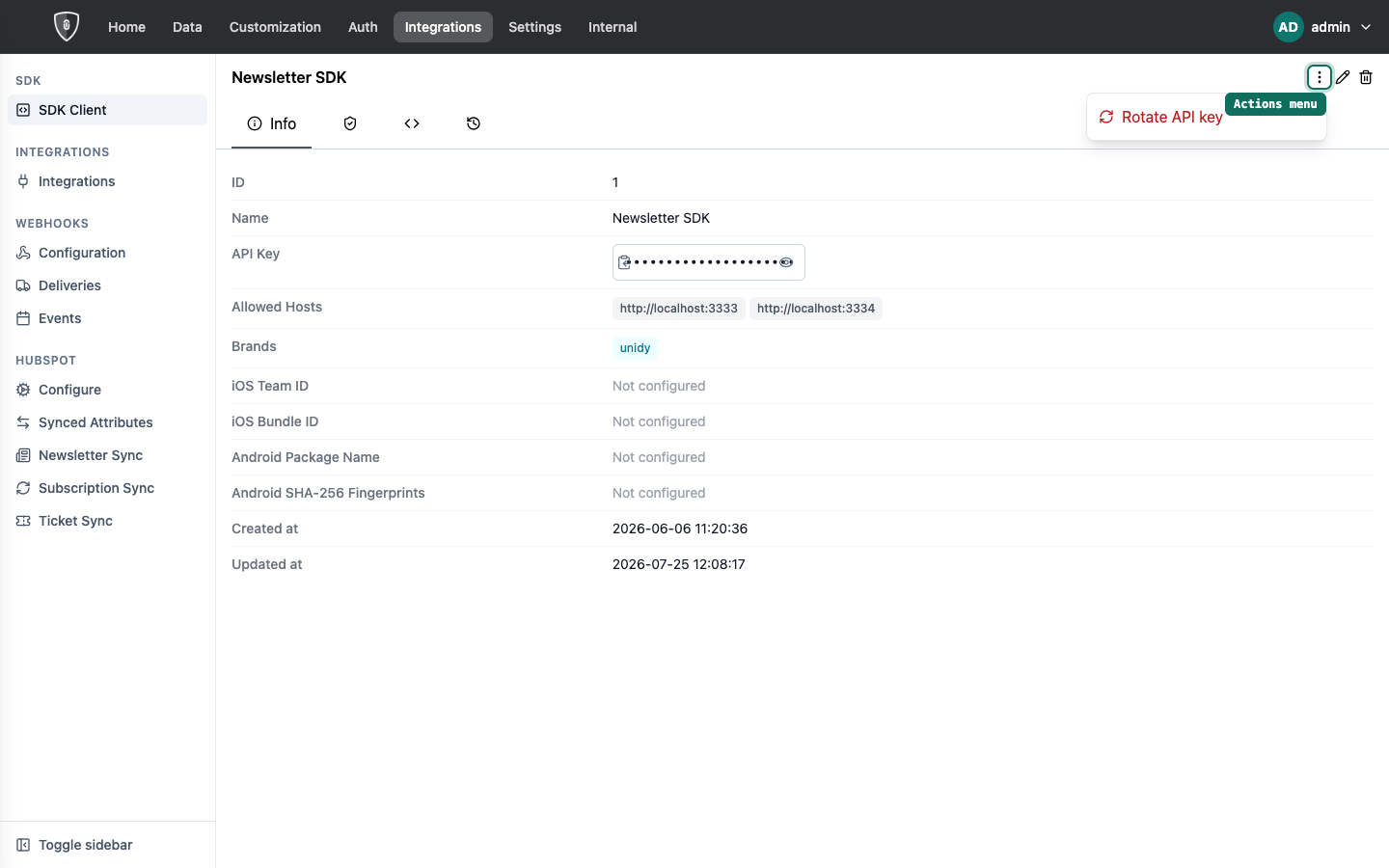
SDK client detail — the ⋮ menu, whose only entry is Rotate API key · highlight on the menu button
For a mobile or staged rollout, create a separate client with the required settings, ship its key, and migrate supported application versions before retiring the old client. Rotation of a single record cannot keep both keys valid.
Deleting a client removes that application's key and configuration; requests presenting its key stop authenticating. It does not delete customer accounts. Confirm which deployed applications still use the client before deleting it.
Diagnose a reported failure
| Symptom | Check |
|---|---|
401 missing_api_key | The application is not sending its SDK key. |
401 invalid_api_key | Wrong environment, replaced key, or deleted client. |
403 origin_not_allowed | Check the destination brand and this client's assignments. Some newsletter flows also use this error for a rejected redirect or newsletter context; inspect the failing endpoint. |
401 missing_id_token | The endpoint needs a signed-in customer but no customer token was supplied. |
401 invalid_id_token | The customer token is invalid or expired. Follow the SDK's session-refresh guidance; rotating the app key does not repair a customer token. |
| Browser CORS error | The application's actual origin is absent from the installation's SDK origin allowlist. Check scheme and port. |
See SDK troubleshooting for client-side diagnosis.