Manage login providers
Configure external providers that customers use to sign in to Unidy.
Login providers let customers authenticate to Unidy with Google, Apple, or another supported external identity provider. Configure the provider's credentials here, then choose where its button appears in Login and registration settings.
For browser-session visibility, limits, and logout, use Manage browser sessions.
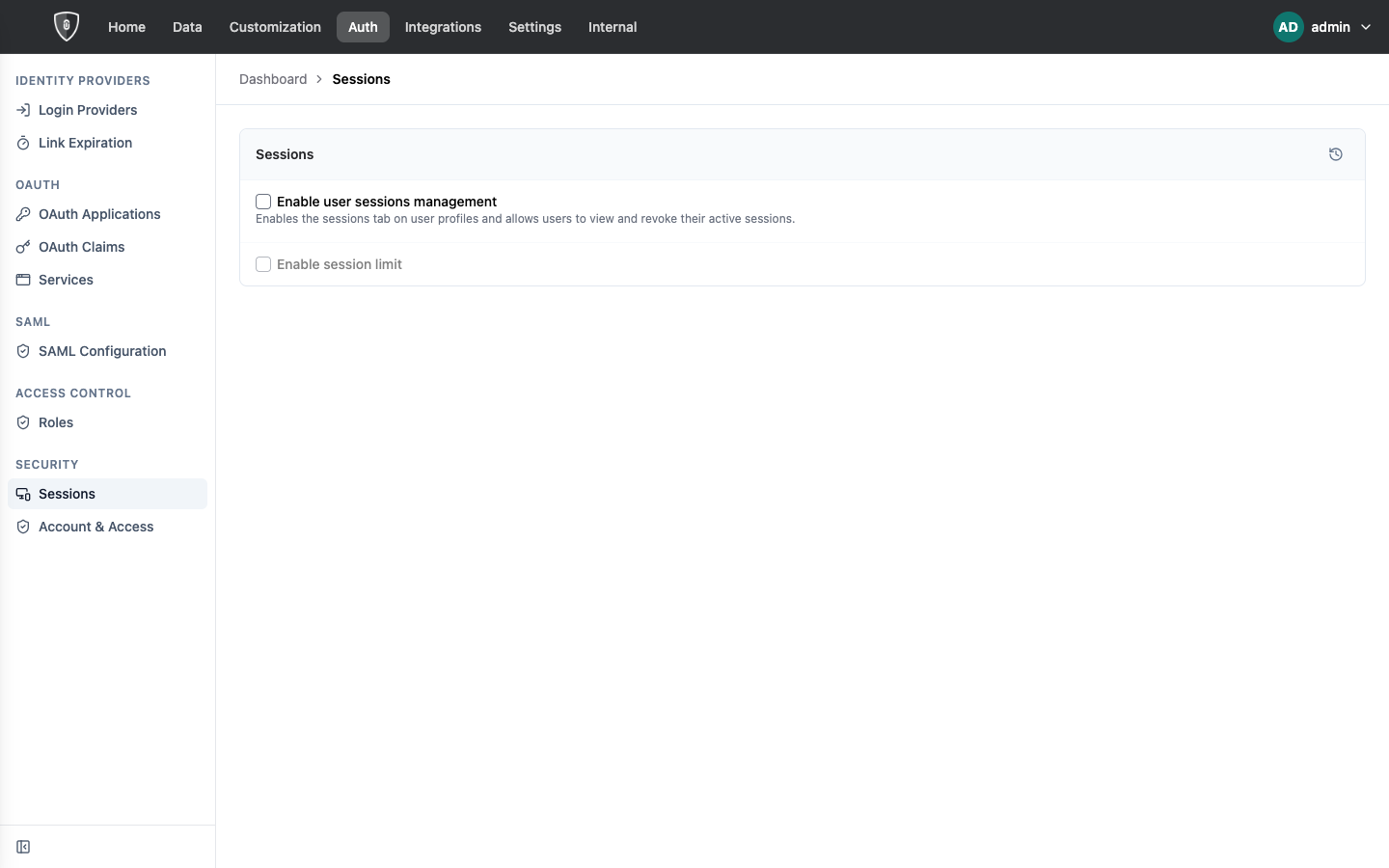
Auth → Sessions, exactly as shipped — one card, both boxes clear, no number field, no Save button. This is the entire screen.
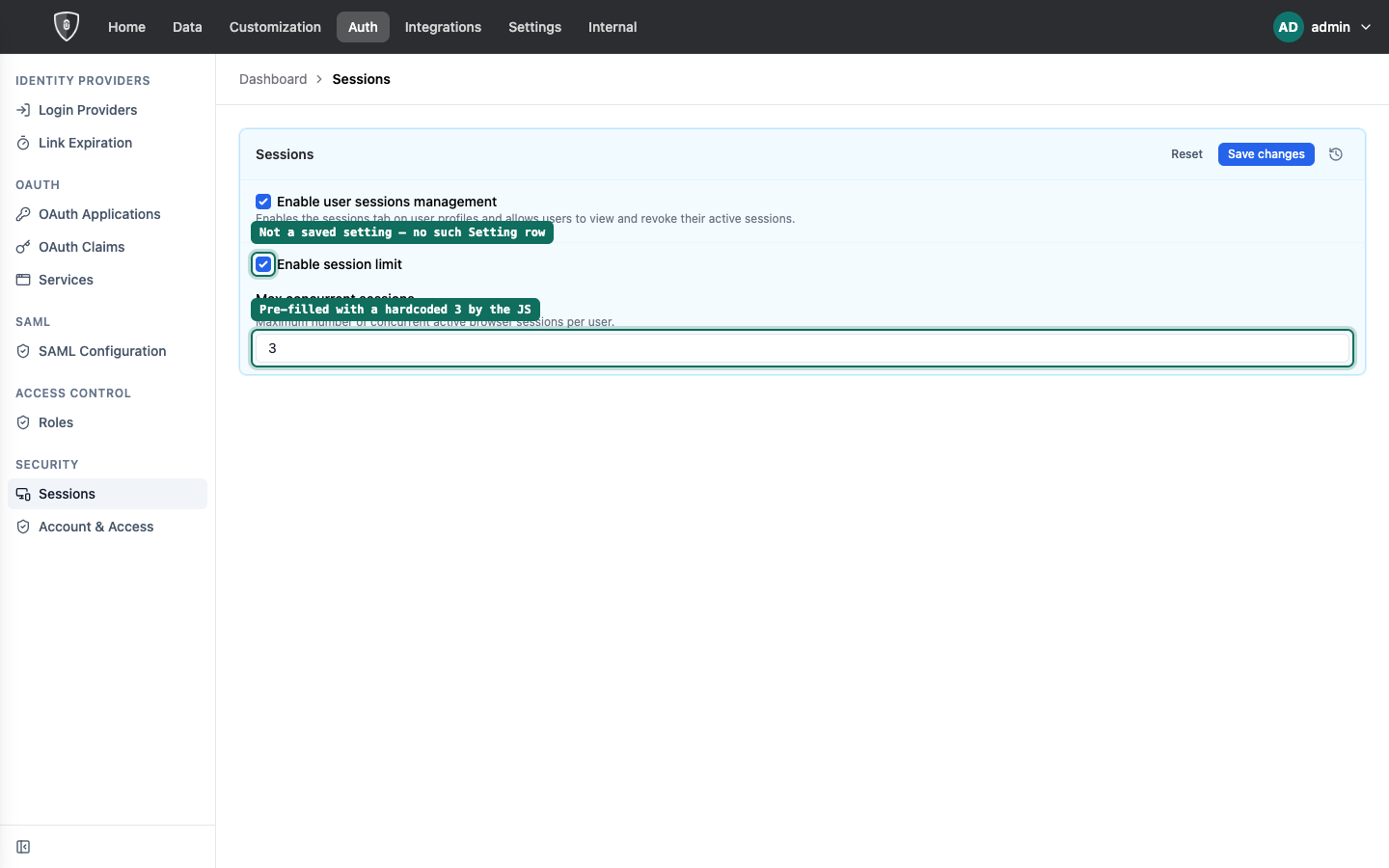
The same card with both boxes ticked, unsaved · highlights on the phantom checkbox and on the pre-filled 3. Reset and Save changes have appeared because the card is now dirty.
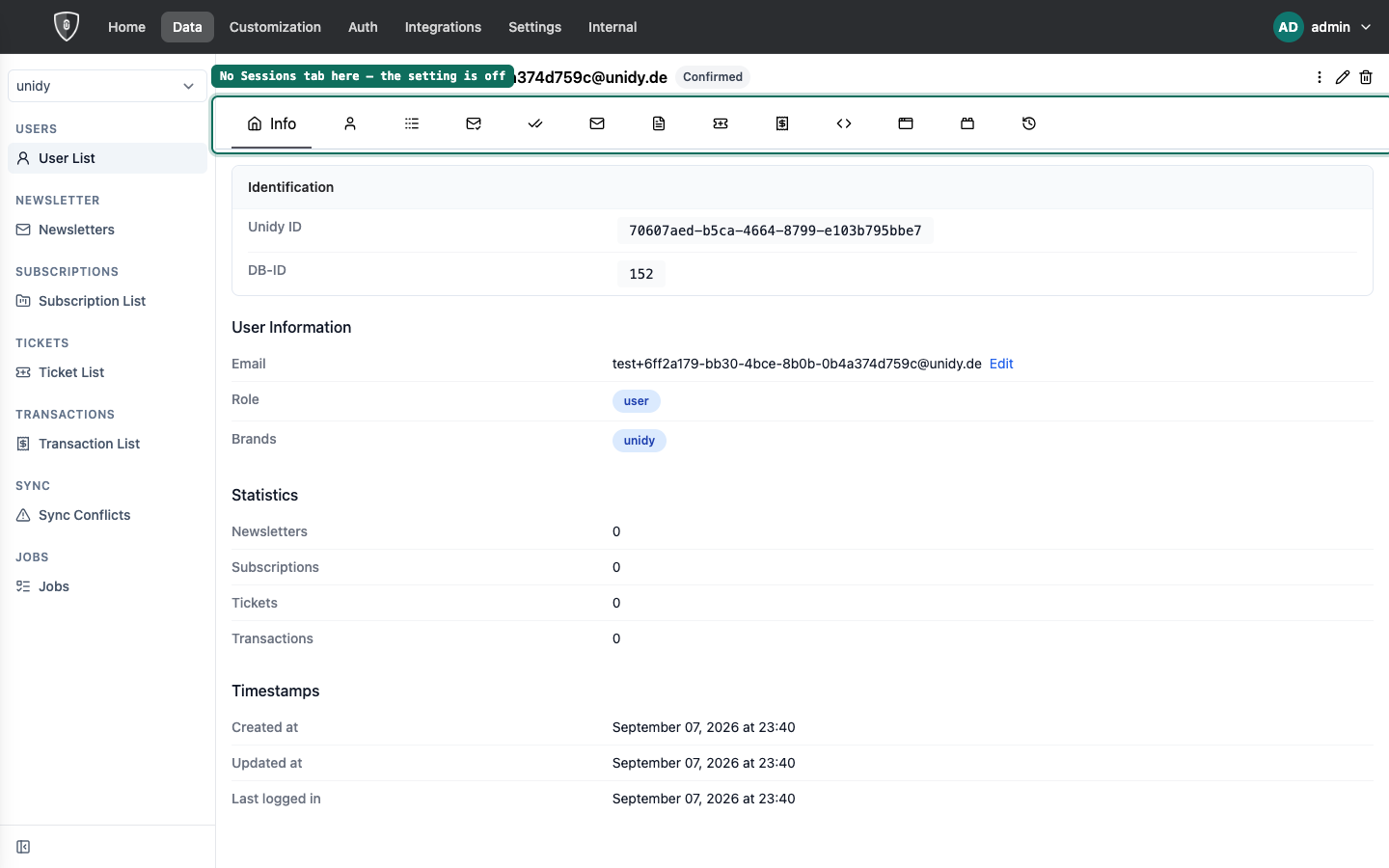
A seeded customer record with the setting off · highlight on the tab strip. There is no Sessions tab to find, which is why an admin asked to "check that customer's devices" reports the feature missing rather than switched off.
Before you begin
Open Auth → Login Providers. Under enforced role-based access control, managing the shared catalogue requires a global login_providers grant: read to inspect, write to create or edit and reveal credentials, and delete to remove. See Roles and permissions.
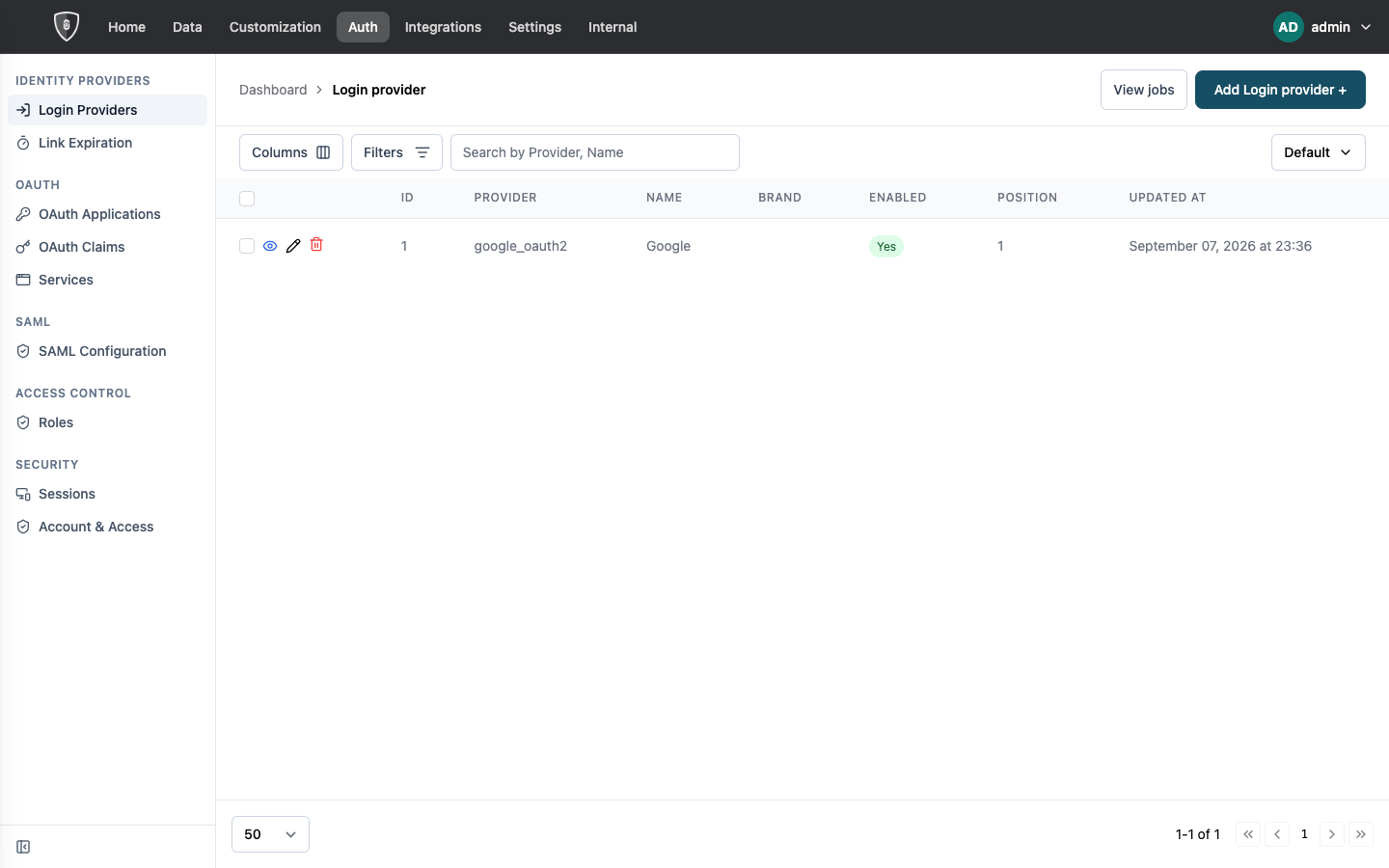
Auth → Login Providers — the seeded tenant has exactly one row, a Google provider with no owning brand. View jobs opens the background jobs for this resource type; Add Login provider + opens the picker.
A login provider is inbound: the external provider authenticates a person and Unidy accepts that identity. OAuth applications and SAML service providers receive identity from Unidy in the other direction. There is no inbound SAML provider on this screen.
Create the application registration in the external provider first. Obtain the client identifier, secret or signing key, required scopes, and expected callback URL. Keep an existing working sign-in method available while testing a new provider.
Add a provider
- Select Add Login provider and choose the provider type.
- Enter a recognizable name and the credentials supplied by the external provider.
- Complete any provider-specific fields below. Custom OIDC also requires an icon when created.
- Register the Unidy callback URL with the external provider. Replace the example host with the actual host customers will use.
- Select Enabled when you are ready to test; new providers are disabled by default.
- Save. On a single-brand installation, the shared provider is automatically attached to that brand with a visible link. It can appear on the login page as soon as it is enabled.
- On a multibrand installation, review each brand's Enabled Login Methods. Select the intended provider and configure its visibility and order there.
- Test with both a new customer and an existing customer, checking the linked identity and resulting profile values.
https://your-unidy-host/users/auth/google_oauth2/callback
https://your-unidy-host/users/auth/apple/callback
https://your-unidy-host/users/auth/openid_connect/callback
The callback path is based on the provider strategy, not its display name. Use the provider's own documentation to register the exact callback for each environment.
Supported provider types
| Group | Provider | Strategy key | Credentials |
|---|---|---|---|
| Social | google_oauth2 | Client and secret; optional People API access. | |
| Social | facebook | Client and secret. | |
| Social | linkedin | Client and secret. | |
| Social | LinkedIn Legacy | linkedin_legacy | Client and secret for an existing legacy integration. |
| Social | Verimi | verimi | Client and secret. |
| Social | Apple ID | apple | PEM signing key, Team ID, Key ID, and client identifier. |
| Social | Discord | discord | Client and secret. |
| OpenID Connect | Custom OIDC | openid_connect | Client, secret, issuer, scopes, and redirect URI; optional token decryption settings. |
The shared catalogue supports one shared record for each named social strategy. Brand-specific custom credentials are configured from the brand's Enabled Login Methods screen. Custom OIDC supports multiple records, allowing different issuers or configurations.
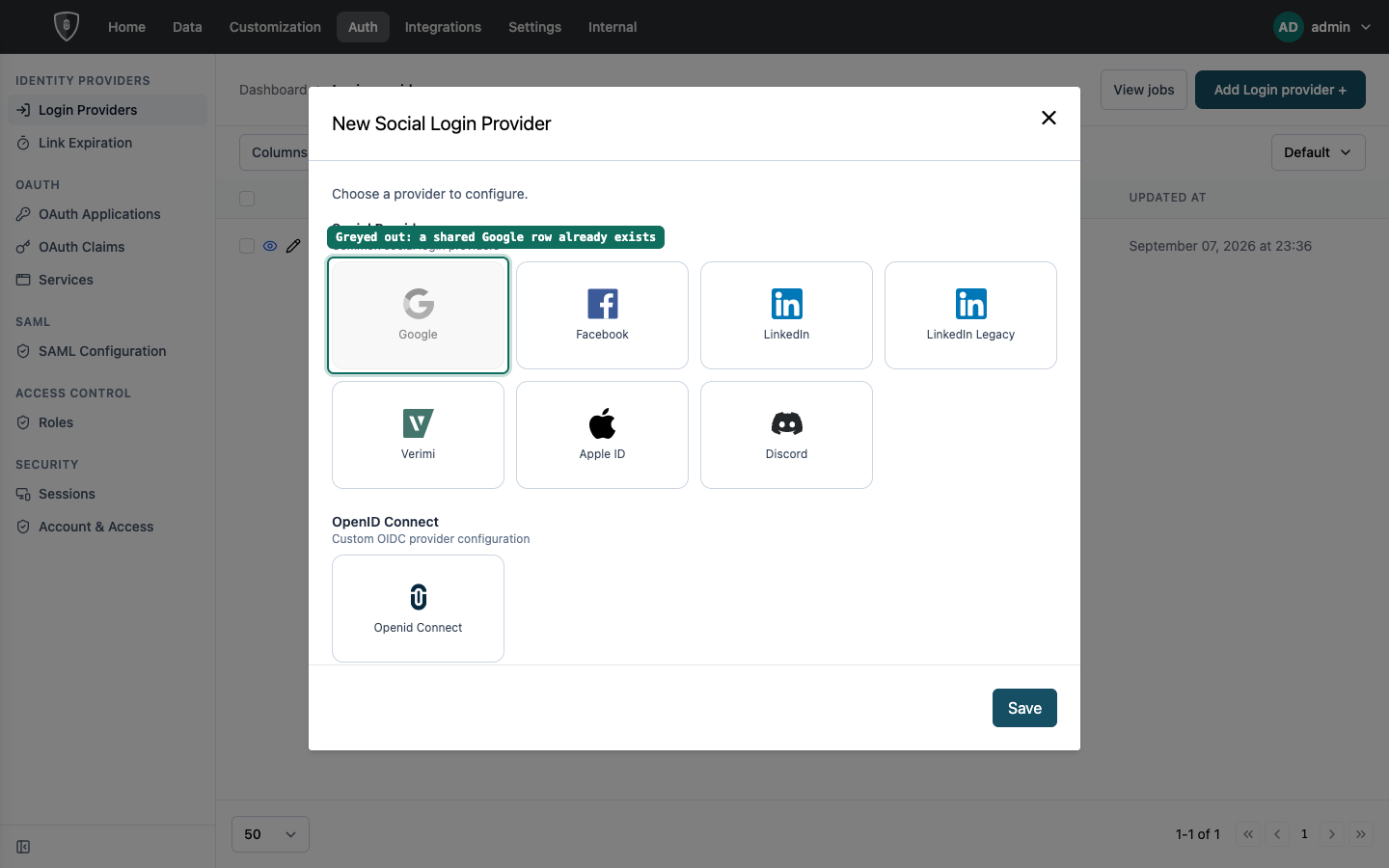
The picker, with the Auth sidebar behind it · highlight on Google. A type is greyed out when a shared row of that type already exists — not merely when any row does.
Shared and brand-specific configuration
The shared record provides reusable credentials. A brand can attach that record or use its own custom provider configuration where supported. Ownership and visibility are different: a brand that displays a shared provider does not own it.
If a brand has no explicit link for a social strategy, an enabled shared provider can be used as a fallback. If the brand explicitly configures that strategy as hidden or disabled, the fallback is not silently substituted. Review the brand's complete login-method configuration when diagnosing an unexpected button.
The shared catalogue is managed globally; use the brand's configuration page for its presentation and custom credentials. Features and permissions available on that page depend on the installation's enabled capabilities.
Register an application with the provider
Create the external provider application first, register Unidy's callback, and enter its credentials under Auth → Login Providers → Add Login provider (or the brand's Add custom provider). Enable the provider, attach it to the intended brand, and save. Dashboard credential fields replace the old instruction to configure provider environment variables.
Use HTTPS and your actual brand/custom hostname. Register staging and production separately, including every brand hostname that uses the registration. A provider callback returns to Unidy; it is different from the redirect URI on an OAuth application that uses Unidy as its identity provider.
| Provider | Callback path on your Unidy host |
|---|---|
/users/auth/google_oauth2/callback | |
/users/auth/facebook/callback | |
| Apple | /users/auth/apple/callback |
/users/auth/linkedin/callback | |
| LinkedIn Legacy | /users/auth/linkedin_legacy/callback |
| Discord | /users/auth/discord/callback |
| Custom OIDC | /users/auth/openid_connect/callback |
- Open Meta's developer applications, create an app, and enter its name and contact email. Choose the Facebook Login authentication use case and complete any business-portfolio requirements shown for your app.
- In the app's basic settings, complete the application domains, website URL, privacy-policy URL, terms URL, user-data-deletion instructions URL, icon, and category where required. Use your own organization and legal destinations.
- In Facebook Login's client OAuth settings, enable the web/client OAuth flow and register each exact Valid OAuth Redirect URI, for example
https://brand.example.com/users/auth/facebook/callback. Use HTTPS and strict redirect matching. - Copy App ID to Unidy's Client field and App Secret to Secret. Enable and save the provider, then test through the brand's hosted button.
- Complete Meta's production publication/review requirements and switch out of development mode before testing with ordinary customers. Tester-only success does not establish public availability. Provider menus and requirements can change; follow the current Facebook Login documentation.
- In Google Cloud Console, create or select the intended project, choosing its name and organization/location where requested. Complete Google Auth Platform's branding/consent setup, including app name, support/contact details, and audience.
- Create an OAuth client of type Web application, with a meaningful name.
- Add
https://brand.example.com/users/auth/google_oauth2/callbackto Authorized redirect URIs, plus the exact callbacks for your other intended hosts. The scheme, case, path, and trailing slash must match. - Copy the client ID and client secret into the Google provider in Unidy, enable it, save, and test. Review the audience, test-user restrictions, and any required verification before production use.
Google's web-server OAuth guide documents current registration and redirect requirements.
Apple
In the Apple Developer portal:
- Use an eligible primary App ID with Sign in with Apple enabled and an explicit bundle identifier, for example
com.example.brand. - Create a Services ID, such as
com.example.brand.service. Enable Sign in with Apple, associate the primary App ID, and register the brand's domain and full HTTPS return URL ending in/users/auth/apple/callback. Include each intended environment. - Create a Sign in with Apple key associated with that primary App ID. Download the
.p8file immediately and store it securely; Apple only permits one download. - Create an Apple ID provider in Unidy. Enter Team ID, Key ID, Client (the Services ID), and the full
.p8Private Key, including-----BEGIN PRIVATE KEY-----/-----END PRIVATE KEY-----and real line breaks. Save, enable, and attach it to the brand. - Test Continue with Apple in a private browser window. It should navigate to Apple's sign-in page and return successfully to Unidy.
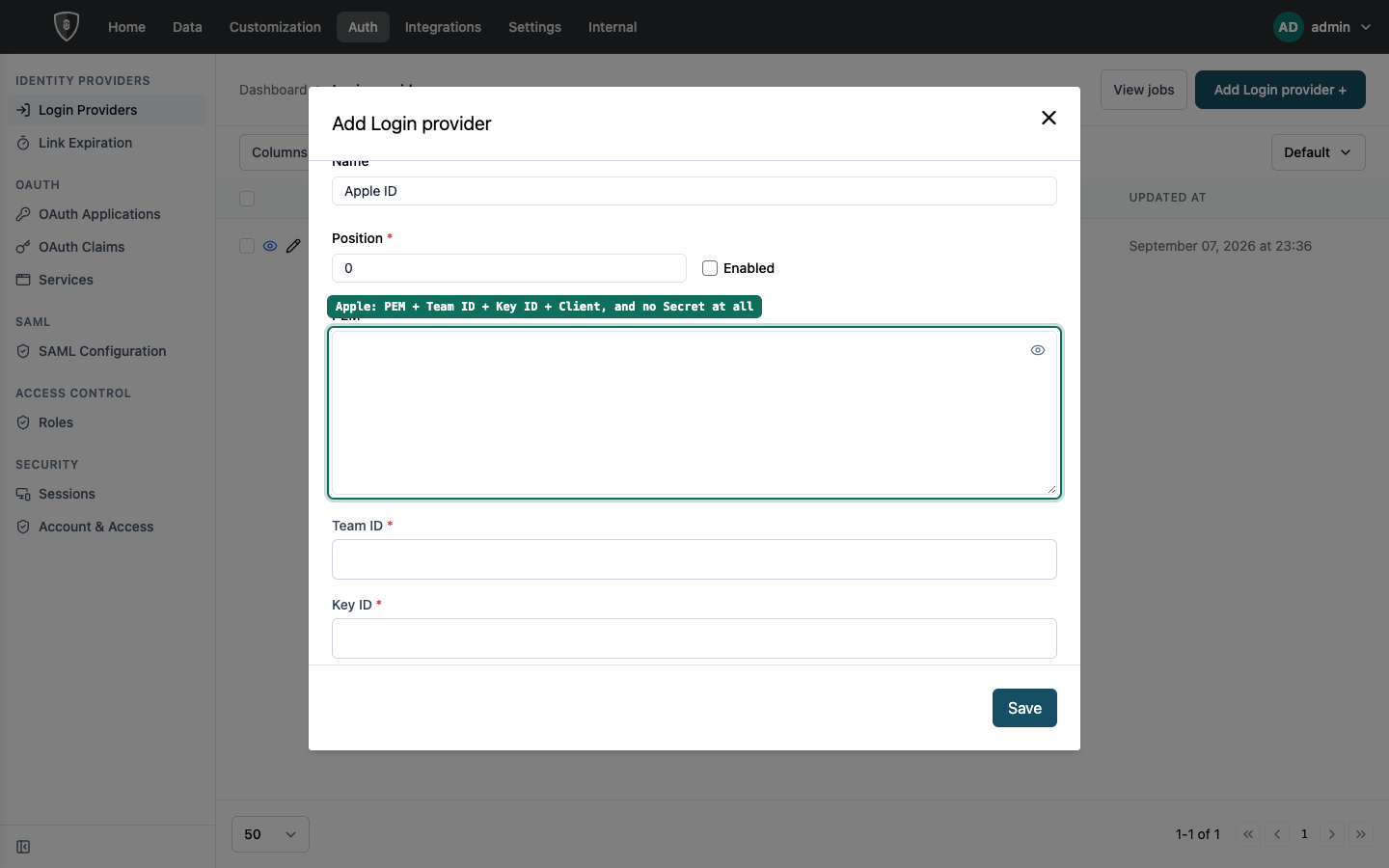
Apple ID — the one type with no Secret field · highlight on PEM. Enabled is unticked, which is the default for every new provider.
Check Apple's current web configuration requirements and key-download guidance before creating a new registration.
| Symptom | Check |
|---|---|
invalid_request / invalid web redirect URL | Services ID domain and return URL against the exact request sent by Unidy. |
| Button briefly reloads the login page | Full PEM key with real line breaks, Team ID, Key ID, and Services ID. |
/users/auth/apple returns directly to login instead of Apple | Ask the deployment operator to inspect the failed provider configuration; share the time and request evidence without exposing the private key. |
- Create an app in the LinkedIn developer portal, associated with your company Page. Create the Page first if needed.
- Complete company verification when requested. The app's Settings → Verify flow generates a verification URL for an authorized Page administrator, who reviews and approves the association. Follow the expiration displayed on the generated URL; the old screenshot's 30-day period is not an Unidy setting.
- Request Sign in with LinkedIn using OpenID Connect from Products. Wait for the required product access before relying on it. The old “Sign In with LinkedIn” product and a promise of approval within moments are not the current onboarding contract.
- Under Auth, obtain the client ID and secret and register the HTTPS callback ending in
/users/auth/linkedin/callback. Enter the credentials in Unidy's LinkedIn provider and save.
Use LinkedIn Legacy only for an existing integration that requires it; its callback is different. See LinkedIn's current OIDC product guide.
Discord
- Create an application in the Discord developer portal. Set its name, description, terms-of-service URL, and privacy-policy URL, then save.
- Under OAuth2, register each exact redirect, such as
https://brand.example.com/users/auth/discord/callback. Save the provider-side changes. - Copy the application's client ID and secret into Unidy's Discord provider, enable it, save, and test. Keep credentials out of screenshots and documentation. Discord's OAuth2 guide describes the provider-side registration.
Another Unidy ID as a social login
A custom OIDC provider can connect another Unidy ID, as well as other OIDC identity providers:
- In the Unidy ID that will provide identity, create an OAuth application with the consuming brand's callback
https://brand.example.com/users/auth/openid_connect/callback. - Allow the scopes required by the integration; the legacy cross-brand example uses
openid profile email address phone. Request only the data this journey needs. - In the consuming brand, add a custom OIDC provider with a recognizable name and icon, that application's client ID/secret, the same redirect URI, and the providing ID's HTTPS issuer URL. Save and test both a new and an already linked customer.
Custom OIDC settings
| Field | Purpose |
|---|---|
| Name and icon | The label and icon customers recognize on the login button. |
| Issuer | The external OIDC issuer used for discovery. |
| Client and secret | Credentials registered with that issuer. |
| Scopes | Space-separated scopes, including openid and the identity data your flow requires. |
| Redirect URI | Unidy's callback registered with the issuer. |
| PKCE | Optional for custom OIDC providers, off by default. Enable when the external issuer requires or supports the provider flow with PKCE, then test the complete callback and token exchange. This controls Unidy signing in to that provider; it is separate from an application's PKCE flow into Unidy. |
| KYC | Enables an identity-verification flow. If the provider returns an email already associated with an account, the customer must authenticate that account before linking; email equality alone does not perform the link. |
| ID Token Encryption Algorithm | Optional JWE decryption: RSA-OAEP, RSA-OAEP-256, or dir. Leave blank for an unencrypted ID token. |
| JWE private or symmetric key | A PEM private key is required for an RSA algorithm; a symmetric key is required for dir. |
| Static Attributes | Custom-attribute values supplied by this provider's mapping configuration. |
| Claim Mappings | Source claim path, destination user field or custom:attribute_name, and an optional transform or value map. |
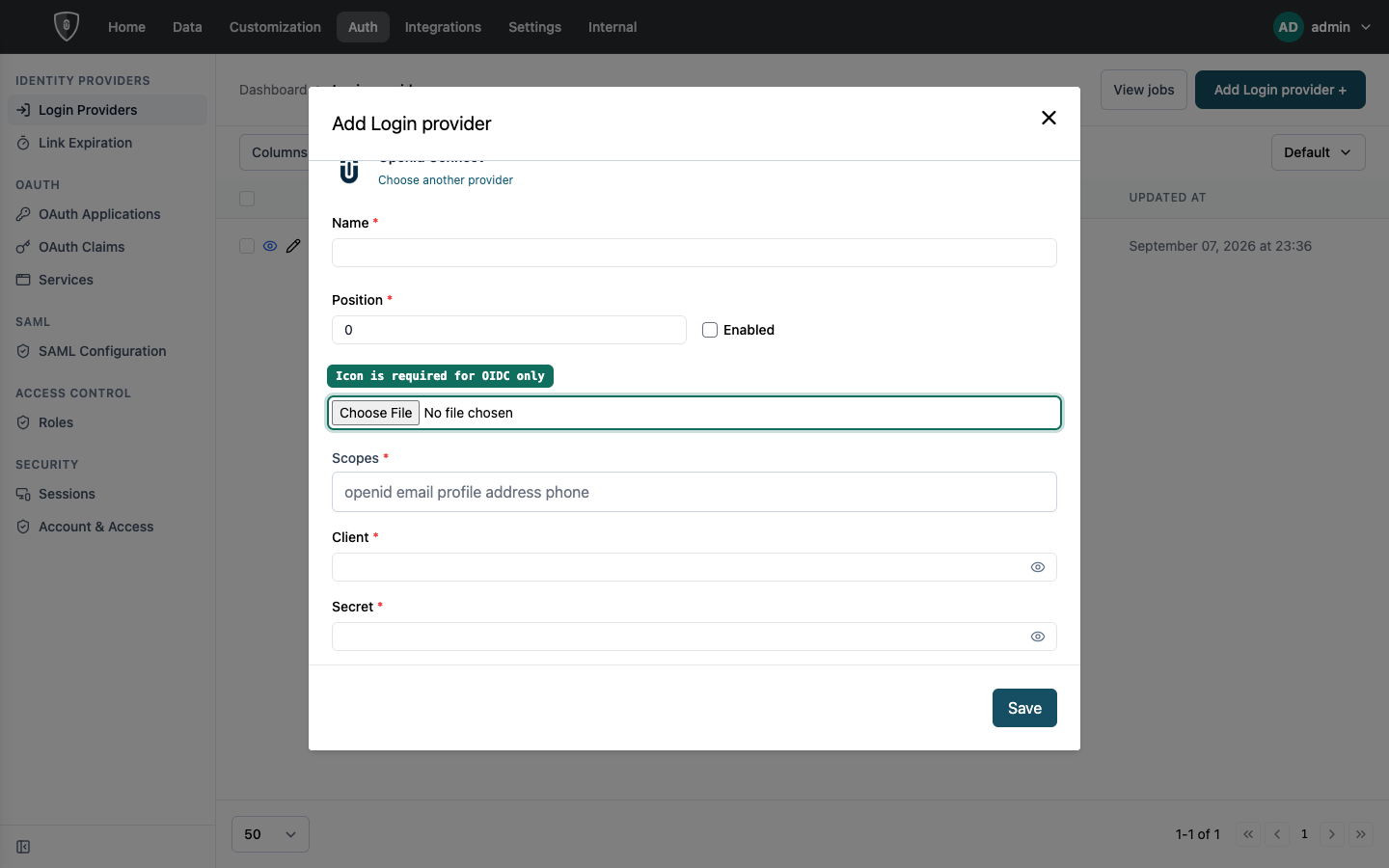
Custom OIDC — the longest form of the eight, and the only one that demands a logo · highlight on Icon, which is required on create.
Mapping values can replace existing profile values when the mapping path is applied. Choose destinations deliberately and test against accounts with existing data. Do not rely on mappings as an unconditional synchronization process on every sign-in: returning through an already linked identity can bypass that mapping path.
A mapping row can use either a transform or a value map, not both. The supported country transform is iso3166_alpha3_to_alpha2, for example BEL to BE; leave it blank for no transformation. A value map translates explicit source values to destination values:
{"BEL": "BE", "DEU": "DE"}Custom OIDC records receive a stable slug when created. Renaming the record does not change that slug or migrate existing linked identities. Preserve the existing record when changing its display name; coordinate any identity migration separately.
Inspect and update credentials
Open a provider's Info tab to inspect its settings, then edit the record to change them. Users with write permission can reveal or copy credential fields. Read permission alone shows redacted values. Treat write access as access to the configured provider credentials.
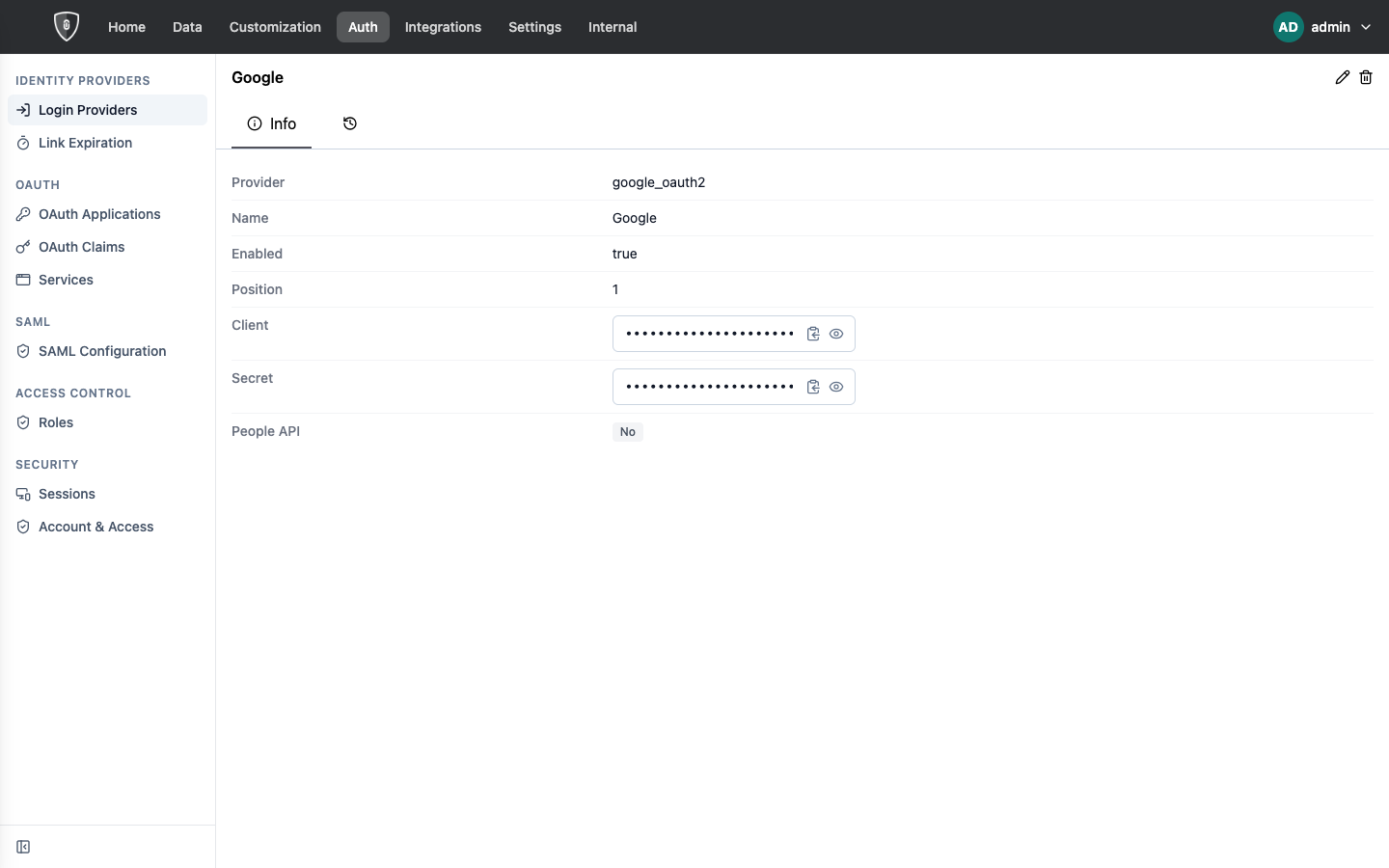
Provider detail (Info tab) — the two secret fields carry a copy icon and a reveal icon; People API renders as a No badge. The clock icon next to Info is the change history.
The History tab records changes, including individual configuration fields. Sensitive values follow the credential-reveal permissions.
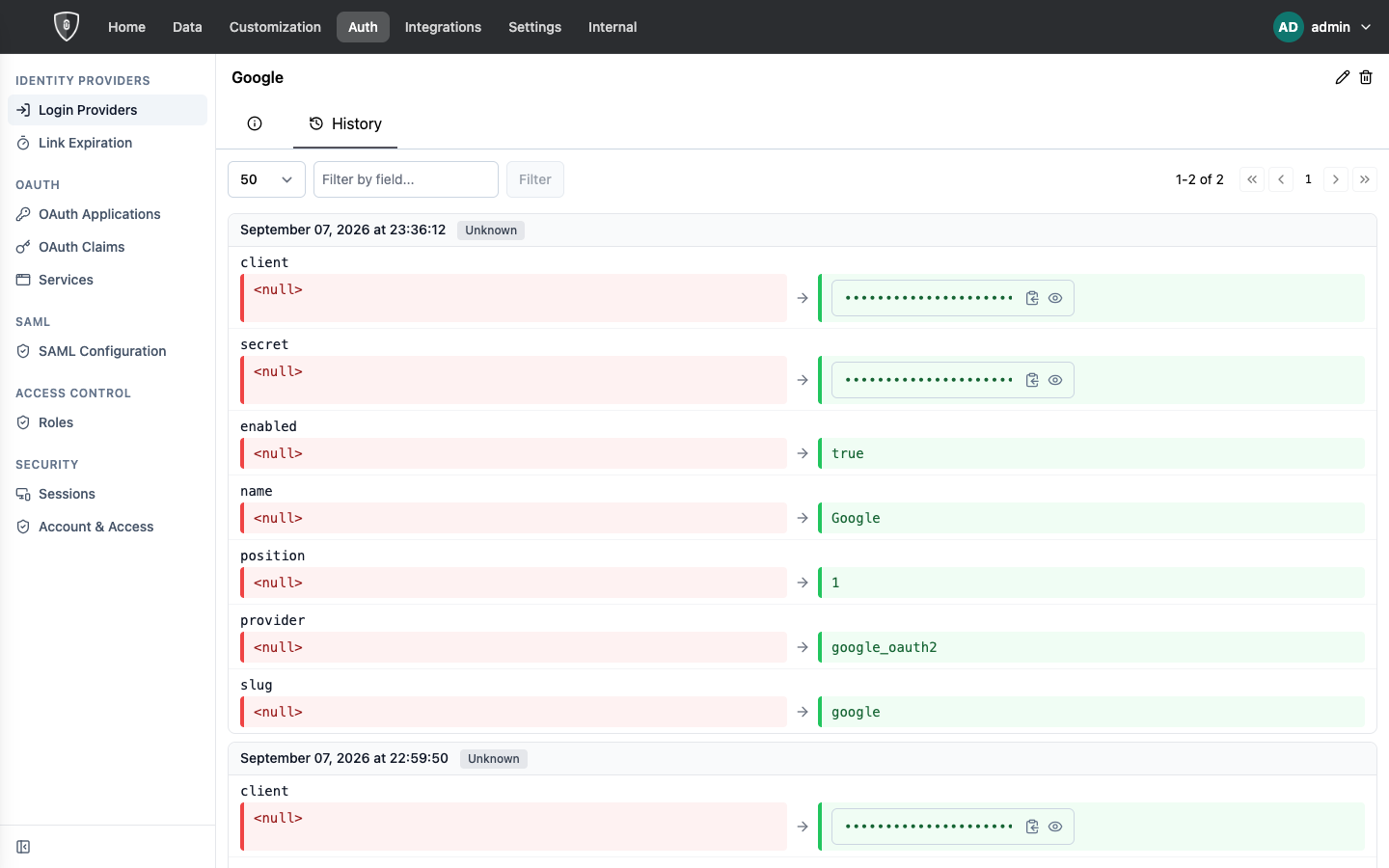
Provider detail (History tab) — the seeded row's creation, field by field. client and secret stay masked; the author is Unknown because seed writes have no acting admin.
Before replacing an external application registration, check whether the provider's subject identifiers depend on that registration. In particular, changing Apple credentials can affect whether existing customers are recognized. A successful configuration save does not prove existing identities will still match; coordinate the migration with the provider and test an existing linked account.
Disable or remove a provider
Clear Enabled and save to stop the record being selected for new sign-ins. To hide it on only one brand, change that brand's login-method configuration instead.
Deleting the provider also removes its brand links. Customers' linked identities remain on their records, but that deleted configuration no longer provides a usable sign-in route. Before removal, confirm affected customers have another sign-in method. Removing a provider is separate from revoking existing browser sessions or application tokens.
To remove only one customer's linked identity, use the customer's Login Info tab; see Find and understand users.
Passkeys
Passkeys are not configured as external providers. Enable the method for a brand in Login and registration settings. Customers can inspect and remove their passkeys in their hosted profile; the provider catalogue does not list or remove them.