Languages and translations
Localize the customer experience.
Languages and translations
Offer a language on a brand, translate its customer-facing content, and check the experience before launch. Adding a language makes it available to customers; it does not translate the content you have written.
The same tools also change wording for a single-language brand. Rehearse language and wording changes on staging before production, and prepare an email variant for every language your customer journey uses.
Select the Platform · restrictedBrandA customer-facing identity within a tenant, with its own hostname, presentation and experience settings.5 fields — listed in full on the pageRelated: Tenant · Email template · NewsletterRead the page →Open brands (restricted) (choose an instance) you want to change before starting. You need write access to its language settings and to each resource you edit. Changing product wording also requires Locale Translations write access. Read access lets you inspect settings but does not grant permission to save them. See Roles and permissions.
1. Choose the brand's languages
Open Customization → Available Languages.
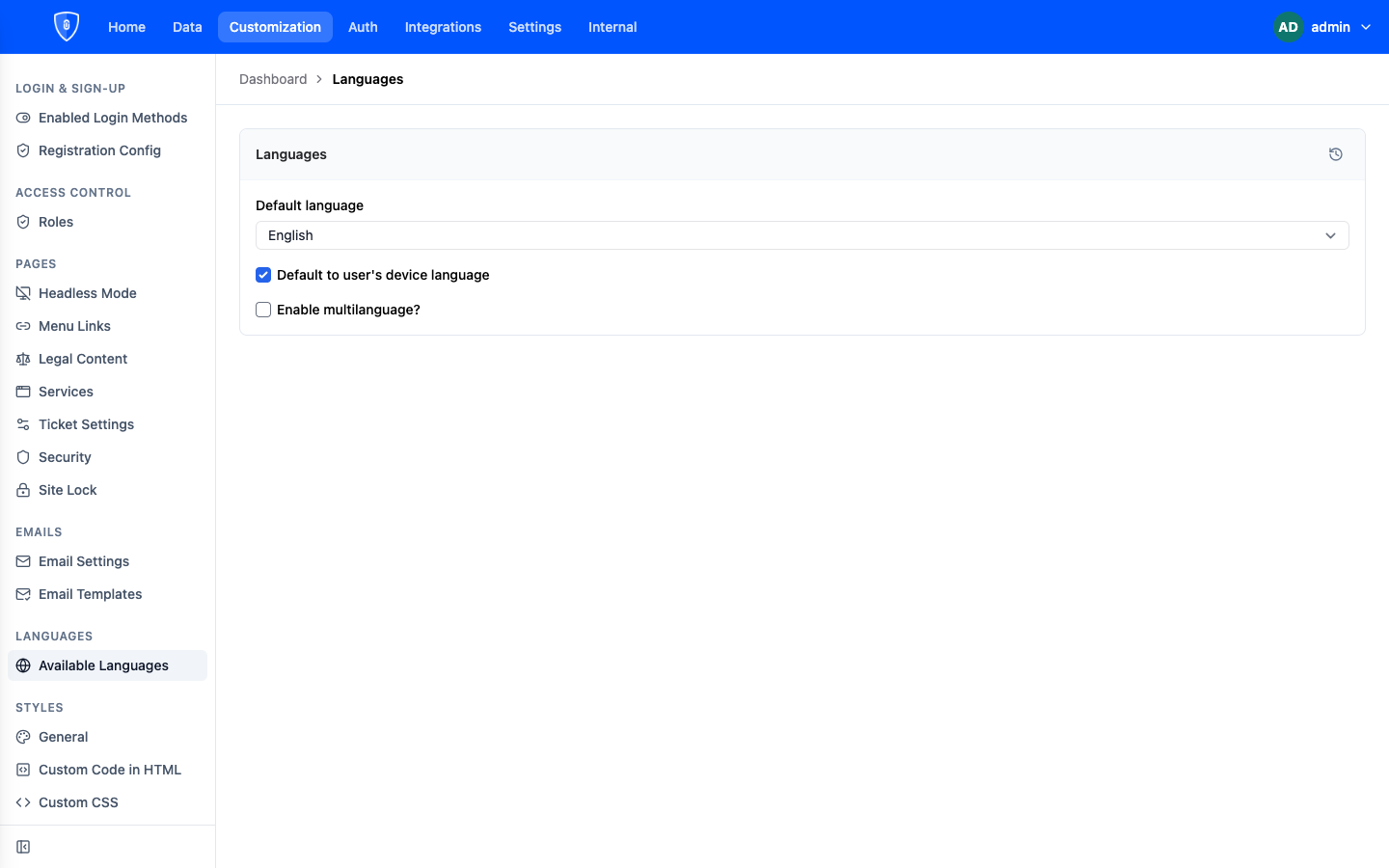
Screen 1, before you change anything — Available languages is not on the screen at all, because Enable multilanguage? is unchecked.
| Setting | What to choose |
|---|---|
| Default language | The language to use when no applicable customer or browser preference matches. Choose a language supported on your installation. |
| Enable multilanguage? | Turn this on to offer more than one language and let customers switch between them. |
| Available languages | Appears when multilanguage is enabled. Select at least two languages, including the default. |
| Default to user's device language | Enable this if visitors without an applicable saved preference should receive a language matching their browser's Accept-Language preferences. |
Click Save changes, then confirm the saved default and available languages. If you only need to change the default for a single-language brand, leave multilanguage disabled and save the default language.
The base language set is Czech (cs), German (de), English (en), French (fr), Italian (it), Georgian (ka), Norwegian Bokmål (nb), Dutch Belgium (nl_be), Romanian (ro), and Swedish (sv). Your installation can have additional configured languages. If a displayed option is rejected when saving, check with your Unidy administrator that it is available on the installation.
Set the default country separately
The same page has a Default Country card. Choose and save the country to preselect in country dropdowns and use as the phone-number default on registration and profile forms. This does not set the language or translate any text. A brand can, for example, use Belgium as the default country and offer both Dutch and French.
2. Translate legal pages and customer content
Open Customization → Legal Content and review the imprint, terms of use, and data protection content in every offered language. Replace any placeholder or empty content before launch.
For records with a translation control:
- Open the record and find the translate icon beside the field.
- Open the translation editor and enter the text for each language you offer.
- Save, then check the result on the customer-facing page.
An empty translation uses that field's base value. This can be appropriate for a proper noun; it does not provide a translation of instructions or legal paragraphs.
| Customer content | Fields to review |
|---|---|
| Menu links | Name and URL; translate the destination if each language has a different page. |
| Legal pages | Translate the page content for an internal page, or the destination URL for an external link. Its display label is a separate Locale Translations override, available on the Legal Content screen; it is not part of the page body. |
| Newsletters and preferences | Newsletter title/description, preference name/description, and preference-group name. |
| Custom attributes | Display name, link label, and select-option display names. |
| Ticket and subscription categories | Title, description, URL, and action-button text. |
| OAuth applications and claims | Application name, description, connect URL, and claim name where exposed by their editors. |
| Validation and locked-attribute guidance | Validation messages and lock help text where their editors expose translation controls. |
Profile-section names and descriptions also support translation, but editing them requires the relevant restricted profile-section access. Do not assume that a translate icon on a transaction category, login provider, or insights configuration means it can be saved through the shared translation editor: those record types are not supported there. Ask your Unidy contact for the supported configuration path if you need to change them.
3. Change product wording with Locale Translations
Use Customization → Languages → Locale Translations for text Unidy supplies, such as a button label or a customer-facing instruction. Use the record's translation editor for content you created in the previous step.
- Search for the translation key or find the wording through Translation Mode below.
- Open the key, or create an override for an existing key.
- Enter the replacement wording in the required languages and save.
- Reload the affected page and check the text in context.
Keep placeholders such as %{name} in the replacement when the original text uses them. They are filled with values at runtime.
HTML and dynamic wording
Keys ending in _html support HTML formatting where the page renders them as HTML. A simple replacement for an HTML title is:
Log in or <strong>create</strong> accountPlain translation keys escape markup and can display the tags as text. Use a supported HTML key for formatting and check the actual page; an HTML suffix is not a reason to insert arbitrary scripts or rely on every page rendering the same markup.
Dynamic placeholders are distinct from HTML. For example, Connection with Services of %{brand} inserts the brand name supplied by the page. You can move %{brand} to fit the language or omit it when the sentence does not need it. Preserve the exact spelling of any placeholders you keep.
Overrides have two scopes:
- Brand override: applies to the selected brand.
- Global override: applies across brands unless a brand has its own override. Editing this scope requires global translation permission when role-based permissions are enabled.
The underlying shipped text remains available. Clearing an override returns the key to its inherited wording; it does not make that label blank. A brand inherits a global override when one exists, otherwise the supplied text for that language. Adding an entirely new supported language still requires installation configuration.
Find wording with Translation Mode
From Locale Translations, activate Translation Mode. Navigate to the page containing the wording, then choose Enable Clickable Strings to select a supported text string and open its translation editor. Use Disable Clickable Strings when you need to follow links again.
Save the translation, inspect it on the page, and choose Exit when finished. Translation Mode can remain active after signing out so that an authorized editor can work on sign-in pages. Signing out alone does not exit it. Use a separate browser session without Translation Mode for the customer checks below.
The activation control requires an unlocked administrator account. With role-based permissions enabled, the account needs brand Locale Translations → Write access.
4. Review emails for each language
Open Customization → Email Templates. Review the language choices for every email used by your journey.
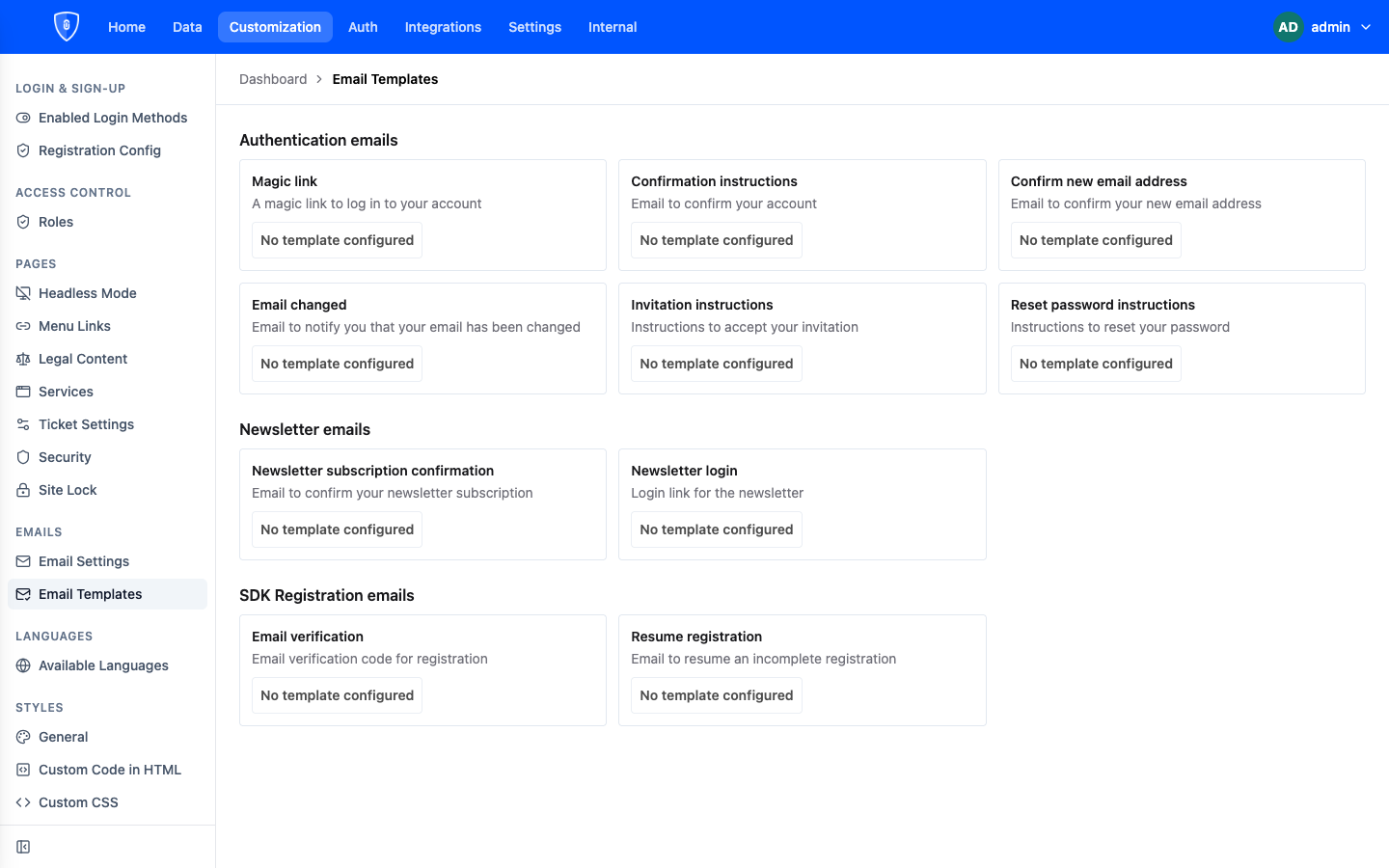
Screen 2 — every card carries exactly one button while the brand is single-language, and every one of them reads No template configured. Add a language and each card grows a second button in the same state.
For each custom email, save the language-specific template, send a test from the saved version, and enable it when it is ready. Saving changes to an already enabled template affects its live content; it is not a separate unpublished draft. Follow Email templates and delivery for template controls, shared layouts and components, and recipient-language settings.
If there is no enabled custom template for the selected language, Unidy uses its built-in template. Email-change confirmation can first reuse an enabled confirmation template in that language. Adding a language does not copy your custom emails into it, so inspect the received message as well as the editor.
5. Check which language customers receive
With multilanguage enabled, an ordinary signed-in customer's available language preferences are checked in this order:
- Their saved preference for this brand.
- Their account-wide preferred language.
- A matching browser language, if device-language selection is enabled.
- The brand default.
A signed-out visitor's available session preference comes first, then browser matching if enabled, then the default. A saved preference for a language that is no longer available is skipped; removing a language does not rewrite the stored preference.
The dashboard sidebar language selector changes your own preference, not the brand's default. In the ordinary customer/admin flow, changing it updates your brand preference and account-wide preferred language and can emit a user.updated event. Use a test account when checking integrations that react to profile updates.
The hosted customer language selector offers the brand's available languages. Integrations can read the account's preferred_language through supported user API/webhook representations; a saved brand-specific preference can still make the displayed language differ from that account-wide value.
Link to a language choice
With multilanguage enabled, a link such as https://brand.example.com/language/de selects an available language. Signed-out visitors can change their session preference; signed-in customers can update their stored preference. To request sign-in first, use https://brand.example.com/language/de?force_login=true. The chosen language must be offered by that brand.
Test the return through the actual login method used by your customers. The old guide only demonstrated email/password for force_login; it did not establish social-login return behavior. Do not promise that behavior without testing your provider flow.
Check with an ordinary customer account
Superadmins can retain a saved brand-language override even when multilanguage is disabled. Unidy staff also have a separate dashboard language control. Neither is a reliable stand-in for the language a customer receives.
Understand fallback text
Different kinds of text fall back differently:
| Text | When a translation is missing |
|---|---|
| Content you entered on a record | The field's base value is displayed. |
| Product wording | Unidy resolves overrides and supplied translations. Production fallback can reach the application's default German locale, so a gap may show German wording. A development environment may instead display a missing-translation message. |
| Custom email | Template selection falls back to the built-in email when no applicable enabled custom template is available, with the confirmation-template exception above. |
| Predefined role names | Names may retain their saved language. Predefined roles cannot be renamed in the dashboard; custom role names are separate. |
A fallback keeps content available; it does not mean your translation work is complete.
6. Verify the complete experience
Before offering a new language to customers:
- Open the customer journey signed out in a fresh browser session. Test both a matching browser language and a browser language the brand does not offer.
- Sign in with an ordinary test customer whose saved brand preference differs from the default. Switch language, navigate to another page, and return to confirm the choice is remembered.
- Check the login screen, profile fields, menu destinations, legal pages, and the tickets, subscriptions, or newsletters used by your journey.
- Send and inspect an applicable email for each offered language, including its links and shared components.
- Exit Translation Mode and repeat the final checks without administrative controls.
After changing the default or removing a language, repeat the preference checks. Existing stored preferences and translations are not automatically deleted. Turning multilanguage off hides the ordinary language selector and makes ordinary signed-in customers use the default, but it is not a universal reset: superadmin overrides remain, and signed-out browser matching can still consult the retained available-language list. Check signed-out behavior explicitly when returning a brand to a single language.
Troubleshooting
| Symptom | Check next |
|---|---|
| A returning customer sees a different language from the new default | Check their saved brand and account-wide preferences. The default is the last applicable choice. |
| Some instructions or legal paragraphs stay in the original language | Open the record's translation editor; a missing translation uses the base text. |
| A product label is wrong or shows a missing-translation message | Find the key in Locale Translations or Translation Mode, inspect its scope and language, and verify the inherited text. |
| A custom email is not used | Check its brand, language, enabled state, and the recipient's language selection. |
| A language selection will not save | With multilanguage enabled, choose at least two supported languages and include the default. |
| A translation form is read-only or an edit control is missing | Check write permission for that resource and the current brand/global scope. |