Tenants, brands, and environments
Understand scope and verify where a change will apply.
Tenants, brands, and environments
Before changing a setting, confirm the account, environment, and brand you are working in. These are different boundaries; switching one does not automatically switch the others.
| Term | What it identifies | What to check |
|---|---|---|
| Tenant, or account | Your organization's Unidy installation and shared records and configuration | The dashboard address supplied for your account |
| Environment | A deployment such as production or staging | The agreed environment address; confirm with your administrator if uncertain |
| Brand | A customer-facing identity within the tenant, with its own host and brand settings | The selected brand and the browser hostname |
| Partner environment | The external system a connector calls | The connector's endpoint, credentials, or environment setting |
A connector can point at a partner's staging system while Unidy is running in production. Check both sides before enabling synchronization. A missing environment banner is not sufficient proof that you are on the intended production instance.
What switching brand changes
The switcher moves you to the brand's dashboard hostname. That hostname determines the current brand; it is not a filter applied to all account data.
| Area or resource | How brand context affects it |
|---|---|
| Brand customization | Login and registration settings, email templates, languages, styles, and other brand settings use the current brand. |
| Newsletter and category configuration in Data | These screens configure the current brand's use or presentation of shared definitions. |
| Users and other Data records | Access is limited by your permitted brands. The current brand selector does not by itself narrow every list to one brand. |
| Shared definitions and global configuration | Switching brand does not create a separate copy of the shared record. |
| Shared plugins | Shared configuration can serve multiple brands. |
| Brand-owned plugins, when enabled | A brand-specific configuration overrides the shared plugin of the same type for that brand. The global and brand screens edit different records. |
| Home analytics | Available dashboards depend on configuration and your analytics permission. Do not assume changing brand automatically filters every embedded metric to that brand. |
| Sign-in session | Brand hosts have their own sessions. Do not assume signing out of one host signs you out of all others. |
Confirm the hostname
An unrecognized dashboard hostname can fall back to the account's default brand. If the hostname or selected brand is unexpected, stop before saving and ask your administrator to confirm the correct address.
Check the scope of an edit
- Confirm the dashboard URL for the intended environment.
- Read the selected brand and the hostname. If you can access Settings → Brand List, compare the host with the intended brand; otherwise ask your administrator to check it.
- Identify whether you are editing a shared definition, a brand setting, or a record such as a user. A URL prefix alone does not establish scope.
- For integrations, check whether you opened the global Integrations area or the brand Integrations area. Confirm the partner account and environment before changing credentials or synchronization settings.
- Save, then check the result in the intended brand. Use Save, reset, preview, and history for the relevant controls.
Brand names are not ordinary editable display labels: they are used by other configuration. Contact your Unidy administrator or support contact if a brand must be renamed. Treat a hostname change as a configuration change that also needs coordinated DNS, sign-in, and integration checks.
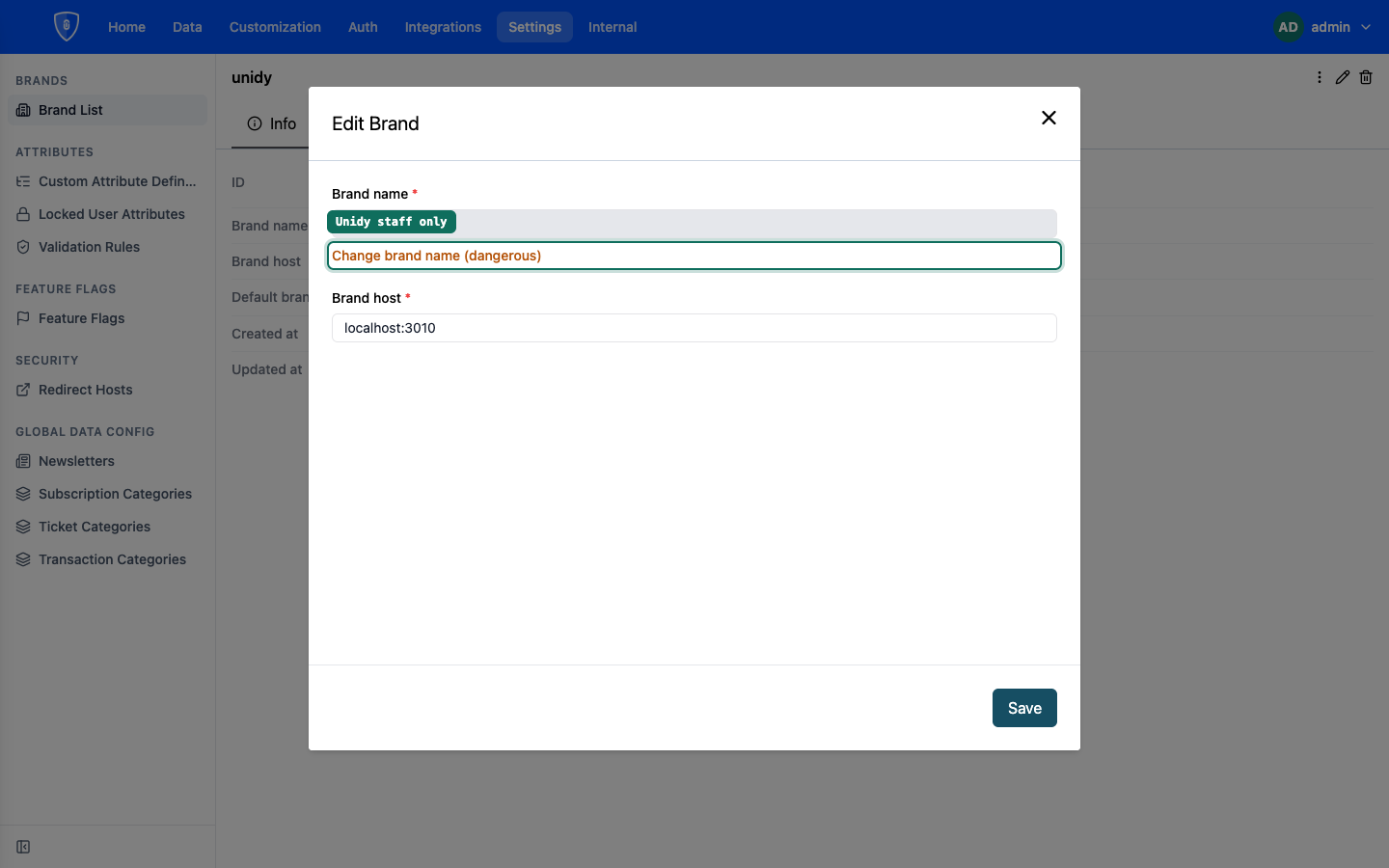
SETTINGS → BRAND LIST → EDIT BRAND — highlight on the rename disclosure. Two fields, and the first one is disabled. The amber disclosure only appears for Unidy staff; for everyone else the name field is simply locked with no explanation.
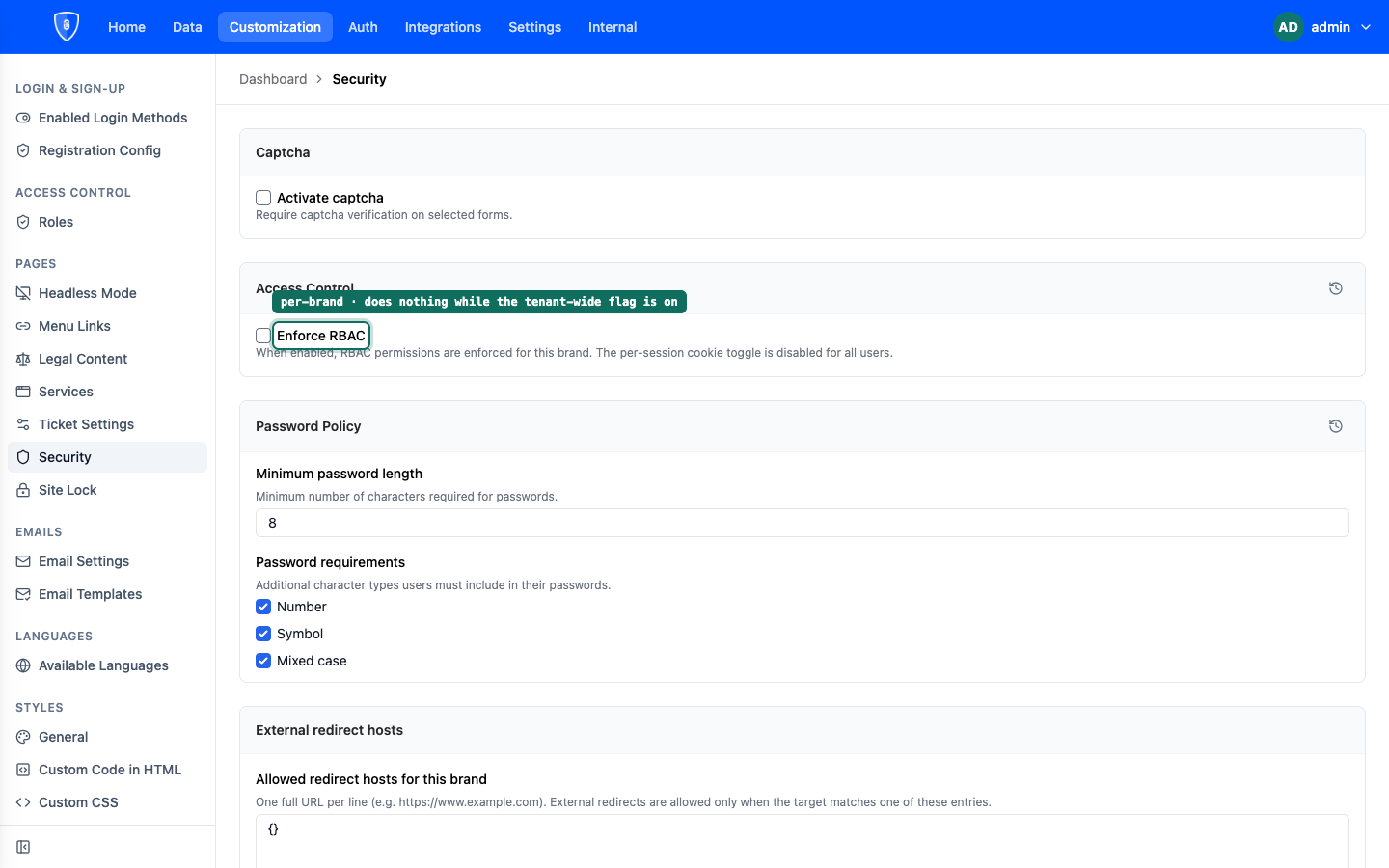
CUSTOMIZATION → SECURITY — highlight on the per-brand Enforce RBAC. Unchecked on the seeded account, and enforcement is on anyway.
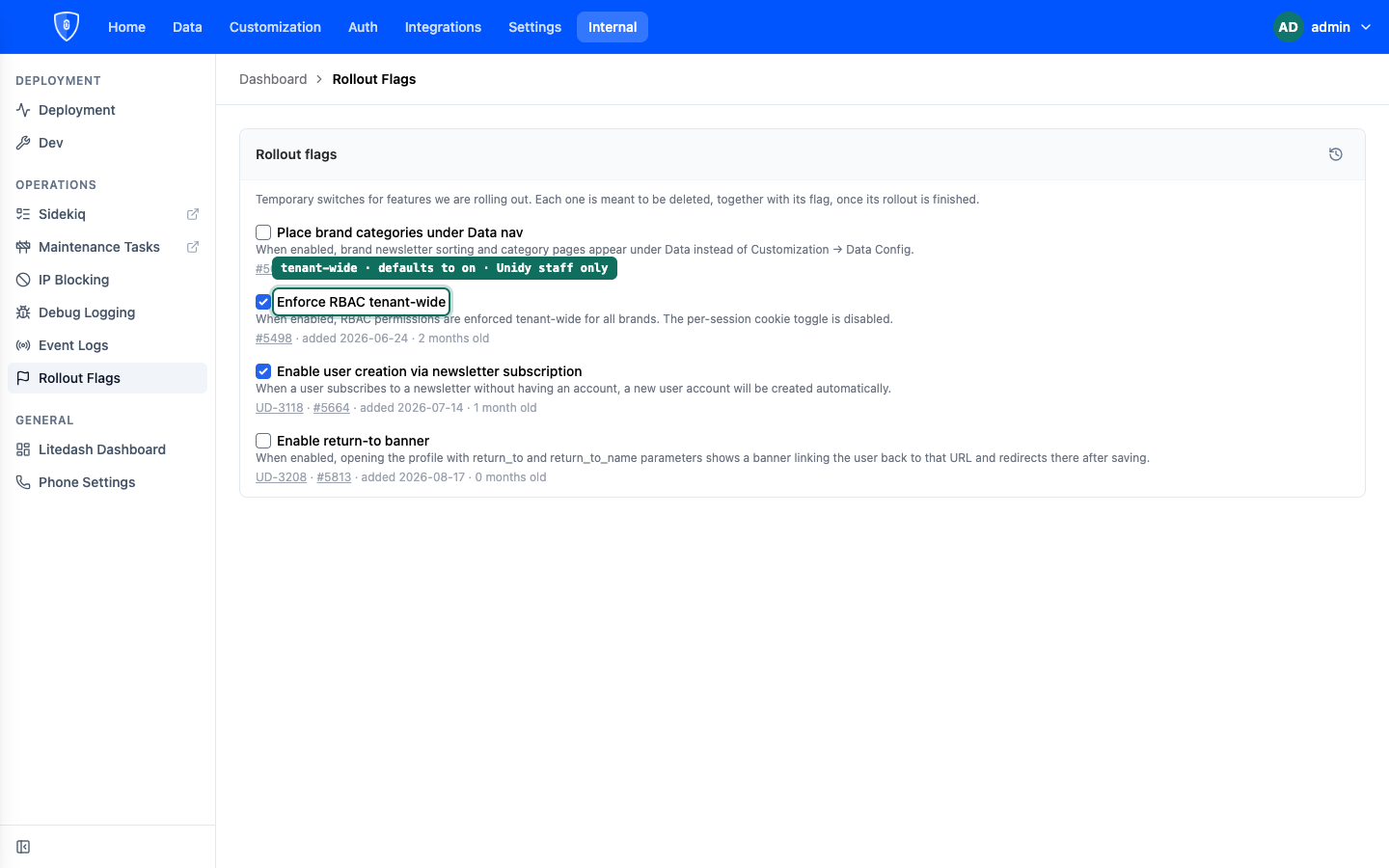
INTERNAL → ROLLOUT FLAGS — highlight on Enforce RBAC tenant-wide, checked. This is the switch that is actually in effect on the account shown in the previous figure. It is on a Unidy-staff-only screen, and its description — "the per-session cookie toggle is disabled" — does not mention the per-brand checkbox it overrides.
Find users belonging to a brand
- Open Data → User List.
- Open Filters and choose Part of brand.
- Select the brand and apply the filter. The choices reflect the brands available to your account.
- Confirm the active filter before saving a view, exporting, or starting a bulk action.
This filter tests a user's brand membership; it is separate from the dashboard's brand switcher. See Lists, filters, and bulk actions for saved views and bulk selection.
Shared and brand-specific integrations
Brand-specific plugins are available only when enabled for the installation and supported by the connector. Where available, the brand Integrations area manages the current brand's record, while the global Integrations area manages the shared record.
A disabled brand-specific plugin still takes precedence over the shared plugin of the same type; disabling it does not automatically resume the shared connection. Confirm the intended connection before changing or removing an override.
Related
- Roles and feature availability — permissions, scope, and missing screens.
- Roles and account security — global and brand role assignments, including RBAC enforcement.
- Dashboard overview — where each task starts.