Consent and subscriptions
Check newsletter opt-in state, manage subscriptions, and understand account changes.
Look up a customer's newsletter opt-in state, check how it was recorded, and manage their newsletter preferences.
Choose the right record
| Record | What it represents | Where to find it |
|---|---|---|
| Newsletter | The newsletter's name, opt-in rules and available topics | Settings → Newsletters; brand order and visibility under Data → Newsletter Config |
| Newsletter subscription | One email address's relationship to one newsletter, including confirmation, opt-out and preferences | Data → Newsletters, under the newsletter heading |
| Product subscription | A commercial entitlement such as a membership, with a period and payment status | Data → Subscription List; see commercial records |
Newsletter subscriptions carry marketing opt-in state. Account confirmation, brand connections and service authorizations are different concepts, even though the user's Opt-ins tab displays them together. A confirmed account does not automatically mean every newsletter is confirmed.
You need access to newsletter subscriptions to read records, and write permission to create or edit them. Available records depend on your permitted brand scope. See Roles and feature availability if an action or tab is missing.
Find a subscription
Start with a customer
- Open Data → User List, find the customer, and open their record.
- Open Opt-ins for a summary of account confirmation and each newsletter's status.
- Open Newsletter subscriptions for the associated records, preferences and dates.
- Open the relevant subscription to inspect its source and full details.
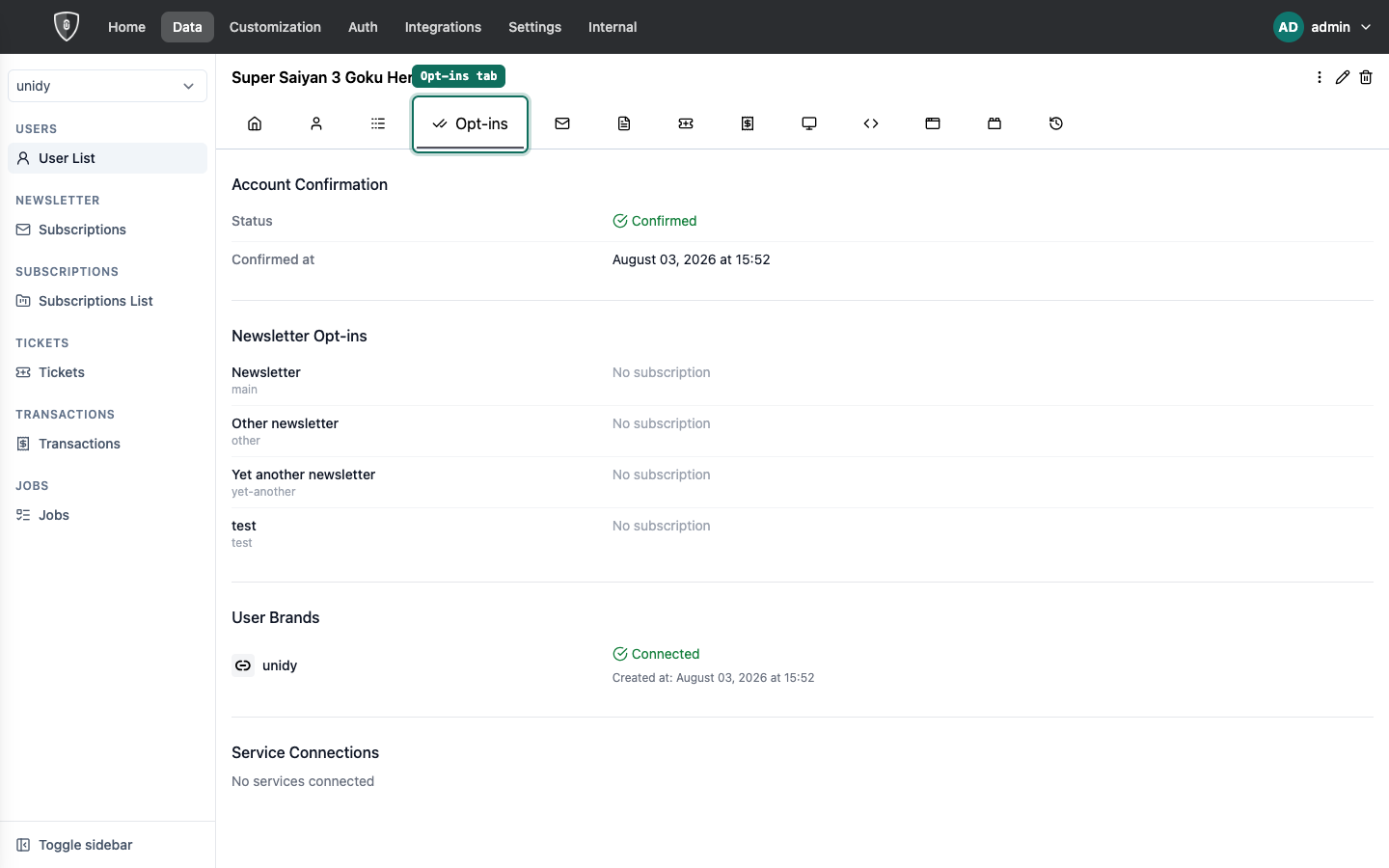
User record — account confirmation and one opt-in status per newsletter · highlight on the Opt-ins tab.
Start with an email address or newsletter
- Open Data → Newsletters under the newsletter heading.
- Search for the email address and check the Newsletter column. One address can have a separate row for each newsletter.
- Open the relevant row. Use Filters to narrow a larger segment.
A subscription can exist without a linked user account. If it is absent from the user's tab, search the subscription list by email before concluding it does not exist.
Read the status
Read the confirmation and opt-out dates together. Opted out takes precedence over a confirmation date.
| Status | Meaning in Unidy |
|---|---|
| Confirmed | Confirmed At is set and Opted Out At is empty. |
| Pending confirmation | A subscription exists but has no confirmation date and has not opted out. Check Confirmation Requested At to see whether a request was recorded. |
| Opted out | Opted Out At is set, including when an earlier confirmation date is still present. |
| No subscription | No subscription row exists for that email address and newsletter. This is an absence of a record, not another stored subscription state. |
These labels describe the state stored in Unidy. They do not replace your organization's rules for sending a campaign or establish that every condition for a particular send is satisfied.
| Field | What to check |
|---|---|
| Email and Newsletter | The subscribed address and the newsletter it belongs to. The combination is unique. |
| User | The linked account, if present. |
| Preferences | The newsletter topics selected for this subscription. |
| Source | Where the record came from, including its creating administrator when recorded. |
| Confirmed At | When confirmation was recorded. |
| Confirmation Requested At | When a confirmation request was recorded; it does not prove delivery or that the link was used. |
| Opted Out At | When the opt-out was recorded. |
| Preference Token / URL | The subscriber's private preference-management link. Anyone with the link may be able to manage those preferences without signing in; do not publish it or include it in shared screenshots. |
| Created at / Updated at | When the subscription was created and last modified. |
The confirmation date can equal creation time under a single-opt-in flow; otherwise it records later confirmation. Whether signing in permits single opt-in depends on the newsletter's configured mode. Preferences record interests within the newsletter and do not establish a separate opt-in. See Newsletter configuration for the modes, topic definitions and public payload fields.
Add a newsletter subscription
- Open the Newsletters list under Data and choose Add Newsletter registration.
- Select the Newsletter, then any applicable Newsletter preferences.
- Enter the email address or select an existing User. A selected user supplies the account's email address.
- Check Create user if the subscription should create an account. Some configurations require this and keep the checkbox enabled and locked; in those configurations you cannot create a new unlinked subscription through this form.
- Leave Confirmed at empty for the newsletter's normal confirmation process. Enter a historical confirmation date only when recording an existing, verified confirmation.
- Save, then reopen the record and check its user link, dates and preferences.
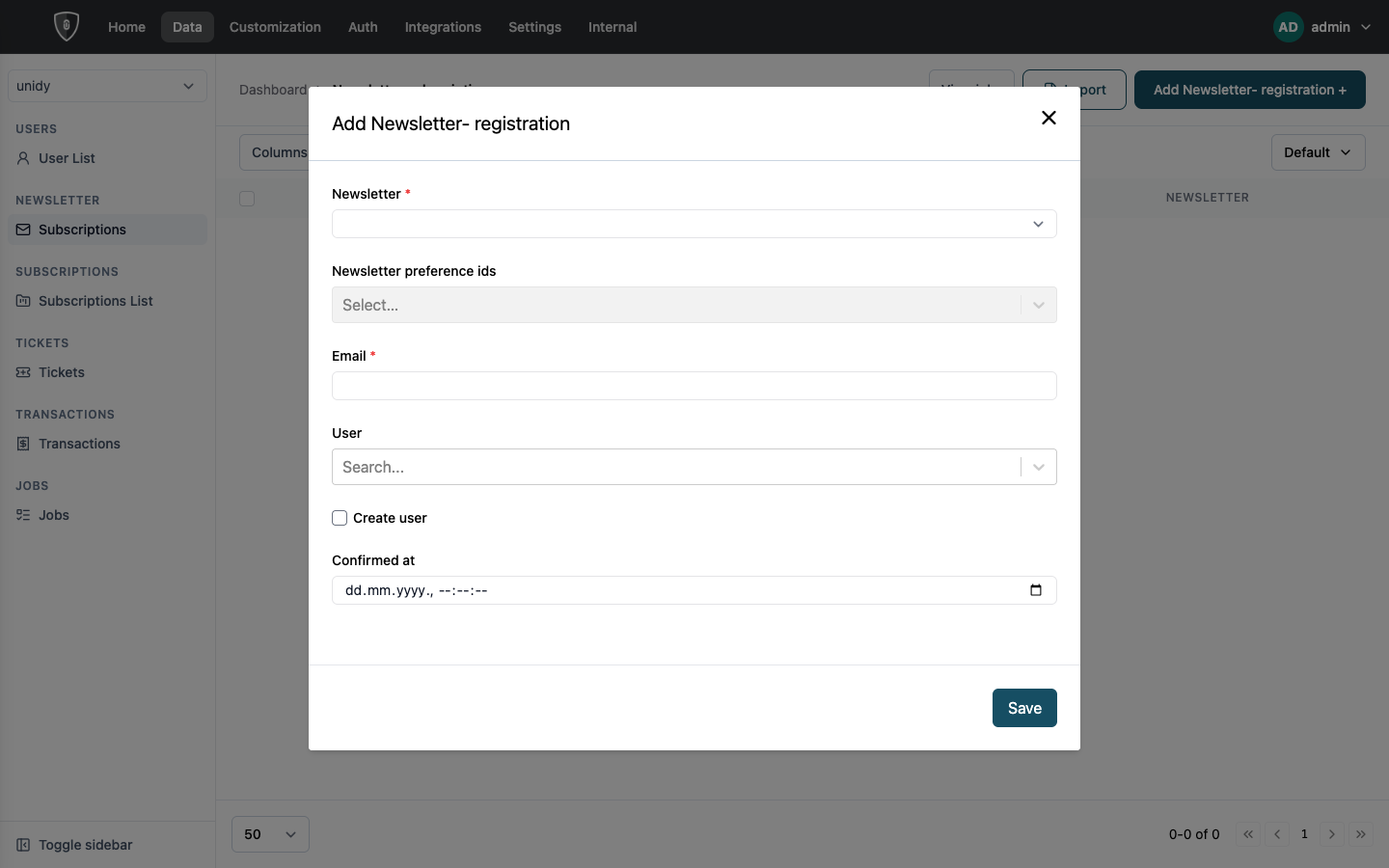
Add Newsletter- registration — newsletter, preferences, email, optional user link, and Confirmed at.
Confirmation depends on the newsletter
Leaving Confirmed at empty does not always send an email. A newsletter can auto-confirm under its single-opt-in rules. Unidy sends an initial confirmation email for a newly created, still-unconfirmed subscription when that newsletter uses double opt-in through Unidy. Provider-managed confirmation follows the provider's configuration. Check the opt-in type under Settings → Newsletters and the provider configuration before adding records.
Creating a pending subscription is not the same as completing its confirmation. Check the resulting record before treating the operation as finished.
Signed-out newsletter signup
An email already subscribed to a different newsletter can still sign up for the selected newsletter. That other subscription does not satisfy this signup or bypass the selected newsletter's normal confirmation flow.
An existing subscription to the selected newsletter follows the existing-subscription access flow. The general signed-out subscription-access page searches within the current brand. After a reported signup problem, inspect the actual selected newsletter record and confirmation state; a login email alone does not prove a new subscription was created.
Edit or delete a subscription
Find the exact Email + Newsletter row before acting. Use the pencil/Edit to update the available fields and preferences, then Save and reopen it. To remove that subscription, use its bin/Delete action, read the confirmation and confirm the intended row. Deleting one subscription does not delete the newsletter definition or the customer's other newsletter subscriptions.
Subscription history
Open the subscription's History when your role permits it. Search entries and hide no-change updates when available. Check Property, Old value, New value, Source, Author if known, and Updated at, then return to the subscription. Profile/user, plugin/API and unknown/system entries can have different origins; a missing author is not evidence of a customer action. The legacy log history starts no earlier than September 2023; current retention can limit it further.
Resend confirmation
- Open an unconfirmed subscription.
- Open its actions and choose Resend confirmation when available.
- Confirm the action and check the resulting request status. For delivery problems, use Email templates and delivery.
The action depends on the newsletter's confirmation setup, including Unidy double opt-in or a supported configured provider. A confirmed subscription shows Already confirmed instead. A request is not proof that the recipient received or completed it.
Export a segment
Filter the subscription list, select the required records, and use the export action. Download the finished file from View jobs. Follow Lists, filters, and bulk actions for selection limits and export behavior. When selecting confirmed subscribers, check opt-out state as well as the confirmation date.
Account changes and deletion
Subscriptions and accounts have different records, but account actions can affect subscriptions:
- Changing an account's email can move subscription addresses or detach and reclaim linked subscriptions, depending on the configured newsletter behavior. After an email change, verify the subscription's Email and User rather than assuming they stayed the same.
- Deleting an individual user through the dashboard also deletes their newsletter subscriptions. Do not use account deletion as a way to keep opt-in records while removing the account.
- Other removal paths have different effects. Follow Account state and access before deleting accounts or subscription records.
Deleting a subscription row and recording an opt-out are different operations. Deletion removes the row; an opt-out preserves a record of that state.