Account state and access
Confirm, reset, lock, or remove customer accounts.
Account state and access
Open Data → User List, find the account, and open it with the eye icon. Check its UNIDY ID before changing access. The list also contains dashboard administrators and is limited by your brand permissions.
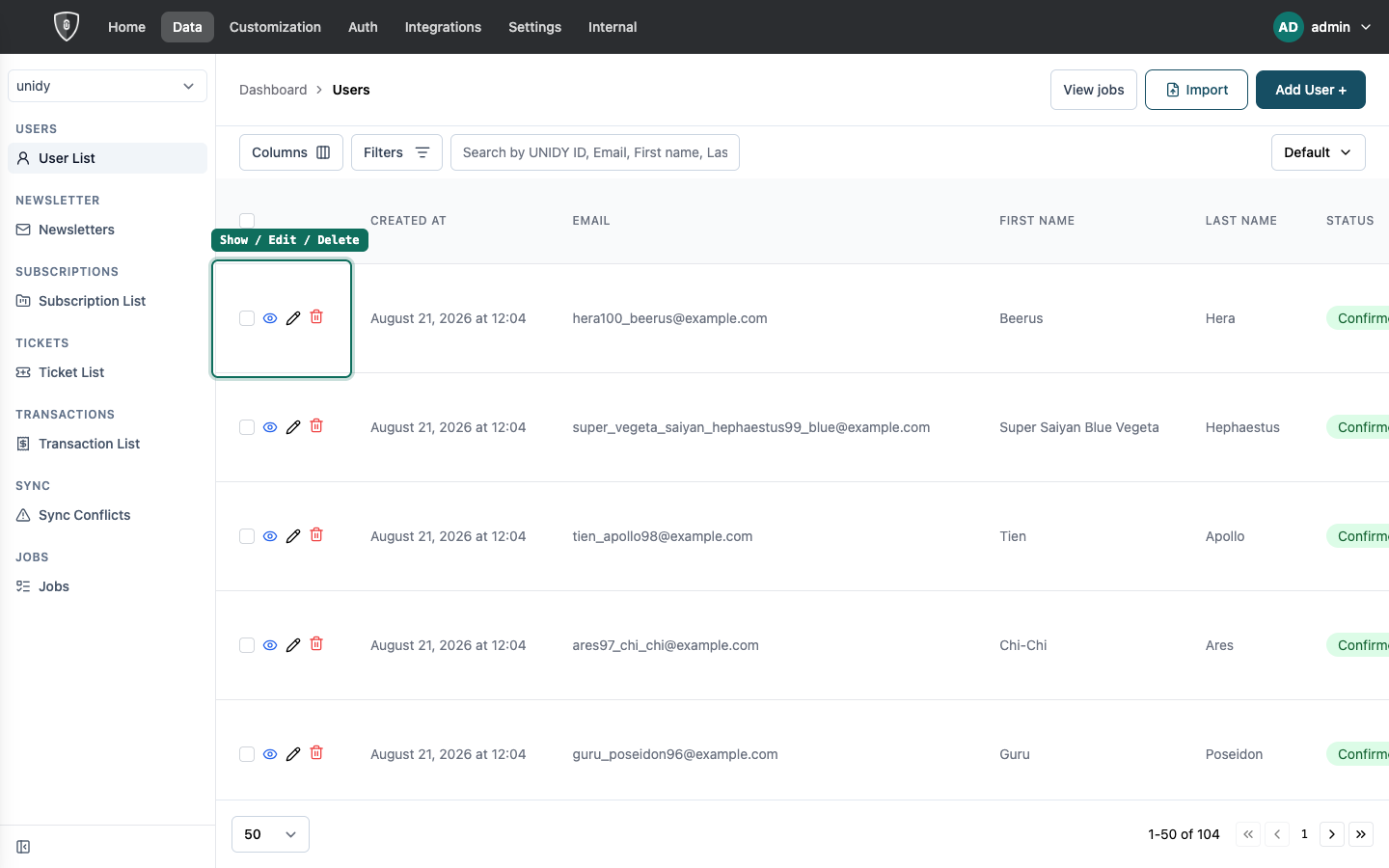
Users list — the per-row controls · highlight on the eye, pencil and red bin at the start of a row. The leftmost checkbox selects the row for a bulk action.
Use the record header's Actions on User menu for confirmation, invitations, password resets, and locks. Related controls appear on Info, User login info, Services, Sessions, and Plugins. Your permissions and the account's state determine which controls appear.
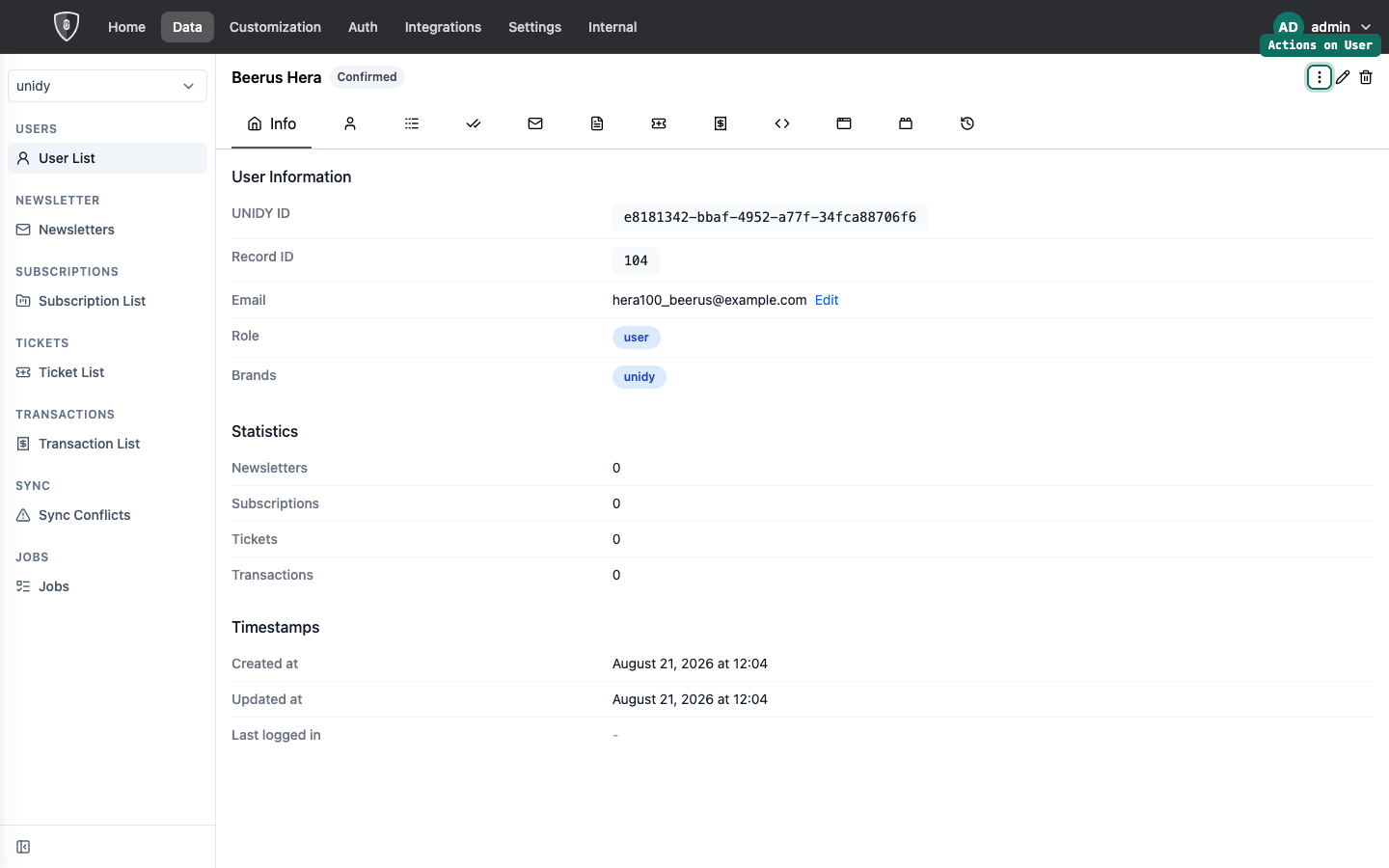
User record, Info tab — the header carries the name, the status badge, and three controls · highlight on the ⋮ menu, whose tooltip reads Actions on User.
Choose the right action
| Situation | Check first | Action |
|---|---|---|
| The email address is unconfirmed | Confirmation and invitation timestamps in User login info | Send a confirmation email or invitation. |
| The customer forgot their password | Whether they use a password or a connected login provider | Send password reset email for a password-based account. |
| The header shows Locked | Whether an administrator deliberately restricted access | Unlock user, if restoring access is appropriate. |
| The header shows Login locked | Failed attempts, status, and expiry in User login info | Wait for expiry or Reset login attempts after checking the request. |
| One Unidy browser session must end | The session's browser, IP, and sign-in time | Invalidate that session on Sessions. |
| A connected application's access must end | The application on Services | Disconnect that application. |
| The account must be removed | Related data, newsletter subscriptions, and downstream systems | Use the deletion guidance below. |
Confirmed describes email confirmation; it does not guarantee sign-in. Administrator locks and temporary login locks are separate. The SDK returns account_locked for either kind of lock, so use the dashboard indicators to distinguish them.
Confirm, invite, or reset
- Open Actions on User.
- Choose the action below and read the confirmation dialog.
- After confirming, check the status and relevant timestamp in User login info.
| Action | When to use it | Result |
|---|---|---|
| Send confirmation email | The unconfirmed customer should verify their own address | Sends confirmation instructions. |
| Send invite | An unconfirmed account needs an invitation | Issues an invitation and records its send time. See Create or invite a user. |
| Confirm user | Your support process permits manually confirming an address after another verification | Confirms the account without sending a confirmation email and clears the pending invitation token. |
| Send password reset email | The customer needs to set a new password | Sends reset instructions; requesting the reset does not itself change their password or confirm their email. |
Confirmation and invitation actions appear only on unconfirmed accounts. Password reset uses the same flow as a customer's forgotten-password request.
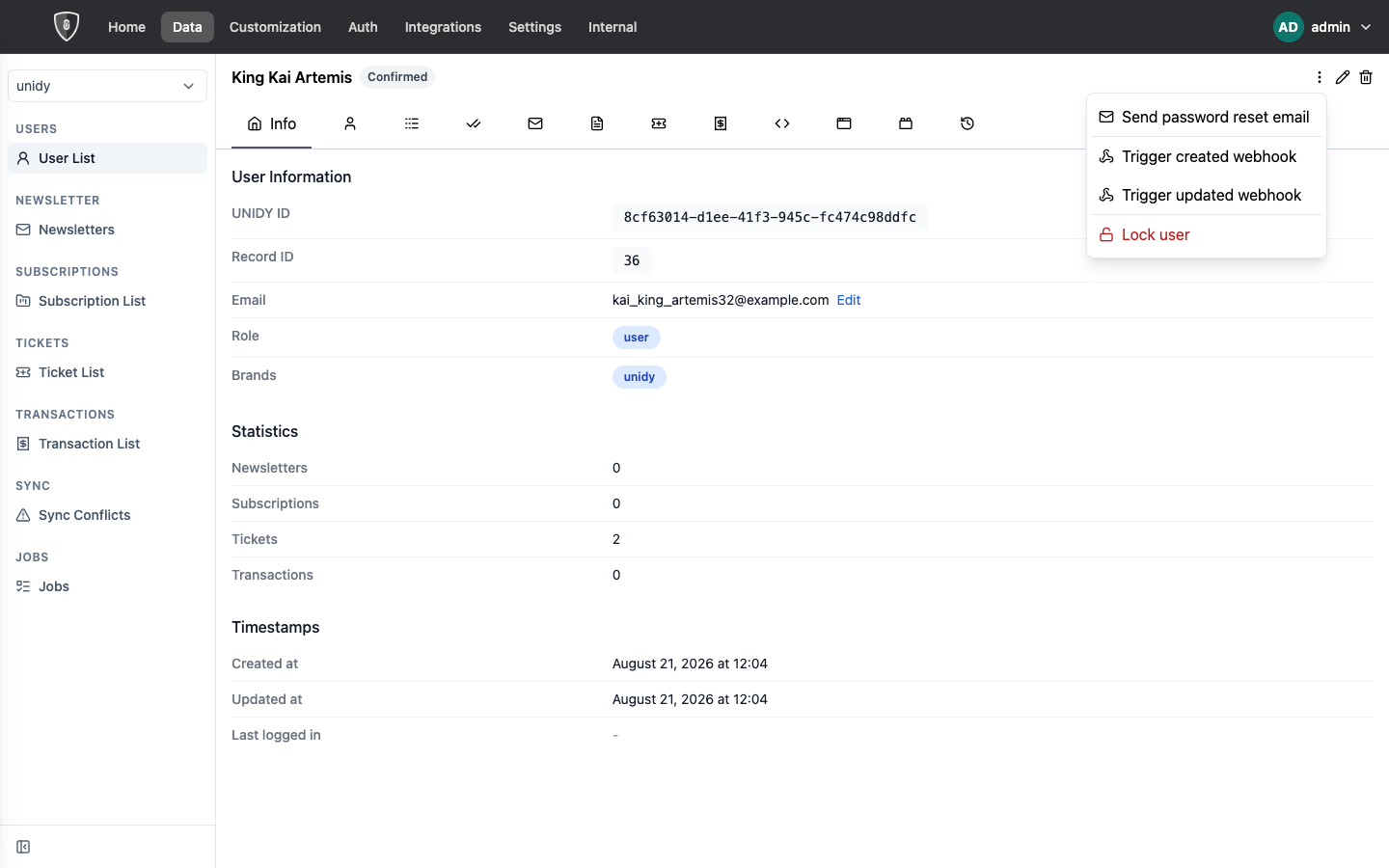
Actions on User, opened on a confirmed account — four entries, with Lock user in red at the bottom. The three confirmation actions are absent because this account is already confirmed.
A successful dashboard action or send timestamp is not proof that an email arrived. Check delivery and background-job errors before repeatedly resending. Disabling a custom email template falls back to the built-in template; it does not suppress the message.
Invitation, confirmation, and password-reset links have separate configured lifetimes. See Email templates and delivery for brand, language, and template selection.
Lock or unlock an account
Lock user prevents further sign-in without deleting the profile or related records. It remains in place until an administrator selects Unlock user. The header shows a red Locked indicator, separate from the confirmation badge.
- Open Actions on User → Lock user.
- Confirm the action and check the Locked indicator.
- To restore sign-in, select Unlock user and check that the indicator disappears.
Locking does not revoke OAuth tokens or end every existing session. If you are containing an account-access incident, also review browser sessions and connected applications; changing one control does not automatically change the others.
Reset a temporary login lock
Failed sign-in attempts can temporarily block login independently of an administrator lock. The header shows an orange Login locked indicator. User login info shows the failed-attempt count, lock status, and expiry time.
- Open User login info and check the active lock and recent sign-in details.
- If your support process permits clearing it, open Actions on User → Reset login attempts.
- Confirm, then check that the attempt count is reset and the temporary lock is cleared.
This action does not remove an administrator's Locked state. Repeated failed attempts can trigger another temporary lock.
End sessions or disconnect access
| Control | Steps | Scope |
|---|---|---|
| Invalidate a browser session | Open Sessions, identify the session, select its invalidate icon, and confirm | Removes that Unidy session. It does not revoke OAuth tokens or a partner application's own session. |
| Disconnect an application | Open Services, find the application, select disconnect, and confirm | Removes that application's Unidy access tokens and authorization grants for this user. A partner application's local session may still require its own logout. |
| Disconnect a social login | Open User login info, find the provider, select disconnect, and confirm | Removes the linked social-login identity. Ensure the customer has another sign-in method. |
| Remove a plugin link | Open Plugins and use the available control for that plugin | Changes the integration link; this is not the same as disconnecting a login provider or OAuth application. |
The Sessions tab requires session management to be enabled. It displays available recent session records, not an indefinite history of all sign-ins. Missing tabs or controls can also reflect your permissions.
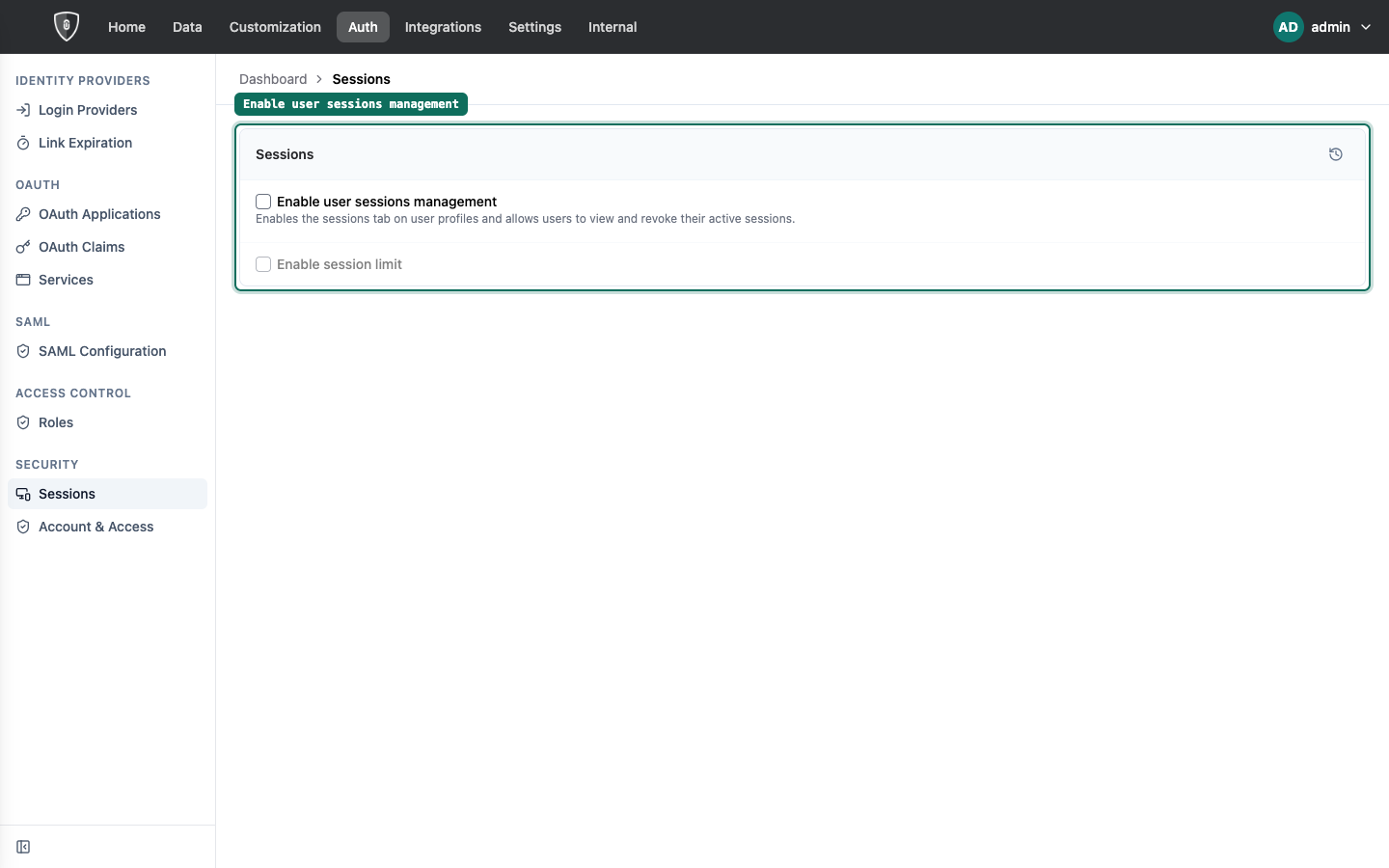
Auth → Security → Sessions · highlight on Enable user sessions management. Off here, which is why the seeded records show no Sessions tab. The same switch also lets customers see and end their own sessions from their profile.
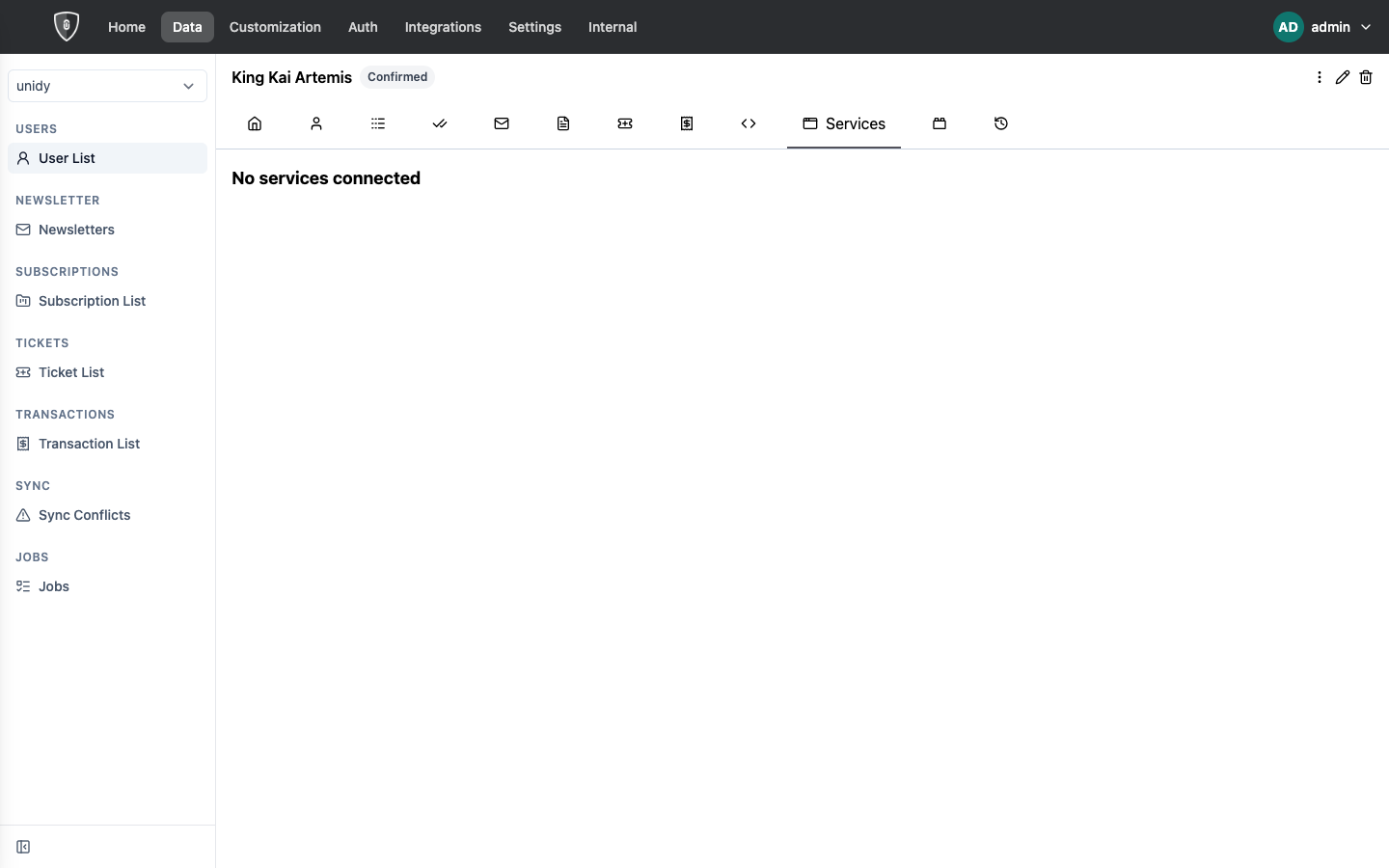
Services tab, empty state — No services connected. When an application is connected it appears here with a disconnect control that revokes that application's tokens and grants.
Change or revert an email address
Use the email-change control on Info, rather than treating the email as an ordinary profile field:
- Search the proposed address first to check for an existing account, including your active filters and accessible brands.
- Open the intended account and verify its current email and UNIDY ID.
- On Info, open the change-email control and enter the new address.
- For an already confirmed account, leave Skip confirmation off to require verification by email. Use it only when your support process justifies an immediate change. For an unconfirmed account the form handles the address change directly; it does not establish verified ownership of the new address.
- If confirmation mail is needed on a multibrand account, select the appropriate Email template brand from the user's connected brands.
- Submit, reopen the record and check the email and pending address. Review newsletter links and addresses as described in Consent and subscriptions.
When confirmation of a new address is pending, the account keeps its existing confirmed address and shows Pending Reconfirmation. Old invitation and reset links can become invalid after an email change; send fresh instructions for the resulting account state instead of reusing an earlier link.
Revert change beside the pending address clears that pending change. It does not restore older profile data or undo an already completed email change.
Delete an account
Deletion is permanent. It removes the account and related records, including owned tickets, transactions, product subscriptions, credentials, sessions, social logins, brand memberships, and the account's existing change history. Review the record and your retention process first. Lock the account if the goal is to stop sign-in while retaining it.
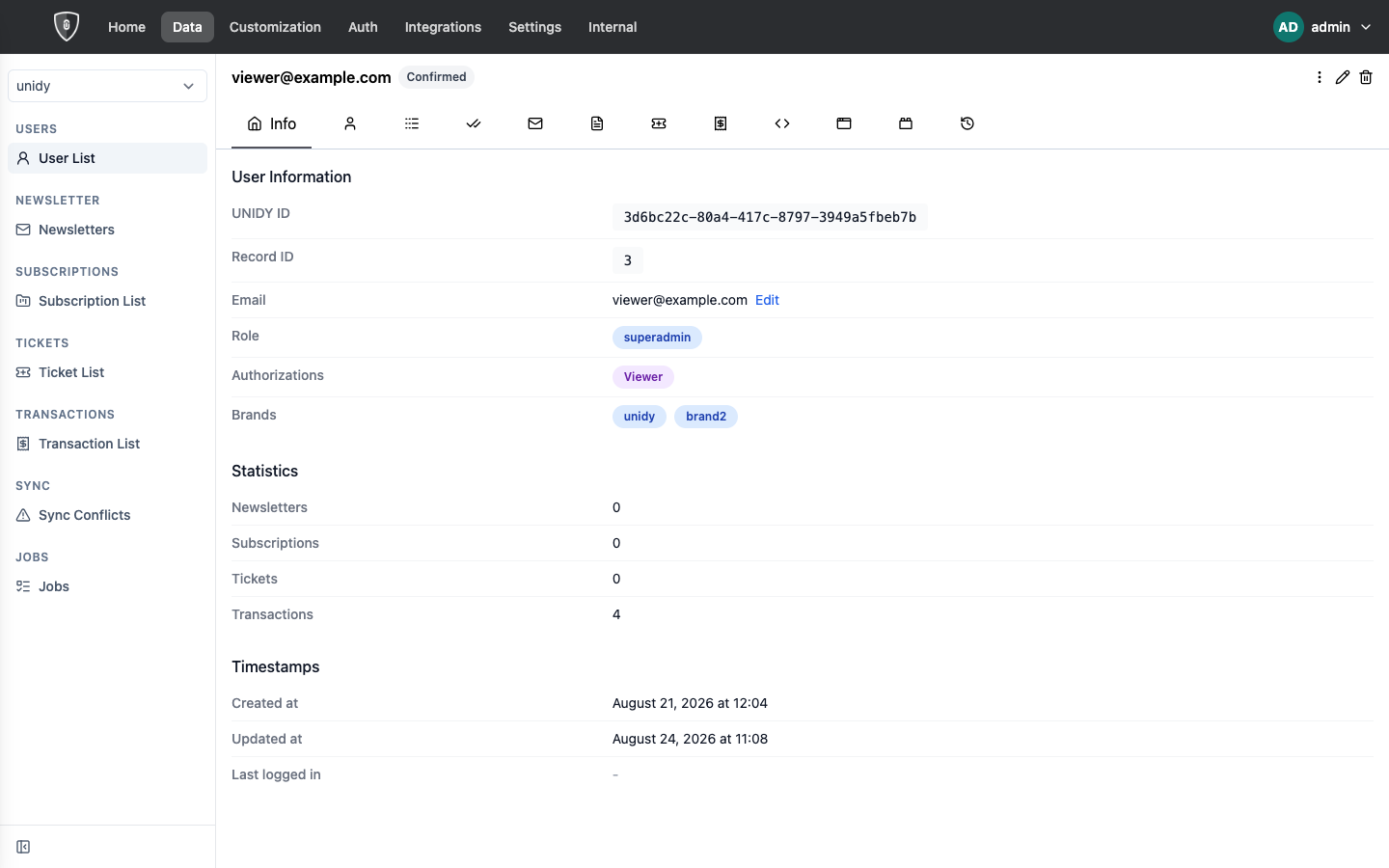
A dashboard admin seen from the Users list — the same record type as a customer, with Role, Authorizations and Platform · restrictedBrandA customer-facing identity within a tenant, with its own hostname, presentation and experience settings.5 fields — listed in full on the pageRelated: Tenant · Email template · NewsletterRead the page →Open brands (restricted) (choose an instance) memberships on the Info tab. The Statistics block is the quickest preview of what a deletion would take with it.
Deletion paths have different effects on newsletter subscriptions and notifications:
| Path | Newsletter subscriptions linked to the account | Events and notices |
|---|---|---|
| Single-record Delete User, from the row or record header | Deleted, with a deletion event for each subscription | Emits user.deleted and queues an unsubscribe notice for each application with an authorization grant. |
| Bulk delete from the list | Retained with the user link cleared; the email address remains | The Fire delete events option controls deletion events. It is enabled by default. Application unsubscribe notices are not sent by this path. |
| Customer self-service deletion, when enabled | Retained with the user link cleared; the email address remains | Uses the self-service removal flow, including connected-service removal notices. |
Tickets owned by someone else but held by this user remain, with their holder cleared. Some other related records, such as received ticket transfers and analytics visits, also remain with the user reference cleared. External systems have their own deletion and retention behavior: a Unidy deletion is not proof of erasure everywhere.
To delete one account:
- Open it and verify the UNIDY ID and email.
- Review related records and newsletter subscriptions. Do not assume that a brand-filtered list limits deletion to that brand's portion of the account.
- Select Delete User and confirm the removal.
- Check the result and any required downstream cleanup. For newsletter records outside the account relationship, review the relevant address separately.
For bulk jobs, inspect completion and per-record errors. Cancellation cannot restore records already deleted. See Lists, filters, and bulk actions.
ID verification is separate
Verified concerns an identity check, such as a configured KYC provider; Confirmed concerns email. ID verification is valid for one year from its recorded timestamp. The edit form displays verification and reverification dates when available.
Unticking Verified clears its timestamp. Ticking an already valid verification does not extend the period. Disconnecting the social login that supplied verification does not automatically clear verification. Follow your identity-verification process instead of using this checkbox to solve a login problem.
Permissions
The action menu appears when you have a relevant manage permission on users, manual authentication, locks, or plugins. It does not require every administrator to hold users: manage. Each action is checked separately, within applicable brand scope.
| Task | Permission |
|---|---|
| Open records | users: read |
| Edit records | users: write |
| Delete records | users: delete |
| Trigger created or updated webhooks | users: manage |
| Confirm, invite, or send reset mail | users_manual_auth: manage |
| Lock, unlock, or reset login attempts | users_lock: manage |
| Invalidate sessions | user_sessions: manage, with session management enabled |
| Disconnect an application | users_service_disconnects: manage |
| Disconnect a social login | users_social_logins: manage |
| Change the email address | users_email_change: manage |
| Manage plugin links or available plugin actions | users_plugins: manage |
| Read history | audit_logs: read |
Triggering a created or updated webhook re-emits an event to matching subscriptions and integrations; it does not edit the account or restore a past record. Use it only when the receiving system is prepared to process the event again.
See Roles and account security for granting permissions, and Find and understand users for the full status reference.