Sync conflicts
Investigate rejected connector changes and resolve pending conflicts.
Use Data → Sync → Sync Conflicts when a connector could not apply a record change. Each pending row describes the affected connector, sync direction and failure. Reading conflicts and resolving them require the corresponding permissions; changing the selected brand does not filter this list.
| What you need to investigate | Where to look |
|---|---|
| A rejected change or conflicting external account | Sync Conflicts, then the affected record and connector. |
| Whether a connector is connected or its queue is paused | The connector's configuration under Integrations. |
| An import, export, bulk deletion or bulk webhook trigger started in the dashboard | Background jobs. |
| A webhook request that failed to reach your endpoint | Webhook delivery troubleshooting. |
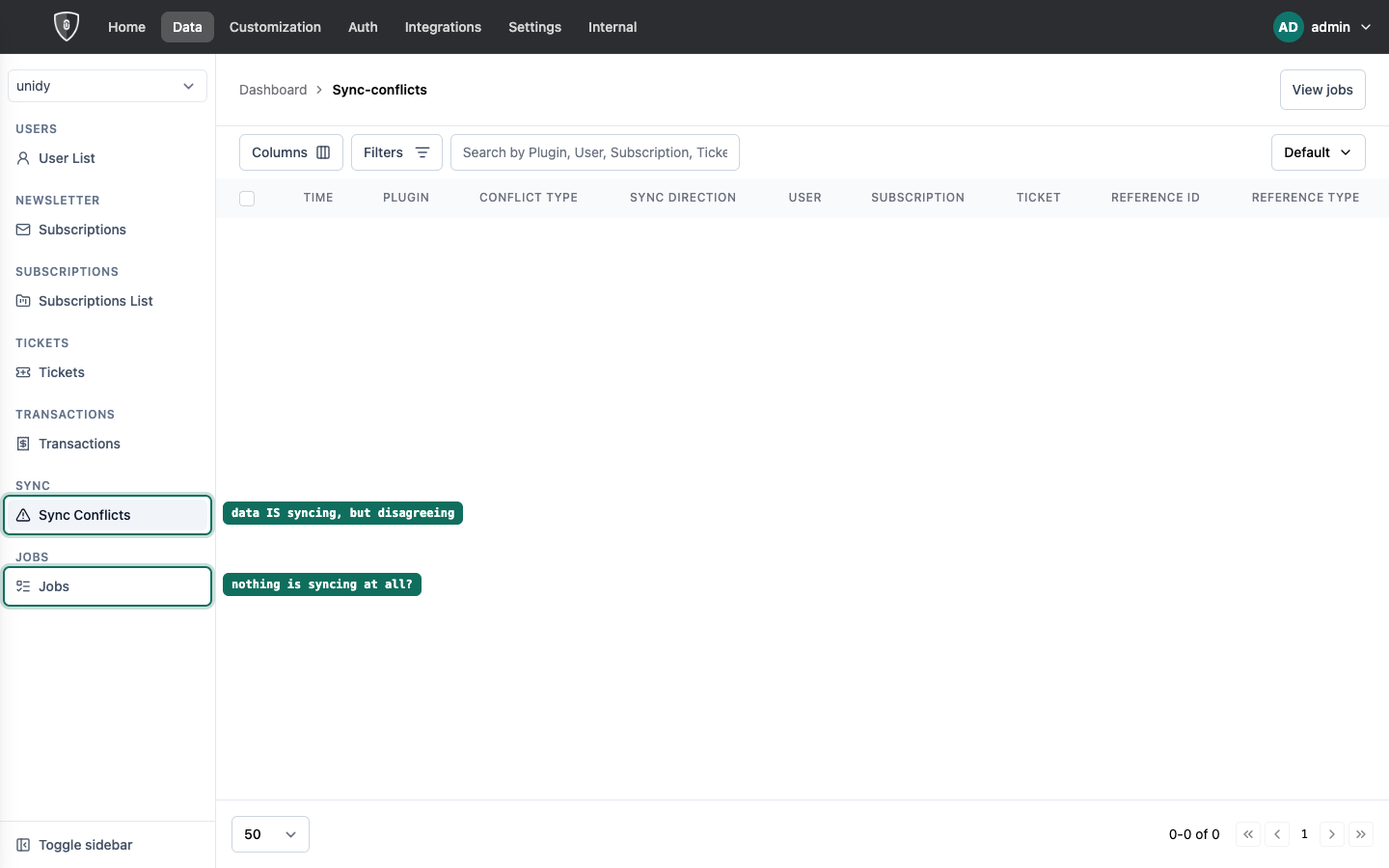
DATA SIDEBAR — the two screens sit in separate groups, Sync and Jobs · highlights on both nav entries, with the question each one actually answers.
An empty conflict list means there are no pending conflicts recorded here. It does not establish that the connector is running or that all data has synchronized.
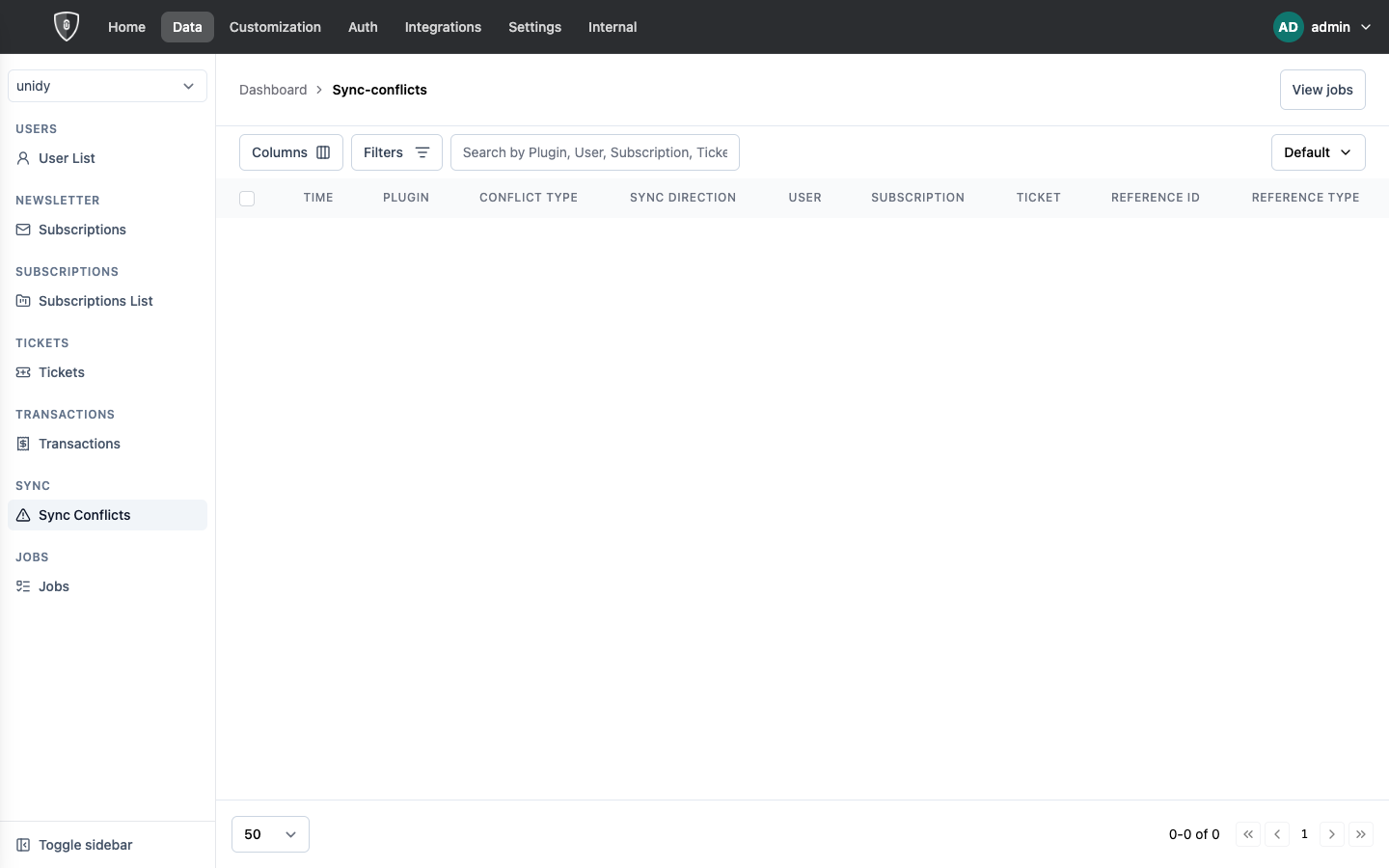
SYNC CONFLICTS — the screen as it looks when nothing is wrong: all nine columns, and 0-0 of 0. There is no "no records" message; an empty table is the healthy state.
Read a conflict
Open the row and inspect these fields before taking action:
| Field | How to use it |
|---|---|
| Plugin | Identify the connected system and configuration involved. |
| Sync Direction | Sync to Unidy is an inbound change; Sync to External is an outbound change. Use the direction together with the error to locate the rejected write. |
| Conflict Type | Classifies the failure; see below. |
| User, Subscription, Ticket, or Reference | Locate the affected records. Some inbound failures cannot identify an existing record and may have no usable reference. |
| Error | Read the explanation, including an external provider's validation message when supplied. |
| Conflict Details | Inspect the submitted values. Treat personal data in these details carefully when sharing a support request. |
| Conflict Resource | Identifies the related external record when available. |
| Auto Resolve | Indicates whether this conflict supports Accept and Dismiss. It does not mean every failure can be repaired automatically. |
| Conflict type | Typical next step |
|---|---|
| Multiple assignment | Check which Unidy user should own the external Eventim connection before accepting or dismissing it. |
| Duplicate Eventim Connection | Compare the existing and incoming external customer IDs. |
| Validation error | Correct the rejected value or the relevant validation rule, then retry through the connector's supported workflow. |
| Resource not found | Verify the referenced customer, ticket, category or other prerequisite exists and uses the expected identifier. |
| Invalid configuration | Check the connector mapping or supported values named in the error. |
Resolve a conflict
- Read the error and compare the source and destination records. Choose which system should supply the corrected data.
- If manual correction is needed, edit the appropriate record or connector configuration first. Record enough context to verify the next synchronization.
- Open the conflict's action menu. Read the specific consequences in the error text, then choose the appropriate action and confirm.
- Check the response message and the affected records. If the conflict remains pending, inspect the error before trying again.
| Action | Effect |
|---|---|
| Accept | Available for auto-resolvable conflicts. Runs the connector's acceptance handler and marks a successful resolution as accepted. For Eventim this can move a customer connection and associated data to another user, or change the linked external customer ID. |
| Dismiss | Available for auto-resolvable conflicts. Runs the connector's dismissal handler and marks a successful resolution as dismissed. An Eventim multiple-assignment conflict queues a resync of the previous state; dismissing a duplicate-connection conflict does not itself revert data. |
| Ignore | Marks the conflict ignored without repairing or resynchronizing the data. Use it only after deciding no further action is needed. |
Resolution can affect customer ownership
Accept and Dismiss have connector-specific effects. They are not a universal “keep local / keep external” toggle. Verify the customer identifiers before resolving an account-assignment conflict.
Successful resolution removes the row from the pending list but retains a resolution time and outcome. The screen is not a full audit trail of who changed every value. If a handler fails, the conflict remains open. A dismissal that queues a resync also needs a follow-up check of that synchronization.
For bulk Accept or Dismiss, each request handles at most ten auto-resolvable conflicts. Read the reported resolved, failed, ineligible and remaining counts; repeat for the remainder only after checking the result. Ignore can mark the selected pending conflicts ignored without running a connector handler.
If a conflict returns
Repeated failures may update an existing conflict. A previously resolved conflict can reopen when the same problem recurs, clearing its prior resolution state. Some successful connector writes also resolve matching conflicts automatically.
Check the rejected values, current validation rules, attribute locks and connector mappings. Correct the cause and verify the next sync; repeatedly ignoring the row will not repair it. Conflict records are subject to retention cleanup, so keep any evidence you need for a longer investigation in your support record.
For a connector that appears inactive, check its connection status and queue controls first. Use its documented sync action only after confirming the direction and likely data changes. Connector synchronization does not appear as an ordinary dashboard job; exports of conflict rows do.
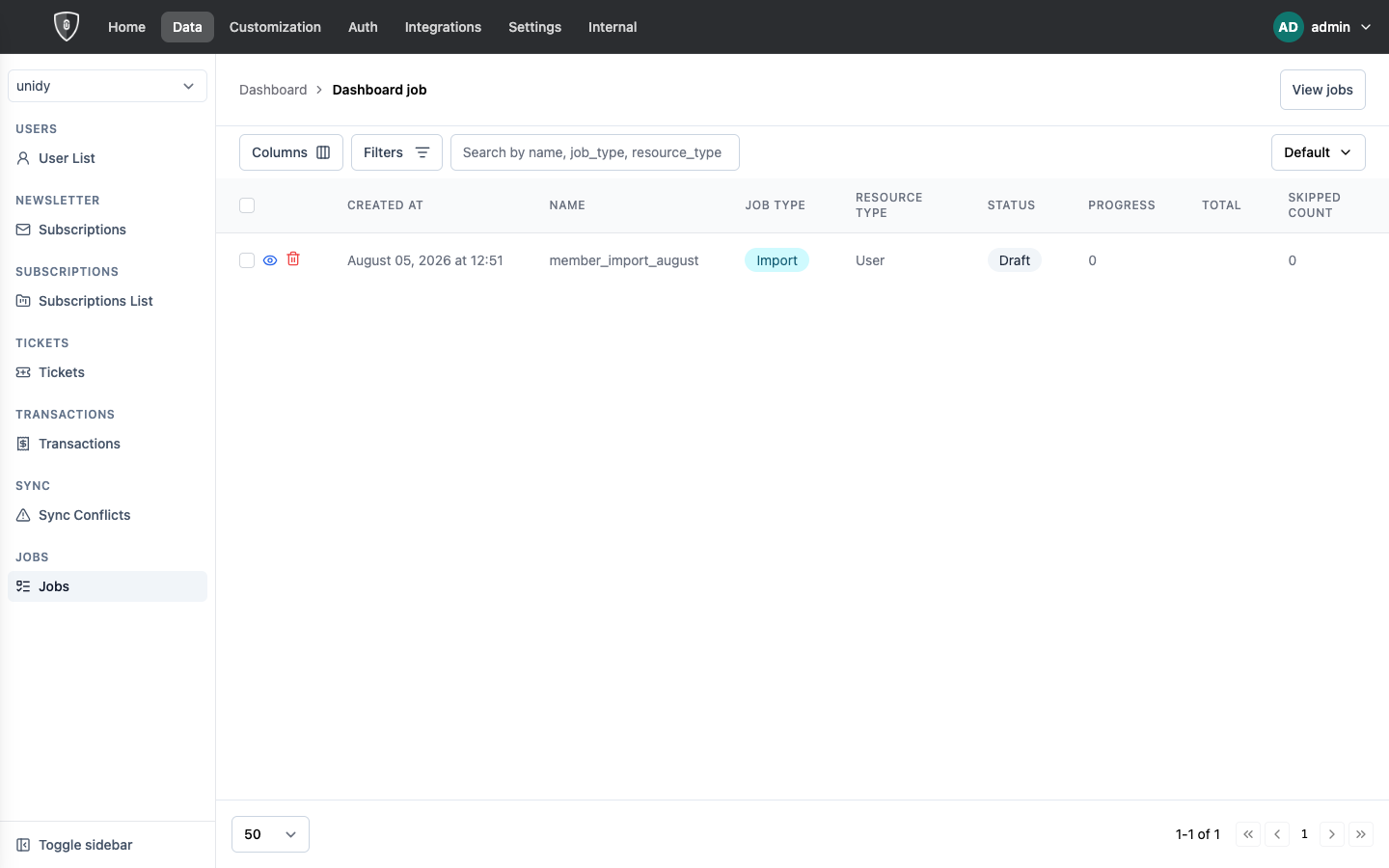
JOBS — the eight default columns and one seeded row: a draft Import of Users that was never finalised. The trash icon appears because drafts are the only jobs that can be deleted.
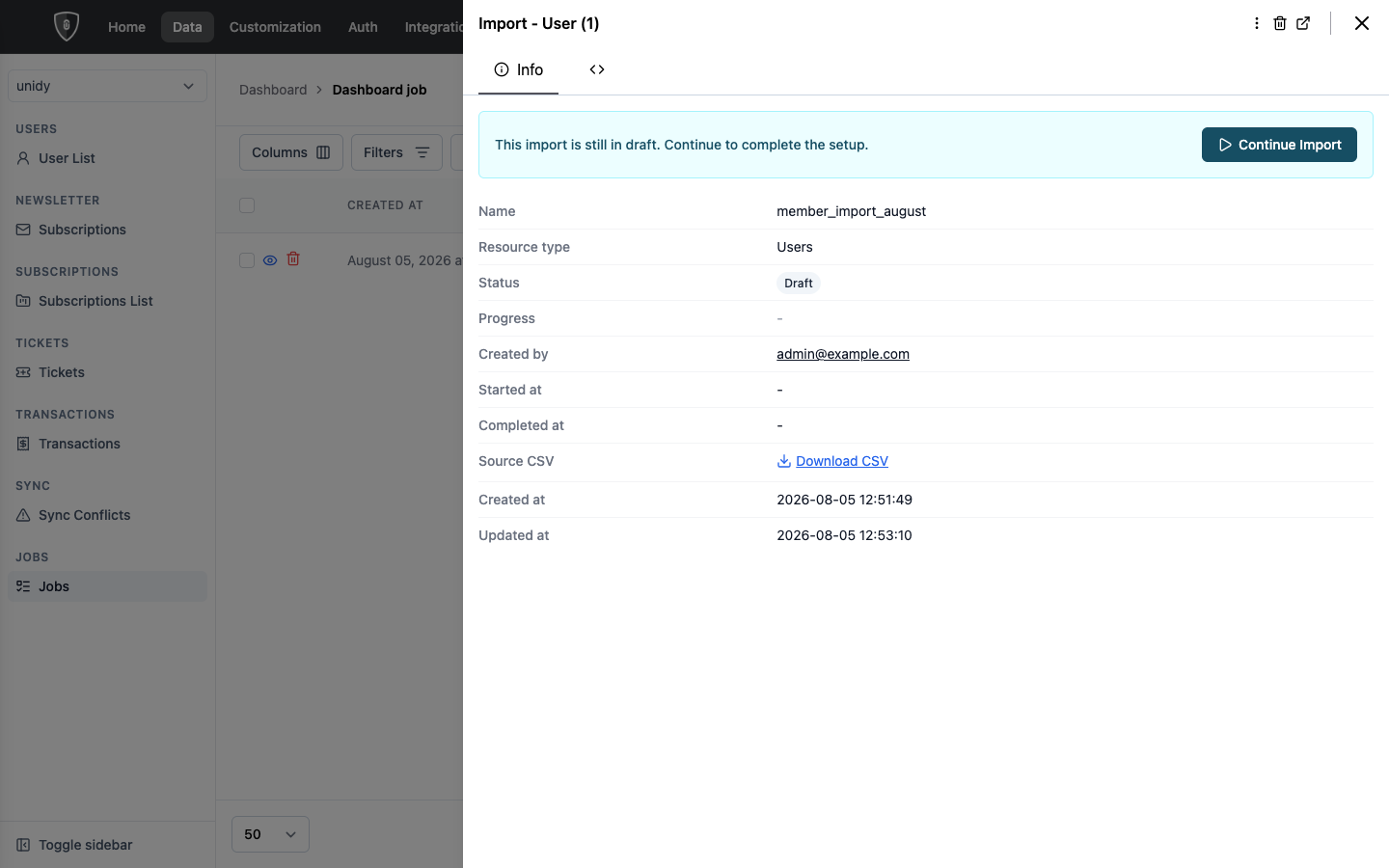
JOB DETAIL — the Info tab of the seeded draft import, including the Created by row the list omits and the Source CSV download that survives as long as the job does.
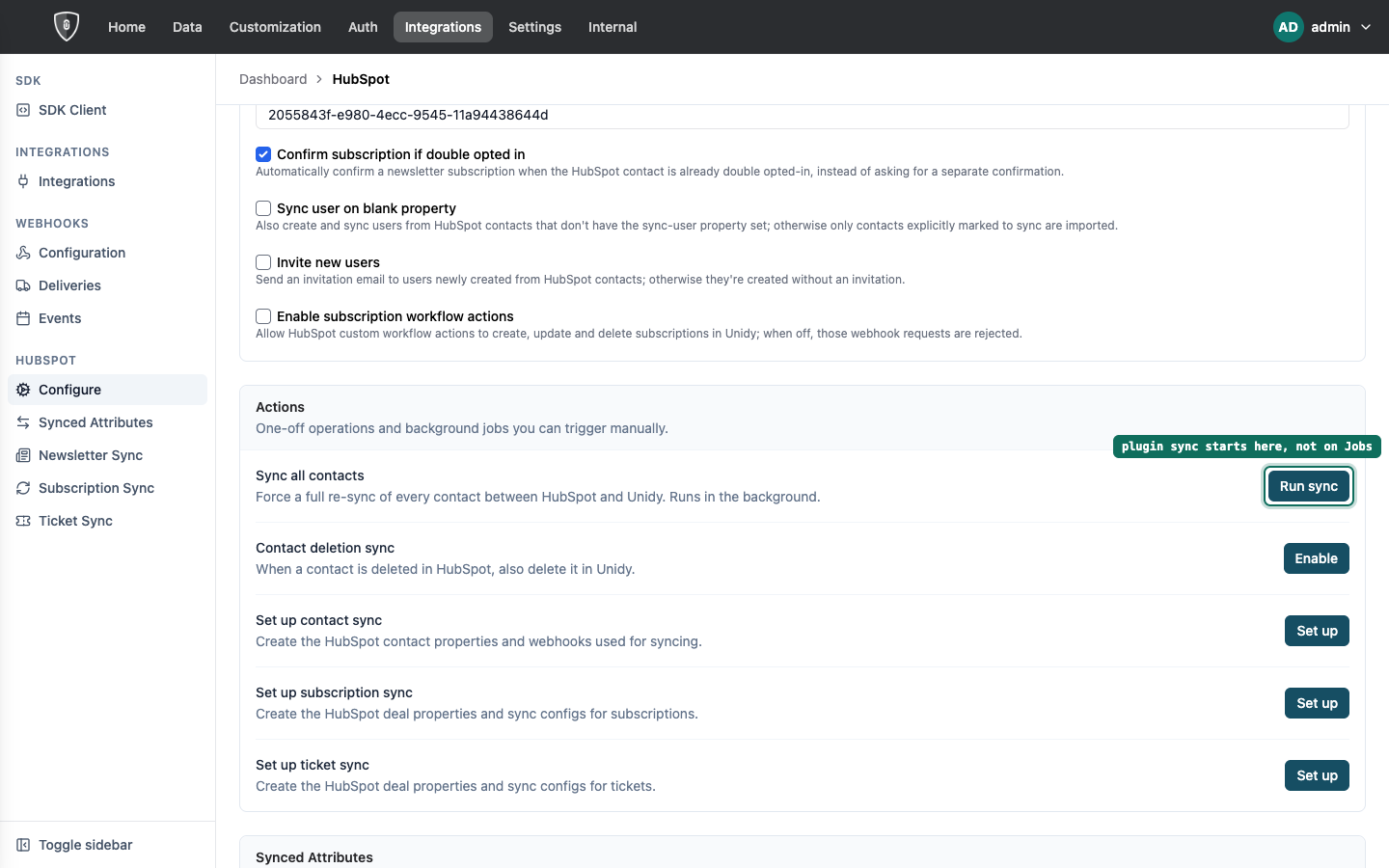
INTEGRATIONS → HUBSPOT → CONFIGURE — the Actions block: "One-off operations and background jobs you can trigger manually" · highlight on Run sync, the control the Jobs screen does not know about.
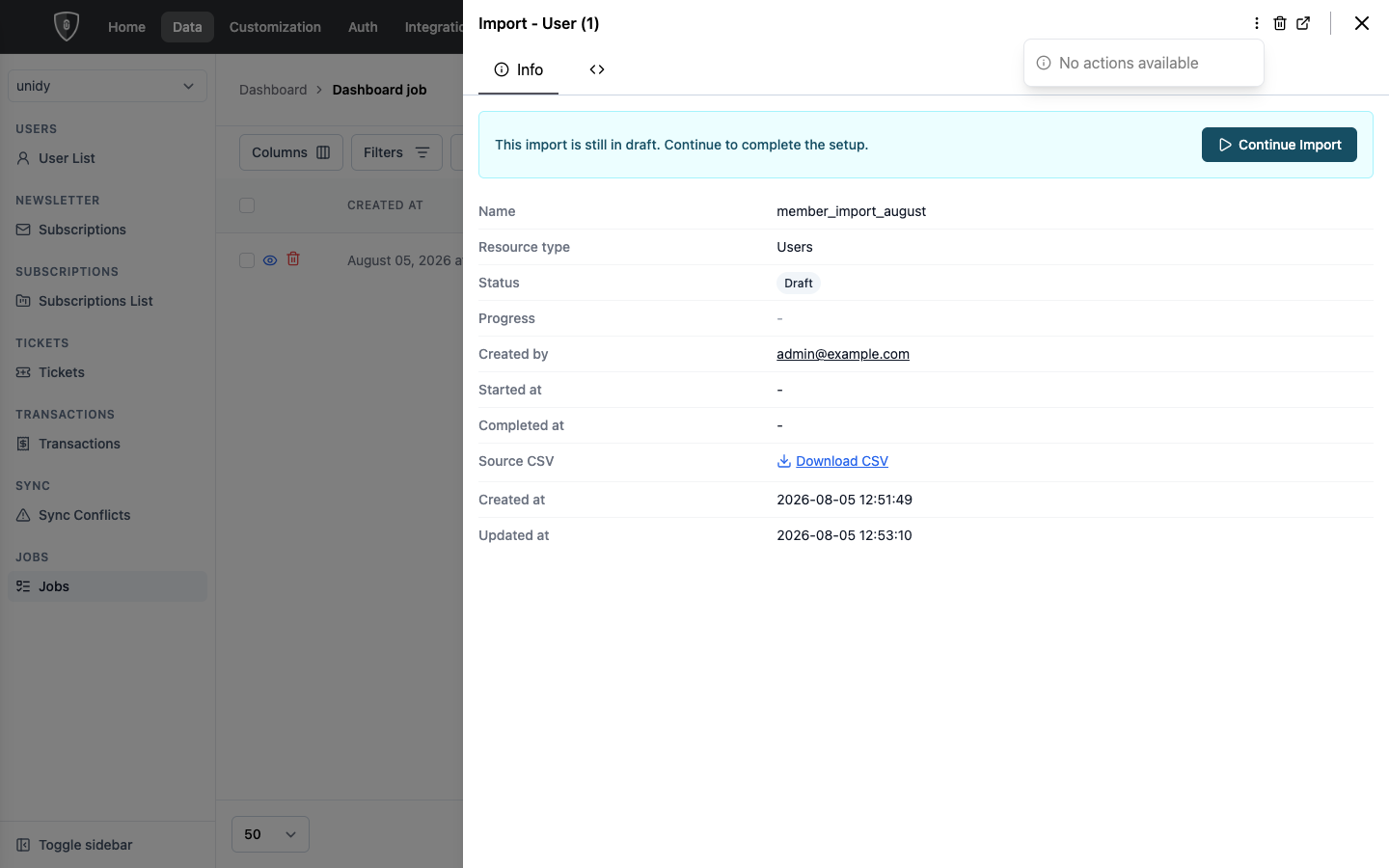
JOB ACTIONS — a draft import offers nothing at all: too early to cancel, and imports are never retryable. No actions available is a real state, not an error.
Use Lists, filters, and bulk actions for shared search, filtering and export controls.