Tickets and transactions
Review customer commercial activity.
Find a customer's ticket or order, interpret its status, and check commercial subscription details.
Choose the right record
| Record | What it represents | Dashboard list |
|---|---|---|
| Ticket | A dated entitlement, such as admission to an event | Data → Ticket List |
| Transaction | An order, its amounts, line items and payment state | Data → Transaction List |
| Product subscription | A membership or other commercial entitlement with a period and payment details | Data → Subscription List |
These records are independent. A transaction does not itself grant a ticket or membership. Newsletter subscriptions record marketing opt-in state and are covered in Consent and subscriptions.
Each list requires its feature to be enabled and the corresponding read permission. Editing requires write permission, and your accessible brands can limit which records you see. Start with Roles and feature availability when a list, record or action is missing.
Find a customer's ticket
- Open Data → Ticket List.
- Search by the ticket's UNIDY ID, external Reference, or the owner's email address.
- Open the record and check its User, Status, Starts, Ends, category and service.
- If the complaint concerns a transferred ticket, check the current holder and transfer history as well as the owner.
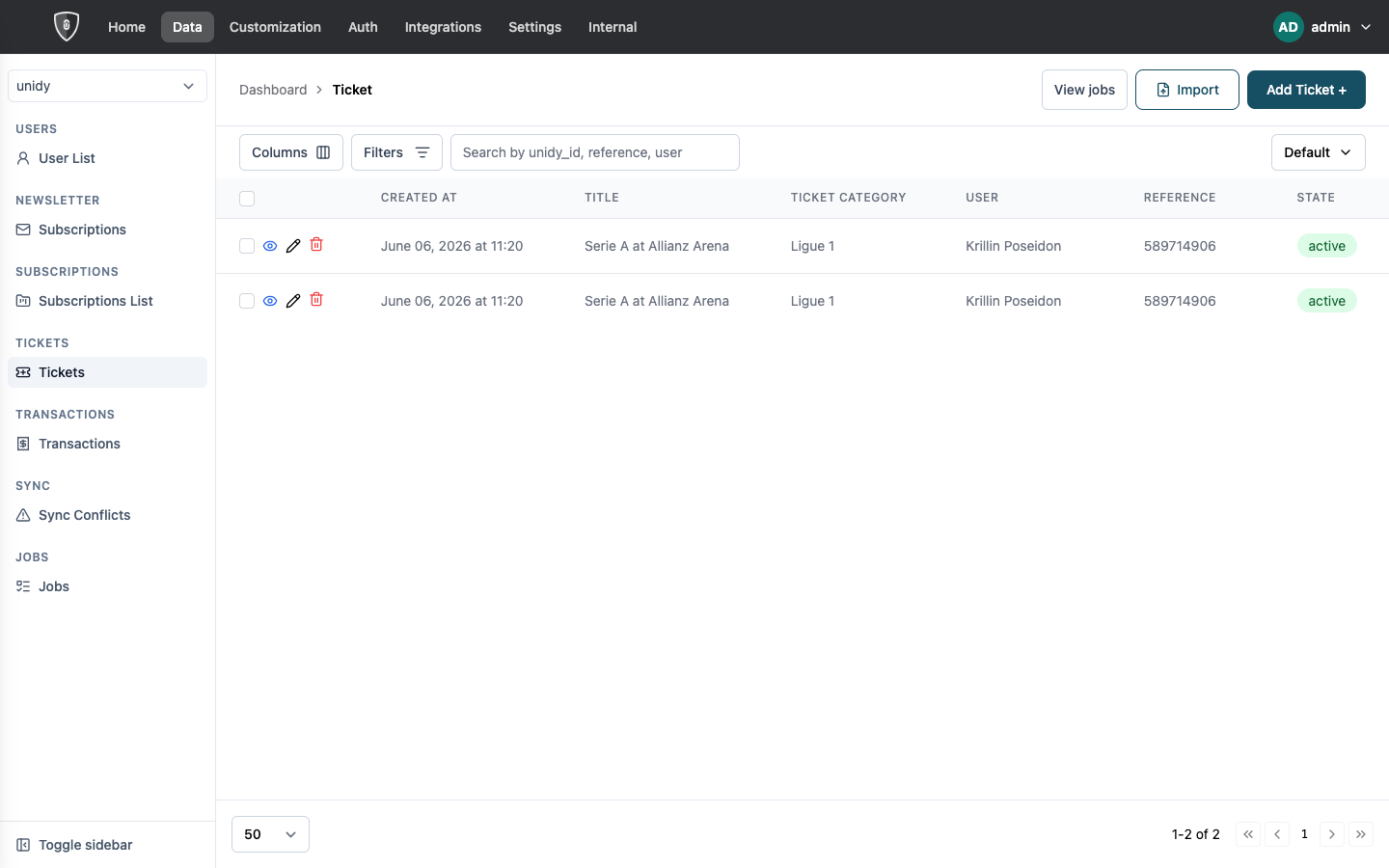
SCREEN — Data → Tickets with the seeded records. Note the State column prints the stored value in lower case.
You can also open a customer from User List and use their Tickets tab. Searching the ticket list by the owner's email is not a reliable way to find every ticket transferred to another recipient; use the ticket reference or original owner when investigating a transfer.
Owner and holder
Owner is the customer the ticket belongs to. Holder, when present, is the customer currently holding it after a transfer. With no separate holder, the owner holds the ticket.
Accepting, returning or revoking a transfer changes the holder, not the owner. Ownership can be reassigned separately where that feature is enabled; changing the owner cancels pending transfer offers.
The Transfer tab requires ticket transfers to be enabled for the selected brand and the tickets_transfer: manage permission. Turning transfers off prevents transfer operations but does not clear existing holders or reverse previously accepted transfers.
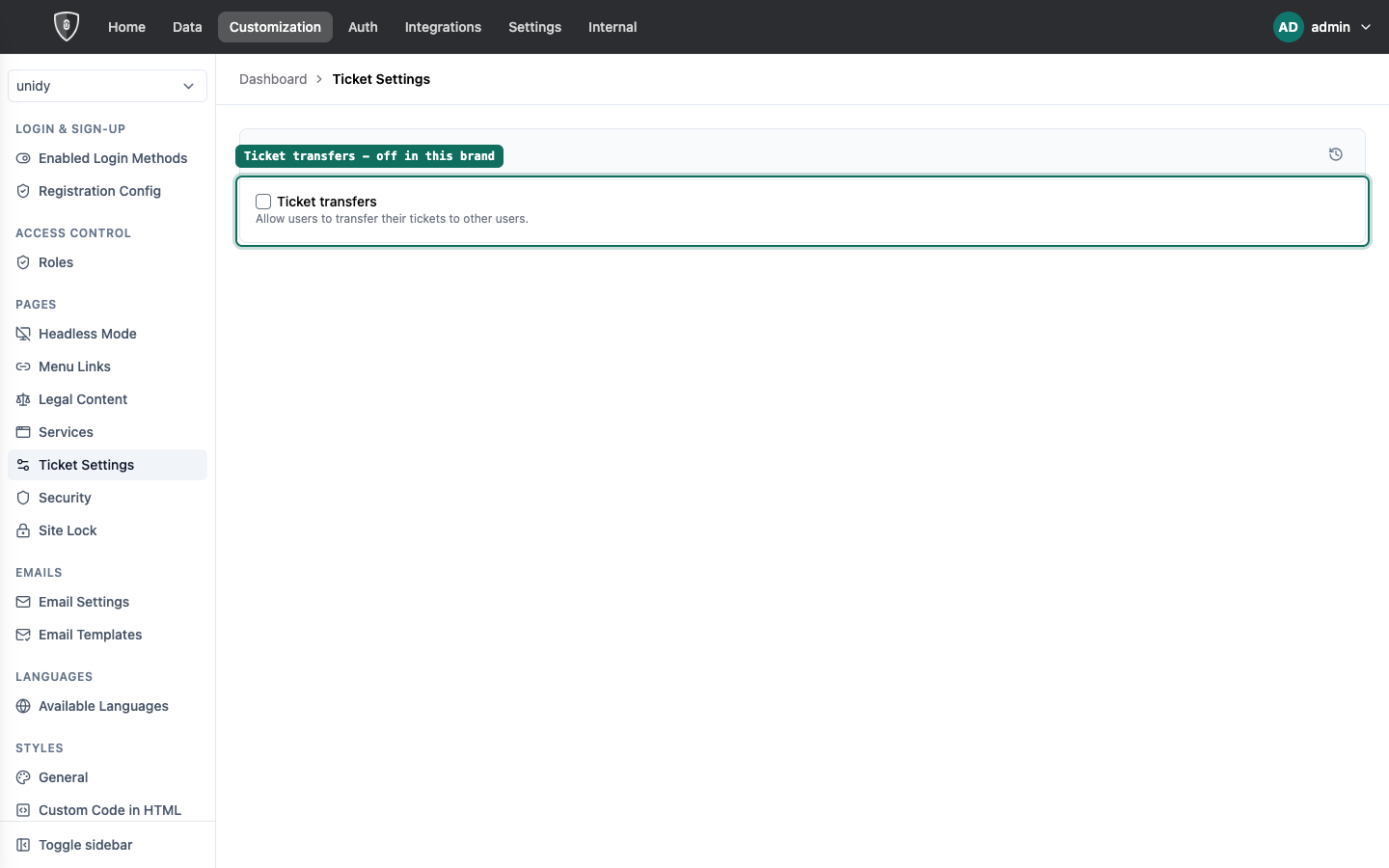
SCREEN — Customization → Ticket Settings, the only place transfers are switched on · highlight on the Ticket transfers checkbox, off in this account.
To offer a transfer, the ticket must satisfy the transfer rules, including being active and not already entered. The sender must own the ticket, and a valid recipient is required. An enabled feature alone does not make every ticket transferable.
Follow Ticket transfers to enable the feature, send an offer, assign a holder directly, or return a transferred ticket to its owner.
Ticket fields and lifecycle
| Field | Meaning |
|---|---|
| ID | The ticket's UNIDY ID, used in integrations. |
| Record ID | The internal record key. Keep it distinct from the UNIDY ID. |
| Reference | Required external ticket identifier; it does not have to be unique. Use the UNIDY ID to address a specific ticket through the API. |
| User | The owner. Check transfer details for a separate holder. |
| Category and Service | Required grouping and associated service. API access also depends on the calling application's service association and scopes. |
| Title / Text | Customer-facing name and description. |
| Starts / Ends | The event dates. Starts is required; Ends is optional. |
| Payment State | Paid, Open, or unset. This is separate from the ticket's active state. |
| Price / Currency | The recorded amount and currency. |
| Seating / Venue / Info Banner | Customer-facing event details. |
| Button CTA URL | Ticket-specific destination; an empty value uses the category's URL. |
| Metadata | Additional structured JSON information that does not fit standard fields. |
| Wallet Export | Structured export configuration, including QR data, rather than a simple validity flag. Availability also depends on the category and integration. |
| Source / Created at / Updated at | Creation origin and record timestamps. |
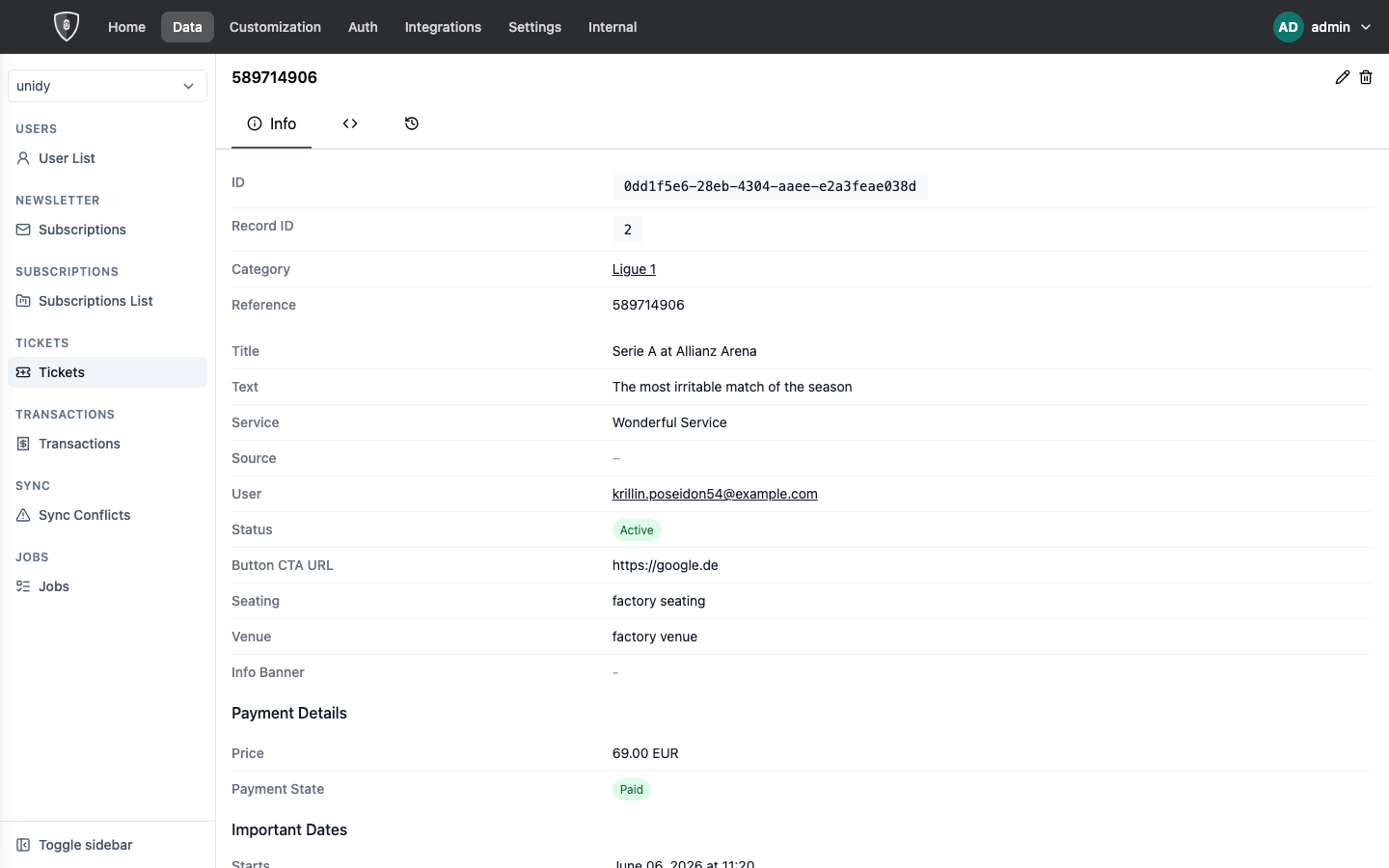
RECORD — a seeded ticket. ID is the UNIDY ID used by the API; Record ID is the internal database key.
| State | Meaning |
|---|---|
| Active | The ticket is marked active. Transfer eligibility has additional checks. |
| Passive | The ticket is marked passive, rather than active or inactive. |
| Inactive | The ticket is marked inactive; automatic expiry can move a ticket here. |
The scheduled inactive-ticket job moves active tickets to Inactive after Ends plus the grace period configured on their ticket category. When Ends is empty, it uses Starts plus one day. Processing is scheduled, so this is not a promise of a state change at an exact second. Check both dates and the category's inactive-time offset when investigating a ticket that stopped appearing as active.
Create a ticket
- Open Ticket List → Add Ticket.
- Enter Reference, Title, Text, and Starts at.
- Select the User, Ticket category, and Service.
- Set the intended State and any known payment details. Add the end time, venue, seating and customer-facing link as needed.
- Save, reopen the ticket, and confirm its owner, dates and category.
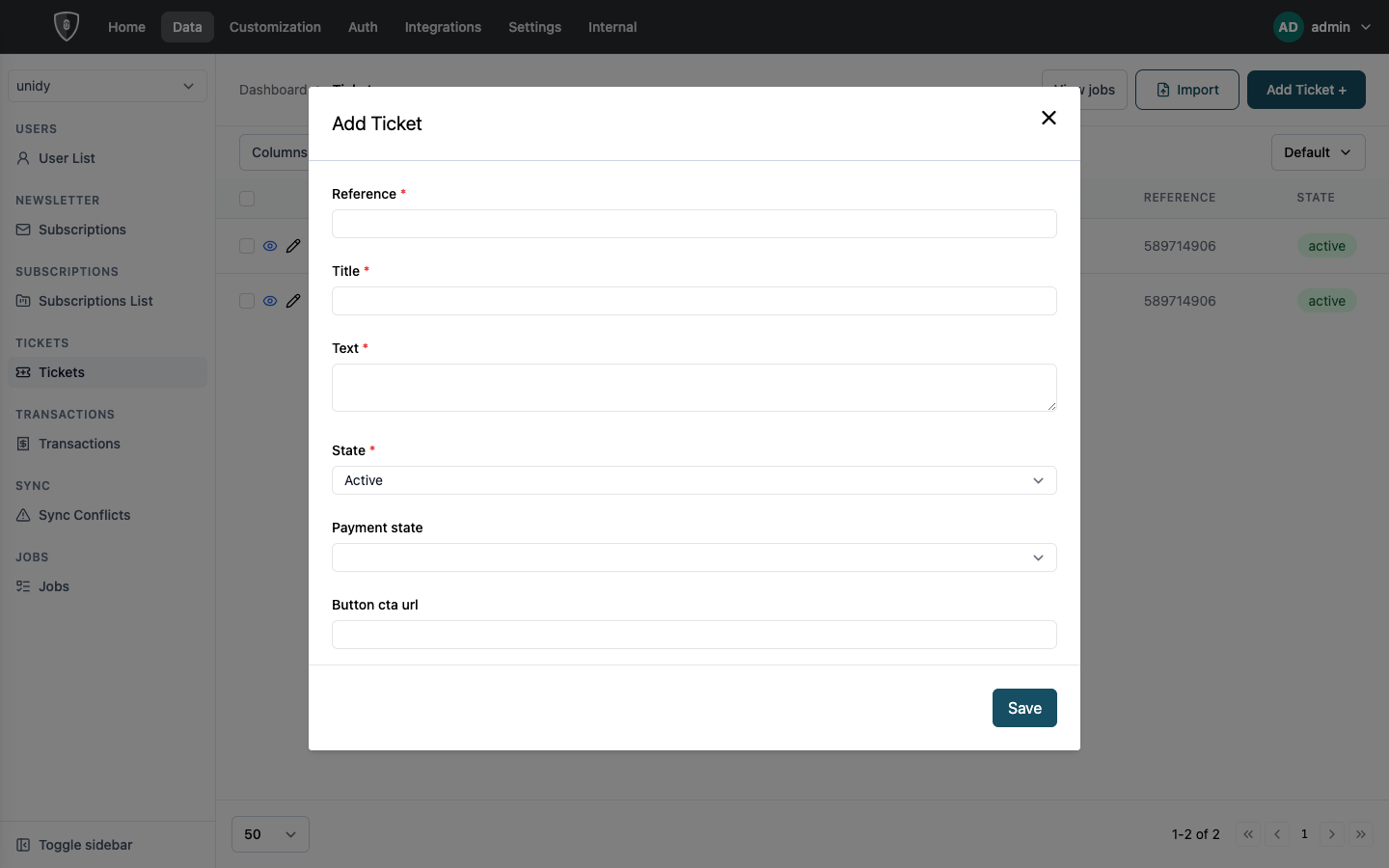
FORM — Add Ticket, shown empty. The user, category and service pickers sit below the fold.
For shared list controls, imports and exports, see Lists, filters, and bulk actions.
Edit or delete a ticket
Find the record by UNIDY ID, reference or owner email and open it with the eye icon; the linked user opens the owner profile. Use the pencil/Edit, change the intended fields and Save, then reopen it. To remove it, select its bin/Delete and confirm the exact ticket. An external reference can identify several tickets, so verify the UNIDY ID before deleting.
Dashboard corrections are not guaranteed to reach the primary ticketing system. Check the responsible connector and system before editing or deleting; a later sync can replace a local correction. For the customer's date grouping, button, banner and empty state, see Ticket cockpit.
Look up a transaction
- Open Data → Transaction List and search by order Reference, External ID, UNIDY ID or customer email.
- Open Info to check identification, source, timing and customer.
- Open Order Details for the state, payment information and totals.
- Open Line Items to see the purchased items, and Addresses for billing or shipping details.
- Use History, when available to your role, to investigate changes.
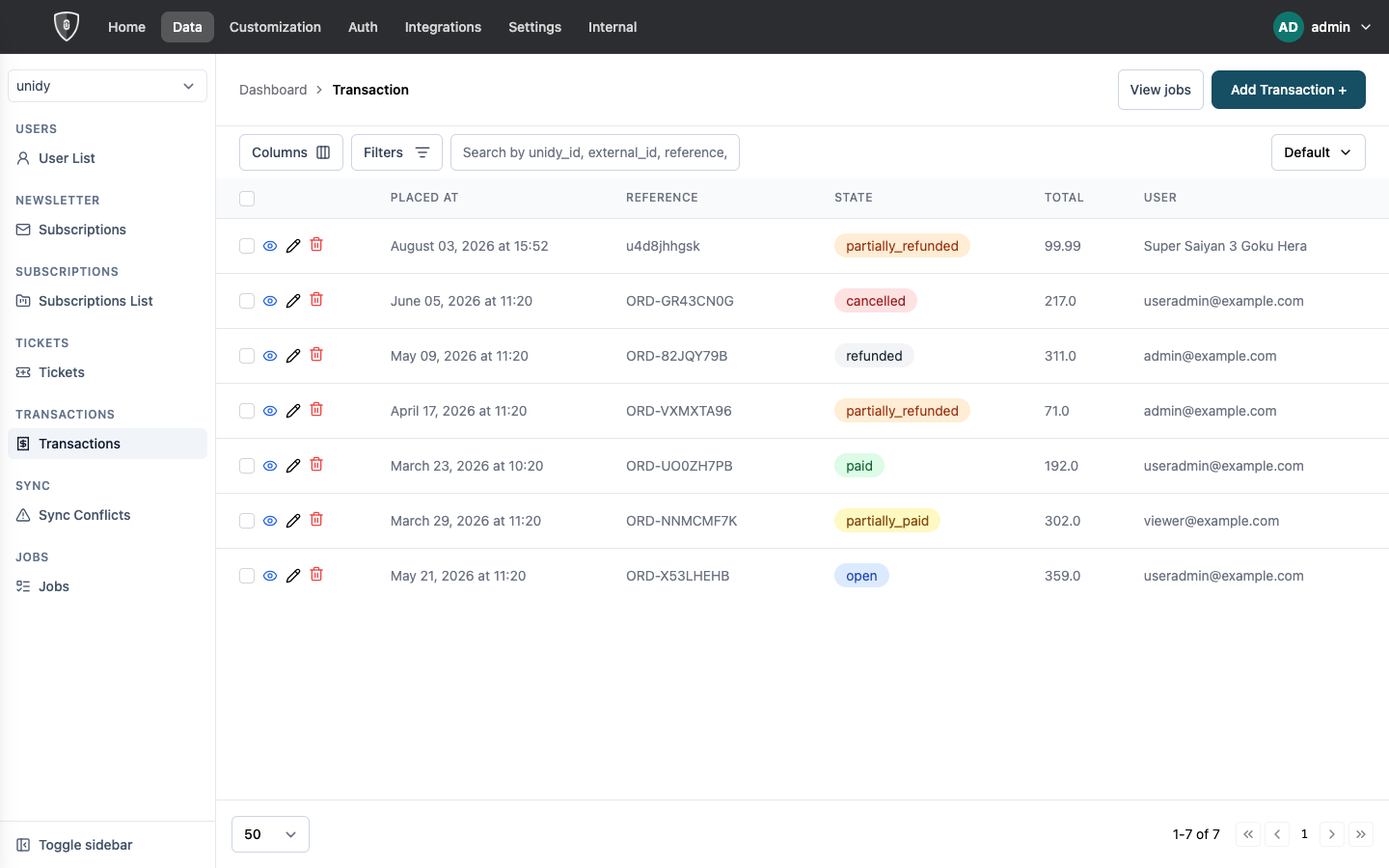
SCREEN — Data → Transactions. The seeded account holds one order in each of the six states, so this is what all of them look like side by side.
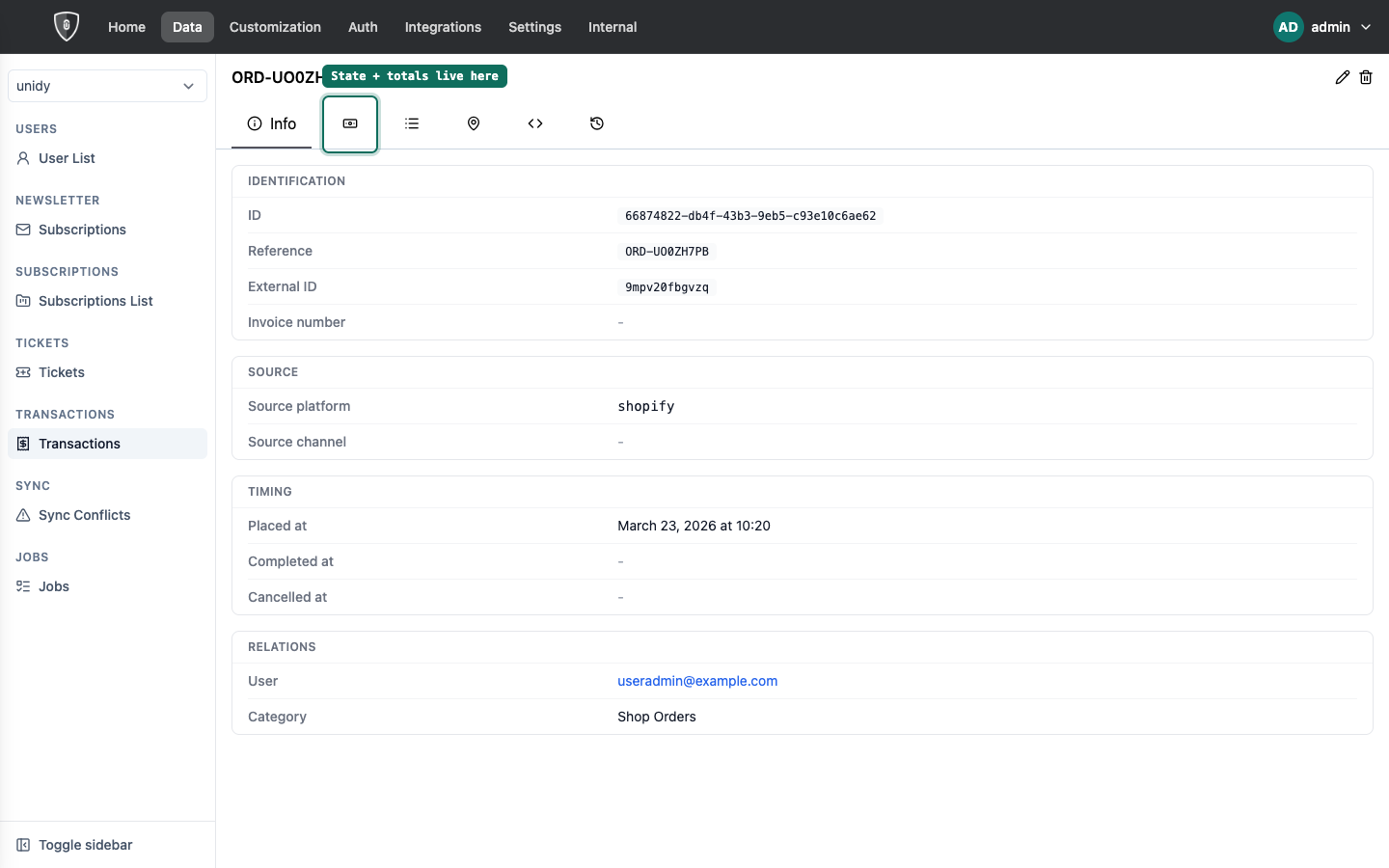
RECORD — the Info tab holds identifiers, source and relations · highlight on Order Details, where the state and totals actually live.
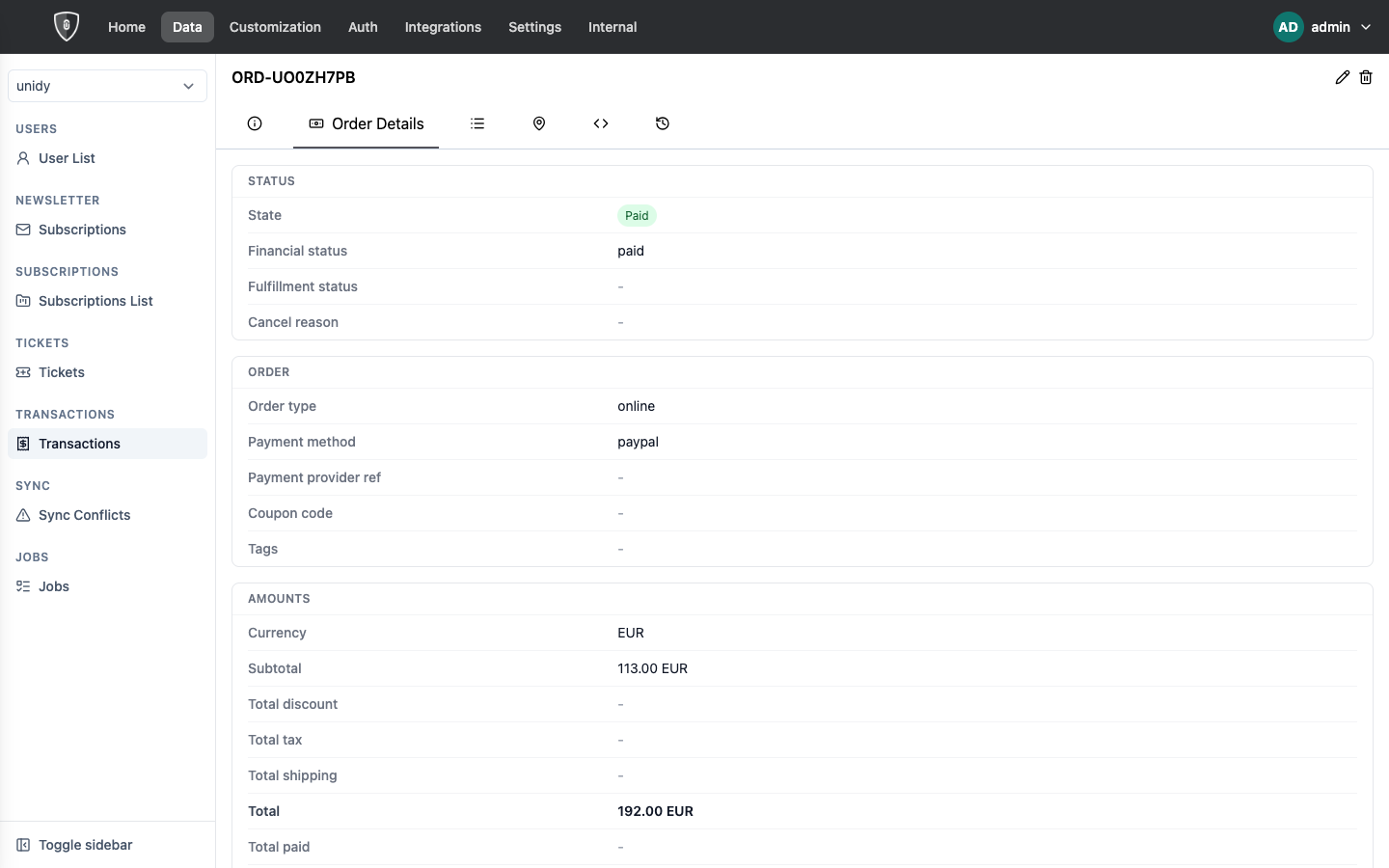
RECORD — Order Details. Unset money fields print as –; only Total and Currency are populated on seeded orders.
The customer's Transactions tab provides another entry point to their orders. A blank amount or address means that detail is not present on the record; do not infer a zero amount from a missing value.
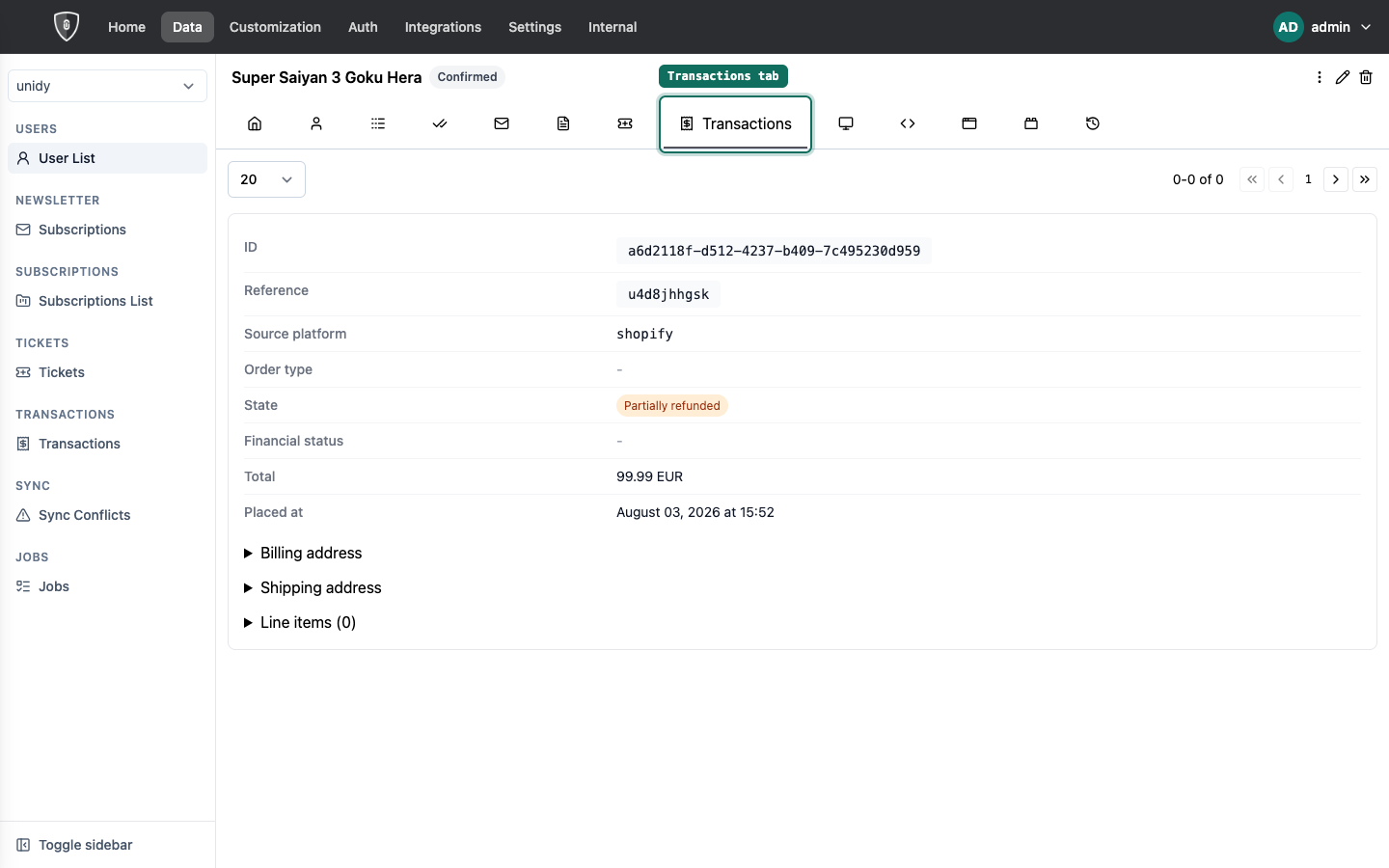
RECORD — a customer's Transactions tab · highlight on the tab itself. Here the state is printed as Partially refunded, unlike the list's partially_refunded.
Transaction states
| State | What the record reports |
|---|---|
| Open | Open order. |
| Partially paid | Partial payment. |
| Paid | Full payment. |
| Partially refunded | Partial refund. |
| Refunded | Full refund. |
| Cancelled | Cancelled order. |
These states are freely selectable. Unidy does not enforce a sequence or make Refunded and Cancelled final states. Financial status, Fulfillment status, Order type, and Cancel reason are separate source-supplied text fields, not additional values in this state list.
Correct a transaction's state
- Check the actual order in the system responsible for payment and fulfillment.
- Open Edit Transaction → Status.
- Select the corrected State and Save.
- Reopen Order Details and verify the result.
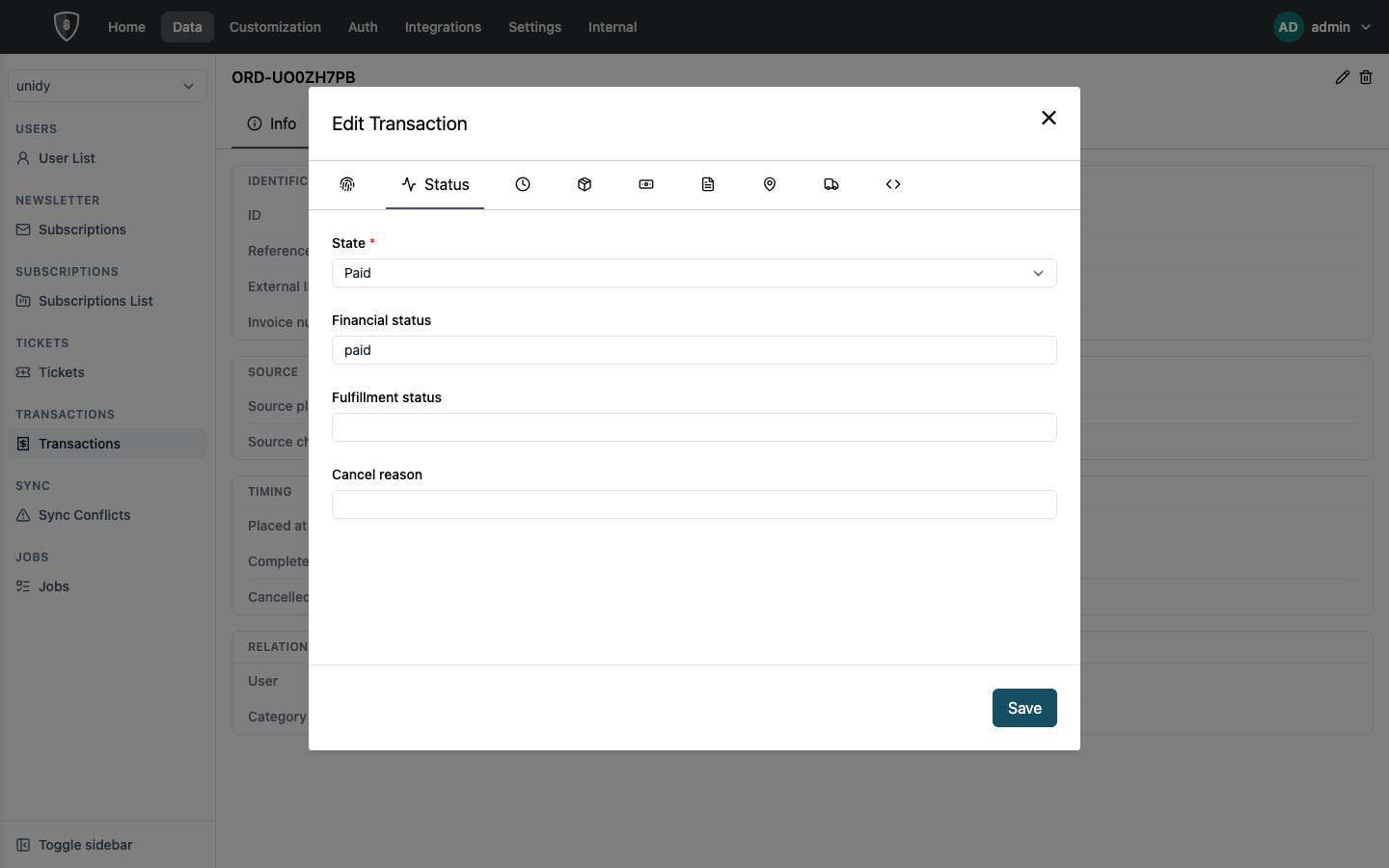
FORM — Edit Transaction on its Status tab · the state select offers all six values, in readable form. The neighbouring free-text fields have no fixed values.
A state change does not move money
Editing the transaction updates Unidy's representation of the order. It does not charge the customer, issue a refund, or cancel an order in your payment platform. Coordinate the correction with the source system so a later sync does not overwrite it.
Product subscriptions
Open Data → Subscription List, or the customer's Subscriptions tab, to inspect memberships and other product entitlements. Search by UNIDY ID, Reference or customer, then check:
| Detail | What to verify |
|---|---|
| User, category and service | The customer who owns the subscription and where it belongs. |
| Reference, title and description | External identifier and customer-facing content. |
| Status | Active and Passive can represent valid entitlements; Inactive is no longer marked valid. Passive is useful for classifications such as a non-playing club member. |
| Payment status | Paid, Open, or unset; independent of the active state. |
| Payment interval | daily, weekly, monthly, quarterly, six_monthly, yearly or onetime. |
| Starts on / Ends on | The subscription period. |
| Next payment on | The next payment date recorded in Unidy. |
| Price / Currency | The recorded amount and currency. |
| UNIDY ID / Record ID | Public identifier for API operations versus internal record key. |
| Created at / Updated at / Source | Record timestamps and recorded creation origin. |
| Button CTA URL | Subscription-specific manage destination, falling back to its category. |
| Metadata / Additional information | Additional structured information outside the standard fields. |
| Wallet Export | Export data used with the category's wallet settings and brand integration; see customer exports. |
Product subscriptions belong to user accounts. Their payment fields describe the stored entitlement; editing them is not a payment operation. For an incorrect renewal or charge, check the originating subscription or billing system before changing the record.
A scheduled job marks Active subscriptions Inactive after their end timestamp. It does not automatically change every passive subscription or interpret a failed payment. Inspect the stored state and the responsible integration. The category controls subscription visibility and whether inactive subscriptions are hidden.
Create, edit or delete a product subscription
- Open Data → Subscription List → Add Subscription.
- Enter its reference, title and description, and choose the customer, subscription category and service.
- Set its state, dates and known payment details. Add metadata or export data only in their supported format.
- Save, reopen it and verify the customer, category and period.
To update one, find it by UNIDY ID, reference or customer email, use the pencil/Edit, change the intended fields and Save. To delete one, verify the UNIDY ID, use its bin/Delete and confirm removal. The linked customer opens their profile. The current search fields differ from the legacy title search; use an explicit title filter if needed and offered.
Connected services can create, update and delete subscriptions through supported APIs and receive subscription events. Check service access and synchronization before assuming a local edit changes the original membership or billing contract.
Payment and currency values
Ticket and subscription Payment state is separate from validity. Dashboard labels can show Paid and Open; legacy V1 contracts spell the values payed and not_payed. V2 uses paid and not_paid. Use the vocabulary in the endpoint's reference rather than translating values yourself.
Currency uses a three-letter currency code. A record's currency overrides its category default; with neither present, the effective currency is EUR. This effective currency is used for display and supplied by supported API representations, so changing the category can affect records without their own currency.
Ticket and subscription history
Open a record's History with audit-log access. Search the entries and hide blank updates when the control is available, then return to the record. Each change identifies Property, Old value, New value, Source, Author if known and Updated at. Service/API/admin sources help trace a correction, but an unknown author does not establish who made it.
The legacy service did not provide logs before September 2023. Retention and permissions can further limit the available history; it is not a reconstruction of all earlier ticket or subscription activity.
Categories and related tasks
Category definitions and brand-specific visibility are configured separately from individual records. Follow Categories to change those settings.
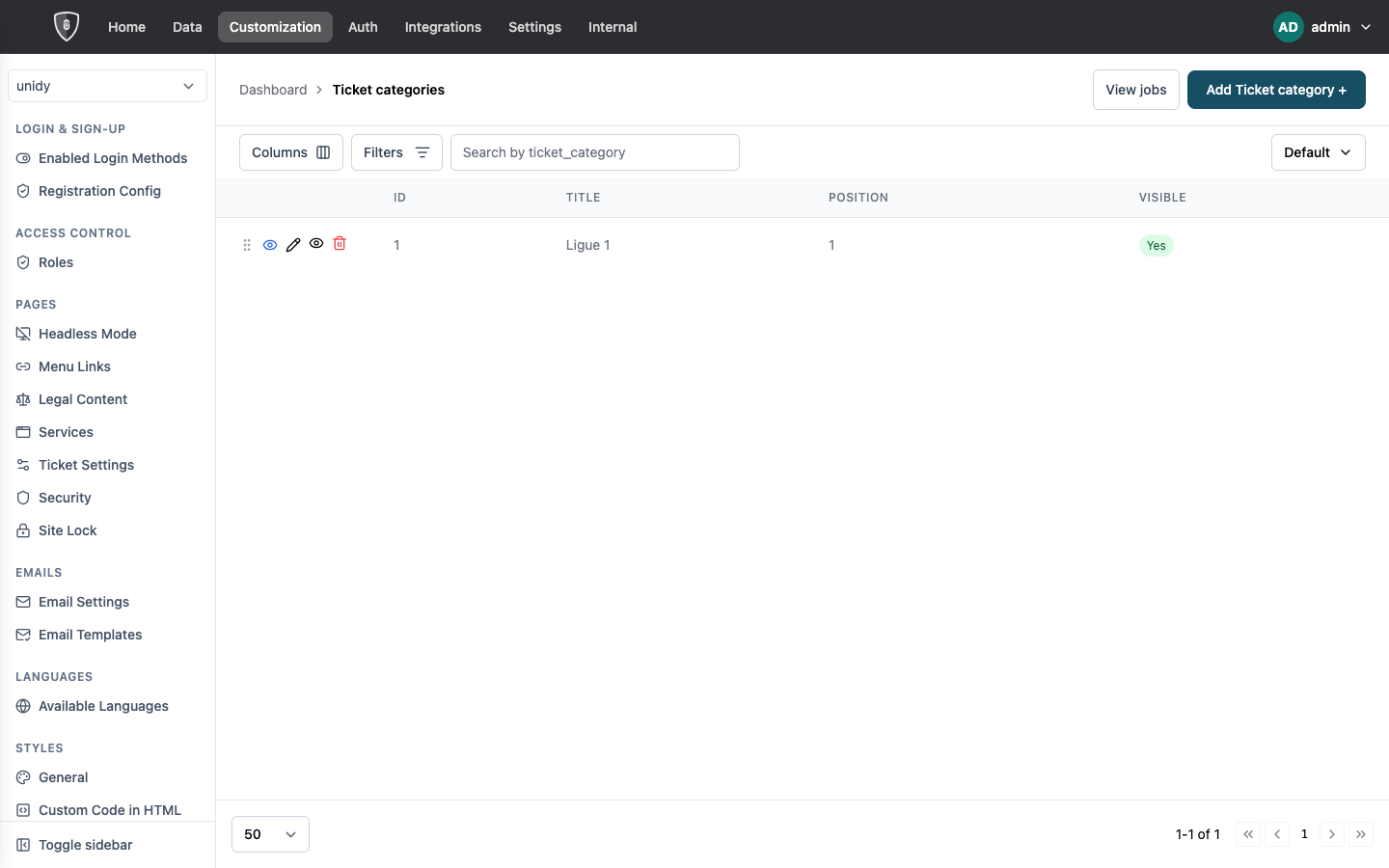
SCREEN — Customization → Ticket Categories, the per-brand view: position and visibility only.