Categories
Organize tenant data with categories.
Categories
Categories group product subscriptions, tickets and transactions. Subscription and ticket categories also supply customer-facing text, artwork, links and wallet-pass settings. Transaction categories provide a name for a group of transactions.
Each category has one account-wide definition and one or more brand assignments. The definition holds shared content; each assignment controls visibility and order for that brand. To inspect customer records instead, see Consent and subscriptions or Tickets and transactions.
Choose the right screen
| Category | Brand-level screen | Account-level screen |
|---|---|---|
| Subscription | Data → Subscription Categories | Settings → Global Data Config → Subscription Categories |
| Ticket | Data → Ticket Categories | Settings → Global Data Config → Ticket Categories |
| Transaction | Data → Transaction Categories | Settings → Global Data Config → Transaction Categories |
Use the brand-level screen to create a category for the selected brand, link an existing one, change visibility or reorder categories. With the appropriate write permission, the owning brand can also edit the shared definition there.
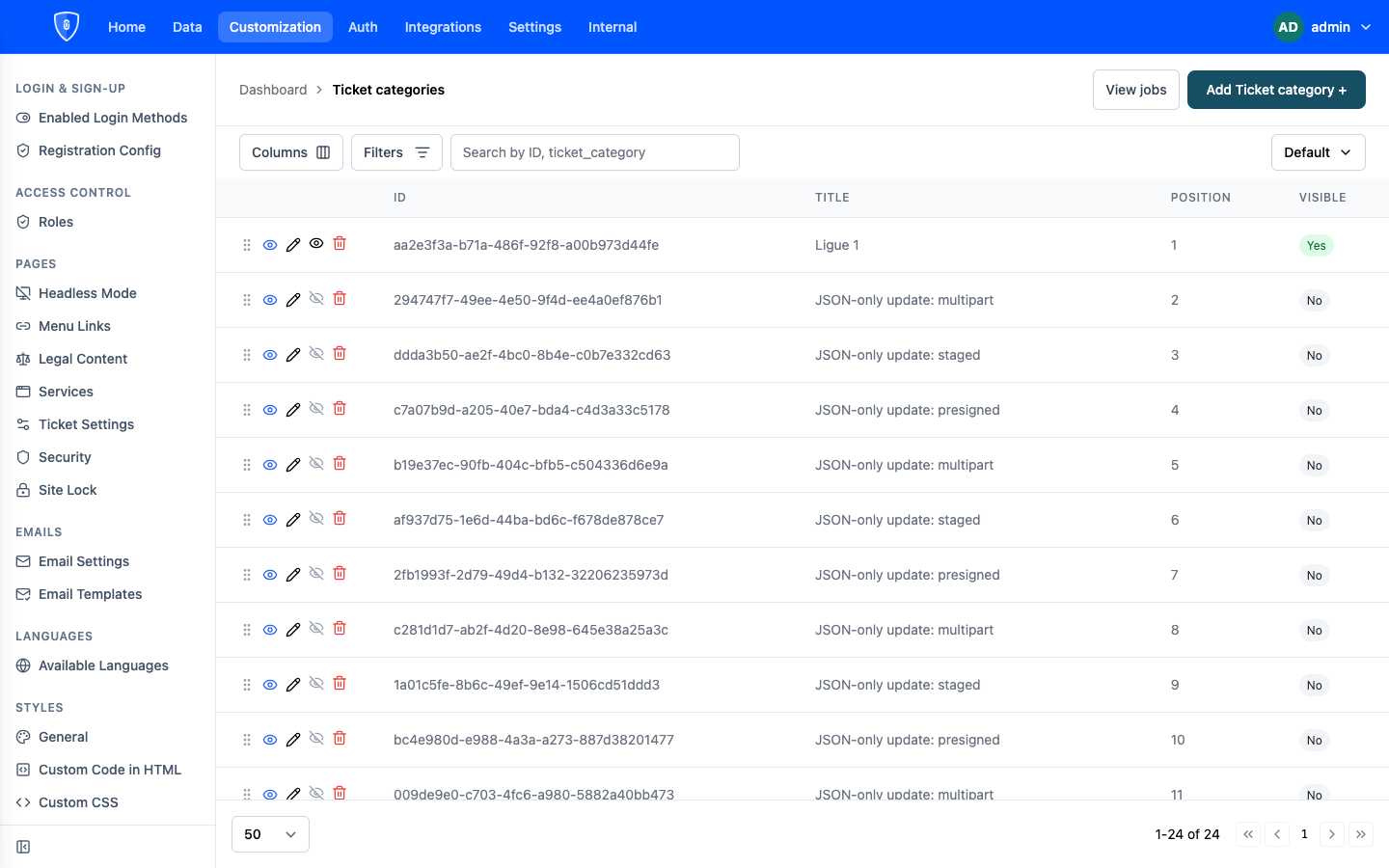
SCREEN — Customization → Data Config → Ticket Categories. Four columns, a drag handle per row, and an Add Ticket category + button. The seeded unidy brand links one category, visible, at position 1.
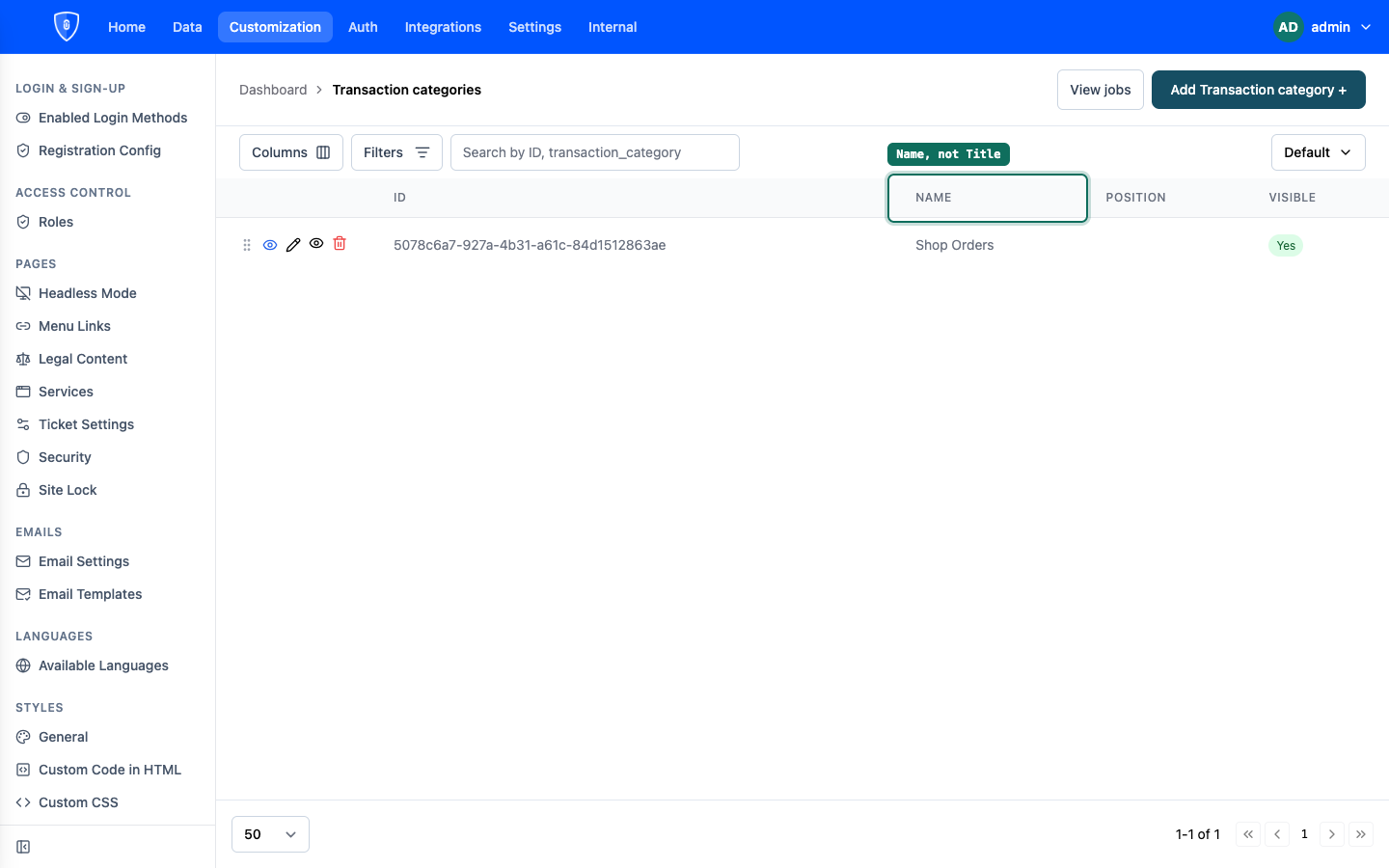
SCREEN — the transaction twin of the screen above. Same four columns, except the second is Name where the other two say Title, and Position is empty for the seeded row · highlight on the Name header.
Use the account-level screen to manage definitions and assignments across brands. It requires the relevant global permissions. Read, write and delete are separate actions; access to a section alone does not grant every operation.
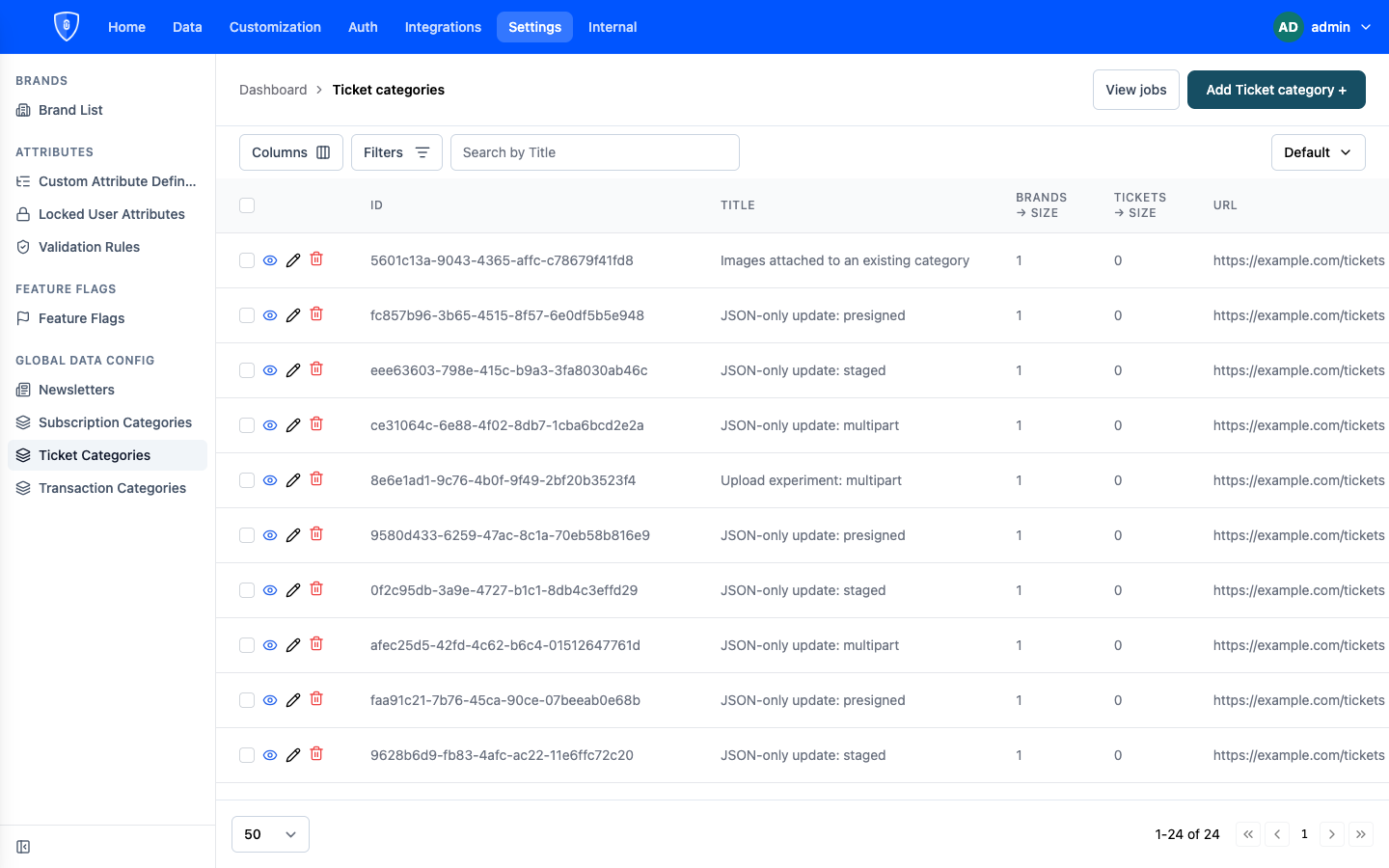
SCREEN — Settings → Global Data Config → Ticket Categories. Note the row-select checkboxes, which the brand-level lists do not have, and Tickets → Size: two tickets are filed under this category.
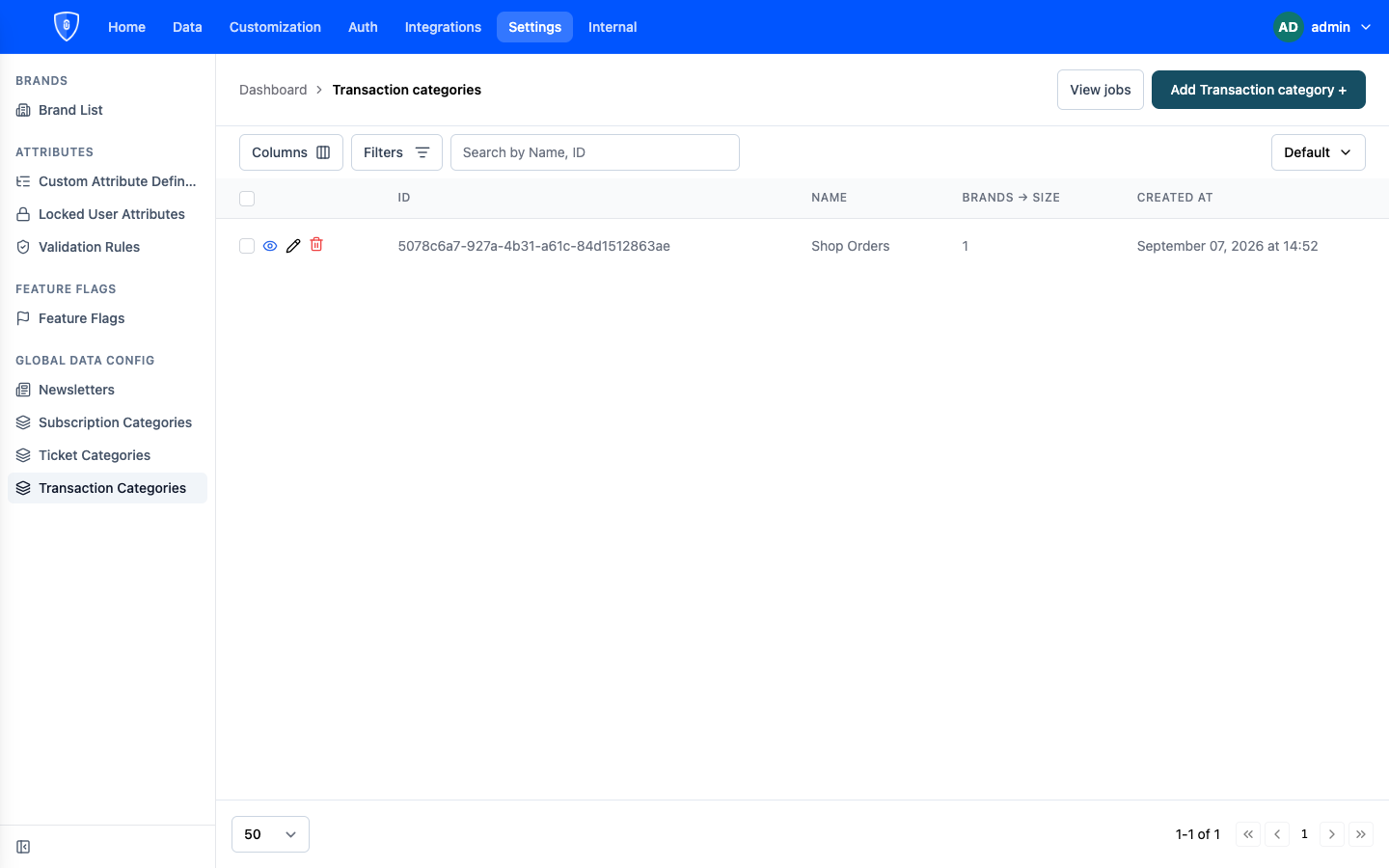
SCREEN — the transaction twin. Four columns rather than five, no URL, and the only search box of the six that offers both fields: Search by Name, ID.
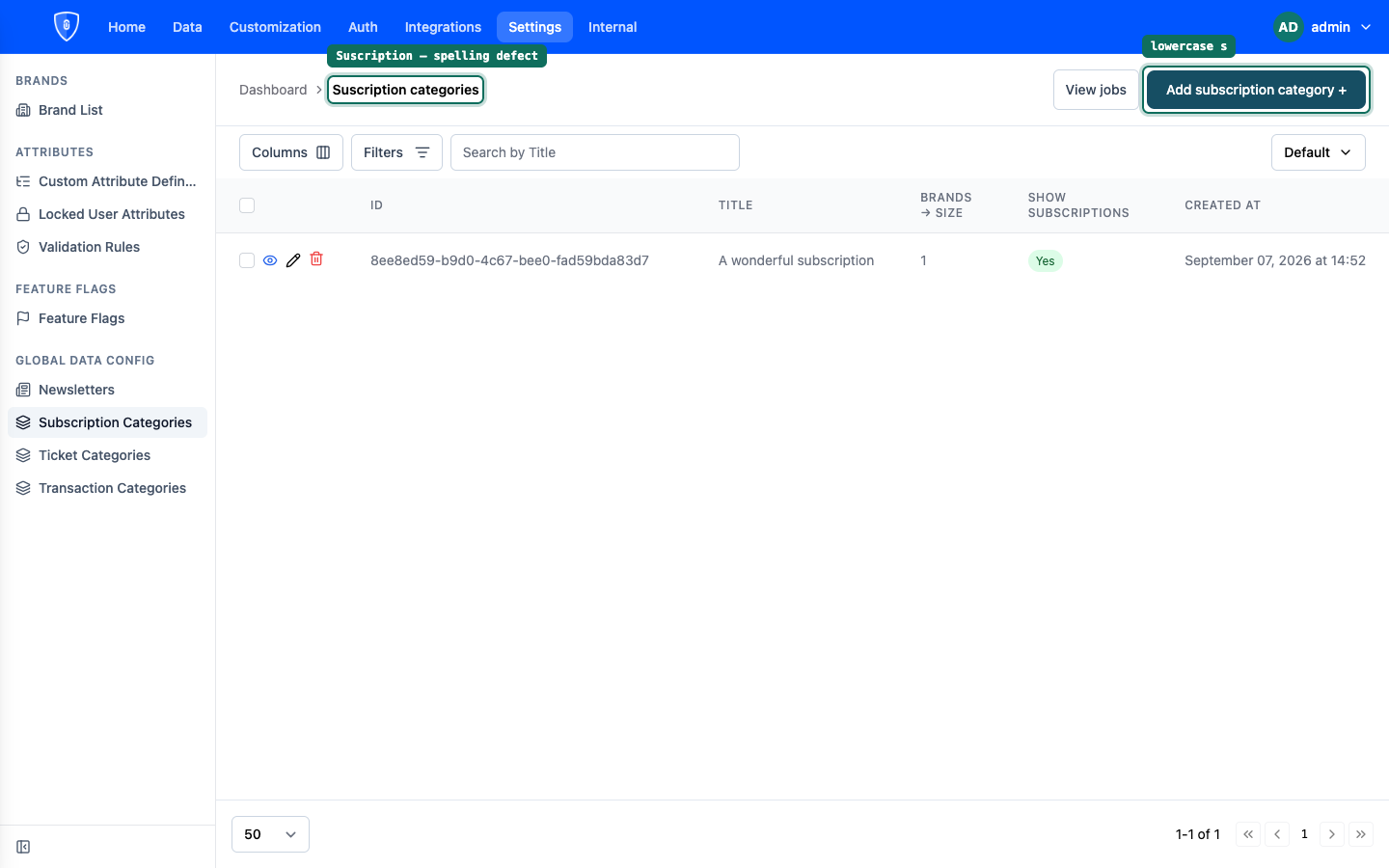
SCREEN — Settings → Global Data Config → Subscription Categories. The sidebar and the heading disagree with each other in the same viewport · highlights on the misspelled heading and the lower-case button.
The corresponding subscription, ticket or transaction feature must be enabled. If a screen is missing, check both feature availability and your permissions. See Roles and feature availability.
Create a category for one brand
- Select the brand that should own the category.
- Open Data and the category type you need.
- Choose Add category.
- For a ticket or subscription category, fill in Title, Description and an HTTPS URL, then upload a Logo. For a transaction category, enter Name.
- Configure optional artwork and type-specific settings using the reference below.
- If customers need wallet passes, configure the Wallet Pass tab and confirm the Apple Wallet integration is available for the brand.
- Save. The selected brand becomes the category's owner, and this brand assignment is created as Visible.
- Verify the saved fields and check the customer-facing result with a representative ticket, subscription or transaction.
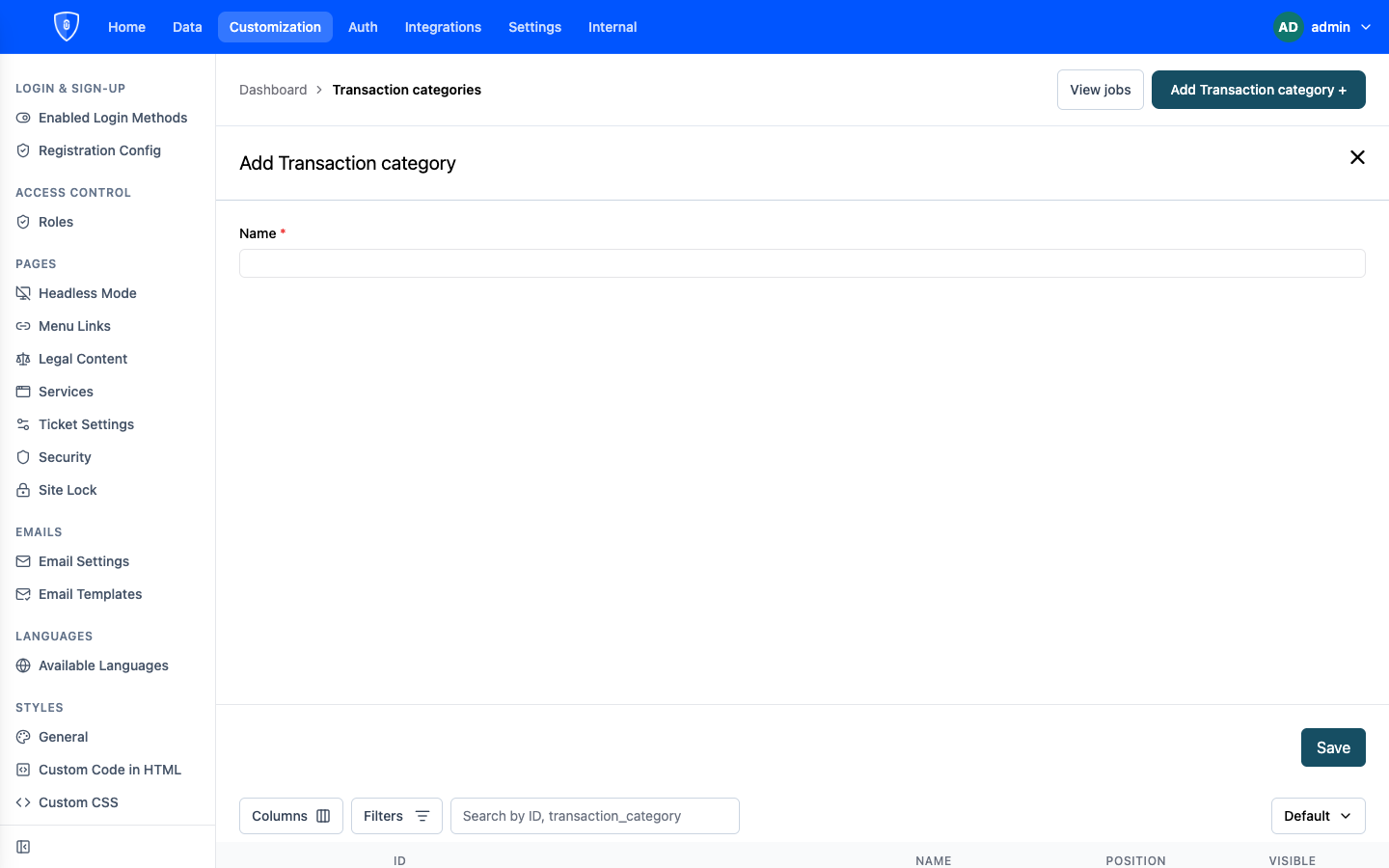
FORM — Add Transaction category, shown empty. One field. Compare the ticket equivalent below: same button, same screen shape, fifteen fields across two tabs.
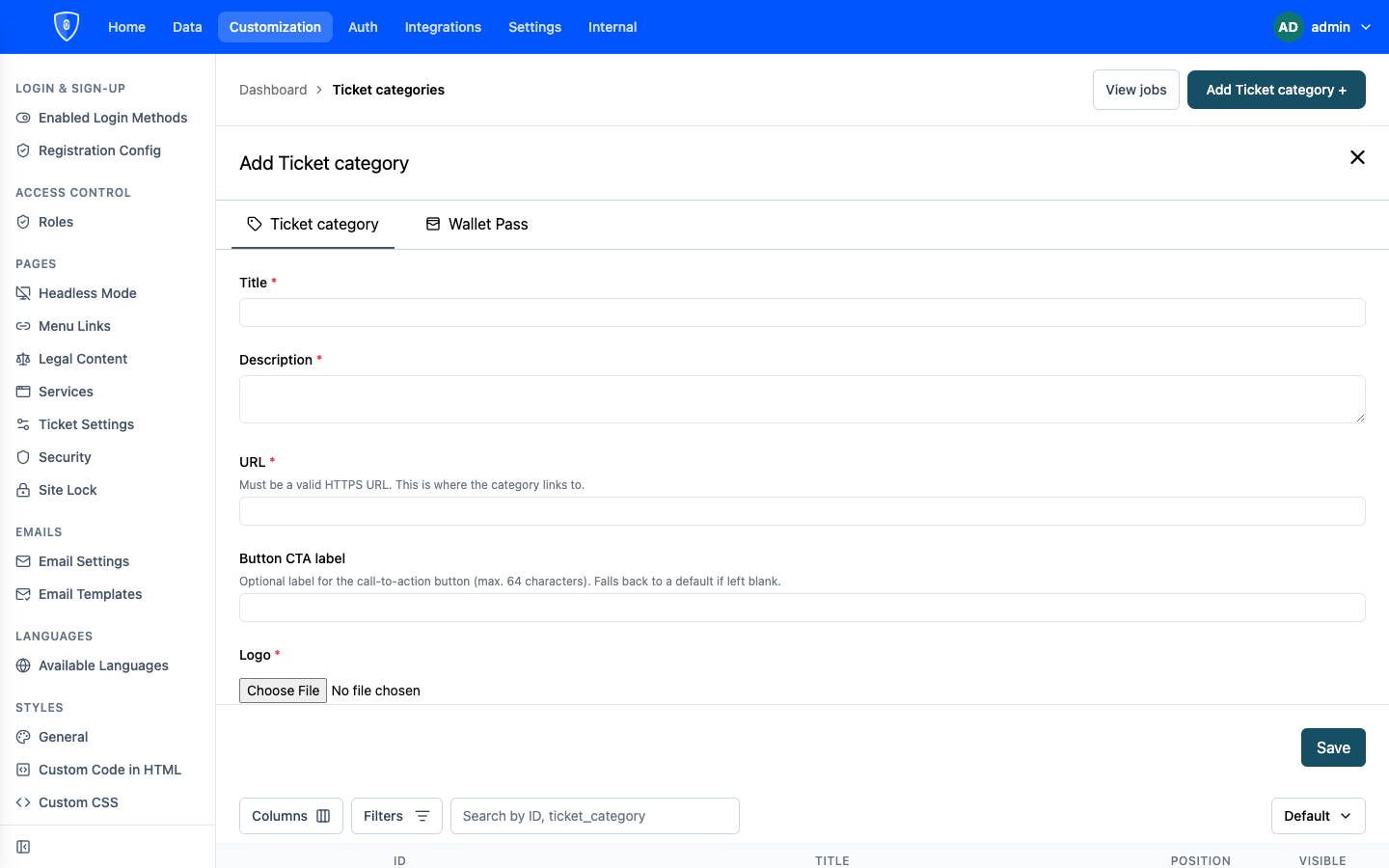
FORM — Add Ticket category, shown empty, with the Ticket category and Wallet Pass tabs. Red asterisks mark Title, Description, URL and Logo as required.
If the category must remain out of the customer view while you prepare it, turn off Visible immediately after creation or use an account-level workflow with the visibility behavior described below. Brand-level creation is not a hidden draft.
Link an existing category to another brand
- Switch to the receiving brand and open the matching category screen under Data.
- Choose Add category, then Link an existing resource.
- Select the category and save. The new brand assignment is Visible.
- Verify the shared content, visibility and position on the receiving brand.
The linking control appears when there is an eligible, unlinked category. If a category is unavailable, check whether it is already assigned and whether Allow brands to link this resource is enabled on its definition.
Linking reuses shared content. Editing that content changes it for every assigned brand; changing one brand's visibility or order affects only that brand.
Visibility on creation and assignment
| Entry point | New brand assignment's initial visibility |
|---|---|
| Brand-level Create | Visible for all three category types. |
| Brand-level Link an existing resource | Visible for all three category types. |
| Account-level ticket/subscription creation or additional assignment on a multibrand account | New assignments are hidden. Set the intended visibility per brand. |
| Account-level ticket/subscription creation on a single-brand account | The new category's owner assignment is made visible. |
| Account-level transaction creation or additional assignment | New assignments are visible by default. |
Existing assignments retain their visibility when unrelated definition fields change. Always check the saved Visible value; customer display also depends on the record's status and the category settings below.
Edit shared content
Open the category's edit form on the account-level screen, or from its owning brand. Update the definition's fields and save. Verify the result on every brand that shares it.
On a brand-level edit form, Brand contains that brand's visibility. The Ticket category, Subscription category or Transaction category tab holds shared content. Ticket and subscription categories also have a Wallet Pass tab. Definition settings are locked when the selected brand is not the owner.
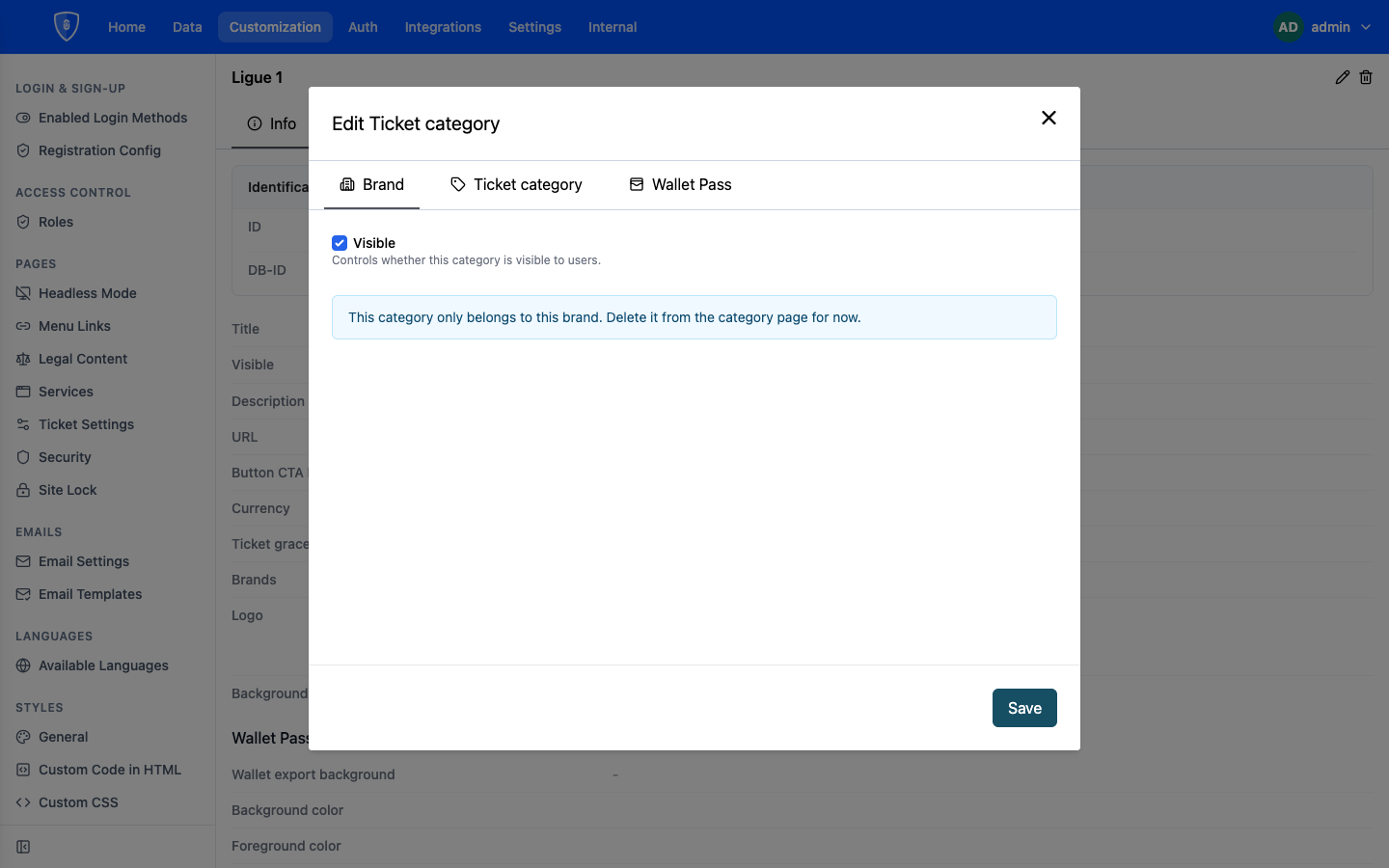
FORM — Edit Ticket category, Brand tab. One checkbox, and the notice that appears when the category belongs to this brand alone: "Delete it from the category page for now."
For multibrand assignment management, use the account-level form's General tab. Keep one assigned brand as owner. To remove the owning brand while other brands remain, transfer ownership and save first, then remove the old assignment.
Reorder categories on a brand
- Open the brand-level screen for the category type.
- Drag a row using its handle.
- Drop it in the desired position; the order is saved without a separate Save action.
- Check the relevant customer view. Ordering is specific to this brand and category type.
Hide a category without deleting it
- Open the category's edit form on the brand-level screen.
- On Brand, clear Visible.
- Save and verify the customer view.
This preserves the category and its records, and leaves other brands' assignments unchanged. Use visibility when the goal is to stop showing a category. Hiding is not data deletion and should not be treated as a general API access-control rule.
Offer-tile visibility and owned records are also separate. A hidden ticket offer category can still have customer tickets displayed through its brand assignment. Hiding the ticket menu controls ordinary access to the ticket page; test the intended customer view rather than assuming that hiding one tile conceals every ticket. Subscription categories additionally have Show subscriptions and Hide inactive subscriptions controls.
Remove a brand assignment or delete a category
Deleting the last brand can delete customer records
On a brand-level category list, deleting the final brand assignment deletes the category and its associated tickets, product subscriptions or transactions. The row's confirmation is generic; do not rely on it to list the affected records. There is no dashboard undo.
Before using a delete action:
- Open the account-level category and inspect its assigned brands, owner and related customer records.
- If the goal is only to stop display, clear Visible instead.
- If data must be retained, export it and arrange any necessary record migration before deleting.
- Check the outcome below and verify that the intended brand assignment is the one selected.
This decision tree describes the brand-level delete action. Do not assume a notice or disabled removal control inside the edit form makes the list row's delete action safe. Account-level deletion is a separate operation; inspect its restrictions and affected records before proceeding.
Ticket and subscription fields
Title, Description, URL and Button CTA label support translations. Review these fields in each customer language you offer.
| Field | Requirement and effect |
|---|---|
| Title | Required, up to 255 characters. Customer-facing category label. |
| Description | Required, up to 255 characters. |
| URL | Required HTTPS URL. Destination for the category's customer-facing link. |
| Button CTA label | Optional. Subscription categories enforce a maximum of 64 characters. Keep ticket labels concise too; they do not share that same model validation. |
| Logo | Required PNG, smaller than 1 MB, with width and height each from 60 to 500 px. |
| Background image | Optional JPEG, smaller than 2 MB; width 400–2000 px and height 100–500 px. |
| Currency | Optional three-letter currency code. A ticket/subscription's own currency takes precedence; if both are blank, EUR is used. Supported API representations include the effective currency. |
| Allow brands to link this resource | Allows another brand to attach this existing definition. It does not itself assign the category or make an existing hidden assignment visible. |
| Show subscriptions | Subscription categories only. Controls customer display of subscriptions in this category; enabled by default. |
| Hide inactive subscriptions | Subscription categories only. Hides inactive subscriptions from the customer display without deleting them; enabled by default. |
| Ticket grace period after end time (hours) | Ticket categories only. A whole number of hours, zero or greater, extending the ticket's active period after its end time; default zero. |
The logo's width and height must meet the listed bounds; a square image is recommended for a predictable appearance. Leaving the background image empty uses the configured background styling. Optimize artwork before upload and verify the category tile on the customer page.
Wallet Pass settings
Ticket and subscription categories support wallet-pass configuration. Transaction categories do not.
| Setting | Requirement |
|---|---|
| Wallet export background | Optional PNG or JPEG, smaller than 3 MB; width and height each from 180 to 3000 px. |
| Background colour, Foreground colour, Label colour | Six-digit hex such as #123456, or RGB such as rgb(18,52,86) with values from 0 to 255. Check contrast on a sample pass. |
| Logo position | Logo or Thumbnail. |
| Enable wallet export | Requires the Apple Wallet integration for the brand. |
Save and check a sample customer pass before relying on artwork or layout changes. Category artwork validation alone does not verify pass delivery or device rendering.
Transaction fields
Name is the transaction category's content field and supports translations. Brand visibility, order, assignments, ownership and Allow brands to link this resource remain separate settings; transaction categories have no ticket/subscription artwork or wallet-pass fields.
REST V1 access
The public REST V1 API provides a read endpoint for transaction categories at GET /api/v1/transaction_categories, using a client-credentials token and a transactions read scope. It does not provide corresponding ticket-category or subscription-category endpoints. For request and response details, use the REST API reference.
This describes category-definition endpoints, not the APIs for individual tickets, subscriptions or transactions.
Troubleshooting
| Symptom | Next check |
|---|---|
| A category screen is missing | Check the feature and the relevant read permission for the selected scope. |
| A saved ticket/subscription category is not visible to customers | Check the brand's Visible value. Account-level multibrand assignments can start hidden; also check subscription display settings and the customer's records/status. |
| A category cannot be linked | Check whether it is already assigned, whether linking is allowed and whether an eligible resource exists for that type. |
| Shared fields are locked in a brand's edit form | Check the owner and your write permission. Use the owning brand or the account-level screen with global access. |
| Removing a brand is blocked | Transfer ownership first if other brands remain. Do not delete the final assignment just to remove ownership. |
| Artwork will not save | Check file format, byte size and both dimensions against the field's requirements. |
| Wallet export cannot be enabled | Check that the Apple Wallet integration is configured for the brand. |
| A category change appears on another brand | Shared definition content is account-wide; visibility and order are per-brand settings. |