Custom attributes
Configure tenant-specific customer attributes.
Custom attributes
Custom attributes add fields to customer records, such as a membership number, joining date or interests. For example, create member_number once, import each member's value, then use the same field in the dashboard and the integrations you configure.
The definition specifies a field's key, type, options and access settings. A value belongs to one customer. To inspect or change a person's values, open their user record.
Choose the right screen
| Screen | Use it for | Access |
|---|---|---|
| Customization → Data Config → Custom Attributes | Create or link an attribute for the selected brand; manage that brand's assignment; edit definitions the brand owns. | The relevant custom-attribute permission for the selected brand. Editing the shared definition also requires ownership. |
| Settings → Attributes → Custom Attribute Definitions | Manage account-wide definitions and their brand assignments. | The relevant global custom-attribute-definition permission. Viewing, writing and deleting are separate actions. |
A definition's name is unique across the account. Editing a shared definition changes it for every brand using it. Read access alone does not grant permission to edit, manage options or delete. See Roles and feature availability.
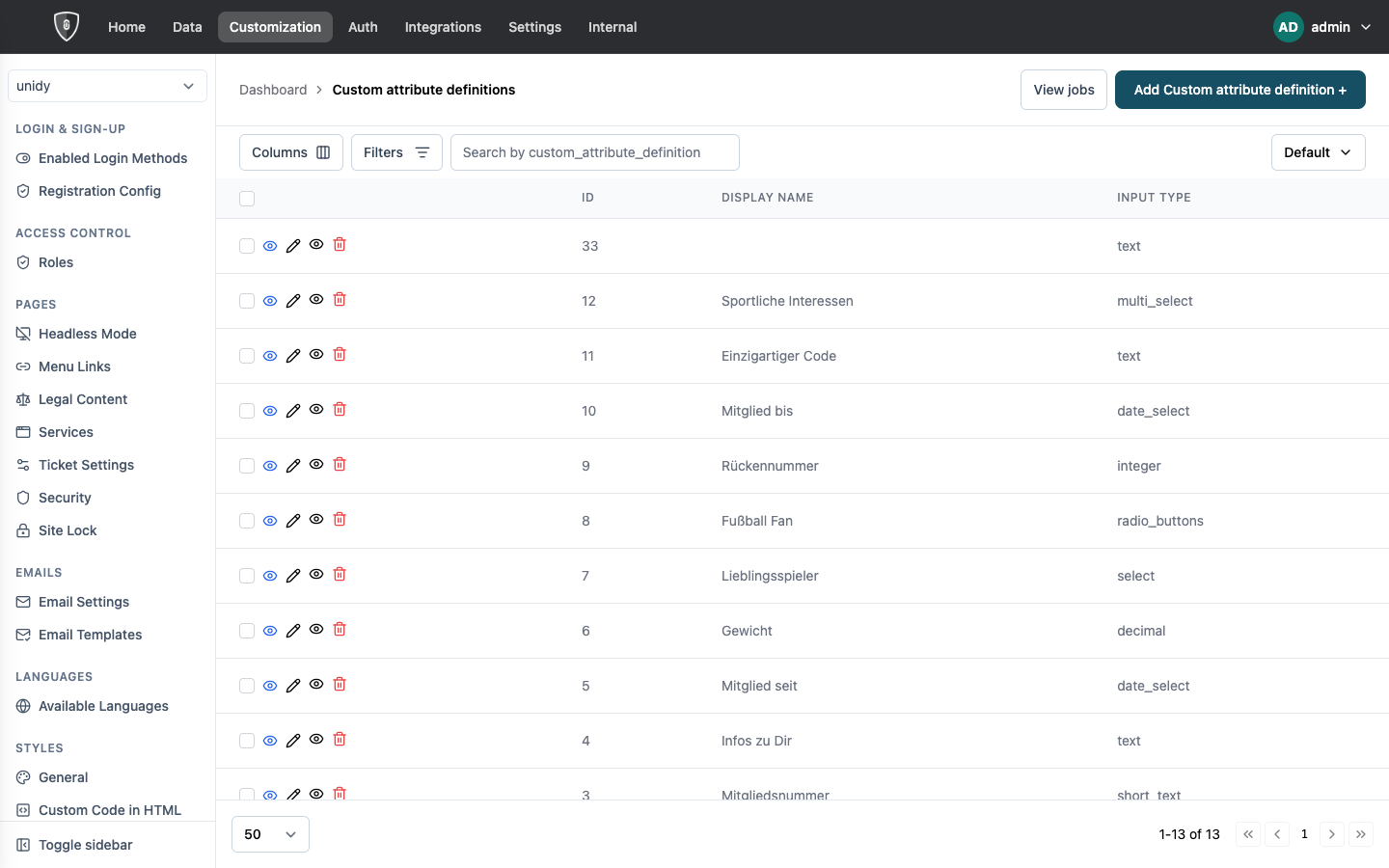
Custom Attributes (brand level) — thirteen definitions on the seeded unidy brand, with the raw input type in the third column.
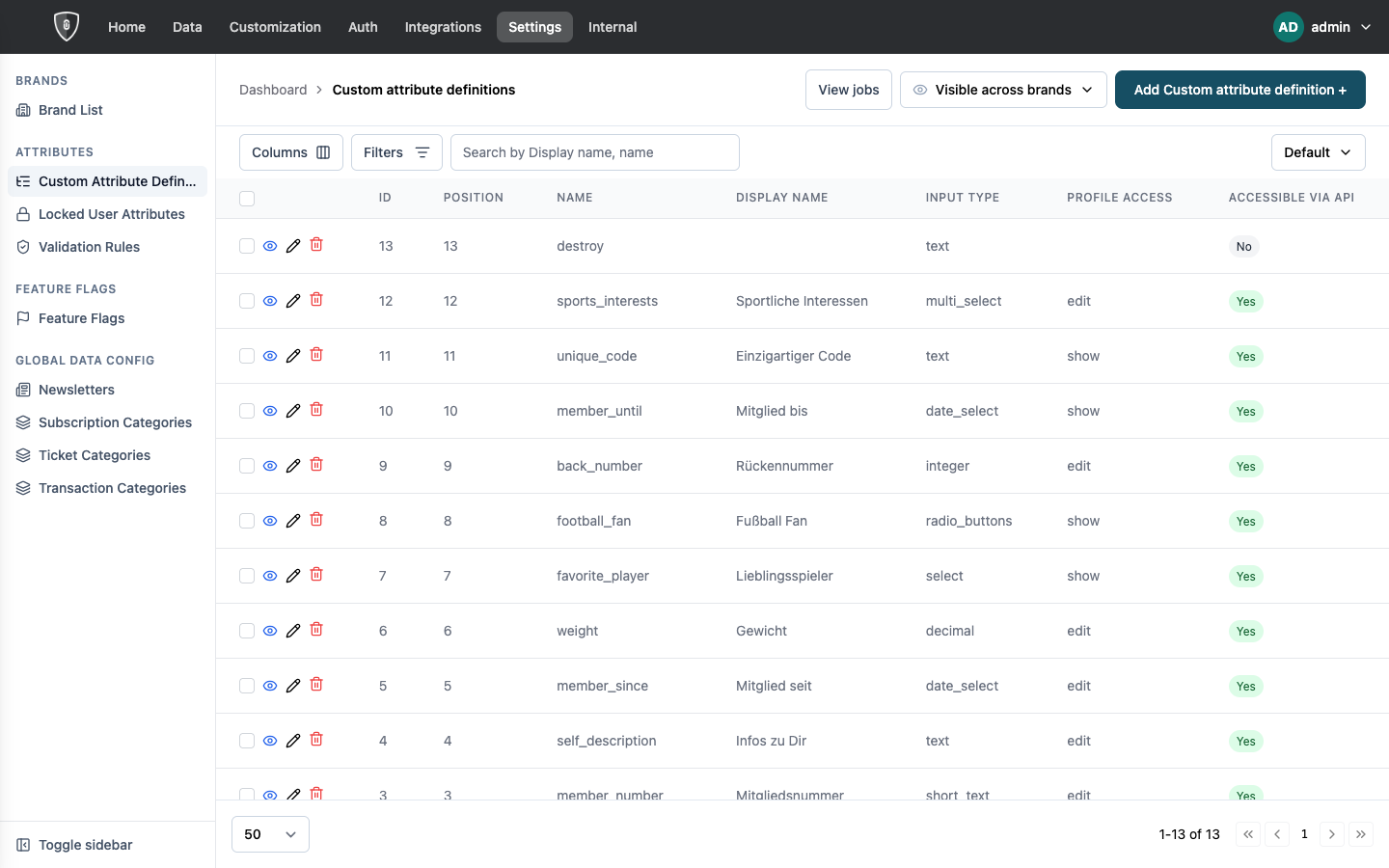
Custom Attribute Definitions (platform level) — adds NAME, POSITION, PROFILE ACCESS and ACCESSIBLE VIA API, and the Visible across brands setting in the toolbar.
Create a custom attribute
- Select the brand that should own the definition.
- Open Customization → Data Config → Custom Attributes and choose Add custom attribute definition.
- Enter Name, for example
member_number. Use lowercase letters and underscores only; digits, spaces and hyphens are not accepted. Built-in user fields and reserved OAuth claim names are rejected for new definitions. - Enter the customer-facing Display name, for example Membership number.
- Choose an Input type from the table below. The name and input type cannot be changed after creation.
- For Short text or Text, optionally choose Form type: Country select, Phone number or Link. For a link, enter a Link label if needed. Choose this during creation: subsequent dashboard edits do not change the saved form type.
- Choose Profile access: Hidden, Show or Edit.
- Enable Accessible via API only if the REST/SDK user surfaces described below should expose the field.
- Save. The new definition is assigned to the selected brand, which becomes its owner.
- For Select or Multi select, open Select options and add the allowed values before collecting customer data.
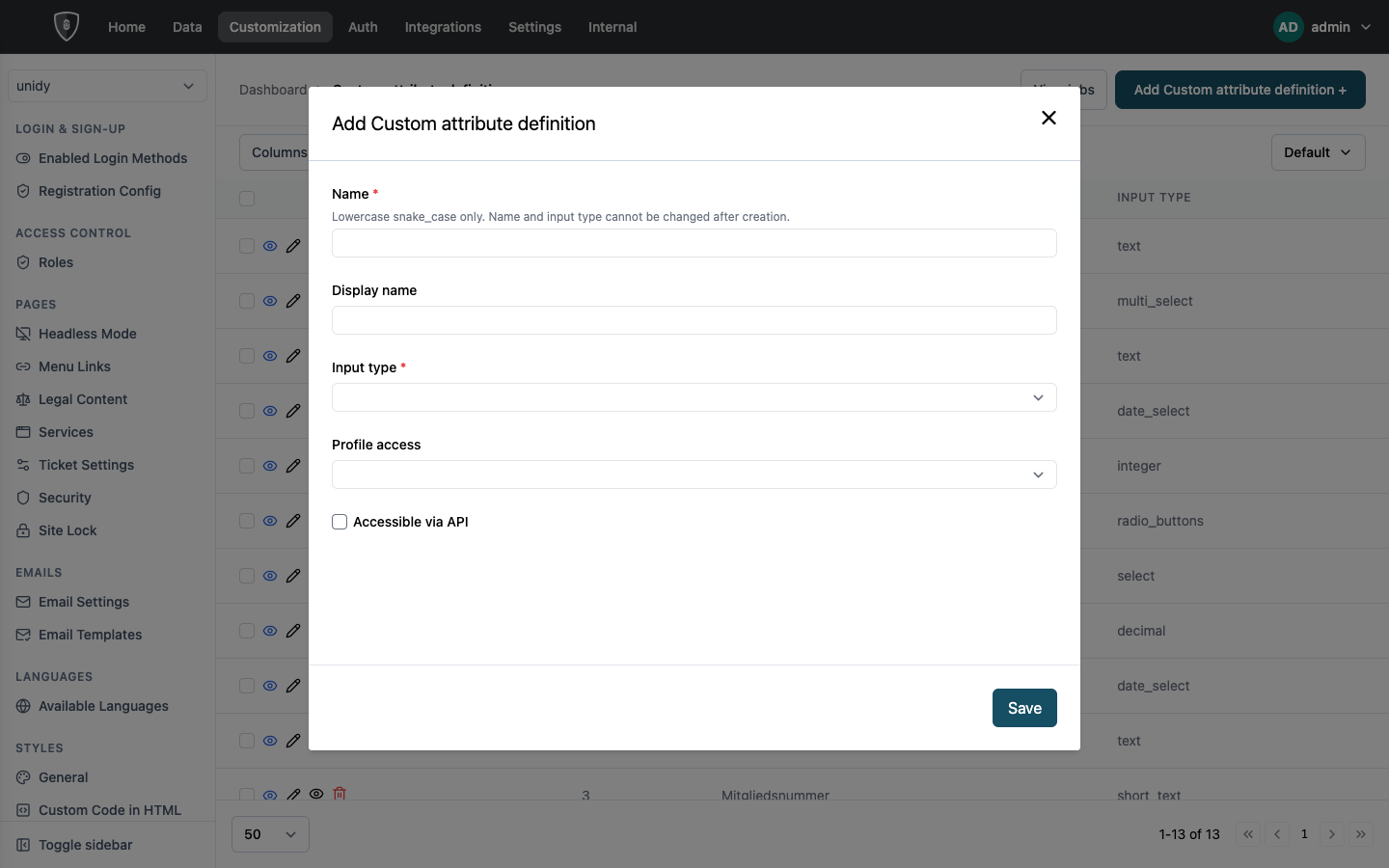
The create form on the brand screen — Name, Display name, Input type, Profile access, Accessible via API. Nothing here says which brand you are creating it for; the sidebar selector decides.
Check the saved definition and a test customer's profile before importing values or connecting an application. A newly created field does not populate existing customer records.
Input types
| Type | Key | Use and constraints |
|---|---|---|
| Short text | short_text | A string of up to 255 characters, such as a membership number. |
| Text | text | Longer, multiline text. |
| Integer | integer | A whole number. |
| Decimal | decimal | A decimal value. Check the consuming endpoint's representation before converting it in your application. |
| Select | select | One internal option value from the definition's option list. |
| Multi select | multi_select | A list of internal option values. Not available as a list sort column. |
| Date select | date_select | A calendar date. |
| Radio buttons | radio_buttons | A boolean field, displayed as yes/no; this is not a configurable option list. |
| Datetime select | datetime_select | A date and time. Verify a date/time filter's results before using it for an operational export or bulk action. |
Additional validation rules can constrain supported custom fields. Multi select and Radio buttons are not eligible for these configurable attribute validation rules; the available rule types also depend on the selected field. Ask the administrator managing validation to check existing values before activating stricter requirements.
Definition settings
| Setting | Meaning |
|---|---|
| Name | Stable account-wide key used by imports, API clients and mappings. Required; immutable after creation. New definitions cannot use built-in user fields such as email or first_name, or reserved OAuth claim names. Historical colliding definitions remain editable; plan an explicit field/value migration rather than renaming in place. |
| Display name | Human-readable label. Translatable; changing it does not rename the key or migrate values. |
| Input type | Stored value's type. Required; immutable after creation. |
| Form type | Optional text-field presentation chosen when creating the definition. |
| Link label | Display text for a link-form field. |
| Profile access | Hidden omits the field from the ordinary customer profile; Show displays it read-only; Edit allows customer edits, subject to field locks and validation. Select one of these values. |
| Accessible via API | Controls the REST V1 custom-attribute values and SDK /user custom-attribute values. Off by default. It is separate from profile access and is not a confidentiality control. |
| Position | Orders definitions where profile ordering is supported. |
| Allow brands to link this resource | Determines whether another brand can attach the existing definition through its brand-level create form. Available on the account-level form. |
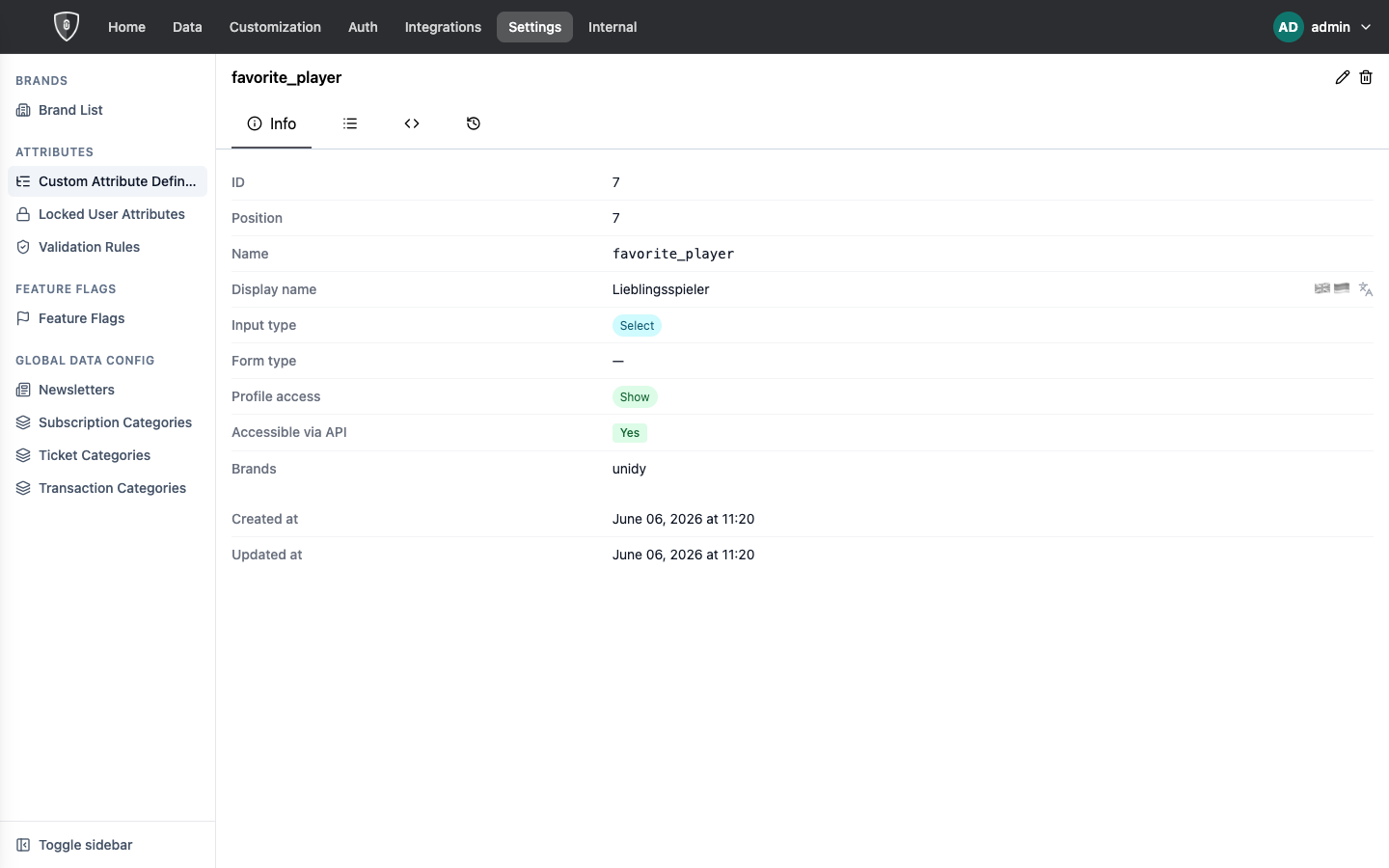
A definition's Info tab — note that the page title is the internal Name, not the display name, and that Form type is empty for anything that is not a text field.
Decide which surfaces receive values
API access and profile access are separate
Turning off Accessible via API does not keep the value out of OAuth claims or user webhook payloads. Review each destination before storing sensitive data in a custom attribute.
| Surface | Which setting matters? |
|---|---|
| Dashboard customer record, list columns and import mapping | The definition and the administrator's permissions. Customer profile access does not determine dashboard access. |
| Hosted customer profile | Profile access, brand assignment/profile visibility settings, validation and field locks. |
| REST V1 user/custom-attribute values | Accessible via API, plus the endpoint's token and scope requirements. |
REST V1 GET /api/v1/custom_attribute_definitions | Returns definition metadata, including definitions whose API-value flag is off. Do not use that flag to hide the existence or name of a definition. |
SDK GET /api/sdk/v1/user | Its custom_attributes values use Accessible via API. |
SDK GET /api/sdk/v1/profile | Uses profile access and brand rules separately. Required-field completion may include a missing field even when it is hidden from the ordinary profile. |
| OAuth claims | The configured claim and its release conditions; Accessible via API does not control claim release. |
user.created / user.updated webhooks | Stored custom values are merged into the user payload independently of Accessible via API. |
| Plugin synchronization | The connector's mappings and synchronization rules. Check the connector before assuming a profile/API setting prevents synchronization. |
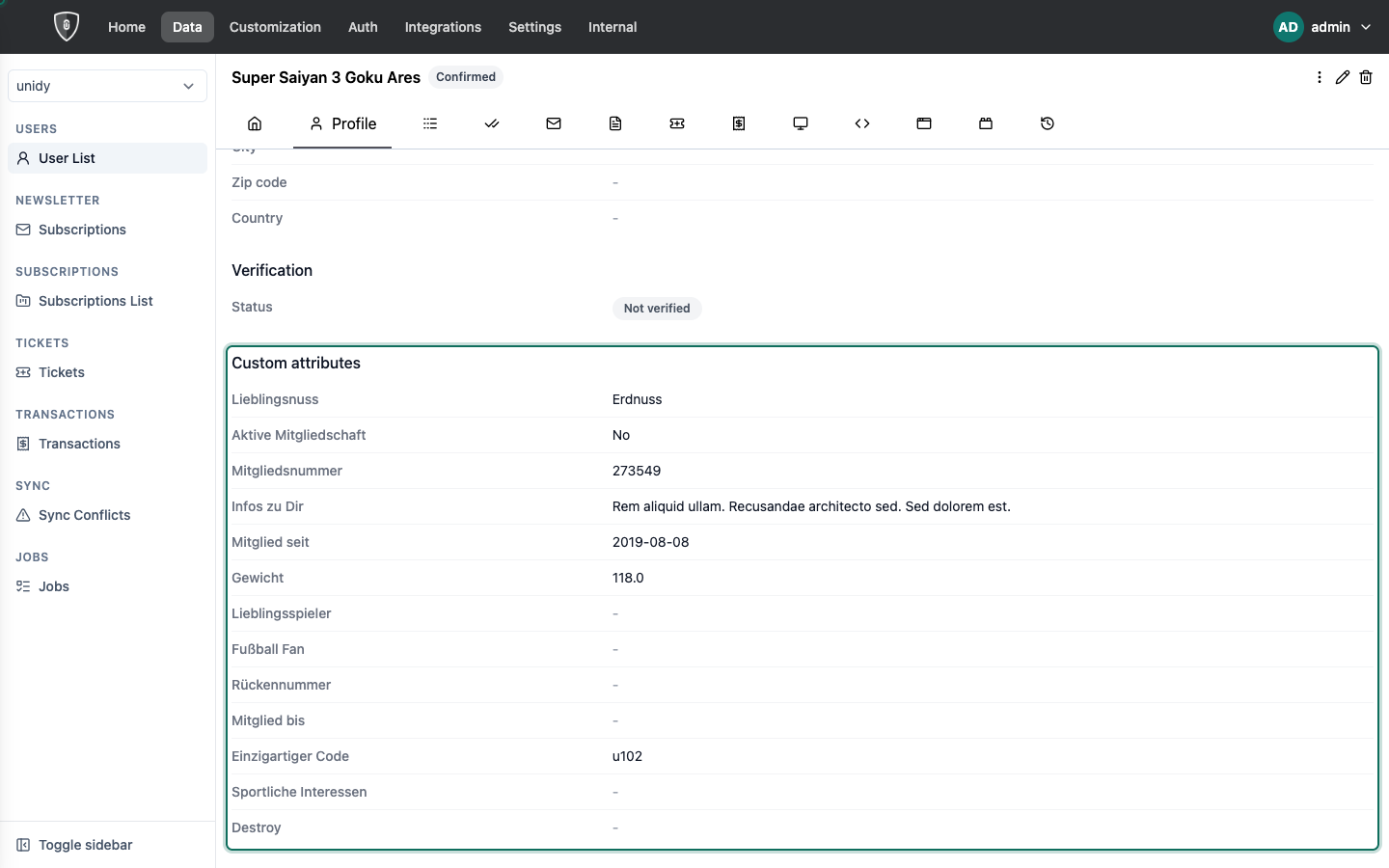
The values, on one user's Profile tab — every definition is listed whether or not it is filled, and unset fields show a dash. (The last row, Destroy, is a test record someone left in the seeded database.)
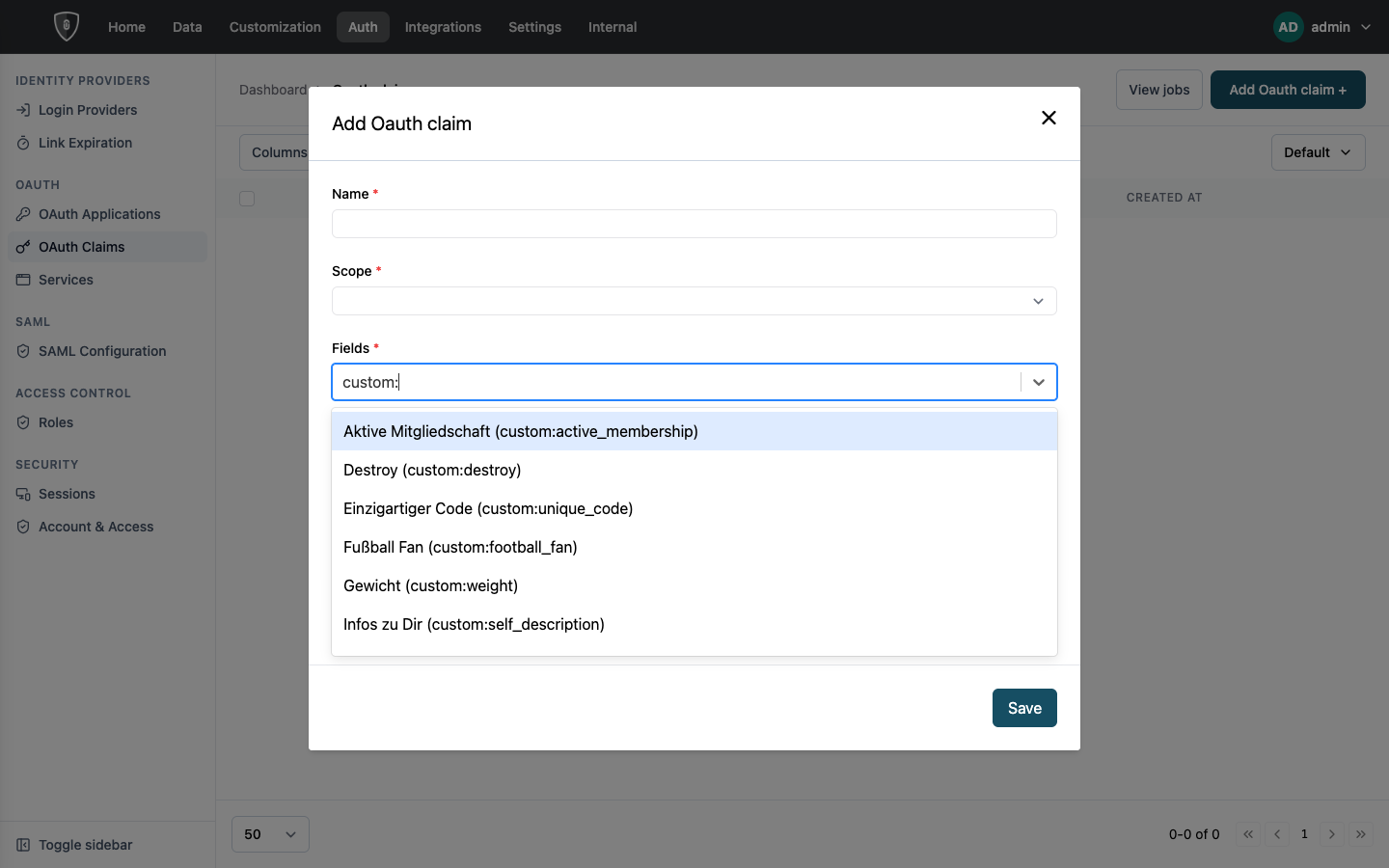
The same definitions in Auth → OAuth Claims — typing custom: in Fields narrows the picker to custom attributes · highlight on the display-name-then-key format.
To change exposure, edit the definition, save, and check the relevant consumer with a test customer. Changing a visibility setting does not retract data already delivered to another system.
Manage select options
- Open a Select or Multi select definition.
- Open Select options and choose Add option.
- Enter a stable internal name in snake case, such as
football, and a display name, such as Football. - Set its position if a particular order is needed, then save.
- Add translations through the available language controls and check the customer-facing field.
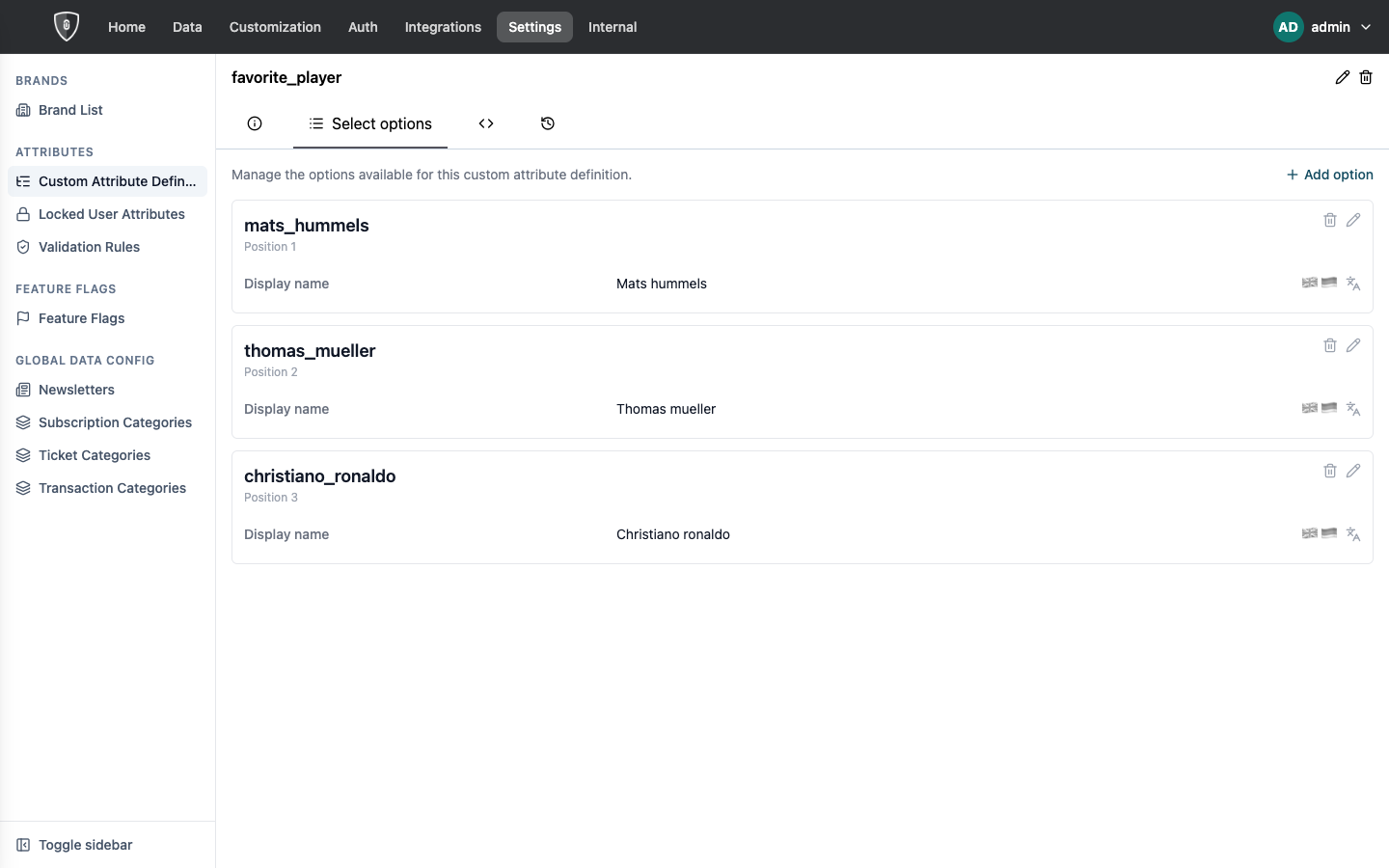
Select options for favorite_player — each option has an internal name, a position, and a translatable display name.
Use internal option names in imports and integrations. Display names can change without changing stored option values.
Before renaming or deleting an internal option, find customers and integrations using it and migrate their values. Removing an option does not rewrite existing customer data; retained values can become invalid and prevent later profile saves.
Rename a label or replace a field
To rename a label, edit Display name and its translations, then save. Check the profile, list and mapping labels that use it. Existing import and API keys continue to use Name.
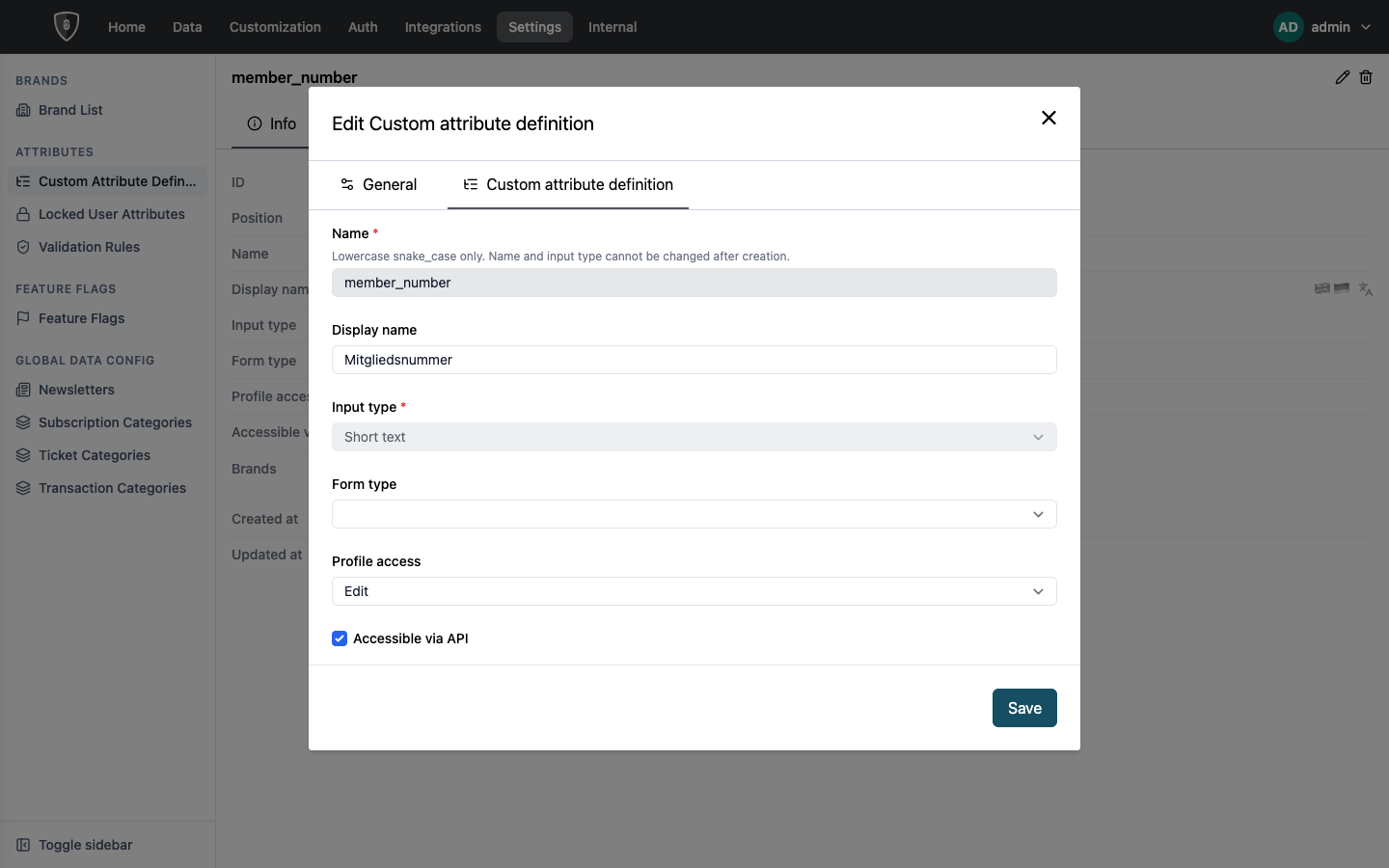
The edit dialog — Name and Input type are rendered read-only, and only Display name, Form type, Profile access and Accessible via API accept input.
To change a field's name, input type or saved form type:
- Create a replacement definition with the required configuration.
- Export the existing values and prepare a mapping to the new key/type.
- Test the conversion on representative records, including blank values and select options.
- Migrate the data, then update imports, applications, OAuth claims and connector mappings.
- Verify the replacement before retiring the old definition.
Keep the export and a record of the mapping. Deleting and recreating a definition is not a migration or an undo operation.
Share an attribute with another brand
If the definition allows linking, switch to the receiving brand, choose Add custom attribute definition, then Link an existing resource and select it. Linking reuses the same definition and stored values; it does not create a copy.
For account-wide assignment management:
- Open Settings → Attributes → Custom Attribute Definitions.
- Edit the saved definition and open General. This tab appears on multibrand accounts.
- Add the receiving brand and keep one of the assigned brands as owner.
- Save and verify the definition on each brand.
Only the owning brand can edit the definition's settings through the brand-level screen. To remove an owning brand while others remain, transfer ownership and save first, then remove the old assignment.
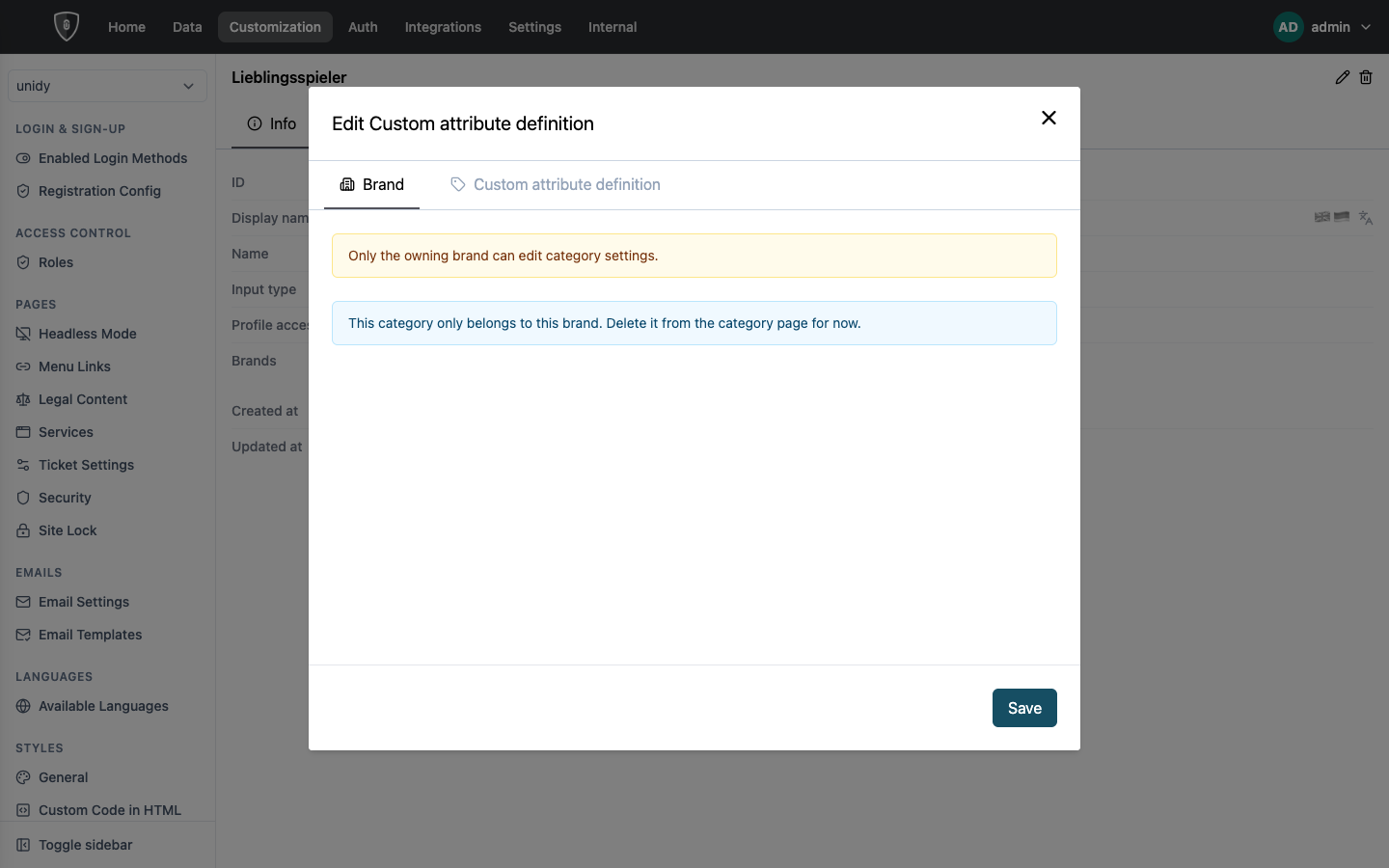
The brand-level edit dialog — the Custom attribute definition tab is locked because this brand does not own the definition, and the second banner explains that a single-brand definition has to be deleted from the definition page. (These banners say "category" — the wording is shared with the other brand-scoped definition screens.)
Removing the final brand
Deleting the last brand's assignment deletes the definition itself. Check the assigned brands before using a row's delete action, and follow the data-preservation steps below.
Limit customer profiles to the active brand's attributes
On a multibrand account, an administrator with the custom-attribute settings manage permission can open the visibility control on Custom Attribute Definitions and enable Only show the active brand's attributes.
When this setting is off, a customer's filled attributes from other brands may also appear in the profile, subject to profile access. When it is on, the profile is limited to definitions assigned to the active brand. This does not replace the API and integration controls in the surface table above.
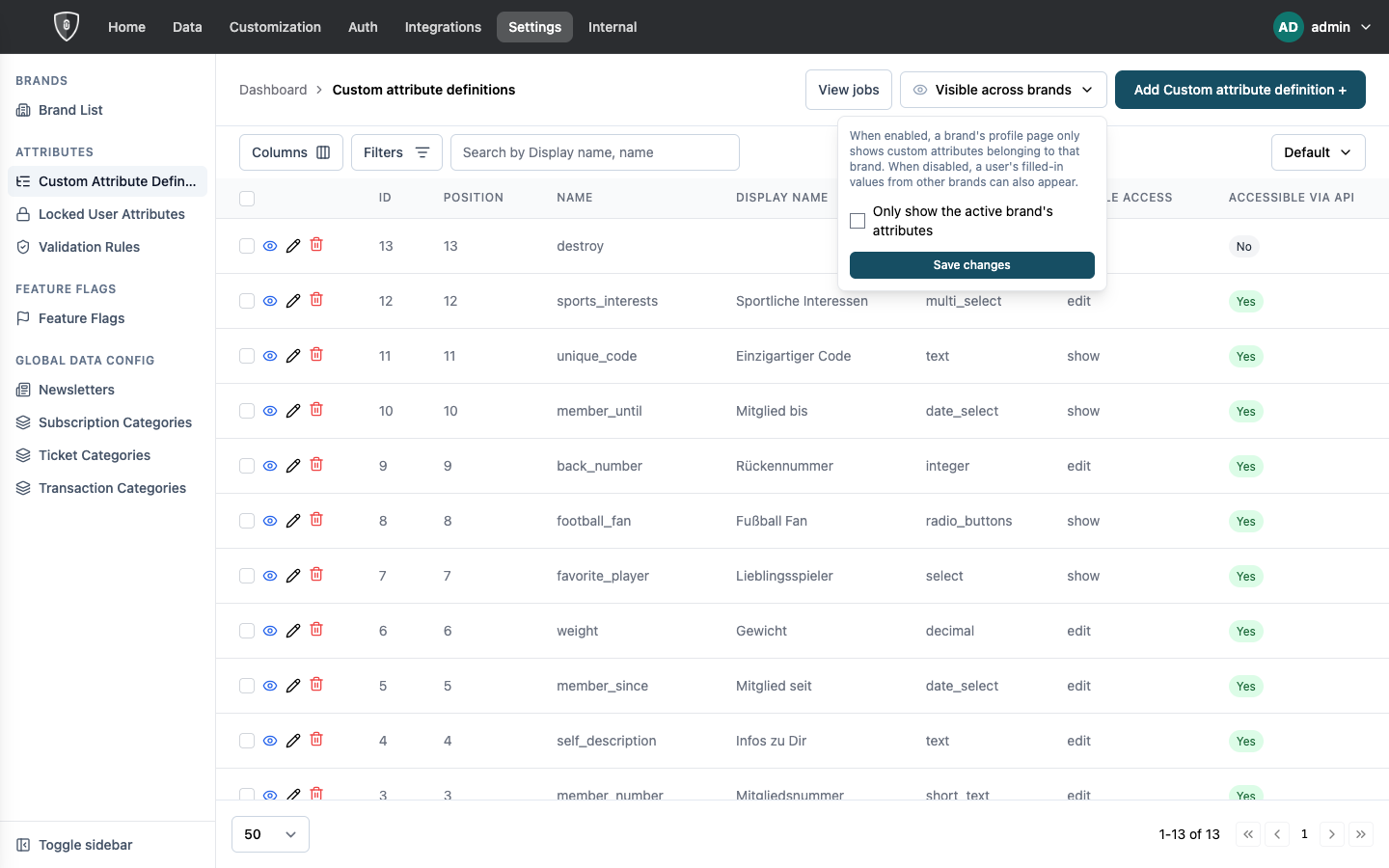
Visible across brands — one account-wide switch that decides whether a brand's profile page is limited to its own attributes.
Organize fields in profile sections
The legacy Custom Attribute Groups have been replaced by brand-specific Customization → Profile Structure. A section still groups related customer information, with a customer-facing Name, optional Description and an ordered set of fields. It can now include standard profile fields and supported plugin elements as well as custom attributes.
- Select the brand and open Customization → Profile Structure.
- Use Create default sections when starting from an empty layout, or enter a name and choose Add section.
- Edit the section's name and description; add translations where offered.
- Use Add field to choose available fields. Custom fields must be assigned to this brand and have Show or Edit profile access.
- Reorder sections and fields with the drag handles or move controls. Use Move to section to relocate an assigned field.
- Check the customer profile and the section's heading, description, field order and editing behavior.
To edit a section, use its edit control and save the name or description. To remove it, select Delete section and confirm removal of its field assignments. This removes layout assignments, not the custom-attribute definitions or customer values. Ordinary unassigned fields appear under Other; plugin elements appear only when placed in a section. Removing a section is not a way to hide a field: change its profile access instead.
Import values
In the user import's mapping step, choose targets under Custom Attributes. The mapping key includes the prefix custom_attribute:.
email,custom_attribute:member_number,custom_attribute:sports_interests,custom_attribute:member_since
ada@example.com,MB-00042,"football,tennis",1998-03-15
Create sports_interests as Multi select with the internal option names football and tennis first. Quote a CSV cell containing commas. Select the date format in the mapping step, and review every mapping before running the import. See Import users from CSV for update and clearing behavior.
Read values through REST V1
For a server integration, enable Accessible via API and use a client-credentials token with the required custom_attributes:read scope:
GET /api/v1/users/{unidy_id}/custom_attributes HTTP/1.1
Host: your-tenant-host
Authorization: Bearer <access-token>
A response can include:
{
  "custom_attributes": [
    { "name": "member_number", "value": "MB-00042", "type": "string", "defined": true },
    { "name": "sports_interests", "value": ["football", "tennis"], "type": "array", "defined": true },
    { "name": "favorite_player", "value": null, "type": "string", "defined": false }
  ]
}
defined indicates whether the customer's stored data contains the key; it is distinct from whether the value is non-null. The endpoint lists API-accessible definitions, including those not yet set on that customer. See REST API reference for write operations and endpoint authorization.
Delete a definition
Export before deleting
Deleting a definition removes the field from supported views and does not immediately erase its stored customer values. Later profile updates can discard values whose definition no longer exists. Recreating the same definition may expose retained values, but it is not a reliable undo.
- Export the values and identify imports, claims, webhooks and connector mappings that use the key.
- Migrate required data and update those consumers.
- Confirm whether the intention is to remove one brand assignment, retire the shared definition or erase customer data. These are different actions.
- With the appropriate global delete permission, delete the definition from Settings → Attributes → Custom Attribute Definitions.
- Verify the intended views and integrations after the change.
Deletion is blocked when 1,000 or more customers retain the attribute key, including keys whose value is null. Contact your account administrator to plan a migration rather than treating the threshold as a reason to bulk-clear data. To erase a value, use the supported customer-value operation instead of deleting its definition.
Troubleshooting
| Symptom | Check |
|---|---|
| Name or input type cannot be edited | These are immutable. Create and migrate to a replacement definition. |
| Form type changes do not persist | Choose form type during creation; changing it afterwards is not supported by the dashboard update path. |
| The definition tab is locked on a brand | Check ownership and write permission for that brand. |
| The General tab or visibility control is missing | General requires a saved definition and multiple brands. The visibility control also requires the settings manage permission. |
A value is missing from REST or SDK /user | Check Accessible via API, the customer's value and the endpoint's authorization requirements. |
| A value is hidden from the ordinary profile | Check Profile access, brand assignment and the account's cross-brand visibility setting. |
| A profile save fails after an option change | Check whether stored select values still exist in the definition's allowed options. |