HubSpot
Connect HubSpot, configure synchronization, and verify contacts, newsletters, and deals.
Connect and operate HubSpot
The HubSpot connector links Unidy users to HubSpot contacts, synchronizes configured newsletter state, and sends selected subscriptions and tickets to HubSpot as deals. Configure one test contact and one newsletter before starting a bulk synchronization.
| Unidy data | HubSpot data | Direction |
|---|---|---|
| User profile fields | Contact properties | Inward, outward or both, according to each supported field rule. |
| Newsletter subscriptions and preferences | Communication subscriptions and configured contact properties | Both directions through the configured newsletter mapping and subscription workflows. |
| Product subscriptions | Deals | Unidy to HubSpot. |
| Tickets | Deals | Unidy to HubSpot. |
Newsletter opt-in, confirmation and opt-out are state on the newsletter subscription. They are not a separate unsynchronized marketing-consent record.
Scope and access
You need access to the intended integration scope. Configuration edits and bulk-sync requests require write access; authorization, setup actions, queue pause and contact-deletion synchronization require manage access when role-based permissions are enforced.
Where brand-scoped integrations are available, a HubSpot instance can be shared or owned by a brand. A brand-owned instance takes precedence over the shared instance, including when it is disabled. Choose the target portal and scope before linking records: an instance with synchronized data cannot be moved to another brand. See roles and feature availability.
Install and connect
- Open Integrations → Add plugin and select HubSpot, or open Configure for an existing HubSpot instance. Check installed integrations if the catalogue does not offer another instance.
- Choose the intended scope where available and enter a recognizable account name.
- On Connection, enter the HubSpot app ID, client ID, client secret and requested scopes for your integration. Save the card.
- Use Authorize or Re-authorize, approve access to the intended HubSpot portal, and check the returned connection state and portal ID.
- Use Set up contact sync to configure the supported HubSpot properties and webhook subscriptions. Resolve any setup error before enabling customer traffic.
- Configure the field, newsletter and deal mappings below. Enable the plugin, then verify one record in each enabled flow.
HubSpot app setup
HubSpot apps managed by a developer project can reject webhook changes through the API. If setup reports that restriction, have the HubSpot app owner configure the required webhook subscriptions in the project or agree a compatible app setup with Unidy. Repeating Set up does not bypass the restriction.
Use the callback and authorization settings supplied for your actual integration. The normal inbound path verifies HubSpot signatures, but legacy callback compatibility paths also exist. Confirm that your integration uses the signed callback configuration; do not assume a connected status alone proves signature enforcement.
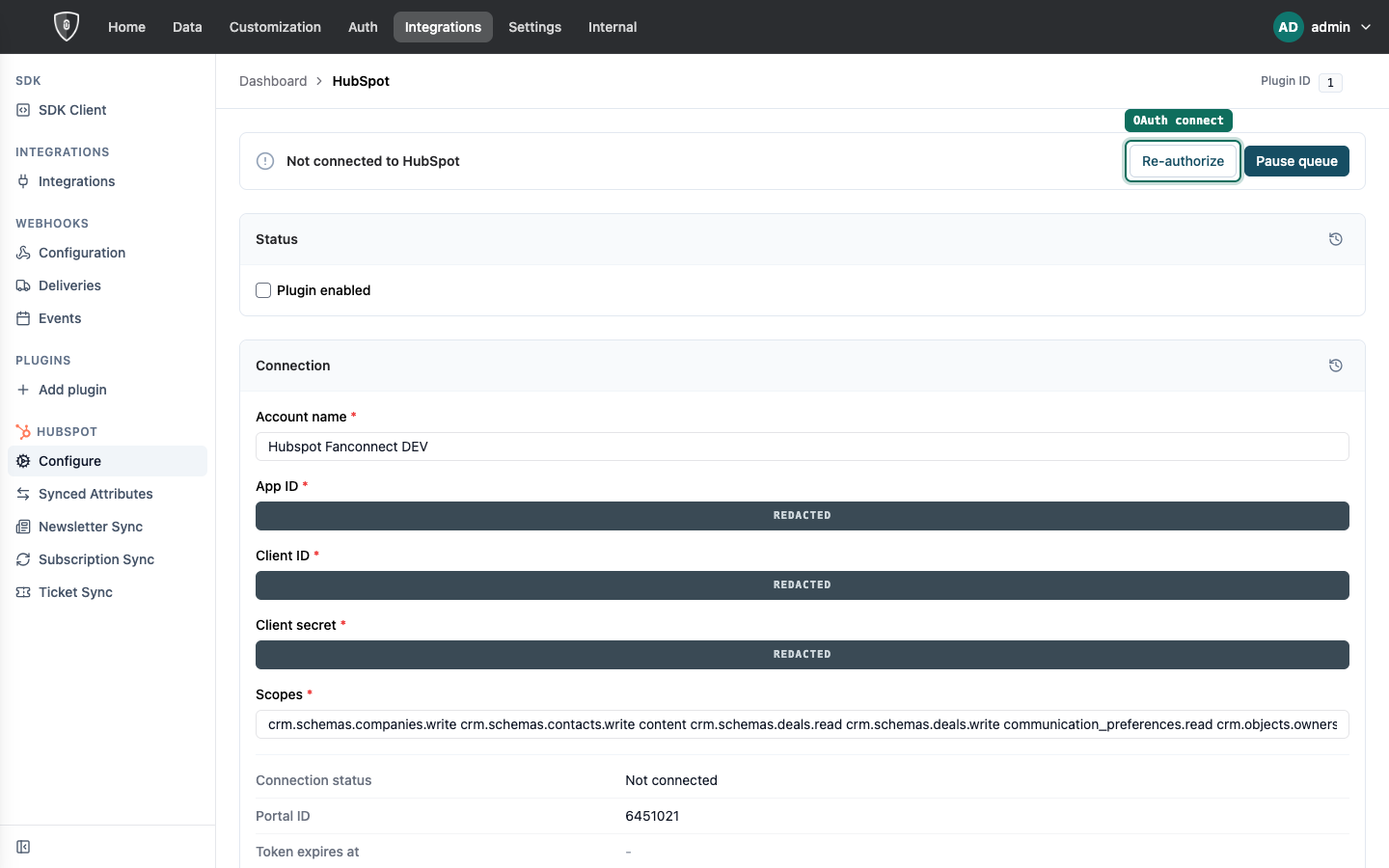
CONFIGURE — header, Status and Connection · highlight on Re-authorize. The three credential values are blacked out in this capture; the labels are what the page documents.
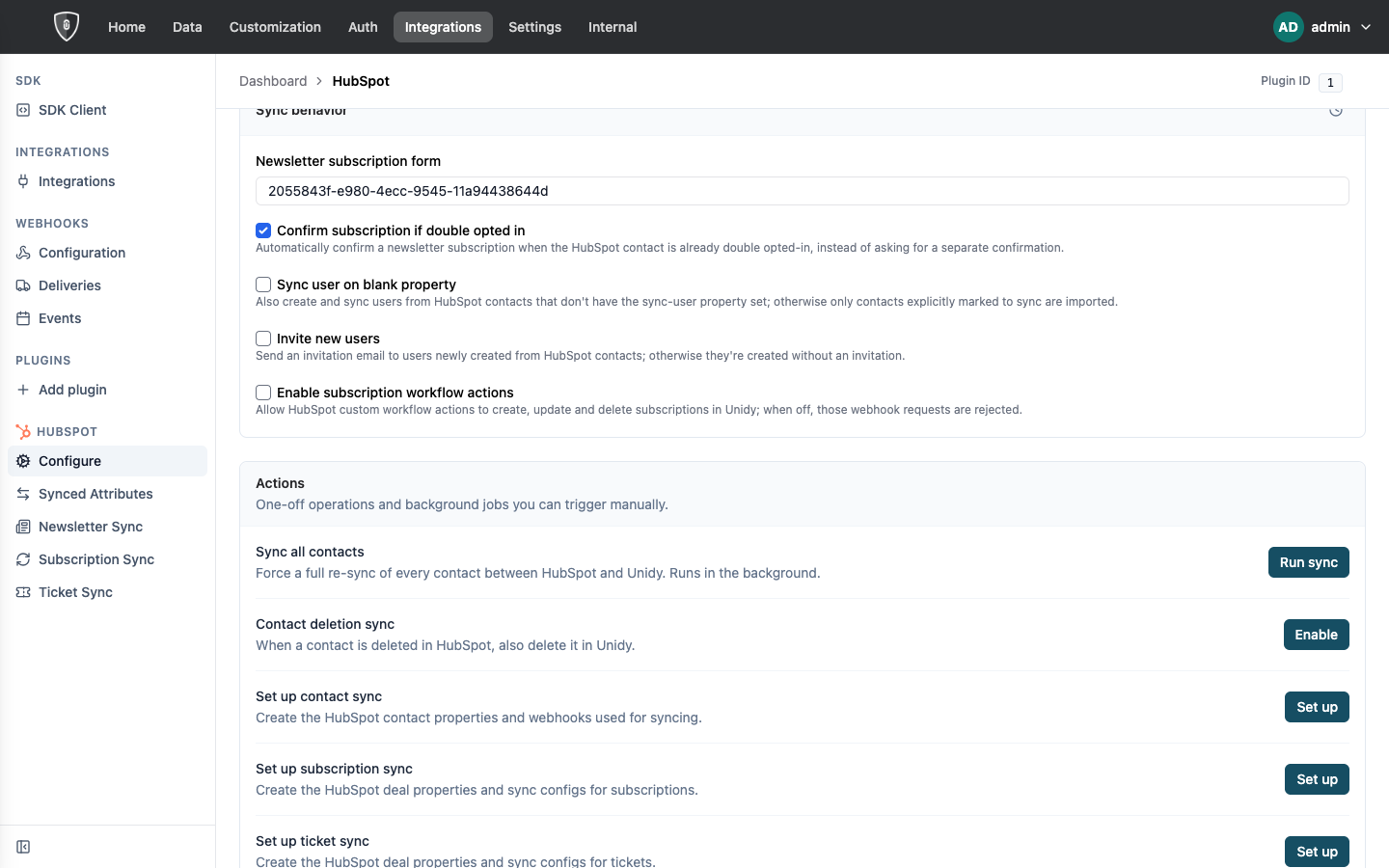
CONFIGURE — Sync behavior and Actions. Each checkbox carries its own help line in the dashboard, reproduced in the tables above.
Configure profile synchronization
On Synced Attributes, choose the Unidy record type and field, the HubSpot property's internal name, and the direction. Users map to contacts; subscriptions and tickets map to deals and support outward rules.
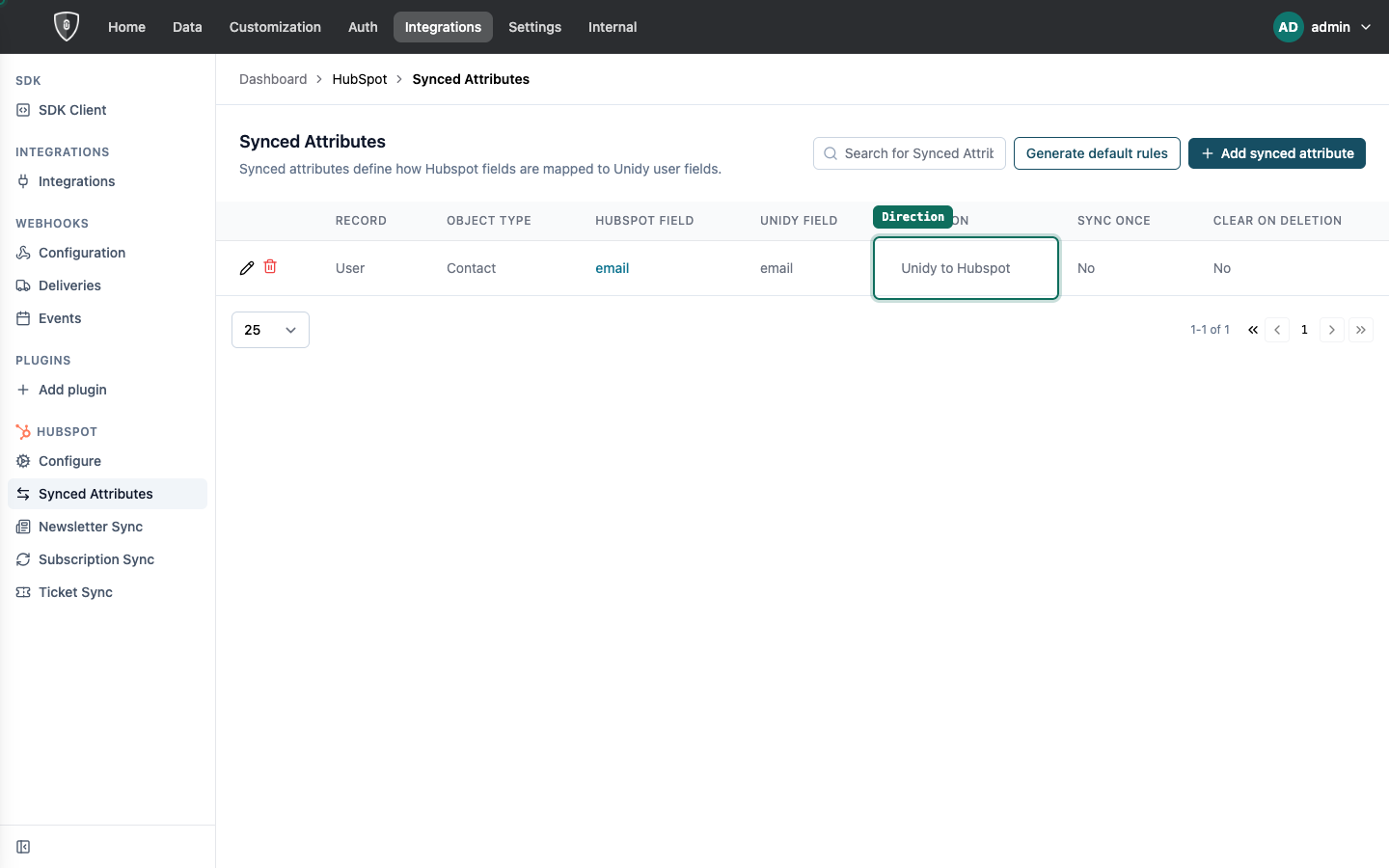
SYNCED ATTRIBUTES — the seeded environment's one rule · highlight on Direction, the column whose options depend on the Record value.
| Option | Meaning |
|---|---|
| Direction | Which system may update the other for this field. Supported choices depend on the record and field. |
| Sync only once | Apply the value during initial matching rather than overwriting it on every later synchronization. |
| Clear on deletion | Clear the mapped Unidy value when the linked provider record is removed, where supported. This is not permitted for email. |
| Generate default rules | Add the connector's predefined mapping rules for the chosen record type; inspect the resulting rules before a bulk sync. |
Some identity and system fields, including email and unidy_id, are outward-only. The form rejects unsupported directions. For a field owned by your CRM, select HubSpot to Unidy; for a field managed in Unidy, select Unidy to HubSpot. Choose Both ways only when either system is allowed to replace the value.
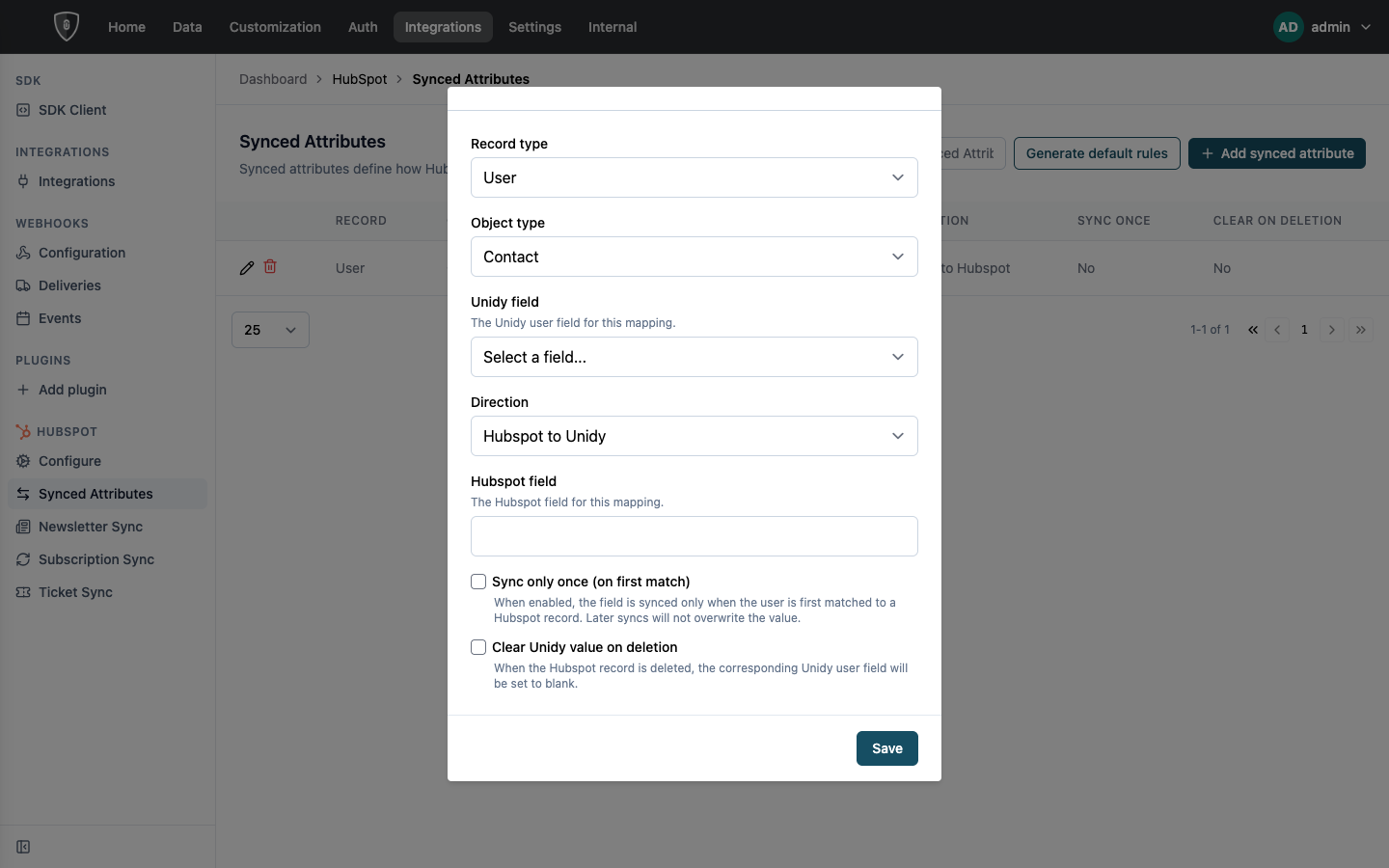
ADD SYNCED ATTRIBUTE — with Record type set to User. Object type is forced to Contact and Direction offers all three options.
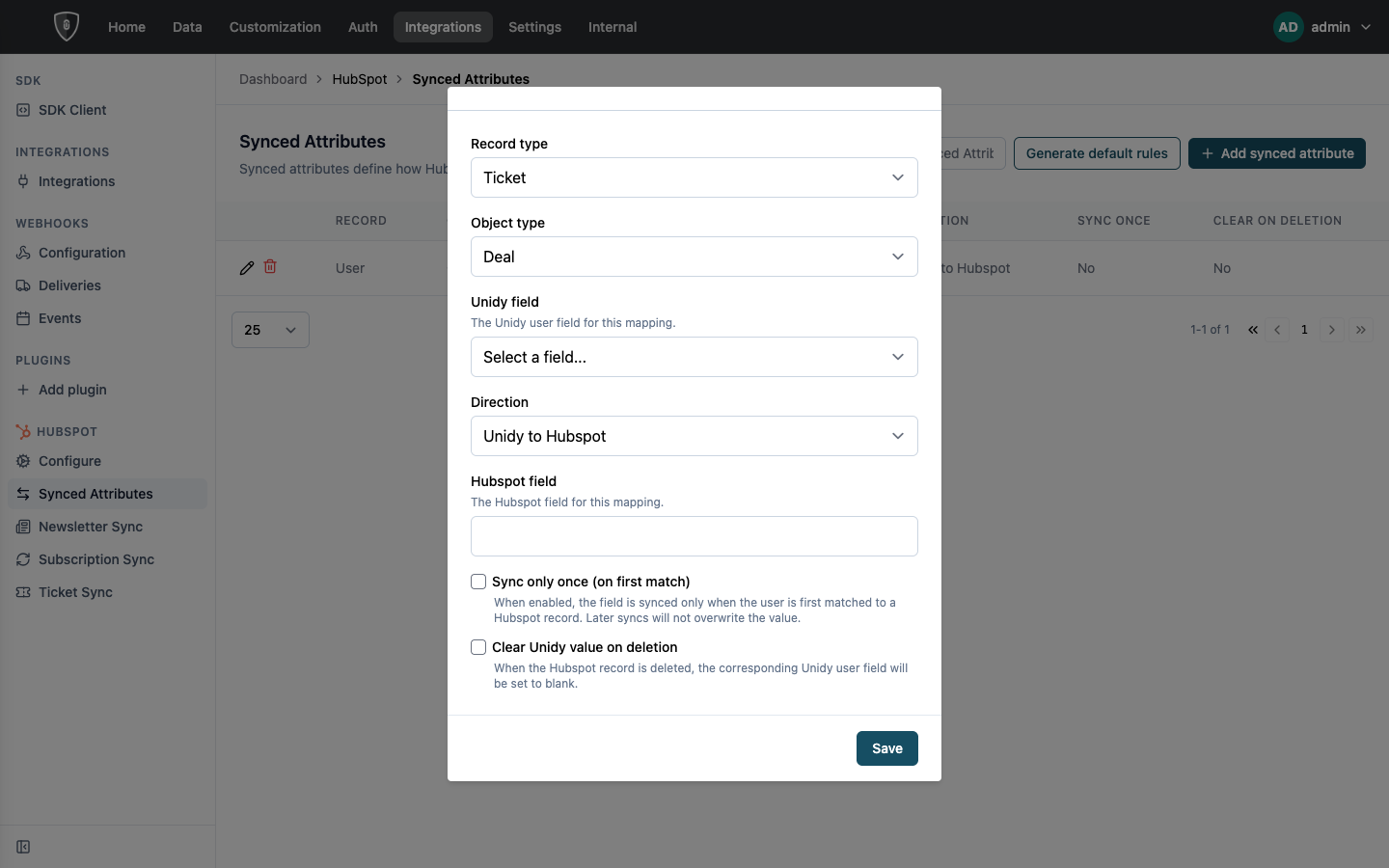
THE SAME DIALOG — with Record type set to Ticket. Object type becomes Deal, the Unidy field list changes to ticket fields, and Direction collapses to the single option Unidy to Hubspot.
Changes originating from this connector are marked to avoid an immediate echo back through the same connector. Echo suppression does not resolve two independent edits: mapping direction and operational ownership still matter.
On Configure, review whether blank HubSpot values should update Unidy and whether newly created users should receive invitations. Test these settings with an empty field and a newly linked contact before enabling them broadly.
Configure newsletter synchronization
- Open Newsletter Sync and add a configuration.
- Choose the Unidy newsletter and the corresponding HubSpot communication subscription.
- Enter the property names for preferences, preference token, opt-in time, opt-out time and double-opt-in request time. These five mappings are required by the configuration. The DOI IP-tracked timestamp is an additional mapping; confirm its use in your HubSpot workflow rather than treating all six properties as universally required.
- Save, then verify a test subscription, confirmation and opt-out on both sides.
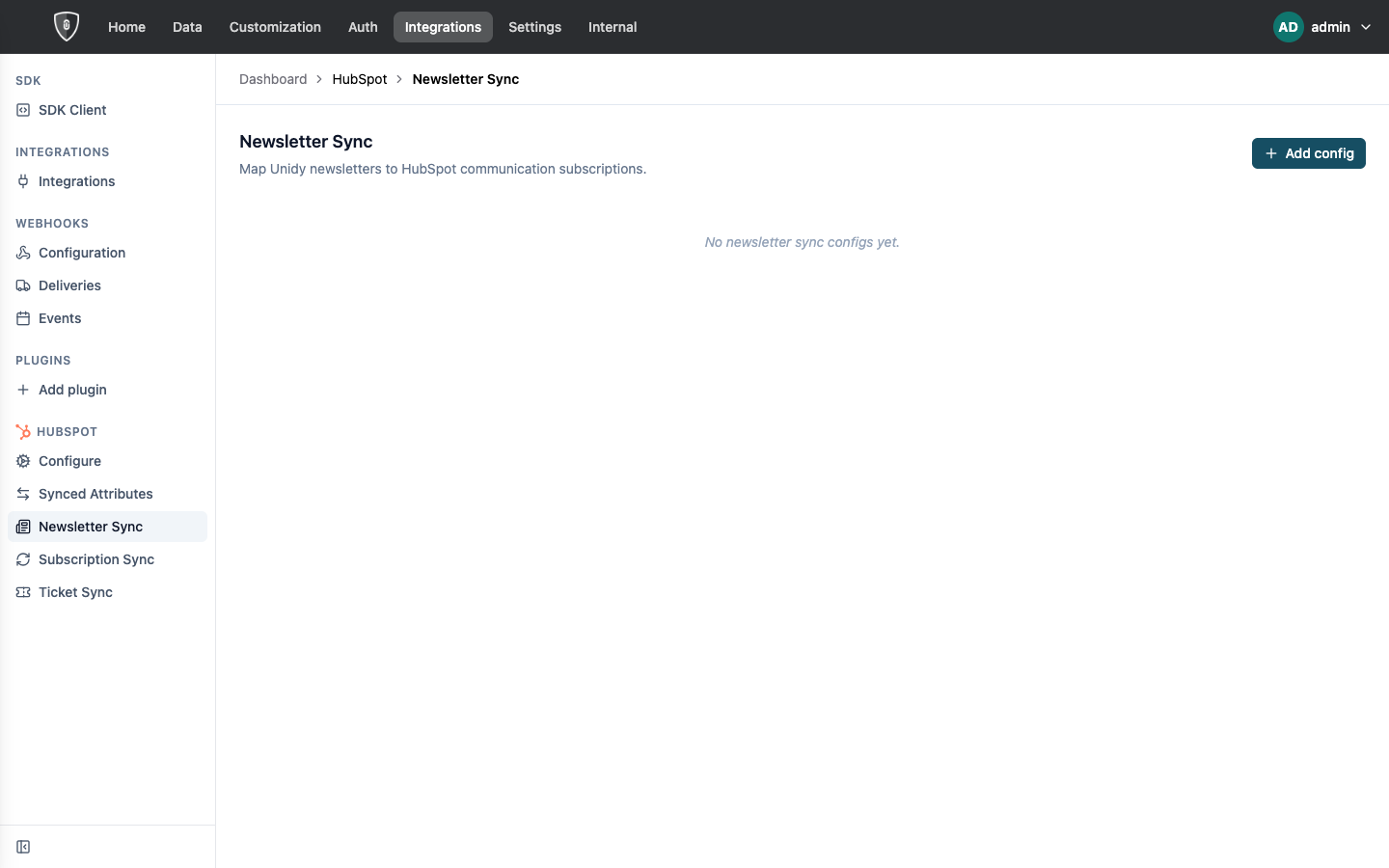
NEWSLETTER SYNC — the empty state, which is what a new environment looks like. Nothing about newsletters reaches HubSpot until a config exists here.
The newsletter's double-opt-in mode determines the sender. If DOI through Unidy is enabled, requesting confirmation sends the Unidy confirmation email and dispatches the newsletter update. For a HubSpot-led confirmation flow, configure and test the corresponding HubSpot workflow. Adding a newsletter mapping does not, by itself, guarantee that HubSpot sends an email.
Review Confirm subscription if double opted in and any configured newsletter subscription form with the owner of the confirmation flow. Keep confirmation, preference changes and opt-out tests separate. See consent and subscriptions.
Send subscriptions and tickets as deals
Use Subscription Sync or Ticket Sync to map a Unidy category to a HubSpot deal pipeline and stage. Configure create, update and delete handling independently. Delete handling archives the corresponding HubSpot deal; it does not import HubSpot deal deletions into Unidy.
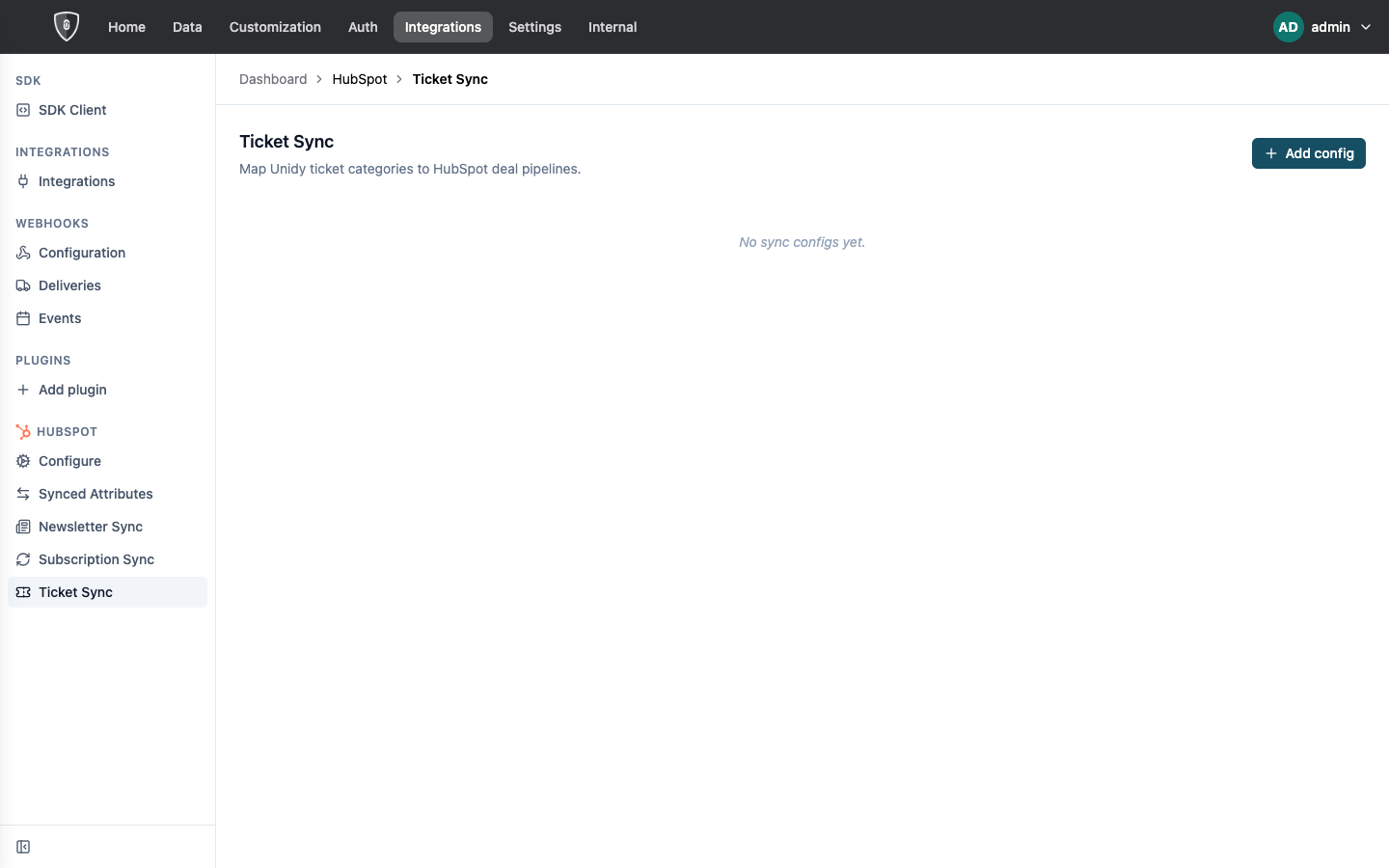
TICKET SYNC — the empty state. Subscription Sync is identical apart from its subtitle, which names subscription categories instead of ticket categories.
Authorize the connection before opening forms that load HubSpot pipelines or stages. After setup, create one test subscription or ticket and confirm its deal, linked contact and mapped properties in HubSpot.
If Custom workflow actions are available, manage the published actions there and verify each action in the intended HubSpot workflow. Their availability and effects depend on the configured action; do not assume that creating a deal-sync mapping installs a workflow action.
Bulk actions and stopping work
| Action | Effect and precautions |
|---|---|
| Sync all contacts | Pushes Unidy users toward HubSpot. It does not import all HubSpot contacts or resynchronize every object in both directions. Review mappings and the target portal before running it. The batch processes the Unidy user population; do not assume the selected brand narrows it. In a brand-owned setup, confirm bulk-action targeting with the integration owner before use. |
| Pause queue | Pauses the shared HubSpot background queue. It can affect other HubSpot instances, not just the configuration you are viewing. Coordinate the pause and resume, then check the backlog. |
| Disable Plugin enabled | Stops new plugin event dispatch and acknowledges incoming webhooks without applying them. This is not a retained-event pause, and already queued work may still run. Plan reconciliation for the disabled interval. |
| Enable Contact deletion sync | Enables handling of HubSpot contact deletions that can remove the linked Unidy user and associated data. Confirm the deletion policy and test it with disposable records before enabling this action. |
A hard maintenance stop needs an agreed queue and in-flight-work procedure with the operator. Disabling the plugin alone is not a guarantee that no queued job can finish.
Troubleshooting
| Symptom | Check and next step |
|---|---|
| Connection expired or a mapping form cannot load provider options | Re-authorize the intended portal, then reopen the form. |
| Setup rejects webhook edits for a project-managed app | Have the app owner configure the project-managed webhook settings or agree the supported setup route with Unidy. |
| A profile field changes back | Review the mapping direction and which system owns the value. Check blank-value synchronization as well. |
| A newsletter update fails because the contact is missing | Verify contact creation/linking first, then inspect the failed background processing. A newsletter mapping alone does not create every contact. |
| No confirmation email arrives | Check the newsletter's DOI mode, sender configuration and the HubSpot workflow where applicable. |
| Work accumulates across several integrations | Check whether the shared HubSpot queue is paused and whether the connection is authorized. |
| Bulk sync does not import HubSpot-only contacts | The action is outward. Use the agreed inbound workflow for contacts originating in HubSpot. |
Use sync conflicts and jobs for processing failures. When escalating, include the integration scope, portal, record identifier, approximate time and failing action; omit client secrets and tokens.
Newsletter setup in HubSpot
Prepare the Unidy newsletter, preferences and preference groups using consent and subscriptions. In HubSpot Settings → Marketing → Email → Subscription Types, create or choose the matching communication subscription type. Supply its language, subscription name and description, review the customer-facing preview and create it. The HubSpot subscription-type guide covers current provider-specific options.
One Unidy newsletter maps to one HubSpot communication subscription type in each connector configuration. Use the intended type's ID and the five property mappings in Newsletter Sync above. The historical route Admin → Superadmin → Plugins → HubSpot → Newsletter Sync Configs is now Integrations → HubSpot → Newsletter Sync. Use property internal names exactly; example prefixes such as unidy__NEWSLETTER_… are conventions, not fixed fields for every portal.
Put a preference link in marketing emails
Each newsletter subscription has a preference token, including subscriptions without a Unidy user account. It permits logged-out preference management without a normal customer login. The connector copies it to the configured HubSpot Preference token property.
In the HubSpot email editor, select the content element and open More → Source code, insert a link like this, then save changes:
<a href="https://YOUR_BRAND_HOST/newsletter?token={{ personalization_token('contact.unidy__newsletter_preference_token', '') }}">Manage your preferences</a>Replace the brand host and contact.unidy__newsletter_preference_token with your actual property. The label and styling are yours to choose. Preview/send to a test contact with a known token and open the link while signed out. An empty personalization fallback is not a usable preference token. Treat the completed URL as a bearer capability and avoid putting it in analytics or support logs.
HubSpot-led newsletter workflows
Use these recipes only when HubSpot owns the confirmation flow. First configure the connector and signed inbound workflow callback with the app owner; adding the newsletter mapping alone does not install workflows. HubSpot plan capabilities can limit available workflow actions.
| Workflow | Enrollment | Actions |
|---|---|---|
| Create/update a Unidy newsletter subscription | Membership in your designated newsletter-sync list; enable re-enrollment for intended membership changes. | Send the contact webhook payload with a POST to the configured newsletter callback. The historical path is /api/v1/webhooks/PLUGIN_ID/wf_newsletter_subscription; use the actual URL/signature configuration supplied for your instance. |
| Send DOI email | Preference token known and opt-in time unknown and contact opted into the mapped HubSpot type; or DOI resend-request time known and opt-in time unknown. | Set marketing-contact status as required by HubSpot, then send the configured DOI confirmation email. |
| Record confirmation | A click on the designated DOI confirmation email/link and opt-in time still unknown. | Clear the mapped opt-out time and set the mapped opt-in time to the execution timestamp. Test that the resulting property change confirms the subscription in Unidy. |
The inbound newsletter callback needs a contact identifier (vid), email and the contact properties payload; the connector checks the contact's current HubSpot communication-subscription status. Only configured types reported as subscribed enter that path. Use a provider-generated payload and signed request, not an invented empty POST. Test initial enrollment, re-enrollment, resend and confirmation separately, and avoid a resend loop caused by leaving a trigger permanently satisfied.
Verify unsubscribe propagation
When a contact unsubscribes in HubSpot, its property hs_email_optout_SUBSCRIPTION_ID changes and the corresponding property-change notification reaches Unidy. With a matching newsletter configuration, Unidy removes the newsletter subscription. It does not delete the customer account or merely hide the subscription in the UI.
The unsubscribe synchronization clears the configured opt-in time, preference token, preferences and DOI-request time, and sets opt-out time to the current timestamp in HubSpot. Verify these properties and the communication-subscription state on the test contact. The older guide called the final state NOT_OPTED; provider state labels/API vocabulary can vary, so verify that the type is actually unsubscribed rather than relying on that historical literal.
A subsequent subscription has a new preference token. Do not keep using a token copied before the opt-out. Confirm propagation after background processing; receipt of the initial webhook alone does not establish completion.