Campai
Match Campai members and synchronize their membership data into Unidy.
Campai integration
Use Campai to bring membership information onto an existing, matched Unidy user. The connector reads contact data from Campai and applies the inward mapping rules you configure. It does not write profile changes back to Campai or synchronize newsletters.
The normal flow is match a member → fetch the contact → apply mapped fields → receive later Campai updates. A webhook for a contact that has not been linked to a Unidy user does not create a new user automatically.
Before you start
You need permission to create or configure integrations in the intended scope, a Campai API token, and the organization you want to connect. The new Campai API also requires a mandate. Obtain the webhook signature key for the new API before enabling inbound updates.
Integrations can be shared or brand-owned when brand-scoped integrations are available in your environment. A brand-owned Campai configuration takes precedence over the shared configuration, even when the brand-owned configuration is disabled. Choose the scope before matching members: a plugin with synchronized data cannot be moved to another brand. See roles and feature availability.
Connect Campai
- Open Integrations → Add plugin and select Campai. If it is already installed, open its Configure screen instead. The installation catalogue lists available additions; a missing card does not prove the connector is absent.
- Choose the intended shared or brand scope when that choice is available, and enter a recognizable name.
- Configure the API mode available in your environment using the table below.
- In the Add plugin wizard, run Test connection and resolve any credential or environment error before creating the plugin. For an existing instance, save the configuration and verify it with the matching test below.
- Configure matching and inward field rules before enabling the matching form for customers.
- Match one test member, then verify the linked contact and the mapped values on that user's record. Change a harmless mapped field in Campai and confirm the later update arrives before rolling out to customers.
| API mode | Configuration |
|---|---|
| New API | Select the Campai environment and enter the API token. Use Read info to discover the organization and available mandates, confirm the organization, and choose the required mandate. Set the webhook signature key to the value configured in Campai. |
| Legacy API | Enter the organization ID and API token for the existing legacy connection. Legacy field paths and webhook authentication differ from the new API; coordinate a migration before changing them. |
The API mode is controlled by the environment rollout. Changing an individual field does not migrate a connection between API versions.
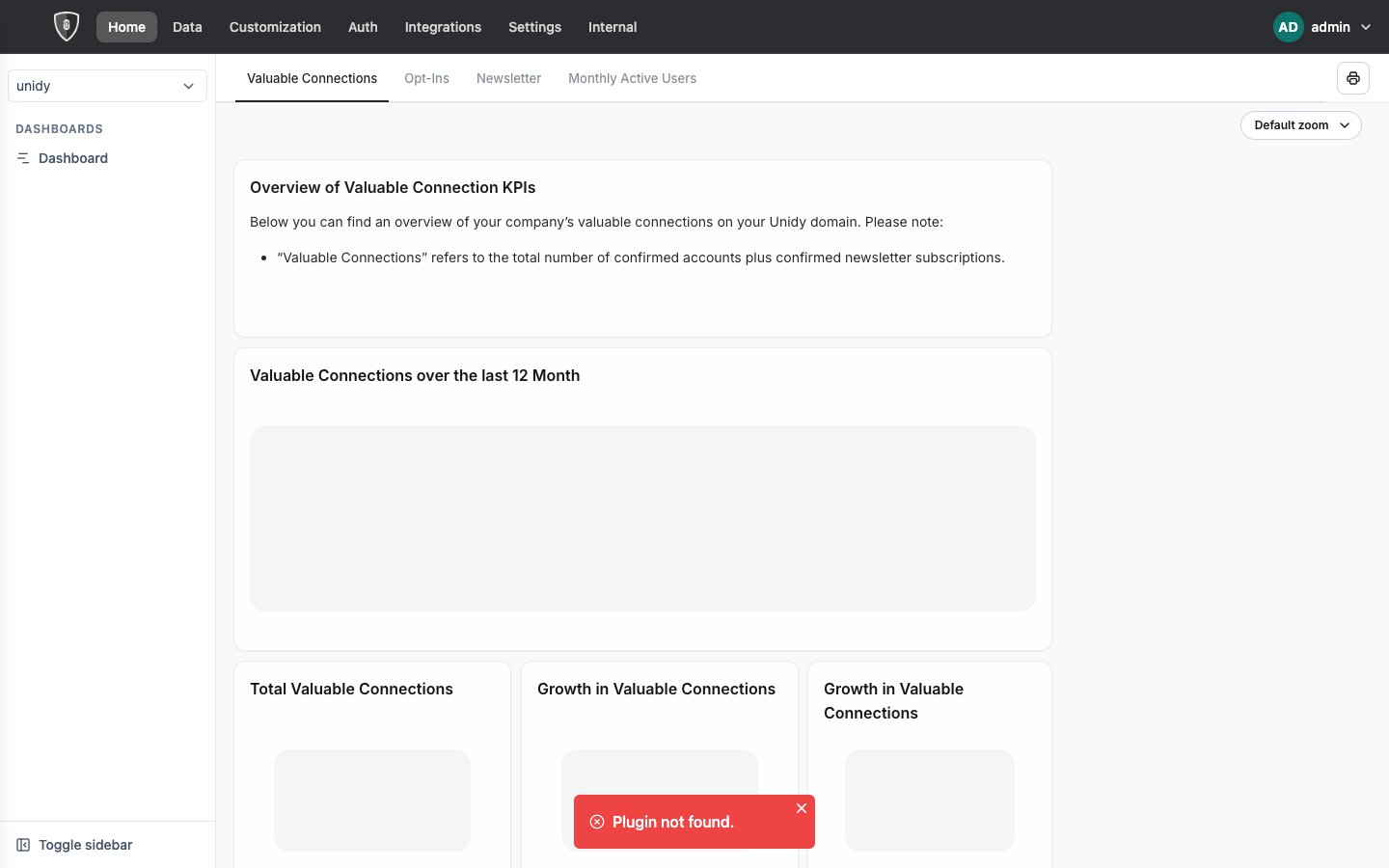
What every /dashboard/plugins/campai URL does before Unidy enables the plugin — a redirect to the dashboard home and a Plugin not found. toast. Captured in the seeded environment, where only HubSpot is installed.
Match members and map their data
The Matching Configuration identifies the Campai contact to attach to a signed-in user. Select a unique matching attribute, give its input a clear translated label, and configure verification fields so the user must provide the required matching details. If member-number formatting is configured, numeric input can be padded and prefixed before lookup; test both formatted and unformatted inputs with real example member numbers.
Use Show matching on registration and Show matching on profile to choose where customers can start matching. Profile placement belongs to the profile configuration; there is no separate Campai profile-position ID to paste into a configuration object.
On Synced Attributes, map Campai contact fields to Unidy user fields or existing custom attributes. These rules are inward only. Decide which fields should be cleared when the member's Campai link is removed, and use Clear on deletion only for those fields.
| Data | New API path | Legacy path |
|---|---|---|
| Member number | contactNumbers.member | membership.number |
| First name | person.firstName | personal.personFirstName |
| Last name | person.lastName | personal.personLastName |
| Phone | communication.phone | communication.regularPhone |
| Departure information | member.exitAt | membership.status |
Review all matching and mapping paths during an API migration. A valid connection test does not verify that your mapping paths exist in the new contact payload.
Webhook authentication and processing
Use the callback URL for the configured Campai instance. A brand-owned instance uses its brand's callback host; shared configurations use the default brand's host.
| Contract | New API | Legacy API |
|---|---|---|
| Organization check | X-Organization must match the configured organization. | Body organisation must match the configured organization. |
| Signature | When a signature key is configured, X-Signature must be base64-encoded HMAC-SHA512 of the exact request body, using that key. | This legacy handler does not verify the new API signature. |
| Payload | An object with event and data; data contains the contact, including _id. | The contact object itself, including _id. |
| Departure/removal | contacts.deleted, or a member.exitAt value at or before the current time. | membership.status equal to hasLeft. |
Configure the signature key for the new API: an organization identifier alone is not a secret. Leaving the signature key blank disables that signature check. Coordinate the supported API mode and provider configuration with the integration owner.
A successful 200 response means the update was accepted for background processing, not that the user's fields were already changed. A departure removes the Campai link and clears fields whose mappings request it; it does not delete the Unidy user.
Troubleshooting
| Symptom | Check and next step |
|---|---|
| Read info or Test connection fails | Check the environment, API token, organization and, for the new API, mandate. Do not mix credentials from different environments. |
401 with Authentication failed: invalid organization | Check the organization header in new API mode or the organisation body value in legacy mode. |
401 with Authentication failed: invalid signature | Confirm the same signature key on both sides and signing of the original request bytes. |
400 with Invalid payload | The new API requires a valid JSON body. Confirm the {event, data} envelope and a contact _id. |
| Webhook accepted but no user changes | Check the contact link, mapping directions and API-version-specific paths. An unknown contact is skipped; missing or invalid mapped data can fail later processing. |
| Fields remain after a member leaves | Check the departure values and each rule's Clear on deletion setting. Only selected mapped fields are cleared. |
Use sync conflicts and jobs to investigate failed processing. For newsletter and CRM synchronization, use HubSpot.