Social login
Configure external identity providers and handle social sign-in outcomes.
Connect an external identity provider so customers can sign in to Unidy using an existing account. Unidy handles the provider round trip and resolves the returned identity to a Unidy account. Passkeys use a different setup and have their own guide.
A login provider authenticates people into Unidy. An OAuth application lets another application authenticate people using Unidy. The credentials for these two directions are different.
Before you start
You need an application registered with the provider, its client credentials, the brand's HTTPS host, and permission to configure login providers or that brand's login methods. Under enforced RBAC, access depends on the relevant resource and action permissions; the legacy shared-provider screen requires a superadmin.
Unidy supports named providers such as Google, Apple, Facebook, LinkedIn, Discord, and Verimi, plus generic OpenID Connect providers. The available fields depend on the provider. Apple uses a signing key and identifiers rather than a conventional client secret.
Choose whether to reuse a shared configuration or create a brand-owned one:
| Configuration | Use it when | Where to configure it |
|---|---|---|
| Shared provider | Brands should use the same external application and credentials. | Auth → Login Providers, then attach it to the brand's login methods. |
| Brand-owned provider | A brand needs its own external application or credentials. | Customization → Enabled Login Methods → Add custom, when the multi-brand workflow is available. |
A named strategy can have one shared configuration and separate brand-owned configurations. Generic OIDC providers can have distinct slugs for different issuers. Do not replace a shared provider's credentials merely to configure a second brand.
Connect the provider
- Register the callback at the provider. For a named strategy, it normally uses the brand host and
/users/auth/STRATEGY/callback; for example, Google uses/users/auth/google_oauth2/callback. Use the callback required by the selected provider configuration. For generic OIDC, configure its issuer, client credentials, requested scopes, and redirect URI together. - Create or edit the configuration. Open the shared-provider screen or Add custom on the brand. Give it a clear name, enter the provider credentials, and save. Keep secrets out of frontend code and support messages.
- Attach the provider to the intended brand. In Customization → Enabled Login Methods, add the shared provider or use the brand-owned row you created. Check its visibility and the hosted preview.
- Enable the intended hosted presentation. The Social Login Active setting controls hosted presentation. It is not a general switch that revokes every provider or SDK authentication path.
- Test the complete return journey. Use a test identity at the external provider and verify the resulting Unidy account, required fields, brand connection, and destination application. Also test cancellation and a provider that does not return an email.
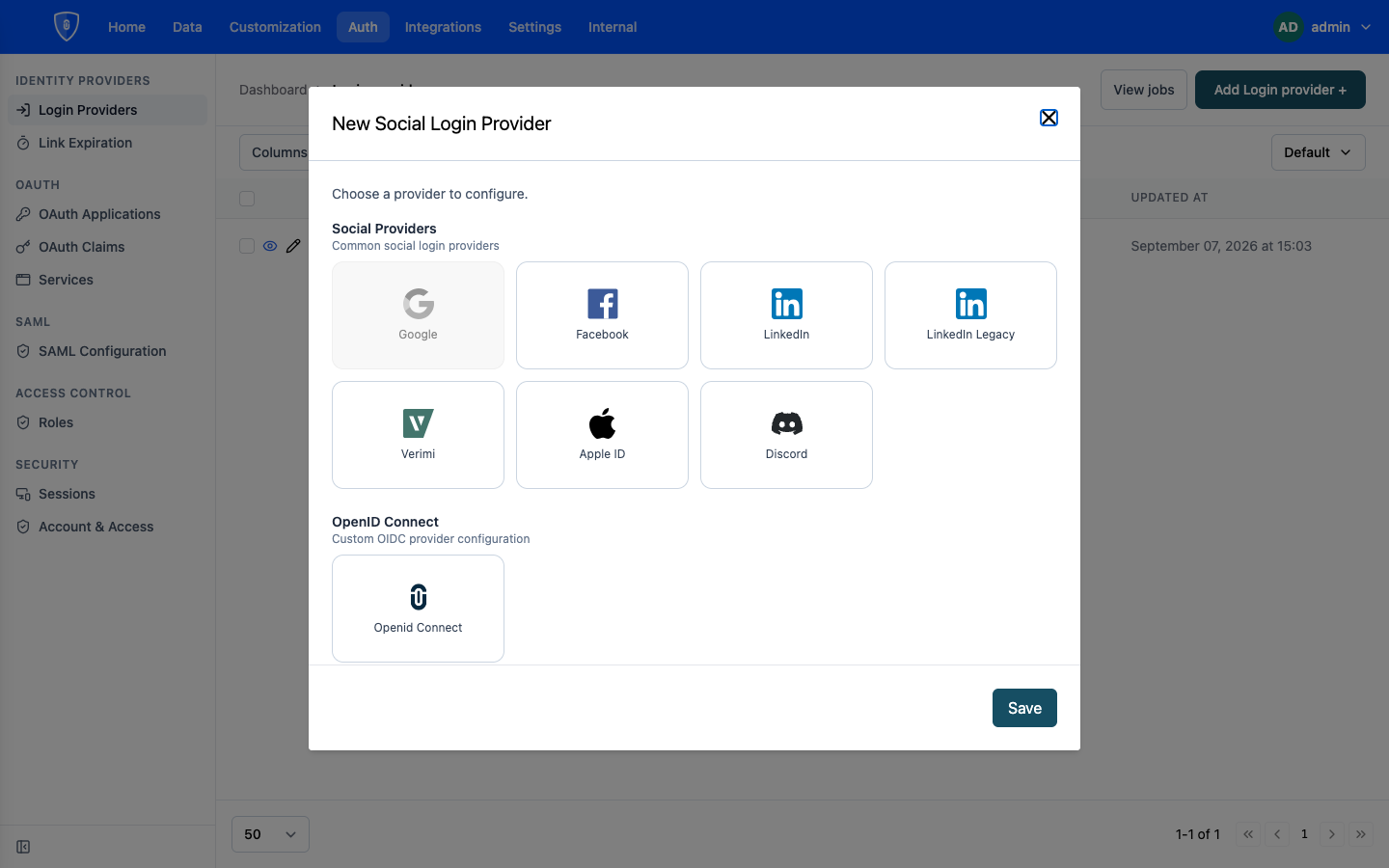
NEW SOCIAL LOGIN PROVIDER — Google is greyed out here because the seeded tenant already has one. Only the OIDC tile can be used more than once.
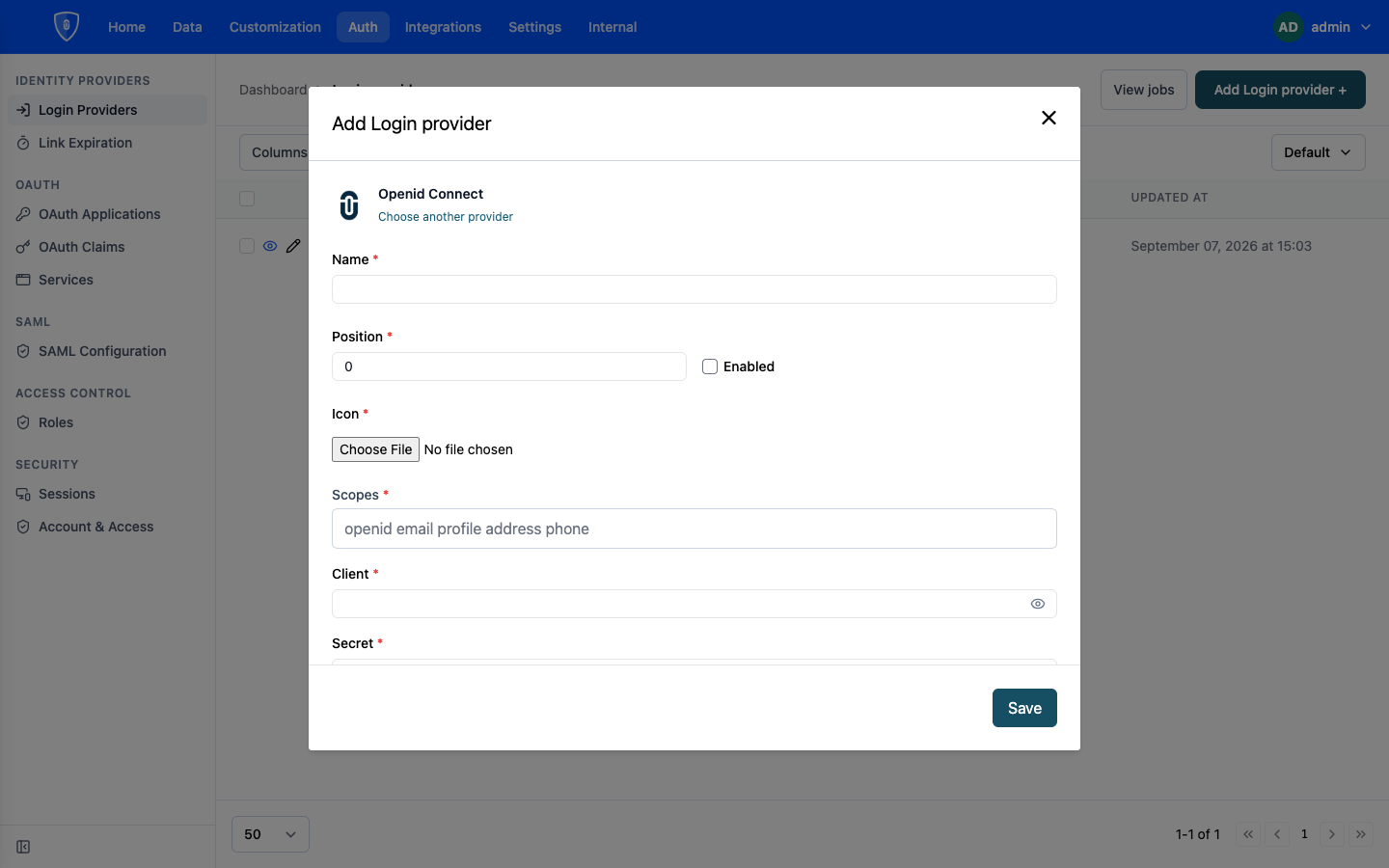
ADD LOGIN PROVIDER · OIDC — the widest of the forms. Issuer drives discovery; Icon is required because, unlike the named strategies, this one ships no logo.
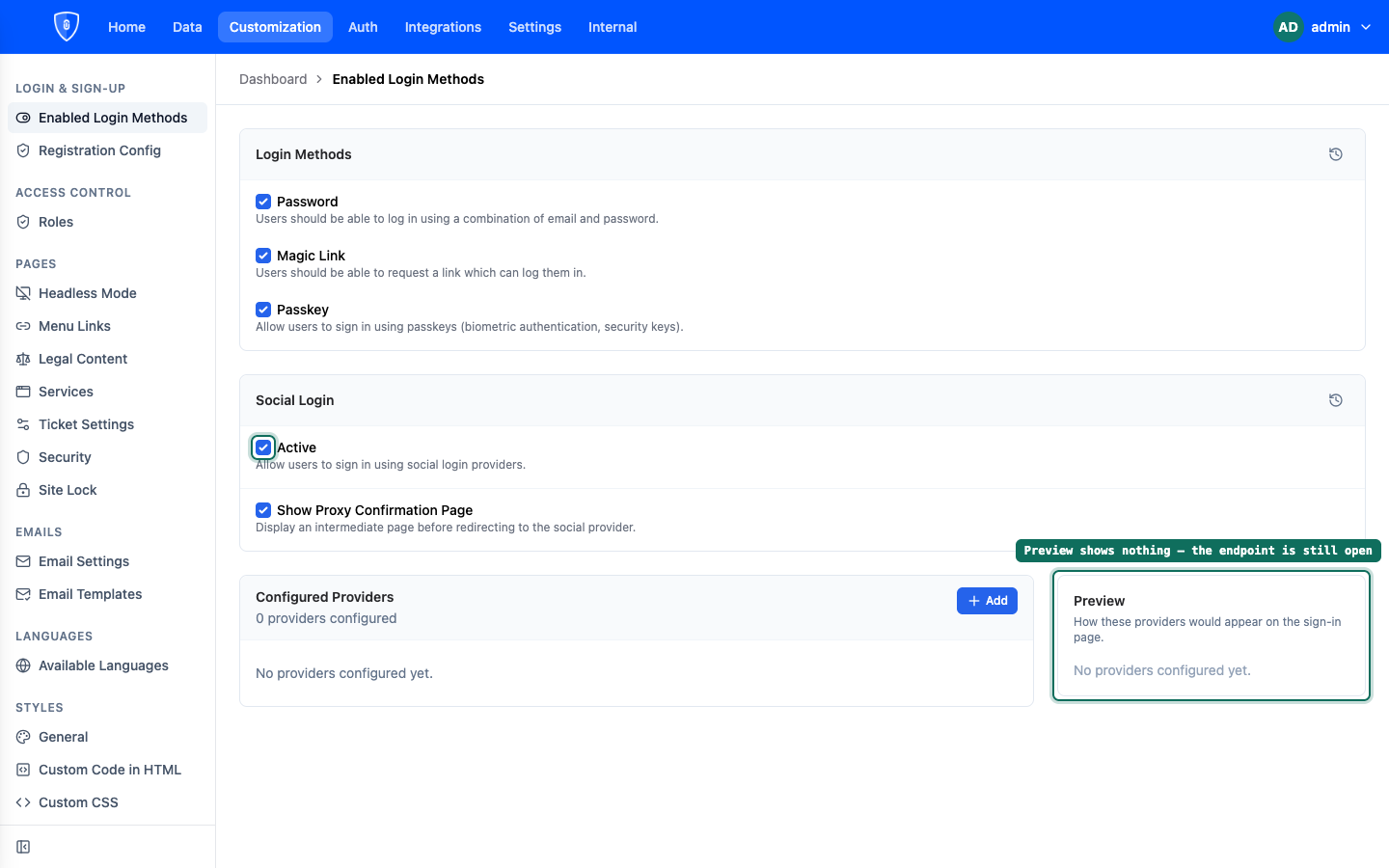
ENABLED LOGIN METHODS — the per-brand half · highlights on Active and on the Preview card, which is empty here because this brand has attached nothing.
Shared providers and visibility
A brand-specific provider link takes precedence for that provider type. If that link is hidden or its provider is disabled, resolution does not fall back to a different shared row. Without an explicit brand link, a shared enabled row may be selected for a named strategy.
To stop offering a provider for a brand, change the configured row's visibility or enabled state as appropriate and verify the affected hosted and SDK flows. To disable a shared provider, consider all brands that depend on it. Removing a link may restore fallback behavior, so removal and hiding are different operations.
Do not clear a required client secret as the normal off switch: validation can reject the change. Use the provider's configuration controls, and revoke credentials at the upstream provider when you need to invalidate the external application itself.
How an identity becomes an account
| Returning identity | Result |
|---|---|
| Already linked provider identity | Uses the associated Unidy account. For generic OIDC, the provider configuration is part of the identity lookup, so different issuers are kept separate. |
| Unlinked regular provider with an email matching an existing account | Can resolve and link through the applicable social-login flow. Where Unidy offers an existing-account connection step, the customer authenticates that account before linking. This does not merge two existing customer records. |
| New regular provider identity | Can proceed through registration, required fields, or an external signup destination, depending on the brand configuration. |
| KYC provider with an email matching an existing account | Sends the customer through sign-in to the existing account and the verification-connect flow, rather than silently matching only by email. |
| KYC provider without an email | Can create an account using a synthetic address and require a real email later. |
| Existing account not connected to the current brand | May require brand connection before access completes. Handle that outcome explicitly in custom applications. |
Ordinary providers need an email address. Mark a provider as KYC only when it is an identity-verification integration, not as a workaround for missing ordinary profile data.
Manage connected accounts from the hosted profile
The profile's Connected accounts area lists the brand's available sign-in providers and their connection state. It can show the linked provider email; Apple private-relay addresses receive a privacy-aware label. Verification providers can show verification and renewal status.
- Sign in to the intended Unidy account and open its profile.
- Choose Connect for an available provider, complete that provider's sign-in, and return to the profile.
- Confirm the provider is connected to the intended account. For a KYC provider, use Verify or Verify again as offered and check the resulting verification state.
- To remove a connection, choose Disconnect and confirm. The operation can be refused if it would leave no usable sign-in method.
Connecting starts a short-lived, account-bound intent. If the round trip expires or the browser session changes, restart from the profile. An identity already linked to a different account cannot be silently transferred by this action.
Disconnecting a KYC identity clears the account's verification timestamp. It does not merely hide the provider button. A separate passkey, browser session, authorized application or brand membership has its own lifecycle.
When a first provider sign-in offers to connect an existing account, sign in to that account using its existing method and complete the connection. Cancelling does not establish a successful link. Test both new-account and existing-account paths before rollout.
Profile fields and OIDC claim mapping
Generic OIDC configurations can map provider claims onto Unidy profile fields and assign configured custom attributes. Mapping is applied on the relevant creation, linking, registration, or verification-connect paths.
It is not reapplied on every normal sign-in of an already linked identity: that path can reuse the existing account directly. Do not promise continuous profile synchronization through login. If the external system must remain authoritative after account creation, define and implement a separate synchronization contract.
Standard provider profile fields also have their own fill-empty behavior. Check the particular mapped field and flow before assuming that a customer's edits will be overwritten.
Start social sign-in from your application
For hosted login, the configured button initiates the flow. For a custom application, use the SDK's social-login integration and its registered return URL. Use the provider keys returned by the SDK rather than inventing them; Google is represented as google, and named generic OIDC providers use oidc_SLUG.
The browser entry point is:
GET /api/sdk/v1/sign_ins/auth/omniauth/PROVIDER?sdk_redirect_uri=ENCODED_RETURN_URLThis navigation creates an SDK sign-in and enters the provider round trip. It is separate from a registration-intent flow; normal social sign-in does not automatically populate an SDK registration flow.
On return, handle both success and follow-up outcomes. Depending on the flow and SDK version, the application receives a sign-in identifier and authentication payload, or an error such as brand_connection_required or missing_required_fields. Use the supported SDK handler to establish the application session, complete outstanding steps, and remove credentials from the visible callback URL. Do not log the authentication payload or treat its presence alone as permission for every application action.
The SDK client's allowed return destinations and the brand's provider configuration both matter. See JavaScript SDK, React SDK, and SDK HTTP sign-in and registration operations.
Troubleshooting
| Symptom | Check |
|---|---|
| Provider rejects the client or callback | Confirm the selected brand's configuration, enabled state, credentials, issuer, and exact registered callback. |
| Unexpected provider on a brand | Inspect shared-provider fallback and the brand's explicit links. |
| Button hidden but a custom application still offers the provider | Review the application UI and provider configuration; hosted Social Login Active is not a universal authentication gate. |
| Email missing | Request the required email data from the provider; use the KYC flow only for an actual verification provider. |
| Existing customer's fields do not update on login | Linked-identity sign-in does not rerun all mappings. Use a dedicated sync when ongoing updates are required. |
| Brand connection or required fields requested | Complete the returned step before presenting sign-in as finished. |