Data migration
Prepare, import, validate, and reconcile source data.
Data migration
Prepare a migration that identifies what will be created, what will be updated, how you will verify it, and how you will recover if part of it fails. The output is a source-to-Unidy mapping, a reconciled staging rehearsal and an approved cutover runbook.
Import users from CSV documents the import wizard. This page covers the work around each import, including related resources and post-import checks. For an ongoing exchange between systems, use an integration surface with its own synchronization plan.
An import has no whole-run undo
Committed work survives cancellation or a later failure. The job's touched-resource list includes both created and updated records: it is not a list of records that can safely be deleted. Keep newly created IDs and before-values for updates separately. Never bulk-delete all touched IDs as a rollback.
1. Inventory the source and decide how existing data is treated
Assign a data owner and an import operator with the appropriate resource and brand access. For each source file or API load, record:
| Decision | Record in the migration plan |
|---|---|
| Source and target | Source system/export time, target environment, resource, brand and service where applicable |
| Identity | Stable source key, corresponding Unidy identifier, lookup fields, and how conflicting identities will be resolved |
| Create or update | Whether existing records may be updated, the allowed fields, and which system wins when values differ |
| Related users | Whether users already exist, are imported first, or may be created through a related-resource import |
| Communications | Whether invitations, reinvitations or downstream synchronization are intended; designated test recipients for the rehearsal |
| Consent and preferences | Source evidence and the exact subscription state/preferences to preserve; do not invent confirmation dates |
| Recovery | Before-export/snapshot, newly created record tracking, external side effects and the operator authorized to recover them |
| Acceptance | Required fields, relationships, customer-visible outcomes and the permitted unresolved exceptions |
Parse the CSV with a CSV-aware tool using the same separator, quoting and headers as the wizard. Count data rows, not physical lines: quoted multiline cells make a line count inaccurate. Normalize and inspect duplicate source keys before upload. Keep the original export immutable and version each transformed file and mapping.
Choose the migration audience
Migrate existing service accounts so customers can retain their data, history, and entitlements without creating unrelated new accounts. The shared identity can also give them access to other connected services. Agree which users may be transferred and retained with the responsible data owner before exporting; retention and consent requirements depend on your organization and purpose. Do not treat the absence of one regulation as permission to transfer every record.
Review inactive accounts as a data-quality decision. An appropriate inactivity period depends on how frequently customers use the service; Customer Success can help define it. Deduplicate email addresses before import: one email identifies one Unidy account. Merge relevant data into an agreed leading contact, often the contact with the highest rights, while explicitly preserving the user's entitlements. Different email addresses can create separate IDs for the same person. Names and addresses can help flag these cases for review, but do not automatically prove two people are the same.
Compare with existing Unidy users
Export the relevant existing Unidy users through the supported dashboard/export process and compare the file in a CSV-aware tool or spreadsheet before import. Prefer preserving current Unidy values unless the field owner has approved a replacement. Choose one of these four cases:
| Existing-user decision | Prepare the input |
|---|---|
| No existing users | Proceed after mapping and quality checks. |
| Existing values should be replaced | Include approved updates and enable Update existing records?; retain before-values and rehearse the exact fields. |
| Existing values should be preserved | Remove those users from the creation file, or use a verified create-only run with updates disabled. |
| Preserve existing values and add only missing information | Separate existing users into a file containing identity plus only the approved additional fields. Run it separately with update behavior verified. |
Customer Success can assist with mapping, exports, and the supported import procedure. The current CSV wizard also lets an authorized operator perform the import directly.
2. Prepare definitions and map identifiers
Create the required brands and global definitions from the setup worksheet, including categories, newsletters and custom attributes, before mapping the file. Importers use different lookup rules; a display title is not a universal identifier.
| Resource or field | Mapping to verify | Important behavior |
|---|---|---|
| User | Email for creation; UNIDY ID can identify an update when updating existing records is enabled | Confirm the target for every existing person. Resolve conflicting email/ID pairs before import. |
| User brand | Brand Name matches the brand's name | Values are trimmed, but an unknown or differently cased name can fall back to the wizard's current/default brand. Verify the brand membership after import. |
| Ticket/subscription category | Map the category identifier or title offered by the relevant importer | These importers accept category internal/public IDs or title. Check the resolved category; do not assume an ID from another environment refers to the same record. |
| Ticket/subscription record | User identity plus Reference, in the intended service | Retain stable references for matching. Missing or reused references require a deliberate policy before reruns. |
| Ticket/subscription service | Wizard Service and any mapped service value | An unrecognized mapped service can fall back to the wizard selection. Check the actual service on the imported record. |
| Newsletter subscription | Email plus newsletter numeric ID or Internal name | Use email even if the mapping screen accepts UNIDY ID: runtime validation requires email. The newsletter's display title is not its internal name. |
| Newsletter preferences | Preference identifiers belonging to that newsletter | Validate identifiers and confirm the resulting preference set on representative records. |
| Custom attributes | Definition Name, plus the correct input format | Definitions must exist when mapping and when executing. Inspect saved values after import; a successful job is insufficient evidence that every intended field was mapped. |
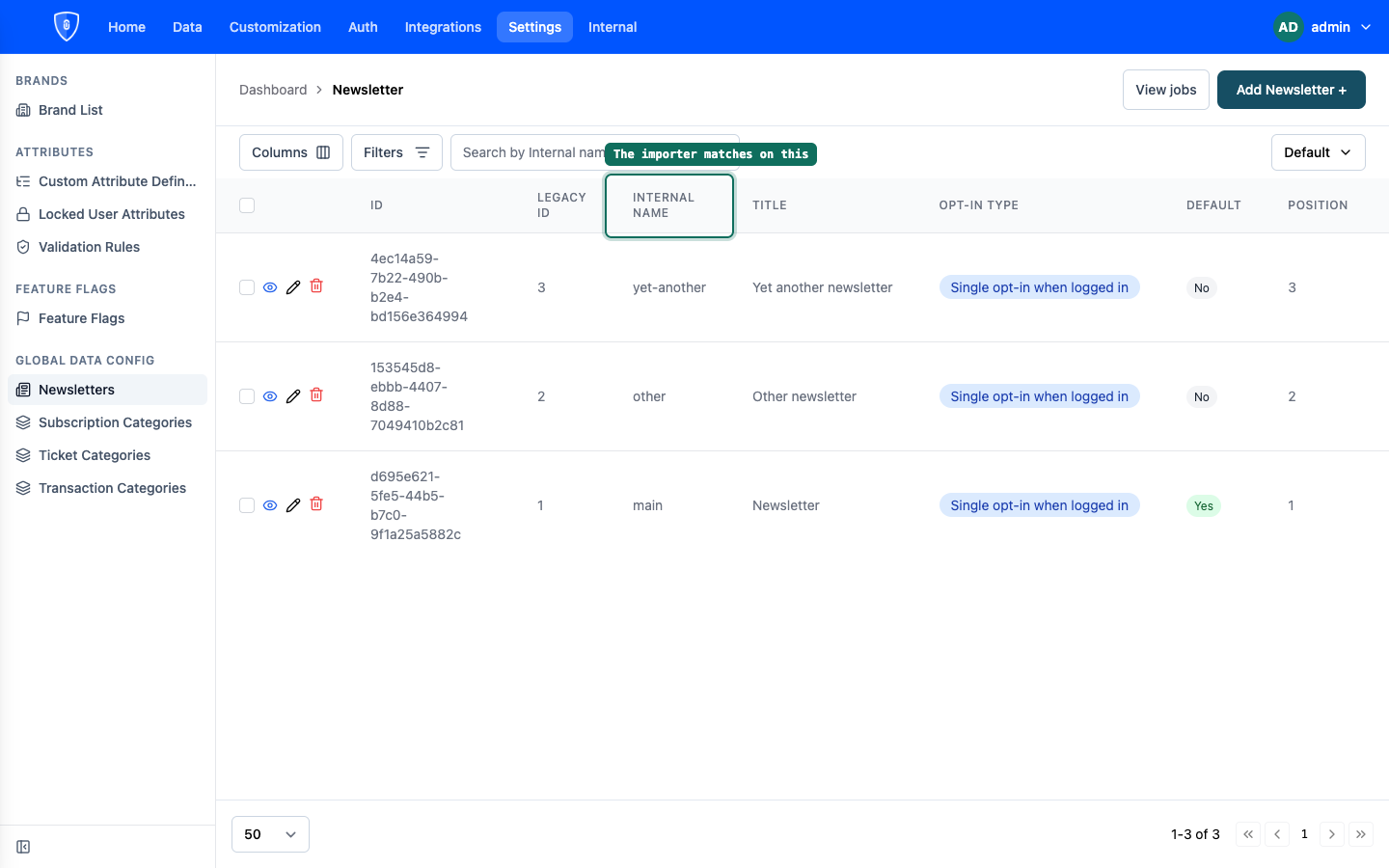
Settings → Global Data Config → Newsletters — three newsletters whose Internal name and Title differ · highlight on the column the newsletter-subscription importer actually matches against
Define the synchronization scope
Map every field that will synchronize before go-live so an incomplete baseline does not overwrite values in the connected service. Standard migrations commonly include email, first and last name, postal address, phone number, and date of birth. Agree which system owns each field and its synchronization direction in a source-to-target worksheet; Customer Success can supply a mapping template. Create any missing custom-attribute definitions before import.
Include values needed by other services, even if they originate in the migrating service. For example, a membership flag from a membership system may grant shop and ticketing discounts. Verify that the flag reaches both services on login and that the entitlements remain correct.
Determine each service's login identifier. If it identifies users by email, no extra login ID mapping is needed. Where an external stable ID is supported, prefer the Unidy ID to maintaining another cross-system identifier. If a service mandates its own ID, agree the mapping with Customer Success. After users have been created in Unidy, export their source/email-to-Unidy-ID mapping and import it into each service that requires that external identifier. Verify representative logins before cutover. This additional ID transfer is unnecessary for an email-only service.
A simple mapping worksheet might contain:
| Source column | Map to | Example decision |
|---|---|---|
customer_email | Normalize the source email; retain the original source key in the migration ledger. | |
brand_name | Brand Name | Confirm that NorthClub exists in the target environment before upload; the display name may differ. |
membership_reference | Reference, on a subscription import | Keep the same reference for the same membership across corrected files. |
newsletter_code | Newsletter Internal name | Use club_updates, not the newsletter's translated display title. |
member_level | The corresponding custom attribute | Agree the definition name, input type and allowed values first. |
For updates, document what an empty source cell means. The general importer preserves existing ordinary fields when incoming values are blank, and supports the explicit __CLEAR_THIS_FIELD__ marker for clearing supported values. Resource-specific behavior differs: newsletter updates handle confirmation and preferences separately. Rehearse the exact fields you intend to preserve, replace or clear instead of applying a blanket blank-cell rule.
Complete the Data quality checklist before rehearsal.
3. Rehearse a representative load in staging
Use a staging environment with disposable data and approved recipients. Include a new user, an existing user, a duplicate input, an invalid input, a related resource and the custom-attribute/consent cases used by your source. Include more than one batch if you need to verify a partial-run procedure.
- Create the required definitions and compare the mapping worksheet with the target configuration.
- Import users first when other resources need to link to that user set. This is a recommended preparation step, not a universal product requirement: related-resource imports can create missing users when configured, and newsletter subscriptions can exist without a linked user.
- Import the applicable newsletter subscriptions, product subscriptions and tickets. Choose Create missing users, Update existing records, invitation and synchronization options deliberately for each run.
- Load transactions through the supported REST API or connector path if they are in scope; the dashboard CSV importers do not include transactions. Follow the endpoint's matching/retry contract instead of assuming repeating a write is harmless.
- Reconcile the run using the procedure below. Rerun a corrected file only after identifying what the first run committed and whether the second run should create or update it.
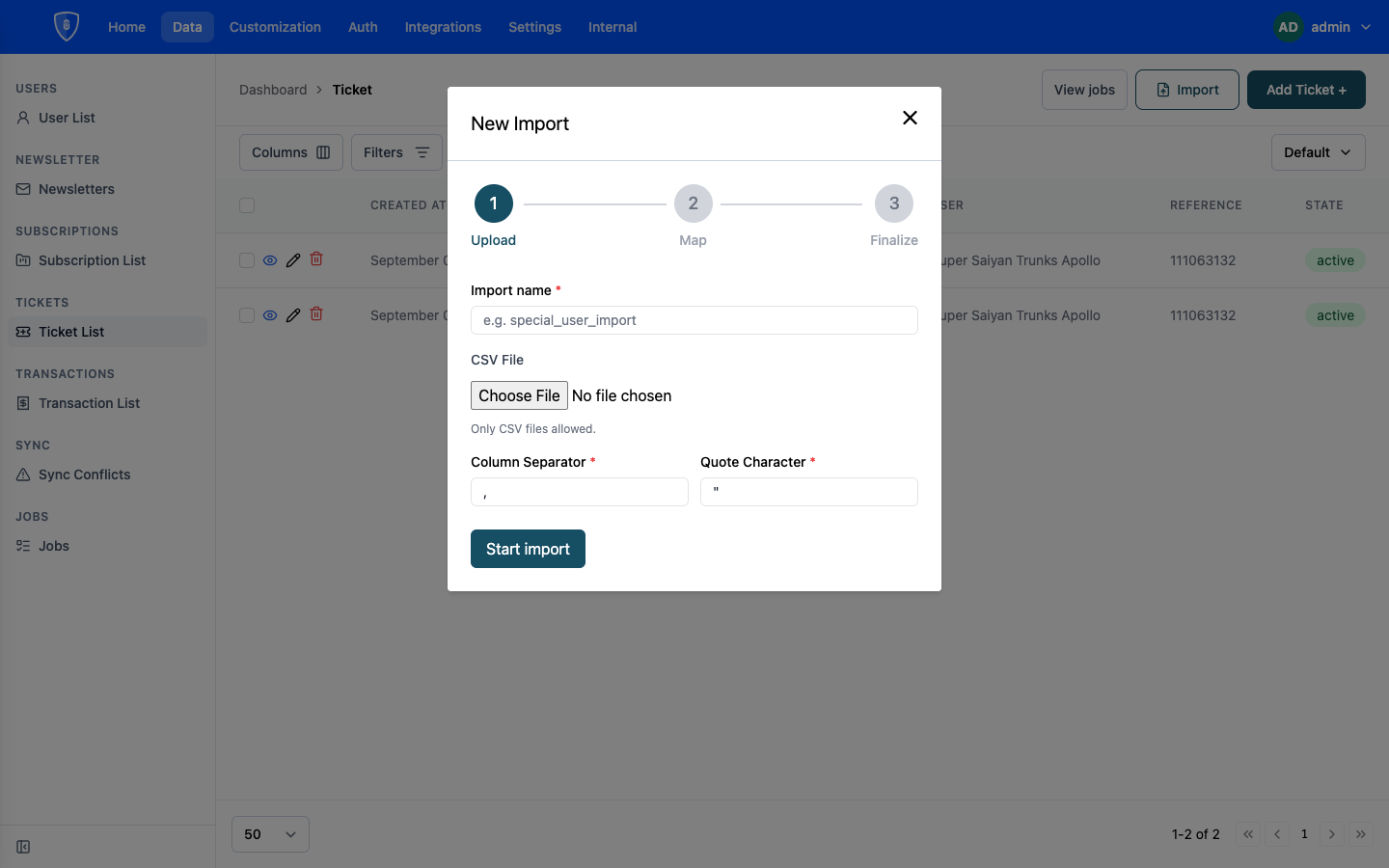
Ticket List → Import — the same Upload / Map / Finalize wizard as the user importer, reached at /dashboard/tickets_imports/new
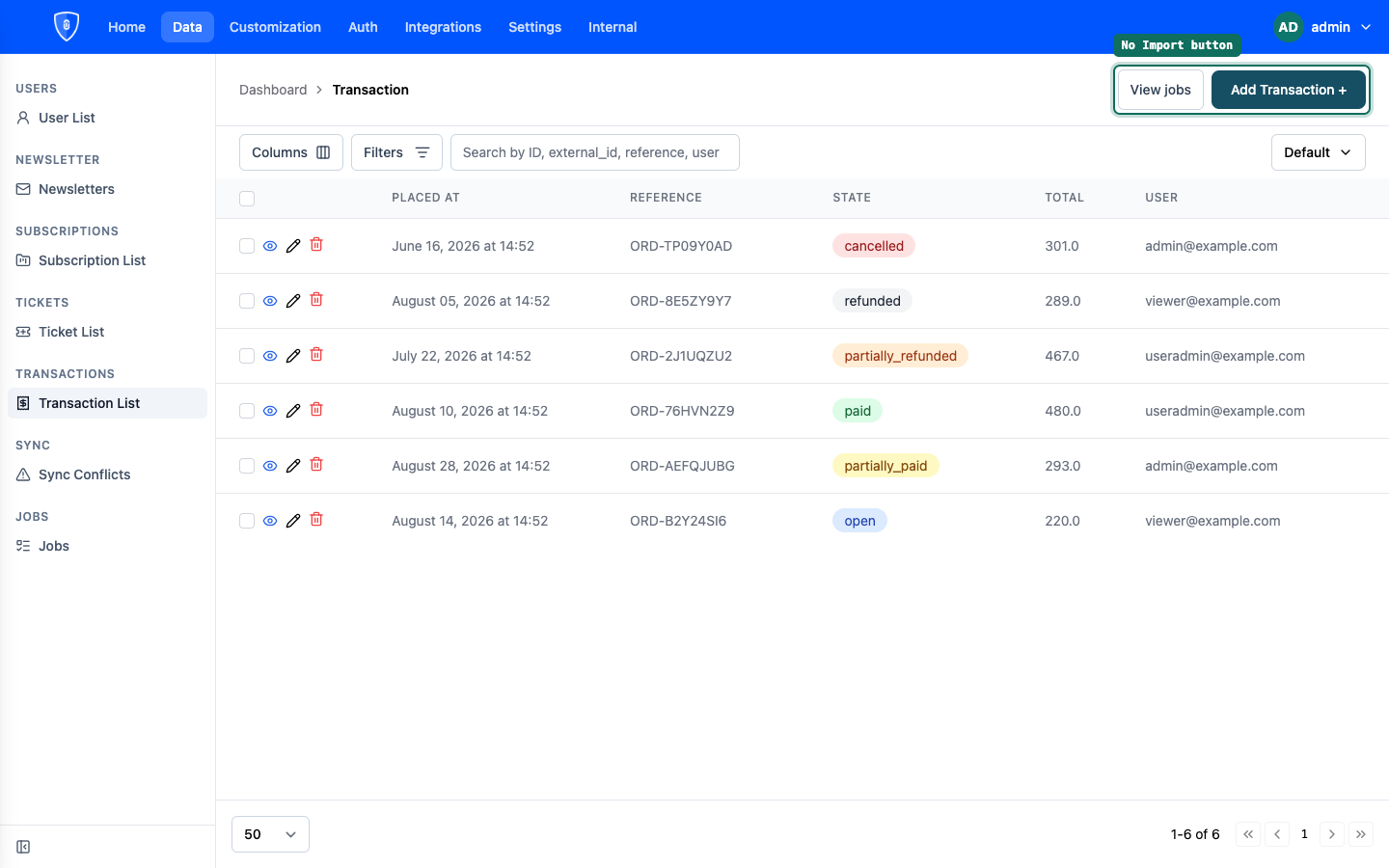
Data → Transaction List — the toolbar has View jobs and Add Transaction + and nothing else · highlight on where the Import button is on the other four screens
Choose whether downstream systems should receive migration changes. Confirm the behavior of the import's synchronization option and each connector. A webhook subscription created later does not backfill historical events; plan a separate baseline/reconciliation when a receiver starts after migration.
4. Monitor each run and retain its evidence
Record the job identifier, source-file version, mapping, options, start/end time, status and operator. Save the source CSV and any available error report promptly. Retention depends on operational policy; do not treat the Jobs screen as a permanent migration archive.
| Job information | How to use it |
|---|---|
| Status | Distinguish completed, failed and cancelled runs. A completed run can still contain invalid inputs. |
| Progress | Measures input rows processed, including invalid rows; it is not the number of records written. |
| Total | Can be an estimate based on physical lines. Compare against your own CSV-parsed input count. |
| Created and updated records | Record outputs of the import. A duplicate input or conflicting existing record does not necessarily produce another output record. |
| Invalid records and report | Inspect each reported reason, correct the source and retain its disposition. Do not equate every non-created input with an invalid row. |
| Skipped count | Do not rely on this alone to account for inputs that matched existing records or were merged as duplicates. |
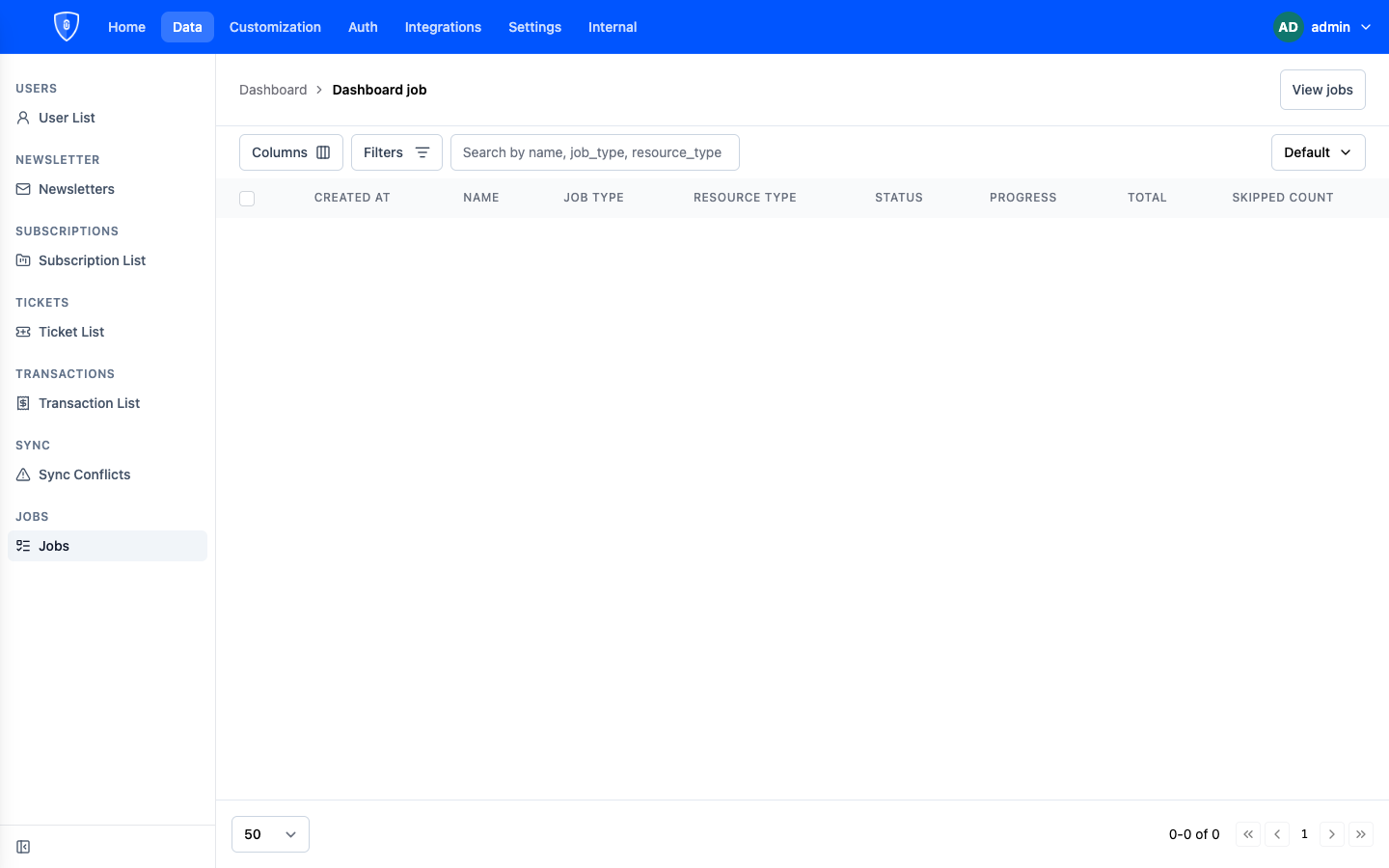
Data → Jobs — the reconciliation surface, empty on this instance (0-0 of 0). There is no empty-state message; a screen with no jobs looks the same as a screen that failed to load.
Imports run in batches; cancellation is checked between batches. The base resource writes use a transaction, but related-user creation/update may happen before that transaction and later jobs may run after it. Do not assume a failed batch or cancelled job reverses all its side effects. A failure may also limit which reports the dashboard exposes; preserve the job details and ask the operator to investigate before retrying.
5. Reconcile inputs, outputs and relationships
Do not require created + updated + invalid = source rows. Duplicate input rows may merge, existing records may be skipped with updates off, and counters describe different units. A single dashboard total or API meta.count cannot show that this particular file landed correctly, especially while other writers are active.
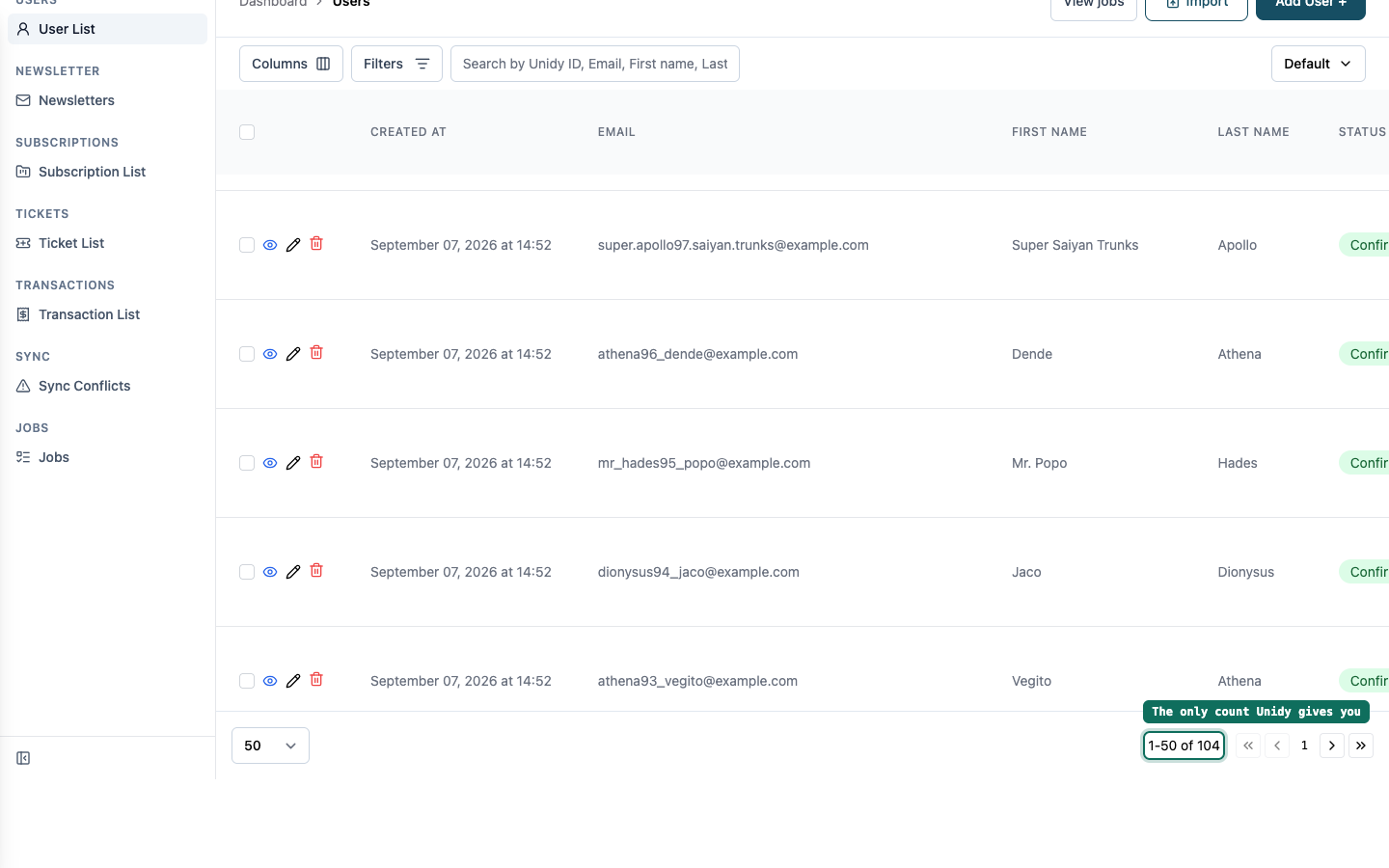
Data → User List — the record count sits in the pagination footer · highlight on the only total the dashboard prints. There is no count anywhere on the job page of how many records the resource now has, only of what this run did.
Use a ledger that accounts for the source and proves the target state:
| Evidence | Reconciliation question |
|---|---|
| CSV-parsed source rows and duplicate-key groups | Which input rows describe the same intended target? What merging or rejection policy was applied? |
| Before/after target key sets | Which target records are new? Which existed before the run? Which expected keys are still missing? |
| Before/after mapped values | Did each intended update land? Did values meant to be preserved remain unchanged? |
| Invalid-row report | Which inputs failed, why, and will they be corrected, excluded with approval or handled separately? |
| Existing records with updates disabled | Which inputs intentionally produced no update? Confirm their current values are acceptable. |
| Brand/service/category/user relationships | Does each imported resource belong to the intended customer and scope? |
| Customer and downstream checks | Can representative users access the correct data, and did required invitations/synchronization have the intended effect? |
Use the dashboard and supported API endpoints for the resource being reconciled. Their coverage and authorization differ: newsletter definitions are not newsletter subscriptions, and user-authorized collection endpoints are not a tenant-wide export. Follow REST scopes and permissions and Pagination and filtering. Do not substitute a development-only API for a supported production reconciliation path.
For incremental follow-up, account for the date-based changed_since behavior and overlapping reads described in the pagination guide. Persist progress only after results are durably applied. Include a periodic full or key-based reconciliation where the API cannot guarantee a complete ordered change history.
6. Cut over and recover deliberately
Agree which system accepts writes during cutover. Capture a final delta or pause source writes if the plan requires it; record the boundary. Run the final loads, repeat reconciliation, and get the data owner's acceptance before switching dependent customer journeys or integrations.
If a run is wrong:
- Stop starting new dependent work and assess whether ongoing writers or consumers need a coordinated pause.
- Retain source files, options, reports, job IDs, before-values and the target key reconciliation. Identify external messages and events already emitted.
- Separate records created by this run from records that existed and were updated. The job's
resource_idscombines both. Creation provenance can help investigation, but is not a full rollback ledger. - Have the authorized operator review dependencies before deleting any newly created record. For updated records, restore retained before-values through a supported, reviewed procedure; do not delete the customer to undo an edit.
- Reconcile again, including downstream systems. Sent emails and external side effects need their own recovery decisions.
There is no general import-level rollback button, and a completed import is not retried in place. A corrected CSV is a new run. Database-level restoration, when necessary, belongs in an approved internal recovery runbook with scope, backup and validation—not a customer copy-and-paste deletion recipe.
Finish by linking the accepted migration ledger and recovery owner from Testing and go-live and Communication and support handoff.